Known Participant
October 30, 2012
Answered

Stroke Text Outside ...

  • October 30, 2012
  • 2 replies
  • 185743 views

Hi, in CS6 i'm trying to stroke a 12pt text outside. Though that is one of the most basic requirements for graphical design work (text in front of fuzzu stff for example) I'm not able to figure it out nor find it in the docs how and the plenty online posts didn't work right.
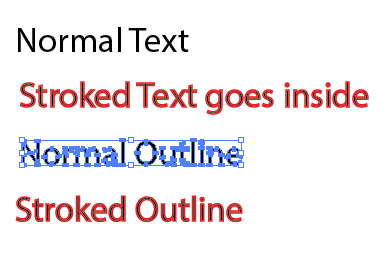
http://files.2he.com/uploads2/2012-10-30--02-51-28.jpg

Where do I find the buttons for inside / outside / center for the stroke as in this doc ? I never get them no matter what. Not even with a rectangle. ?

"

http://help.adobe.com/en_US/illustrator/cs/using/WSA1E31D7D-13E6-41ac-AA8C-4AD129B9FC1Ca.html
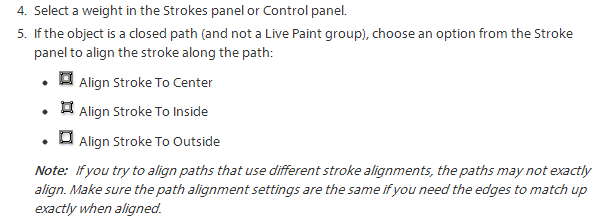
http://files.2he.com/uploads2/2012-10-30--02-53-42.jpg

"

The path offset thing doesn't work for me, it created gaps everywhere and is hard to control when I need to re-adjust stuff.

Creating an outline of the text also created the stroke inside.

Does someone know how to outside stroke text or outline in Illustrator ?

Regards,

Frank
Correct answer SJRiegel

Thank you, that was quite useful to a problem I'm having – although it didn't solve it 100%.

When I create a text and add a stroke to it, it's impossible to make the stroke outside the text unless I outline it (and I don't want to do that).

And IF I do outline it and put a stroke in a different color on it, if the stroke is wide enough it covers the letters.

I wasn't aware that I could make several strokes, so thanks for that. I fount that if I make one stroke on Type in the same color as the text, and then another stroke on Character in the actual color I need the strone to be in, it seems to look the way I want to.

But this didn't use to be this difficult, and some part of me thinks that there is a more simple solution to my problem.


https://forums.adobe.com/people/Hanne+Sofie  wrote

I wasn't aware that I could make several strokes, so thanks for that. I fount that if I make one stroke on Type in the same color as the text, and then another stroke on Character in the actual color I need the strone to be in, it seems to look the way I want to.

But this didn't use to be this difficult, and some part of me thinks that there is a more simple solution to my problem.

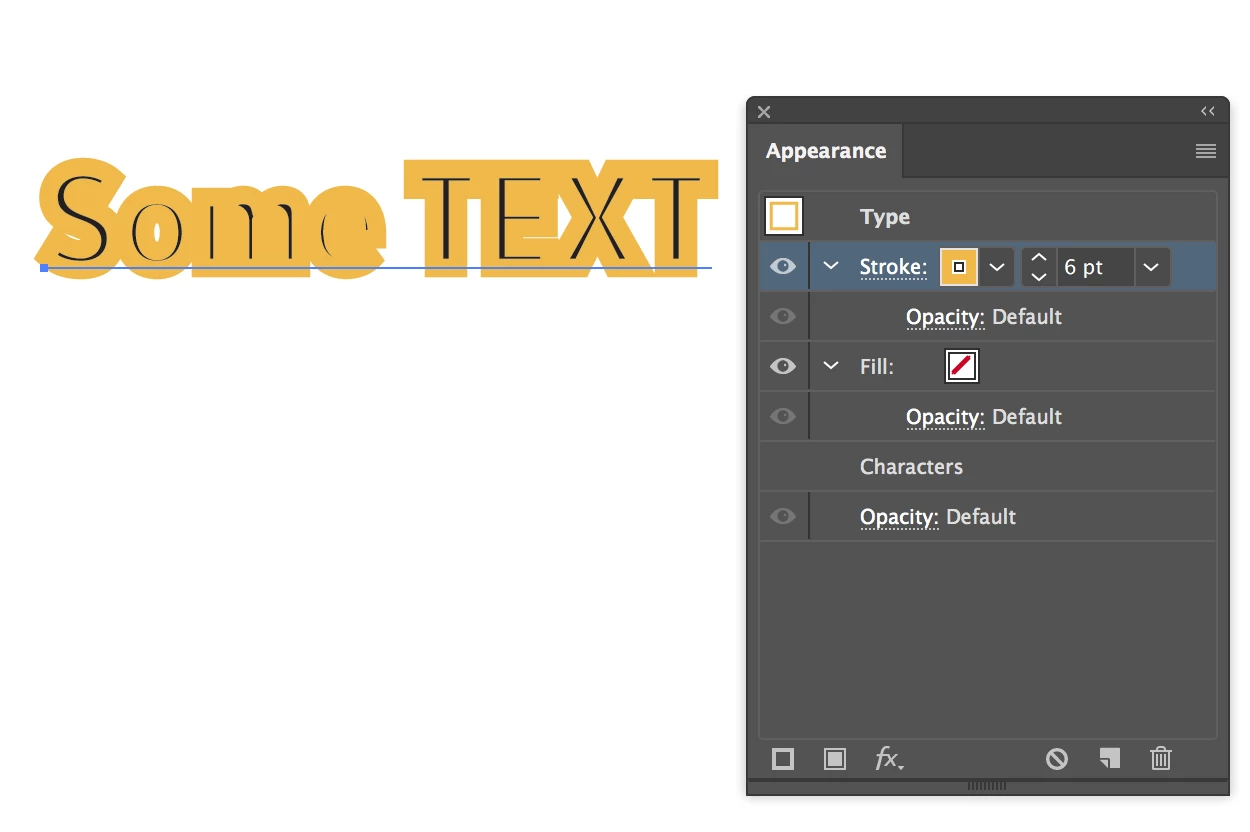
I think you are missing one step in the instructions.  After you add the stroke to the Text object in the Appearance panel, go into the panel, grab the stroke line by its right side, and drag the stroke down below Characters.

Both of the examples below are of the same live text. The second one is after I moved the stroke down in the panel.

2 replies

Participant
January 21, 2019

I might just be dumb but since I'm new to Illustrator I couldn't follow Frank's instructions. So a kind of duct tape workaround I found was to make the stroke so large that it expands outside the font making it look like a giant mess with the vague outline of a sentence. Then I just copy the original text line the 2 versions up and remove the stroke from the new version placed on top.

Legend
January 21, 2019

nelsonk97955779  wrote

I might just be dumb but since I'm new to Illustrator I couldn't follow Frank's instructions. So a kind of duct tape workaround I found was to make the stroke so large that it expands outside the font making it look like a giant mess with the vague outline of a sentence. Then I just copy the original text line the 2 versions up and remove the stroke from the new version placed on top.

While this method works, it creates problems down the line if you want to edit the text, or use the same style for entirely different text. 

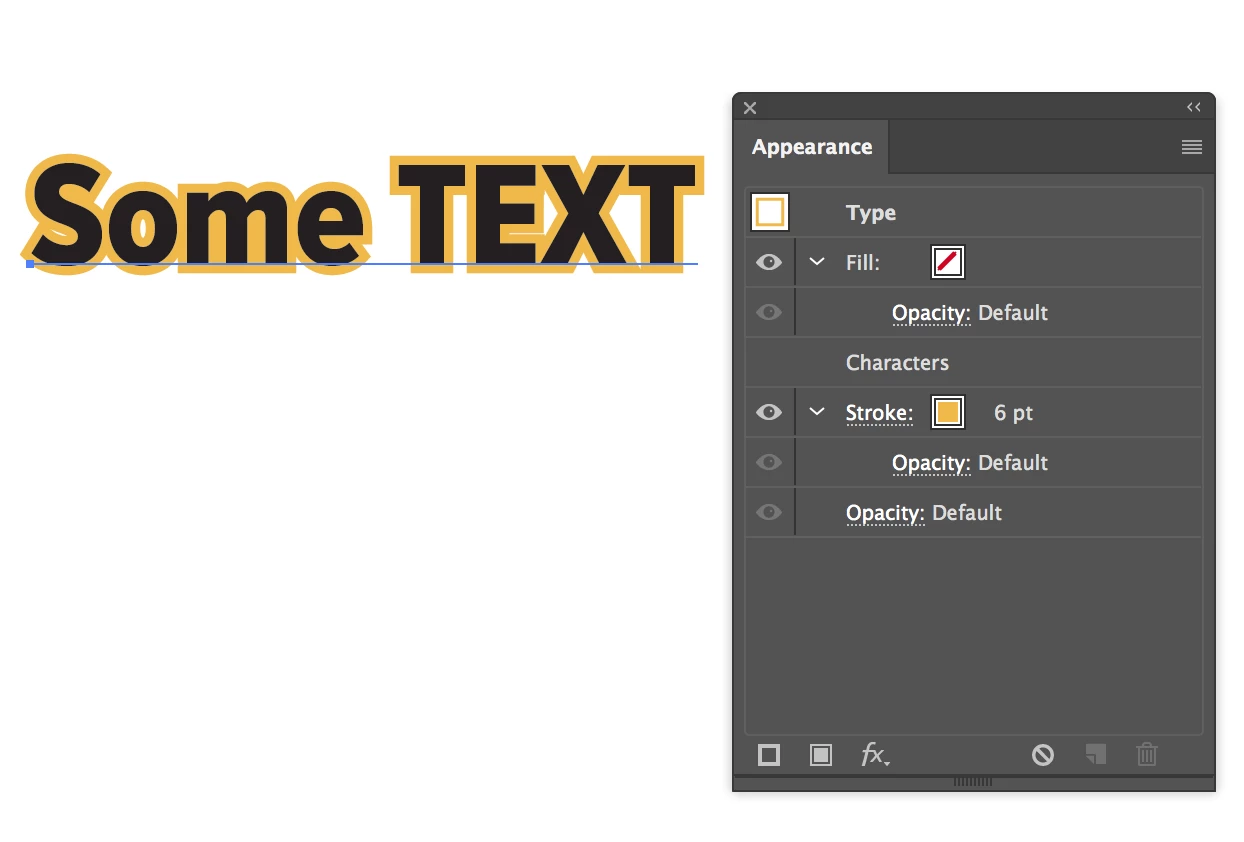
Here are some screen shots to help illustration method that needs just one instance of the text.

Note that the stroke has to be added in the Appearance panel, and that it is added to Text, not Characters.

Using this method with increasingly large strokes can allow many strokes to the added to the same text object.

Known Participant
March 12, 2019

Thank you, that was quite useful to a problem I'm having – although it didn't solve it 100%.

When I create a text and add a stroke to it, it's impossible to make the stroke outside the text unless I outline it (and I don't want to do that).

And IF I do outline it and put a stroke in a different color on it, if the stroke is wide enough it covers the letters.

I wasn't aware that I could make several strokes, so thanks for that. I fount that if I make one stroke on Type in the same color as the text, and then another stroke on Character in the actual color I need the strone to be in, it seems to look the way I want to.

But this didn't use to be this difficult, and some part of me thinks that there is a more simple solution to my problem.

fhxfhxAuthor
Known Participant
October 30, 2012

ok i just found it, it looks a bit different but is in the stroke flyout of course

http://files.2he.com/uploads2/2012-10-30--03-22-12.jpg

http://files.2he.com/uploads2/2012-10-30--03-18-01.jpg

Yexy stroking seems to be kinda neglected in Illustrator. It requires outlines to offer aligning he stroke.

Jacob Bugge
Community Expert
Community Expert
October 30, 2012

Frank,

The way I (mis)understand the question, you can make it with live Type this way, using the Appearance panel:

1) In the flyout (upper right arrow) tick Add New Stroke,

2) Set the Stroke Weight to twice the desired value,

3) In the main window drag the Stroke down below Characters.

This will set the stroke(s) behind the lettershape(s) so you only see the outside half of it.

fhxfhxAuthor
Known Participant
October 30, 2012

great ! that's exacly how it goes.

Thx,

Frank