Anshul_Saini
Community Manager
Community Manager
October 10, 2023

Text to Vector Graphic: Generate vectors effortlessly with simple Text Prompts

  • October 10, 2023
  • 16 replies
  • 35590 views

Explore New Creative Possibilities with Text to Vector Graphic in Illustrator, supporting your creative process by turning your ideas into customizable vector graphics with just a prompt!

With the enhanced Text to Vector Graphic feature, you can now:

  • Toggle prompt suggestions on or off for greater control over your designs.
  • Create subjects and icons without a background layer, ensuring clean bounding boxes.
  • Reset Style Reference, Effects, and Color & Tone settings independently or together, keeping them separate from other features.

 

Try it yourself

Follow along with a sample file to learn how to quickly generate vector graphics.


Note:

Patterns are now a standalone feature called Generate Patterns and are no longer part of Text to Vector Graphic. 


Check out our tutorial for a firsthand look at Text to Vector Graphic in action.

A special thanks to Paul Trani (Principal Worldwide Evangelist- Adobe), for sharing this video!

Discover the incredible potential of Text to Vector Graphic in Adobe Illustrator. This groundbreaking feature, powered by the latest Adobe Firefly Vector Model, empowers you to quickly craft and edit stunning vector graphics in your own style.


Various Options to Generate Artwork with Generate Vectors

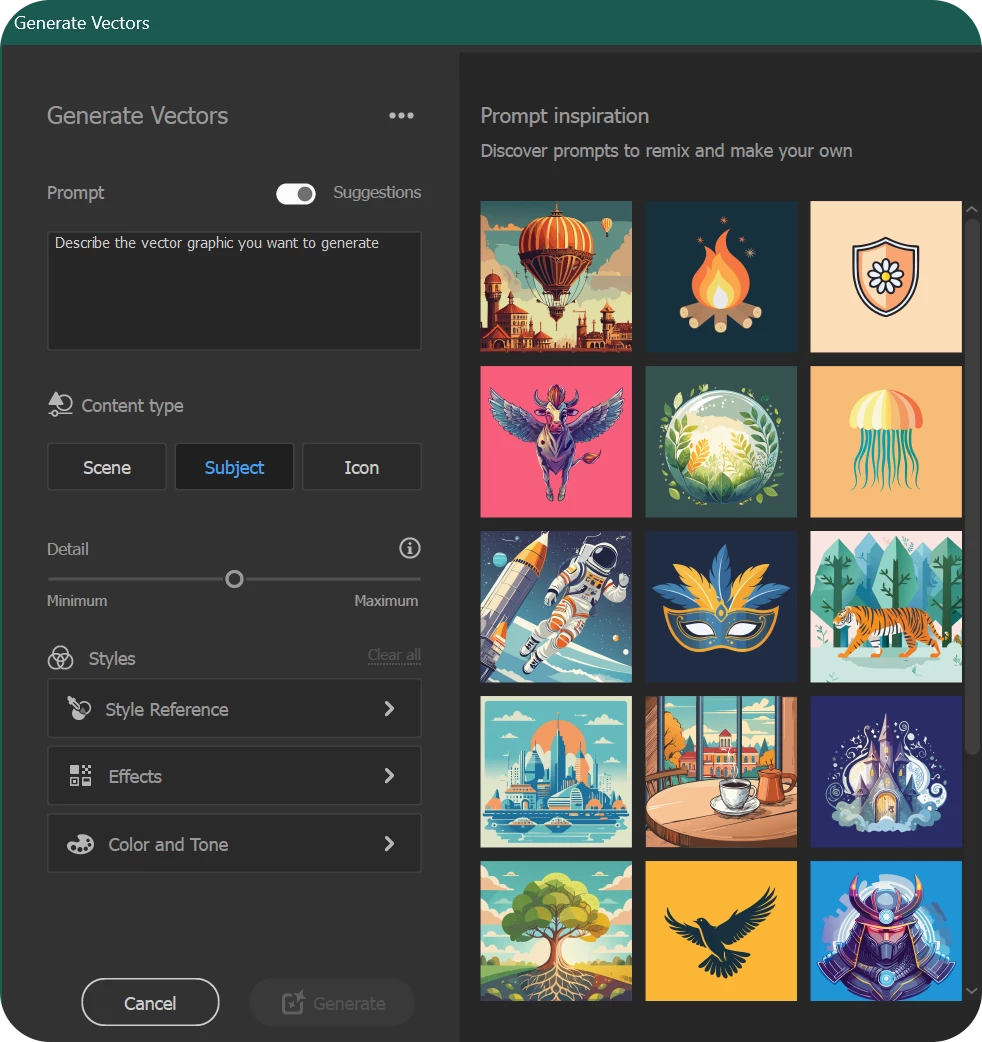
  • Scene: Choose this to generate complete vector scenes, effortlessly bringing your creative visions to life.
  • Subject: This option creates a standalone vector element, free from a background. Use it to enhance your existing artwork or spark new ideas for your designs.
  • Icon: Create streamlined vector elements without backgrounds. Perfect for designing icons/ logos with simplicity and elegance.


Ensuring Brand Consistency with Style References

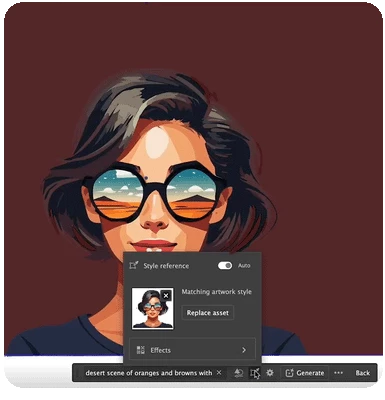
With the Style Reference feature, you can generate vector graphics that match the style and color of your existing artwork. This ensures a consistent look across all your designs, maintaining the integrity of your brand's visual identity.

By using this, you can seamlessly integrate new graphics into your projects, aligning them perfectly with your established style guidelines. This feature is essential for producing cohesive and professional-quality content that resonates with your audience and reinforces your brand's presence.


Enhance Your Creations with Effects

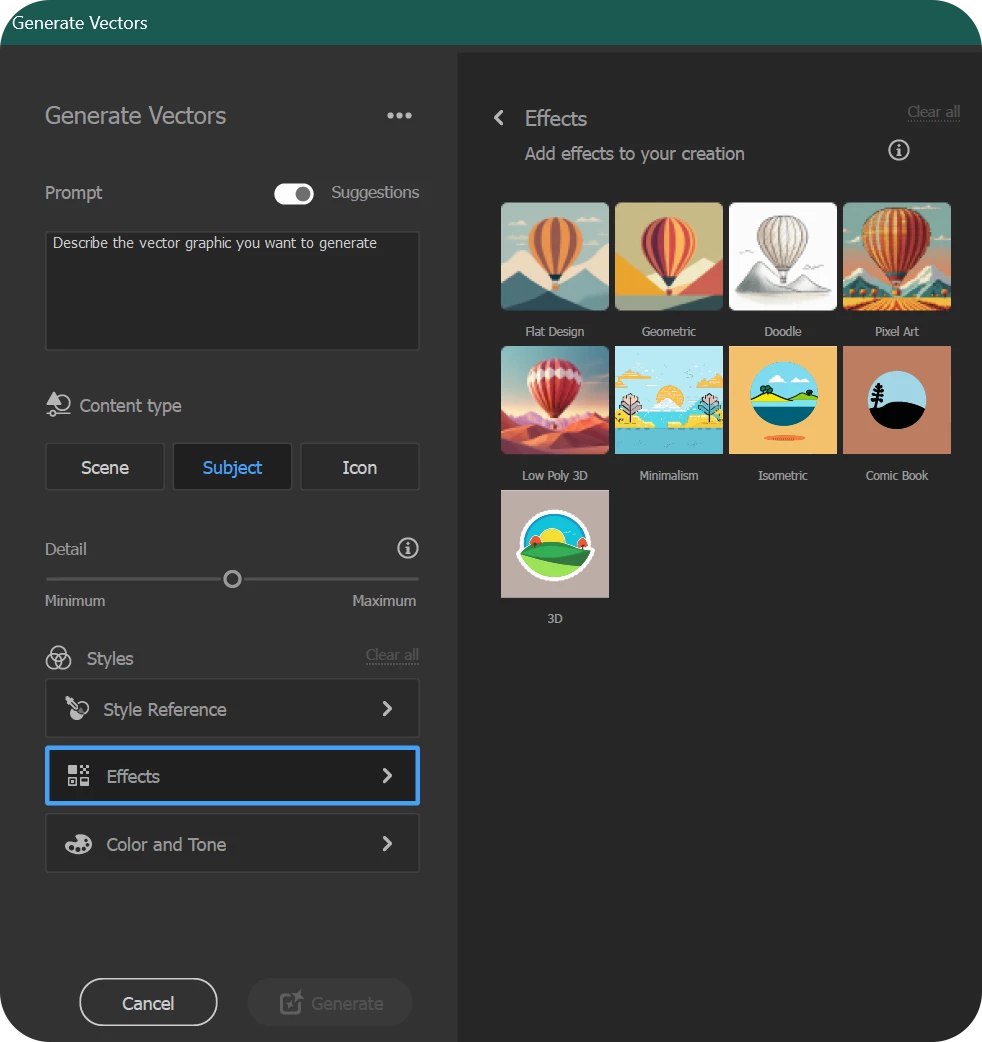
Under the Effects section, you can select style presets and add dynamic effects to your creations. Choose an effect that resonates with your vision from a variety of options, including:

  • Flat Design
  • Geometric
  • Doodle
  • Pixel Art
  • Low Poly
  • 3D
  • Minimalism
  • Isometric
  • Comic Book
  • 3D Effects

These presets allow you to elevate your designs, giving them a unique and polished look that aligns with your creative goals.


Enhanced Customization with New Detail and Color Controls

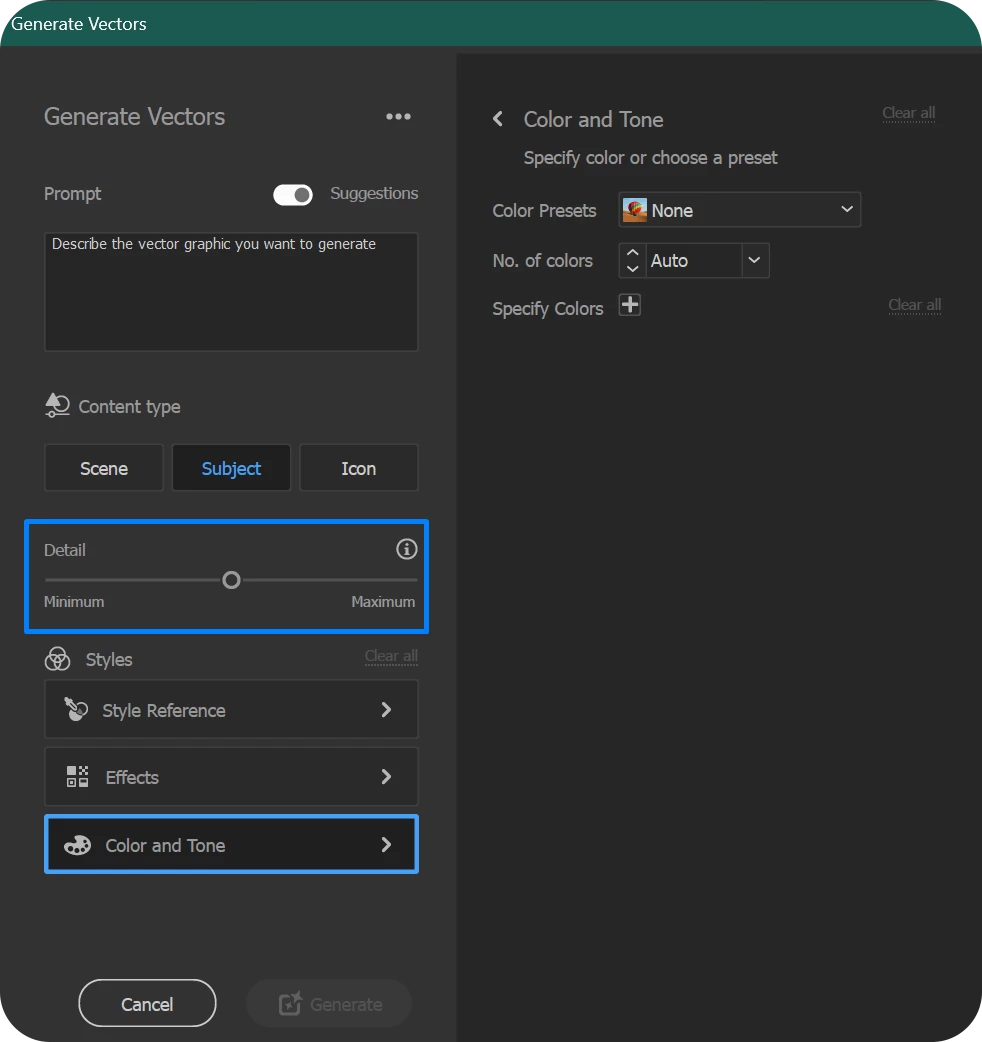
The new detail and color controls provide users with greater flexibility to achieve their desired results. 

  • Adjust Detail Level:
    Use a slider to set the level of detail from minimum to maximum, allowing for precise control over the intricacy of your vector graphics.
  • Color and Tone Selection:
    Choose from various color presets to find the perfect palette for your design.
  • Custom Color Options:
    Specify the number of colors to be used in generating your vector graphics, with options to select up to 30 colors or specify up to 12 distinct colors.

These advanced controls empower you to fine-tune your creations, ensuring they match your vision.


Manage and Refine with the New Generated Variations Panel

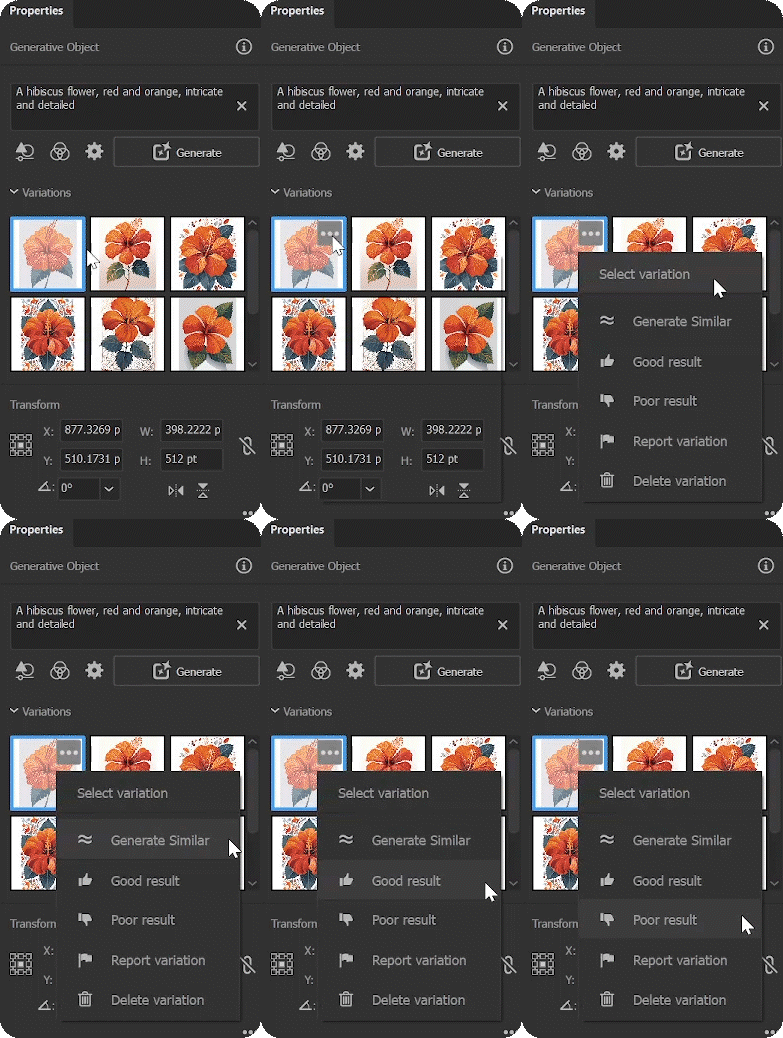
The new Generated Variation Panel offers an intuitive way to manage and refine your designs.
Key features include:

  • Easy Access to Variations: Find all your generated variations in one place for convenient browsing.
  • Delete or Generate Similar Variations: Easily remove unwanted variations or create new ones similar to those you like.
  • Share Feedback: Provide feedback by marking variations as "good" or "poor," or report any issues by clicking "report variation."
  • Detailed Feedback Options: Include text prompts and the generated image with your feedback, along with additional notes to help improve the results.


For more details about this new feature, please click here.

We’d love to hear from you!

Try out the new "Text to Vector Graphic" feature and let us know your thoughts. Feel free to reach out if you have any questions or need more tips!
If this was helpful, please click the Upvote icon in the top left corner of this post. Your feedback helps us improve the experience. Thank you!


Have questions? Click 'Reply' below to ask.

Click 'Follow' below to bookmark this post for easy reference.

This post has been updated to reflect the latest changes with Illustrator 29.5.

    16 replies

    ericc19576445
    Known Participant
    October 19, 2023

    The location of the Text to Vector Graphic (Beta) in the Properties Panel is super invasive and should not go there or should at least have the option to move or disable. It also doesn't stay collapsed which is very annoying. This does not belong in the properties panel and forces everything lower and takes up valuable space and is a hinderence to my workflow.

    I honestly can't believe Adobe put a beta feature directly into one of the most important panels and left us with no way to remove or move or disable it.

    Anshul_Saini
    Community Manager
    Community Manager
    October 21, 2023

    Hi @ericc19576445 @pauljohnc @Manji312 ,


    I appreciate your feedback regarding the placement of the Text to Vector Graphic (Beta) feature in the Properties Panel. I understand that you find it invasive and believe it affects your workflow negatively.


    I want to assure you that your feedback is valuable, and I have already conveyed this directly to the product team. They take user feedback into consideration when making decisions about feature placement and functionality.


    In addition to my efforts, you can also make your voice heard by upvoting this feedback on UserVoice (https://illustrator.uservoice.com/forums/939477-illustrator-desktop-beta-bugs/suggestions/47369087-why-is-text-to-vector-graphic-beta-section-in-th) and adding your comment. Increasing the number of upvotes and comments on UserVoice can help draw the product team's attention, and they may consider making changes based on user feedback in future updates.


    Your input is essential in shaping the future of Adobe Illustrator, and I thank you for sharing your thoughts on this matter.


    Best,

    Anshul Saini

    New Participant
    October 16, 2023

    Can you take this crap out of the properties panel? I'm tired of having to close it every time I open Illustrator so I can see, ya know, the properties.

    Monika Gause
    Community Expert
    October 16, 2023

    I seem to remember that someone already posted a feature request on Uservoice. That's where your feature requests and bug reports go. Kinder language makes people listen to you over there.

    The forum is 95% volunteers and we cannot change the app.

    Participating Frequently
    October 21, 2023

    @pauljohnc I understand that you're experiencing an issue with a link that seems to direct you to the Beta app, even though you're using the latest stable release, which is version 28.0. It appears there might be a compatibility or version detection problem with the link. This can happen because the link is designed to open in the latest version of Illustrator, which can include both stable and pre-release or Beta versions.


    I hope that clarifies!


    Best,

    Anshul Saini


    by Beta app I meant Illustrator (Desktop) Beta forum.

    Fear my complaint will be dismissed because its in the wrong forum.

    October 14, 2023

    Hello, I have updated and even reinstalled Illustrator. There is nothing related to generation in the context menu when selecting a rectangle.
    I managed to get the generation tab from the tutorial file, but the generation itself is not available there: all fields are grayed out


    October 14, 2023

    tested this on both Macbook Air M2 2022 and Macbook Pro M1 2021 

    Monika Gause
    Community Expert
    October 14, 2023

    Did you already try signing out and then in again?

    Did you get the alert asking you to consent to the rules?

    Earth Oliver
    Brainiac
    October 13, 2023

    So this is a Beta feature that's not in the Illustrator Beta? Could that be any more confusing?

    New Participant
    October 13, 2023

    Hello!

    I have updated Illustrator to the lasest version where it allows to use Generative fill to create graphics. But when I try to use it warning message appears saying "This feature is not available in your region". Which is  weird — I have no problems using the same function in Photoshop. 


    I travel a lot, and billing region is not currently the same as my physical location. So which region causes a problem? And what is so wrong with my region? Why does Adobe descriminate its subscribears by region at all? We pay the same subscriptions and must be eligible to use full functionality of the software.


    Any suggestions and solutions?

    Monika Gause
    Community Expert
    October 13, 2023

    This public forum is 95% volunteers. We cannot answer your question. Please contact Customer Care. https://helpx.adobe.com/contact.html 

    New Participant
    October 10, 2023

    The feature seems to be  missing from 28.145, here at Max. 

    Monika Gause
    Community Expert
    October 10, 2023

    It's not in the Illustrator beta version. You have to update the application to GA (Generally Available) public release, which is Illustrator version 28.0 via the Creative Cloud app.

    New Participant
    October 10, 2023

    Creative cloud says I have the latest version, no further updates available