New Participant
March 12, 2025
Answered

Thin black lines appearing between patterns

  • March 12, 2025
  • 2 replies
  • 1834 views

These hairline black/dark line appear between the boundies of patterns. They do show on export.
- I've tried disabling General>Anti-aliased Artwork

- Reset preferences

- Made sure artwork and artboard are pixel perfect.

- The line never grow or shrink, always seemingly the same relative size

- Lines do not appear on transparent parts of pattern

RGB Color
72 PPI
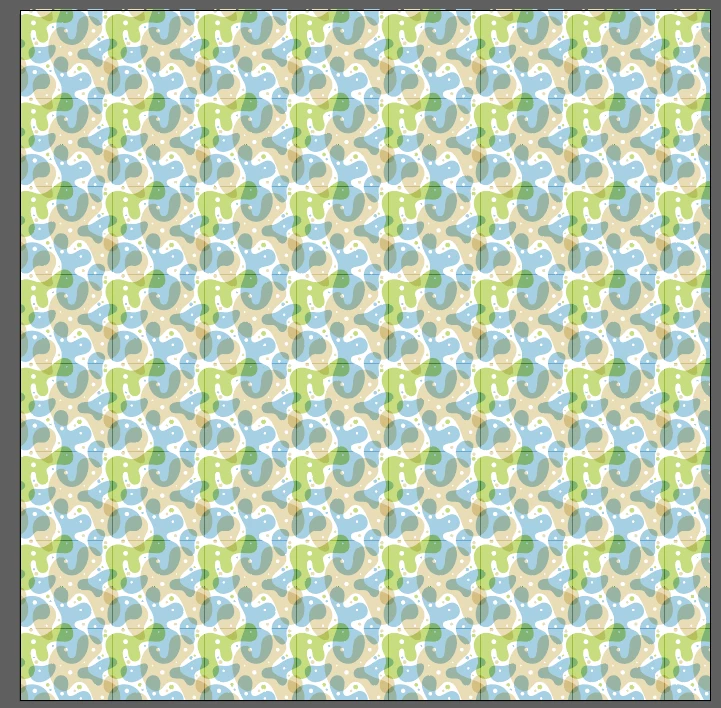


These are default illustrator patterns on a 1080 pixel x 1080 pixel square, on a 1080 pixel x 1080 pixel artboard. Lines appear on both, more so on one.


Is there any fix for this? Makes a lot of pattern related projects essentially impossible now.

Correct answer Ton Frederiks

Hi Joseph, these lines are caused by anti-aliasing, you will see more or less of them when zooming in/out.

They can become visible on low resolution devices like a computer screen or when exporting or printing to a desktop printer.

There are at least 2 ways these unwanted lines become visible and this pattern has both.

This pattern has a Multiply blend mode which can cause darkened lines where the tiles touch.

Another cause of lines in a pattern is when the pattern size contains fractional pixels, this one is 144,1296 X 138,3624 px, which will cause lighter lines where the tiles touch because fractional pixels do not exist in images and will get rounded.

I solved the transparency problem by flattening the pattern tile against a white background and deleting the white objects.

Then the other problem became visible, I made the resulting pattern tile size rounded to whole pixels and both problems disappeared.

From left to right, the original pattern, the flattened one and the rounded version.

Creating patterns with rounded pixelsize should not be too difficult, avoiding transparency artefacts is more difficult.

I think the Illustrator team should look into a solution for both problems.

You can open the enclosed pdf in Acrobat and Illustrator for inspection.


2 replies

Ton Frederiks
Ton FrederiksCorrect answer
Braniac
March 13, 2025

Hi Joseph, these lines are caused by anti-aliasing, you will see more or less of them when zooming in/out.

They can become visible on low resolution devices like a computer screen or when exporting or printing to a desktop printer.

There are at least 2 ways these unwanted lines become visible and this pattern has both.

This pattern has a Multiply blend mode which can cause darkened lines where the tiles touch.

Another cause of lines in a pattern is when the pattern size contains fractional pixels, this one is 144,1296 X 138,3624 px, which will cause lighter lines where the tiles touch because fractional pixels do not exist in images and will get rounded.

I solved the transparency problem by flattening the pattern tile against a white background and deleting the white objects.

Then the other problem became visible, I made the resulting pattern tile size rounded to whole pixels and both problems disappeared.

From left to right, the original pattern, the flattened one and the rounded version.

Creating patterns with rounded pixelsize should not be too difficult, avoiding transparency artefacts is more difficult.

I think the Illustrator team should look into a solution for both problems.

You can open the enclosed pdf in Acrobat and Illustrator for inspection.


New Participant
March 14, 2025

@Ton Frederiks 
This is originally what I thought as well, that because the size of the pattern isn't pixel perfect- the tiling would have problems. But it also seems that you can't really use any blending modes in your pattern either unless you first crush it and remove the blending mode prior to making it a pattern.

So both of the Adobe patterns that they include, are broken out of the box.

Also, I'm not sure why, but your final fixed version of this pattern suffers from an invisible line- did you perhaps make all the points pixel perfect?


Ton Frederiks
Braniac
March 14, 2025

Yes you are right, my mistake. I replaced the file by a (hopefully) corrected one ((PattFlattRound v2.pdf) that does not show the distortion. And, yes many of the included patterns suffer from these problems.


Community Manager
March 12, 2025

Hello @Joseph385534632scl,

Would you mind sharing more details, like:

- Are you using CPU Preview?
- Is this happening on the part of the pattern which is outside the artboard?
- Does this disappear when you zoom in to a certain level?

Looking forward to hearing from you.

Anubhav

New Participant
March 12, 2025

Hi,
- This appears on both cpu and gpu preview

- It happens within the artboard as well as outside of the artboard
- I could not constently get the lines to disappear. Although sometimes certain lines disappear at zoom levels, but never all the lines. 

The verticle line on the blue "blob" disappear at  1600%-2400% but only sometimes and I can not reproduce it consistently. This is not a rule by any means just noticed that these lines aren't really "there" although they do export and they do ruin the artwork.

Community Manager
March 13, 2025

Hello @Joseph385534632scl,

Can you please share a link to a sample file you're having trouble with and a screen recording of the problem after uploading it to a file-sharing service, so I can check it on my end?

Looking forward to hearing from you.


Anubhav