


.M.P.
Inspiring
January 1, 2021
Answered

tilt a dashed two color line in every path

  • January 1, 2021
  • 2 replies
  • 2090 views

Hello,


I hoping someone can help me.


I want to draw a path and fill the line with two colors. Thats not hard, but I want to tilt the line in every path. Look at the attachement.


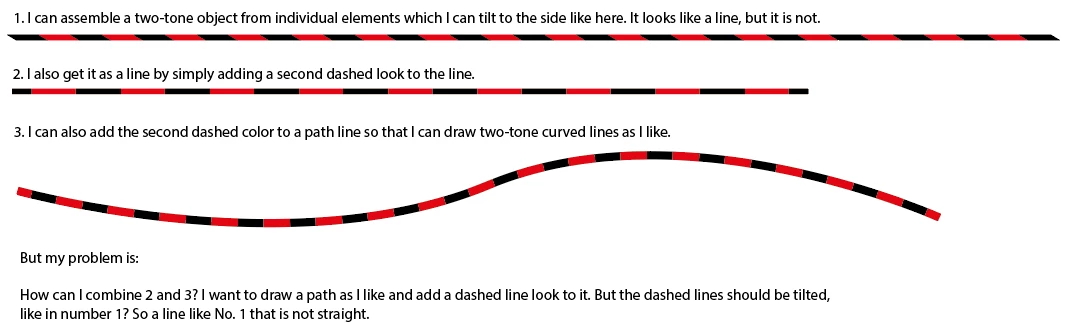
1. I can assemble a two-tone object from individual elements which I can tilt to the side like here. It looks like a line, but it is not.


2. I also get it as a line by simply adding a second dashed look to the line.


3. I can also add the second dashed color to a path line so that I can draw two-tone curved lines as I like.


But my problem is:

How can I combine 2 and 3? I want to draw a path as I like and add a dashed line look to it. But the dashed lines should be tilted, like in number 1? So a line like No. 1 that is not straight.
 

Greetings,

MP

This topic has been closed for replies.
Correct answer Larry G. Schneider

You could also make a pattern fill with alternating stripes, then draw your line, use Object>Path>Outline Stroke and replace the fill with your pattern. The pattern can be rotated as you like using the rotate tool and unchecking the box to rotate the shape and checking the box to rotate the pattern.

2 replies

Ashutosh_Mishra
Inspiring
January 2, 2021

Hi there,


Thanks for reaching out. In addition to the response given earlier, I'd recommend checking out this help article(https://helpx.adobe.com/illustrator/how-to/illustrator-create-pattern-brush.html) to know how to create a pattern brush in Adobe Illustrator. Hope it helps.


Regards,

Ashutosh

.M.P.
.M.P.Author
Inspiring
January 2, 2021

Thank you for this video url Ashutosh_Mashira


That helps very well and is the video to the way of Larry G. Schneider I think.


I have learned a lot because you und Larry are engaged to me. THX!


But I have one problem by creating pattern brushes, look that (I have no wacom oder something else):


thank you so much,

MP

Monika Gause
Community Expert
January 2, 2021


Draw a rectangle like the one shown in blue here.

Put it behind the two slanted rectangles.

Assign no stroke and no fill to that rectangle

Select all 3 objects and create the brush from them.

Larry G. Schneider
Community Expert
January 1, 2021

One way would be to make a brush out of line 1.

.M.P.
.M.P.Author
Inspiring
January 1, 2021

@Larry G. Schneider

One way would be to make a brush out of line 1.


Yes, that works for me, thank you!


Any other ways to do this?


THX

MP

Larry G. Schneider
Larry G. SchneiderCorrect answer
Community Expert
January 1, 2021

You could also make a pattern fill with alternating stripes, then draw your line, use Object>Path>Outline Stroke and replace the fill with your pattern. The pattern can be rotated as you like using the rotate tool and unchecking the box to rotate the shape and checking the box to rotate the pattern.