


Participating Frequently
November 7, 2016
Question

4K monitor & Wacom Cintiq / Illustrator Bounding Box Issue

  • November 7, 2016
  • 3 replies
  • 3132 views

I'm working with a 4K monitor & a 22HD Wacom Cintiq (1920 x 1080) on a PC with Windows 10.

I use Adobe CC 2015 latest update, applications, haven't upgraded yet.

The 4K monitor is a recent addition and am noticing problems moving across monitors in Illustrator.
I've scaled up Windows Display settings 200% so the UI isn't ridiculously small on the monitor, keeping the Cintiq settings at 100%.
This was a suggested way of working with a higher res display, so the UI is correctly scaled.

When I pull the Illustrator window across to the Cintiq the UI looks fine on Illustrator at 1920 x 1080, as it scales back to 100%.
When I draw a square it draws correctly however the bounding box is not the correct size or position (see image), which is weird, it's as if only the bounding box is picking up the 200% scaling of the 4K monitor on the Cintiq.
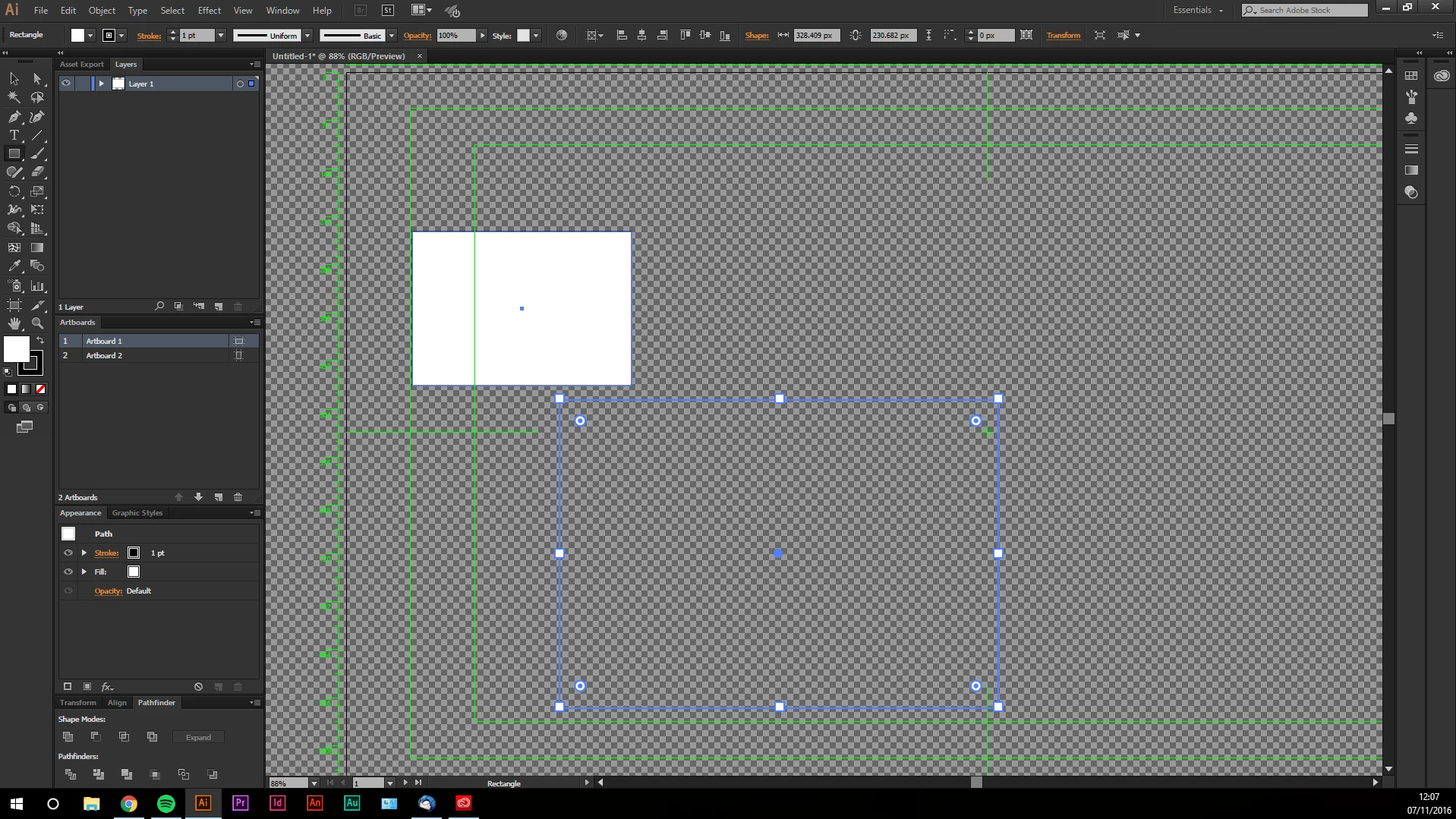

Working with the Wacom Cintiq on my Macbook Pro is fine, and the resolution of the Macbook Pro is higher, 2880 x 1800.


So I only assume this is a Windows issue, are there any known ways to resolve this?
Photoshop does not scale correctly at all, it displays on the monitor at 200% and is too big to even work with.

Wacom don't offer a 4K model as far as I know, so an upgrade isn't possible, I can set my 4k monitor to 1920 x 1080 and it works fine, but I need the 4k monitor to work with video, so not a useful workaround, plus I feel it should display correctly.

This topic has been closed for replies.

3 replies

Participant
April 24, 2017

Hi, Were you ever able to figure your problem out?  I've tried everything with no luck and I'm on a Dell xps 15 with 4k screen and the same issue.  My bounding box, on a freshly drawn non-compund path is aligned and correct if I'm only looking at it on the laptops monitor.  I use a second screen, a 1900x1200 Dell u2410 and when outputting to that screen everything is off-set to the lower right just like your example.  This happens no matter what scaling factor I try.  If I group or add multiple points/nodes to an object all of the sudden everything is aligned again.  It makes it really hard to design on the laptop with external monitor set up.

Participant
April 24, 2017

The issue is fixed for me when I set the DPI scale to be the same for my laptop and 4k monitor. What works for me is setting them both to either 175% or 200%. Give that a try and see if it works.

Participant
April 24, 2017

Thanks!!!! I didn't even realize that you could set display scaling on both monitors as I was only using it on the 4k to get rid of the smaller icons.  My icons on the normal monitor are now way to big but at least things line up now.

Tai

Participant
January 6, 2017

I am also hitting this issue. I have a windows surface book but on my external 4K monitor my bounding boxes are offset and not accurate.

Please address and fix 4K support!

thanks

corban

Participant
November 30, 2016

I believe it's a DPI scaling issue. If you right click on your your desktop and go into display settings and change the display scaling to something higher, it should work. For my display, it is setting it to 175%. It's annoying because I don't want all of my apps and icons to be huge. Adobe really needs to add better support for 4K displays.