


Participant
December 6, 2019
Answered

Creating a rectangular grid that I can snap to

  • December 6, 2019
  • 2 replies
  • 2662 views

Hello,


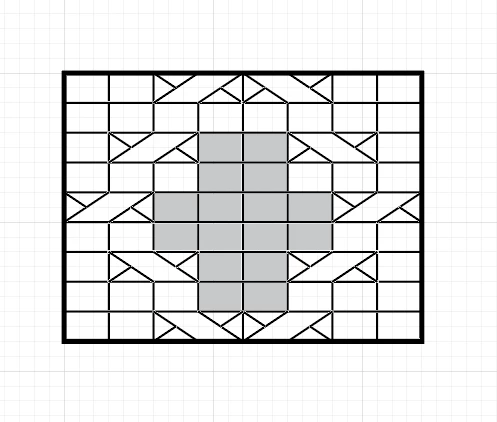
I work in Illustrator CC 2018 on a Mac. I'm creating knitting charts and I need to be able to create charts that have rectangular boxes rather than square ones. Is it possible to create a background grid with a specified proportion that I can snap to? Here's a screenshot of what I want the chart to look like; I need to add symbols and colored boxes to the grid as you see here, and they need to snap to the grid. At the moment, I'm just spacing the horizontal lines every 2 grid boxes and the veritcal lines every 3 grid boxes, which is doable, though not convenient.  It works because I can snap the symbols to the gridlines, but it makes it cumbersome to move things around within the grid (up 2 or over 3 every time I want to move something without using the mouse). However, the proportion the client wants is 5 x 7, which will be even less convenient, and I've got 125 of these charts to create, in different heights and widths (though all with the same rectangle 5x7 proportion). 


Is there any way to create a grid that is rectangular rather than square that I can snap to? It seems like a stupidly simple request, but I can't find any way to do it.


Thanks. Sue


This topic has been closed for replies.
Correct answer Ton Frederiks

I would turn off the grid and turn off snap to the grid and use Smart Guides.

Don't try  to use both because then they work against each other

It works fine with snapping to the custom guides.

2 replies

Ton Frederiks
Community Expert
Ton FrederiksCommunity ExpertCorrect answer
Community Expert
December 7, 2019

I would turn off the grid and turn off snap to the grid and use Smart Guides.

Don't try  to use both because then they work against each other

It works fine with snapping to the custom guides.

vtfiberAuthor
Participant
December 7, 2019

Interesting. I had the grid and all of the "snap to" options turned off and Smart Guides turned on, and it didn't work. I tried turning Smart Guides off and back on again and now it works. Thank you for your help.


Ton Frederiks
Community Expert
Community Expert
December 7, 2019

Sometimes strange things happen.

Good to hear you've got it working.

Ton Frederiks
Community Expert
Community Expert
December 6, 2019

Hi Sue, you can make your own guides from a grid.

Create a rectangle that has the size of the grid you want and choose Object > Path > Split into Grid...

When done choose View > Guides > Make Guides and lock them.

vtfiberAuthor
Participant
December 7, 2019

Thanks for that Ton. I've created my own guides now, but I can't snap to the guides - I still have to snap to the underlying grid. If the guides don't match the underlying grid, then when I create a line, it snaps to the grid and not the guide. I was hoping that the guides that I created would be independent of the underlying grid, and that I could snap to the guides rather than the grid. So essentially the guides haven't given me anything that I couldn't already get from using the grid. I wasn't looking to make a bunch of rectangles for my chart, but rather a customized grid to which I'll add my own horizontal and vertical lines and symbols. Does that make sense?