Participant
December 1, 2012
Question

How do I get rid of the spaces in my custom pattern brush?

  • December 1, 2012
  • 2 replies
  • 30639 views

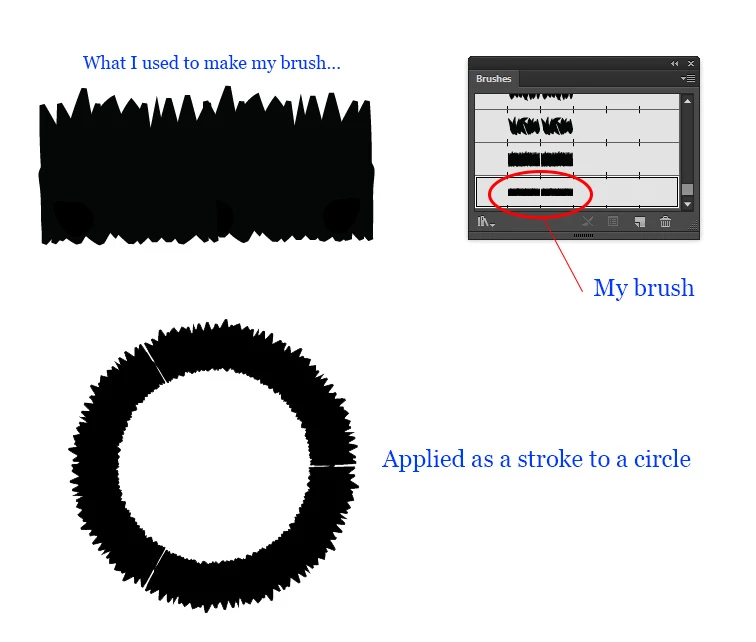
I'm exploring custom brushes in Illustrator (CS6) but cannot figure out how to get rid of the spaces in between my brush pattern. I have the brush stretched to fit and the spacing at 0% but there is still a tiny gap before each pattern repetition. I tried to make the spacing a negative % but you can't do that Can anyone help me out? Thanks!

This topic has been closed for replies.

2 replies

weasel19Author
Participant
December 1, 2012

Thanks very much to both of you!

Inspiring
December 1, 2012

Welcome to the Illustrator Forum weasel19.

Make sure the left and right edges match each other, also ensure that each is perfectly straight vertically.

_scott__
Legend
December 1, 2012

Draw a no-fill, no-stroke rectangle behind the artwork. This rectangle is used as the bounding area of rhte pattern. Ensure what is at the rectangles edges line up.

If you drag the artwork from the Brush Panel to the artboard you'll see that Illustrator already created a rectangle. You can simply adjust that rctangle then drag the artwork back tot he Brush Panel holding the Option/Alt key down and rop it on top of hte existing artwork to replace it.

Inspiring
December 1, 2012

[scott w]'s suggestion will allow for what I stated via a dynamic fashion where actual editing of your brush shape is not needed, good call [scott w] nice suggestion. But it still will not allow for the left and right edges to match each other using this method by itself aside from ensuring that the edges are straight. It will make the edges straight but the two sides may have different appearances, heights , etc., and this will still be noticeable as it repeats, unless you make the two edges match.