


martcol
Inspiring
May 29, 2010
Answered

Make edges of object fade.
  • May 29, 2010
  • 4 replies
  • 46412 views

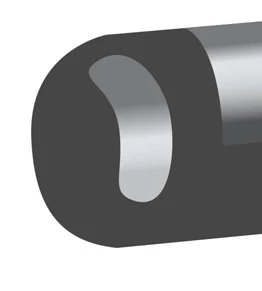
I would like to make that kidney shape fade at the edges so that it appears to blend in with the darker shap.

I tried copying the shape in front and filling it with black and making a clipping mask and then feathering the mask but it just seemed to make it black in the middle.

Thanks


Martin

    This topic has been closed for replies.
    Correct answer Scott Falkner

    Try just adding a gaussian blur to the shape.

    If that won’t work then give the shape a solid white fill and then add a gaussian blur. Use that shape as an opacity mask for a larger object with the same gradient fill. Just a rectangle will suffice. To make an opacity mask you need one object (or group) above the selected and above the object or objects to be masked, also selected. Select Make Opacity Mask from the Transparency panel’s flyout menu. In this case, you just need two object selected: the blurred white kidney shape above the gradient-filled larger shape.

    4 replies

    chen2011
    New Participant
    January 12, 2011

    study...

    martcol
    martcolAuthor
    Inspiring
    January 13, 2011

    chen2011 wrote

    study...

    helpful...

    Inspiring
    January 13, 2011

    Well since it was brought up there is a new way in CS 5 which it to construct the shape as a gradient mesh and give the anchor points at the edges a transparency of "0%" like such

    it is a convincing way I think.

    martcol
    martcolAuthor
    Inspiring
    May 31, 2010

    Thank you very much both of you for the suggestions.

    Terrific.

    Martin

    Inspiring
    June 2, 2010

    You are quite welcome.

    Inspiring
    May 29, 2010

    I tried this and it worked for me.

    Choose your kidney and offset the path the distance you want the fade to be. Make that new larger kidney the same color as the end of the tube and send i behind the original kidney.

    Select both kidneys and use the blend tool to create a blend from one to the other. Then go to the Blend Options under the Object menu and define the number of steps you prefer in your blend. That should do it.

    You may have to tweak the shape of the background kidney - the blend tool can be quirky.

    Scott Falkner
    Scott FalknerCorrect answer
    Community Expert
    May 29, 2010

    Try just adding a gaussian blur to the shape.

    If that won’t work then give the shape a solid white fill and then add a gaussian blur. Use that shape as an opacity mask for a larger object with the same gradient fill. Just a rectangle will suffice. To make an opacity mask you need one object (or group) above the selected and above the object or objects to be masked, also selected. Select Make Opacity Mask from the Transparency panel’s flyout menu. In this case, you just need two object selected: the blurred white kidney shape above the gradient-filled larger shape.