Participant
October 7, 2019
Answered

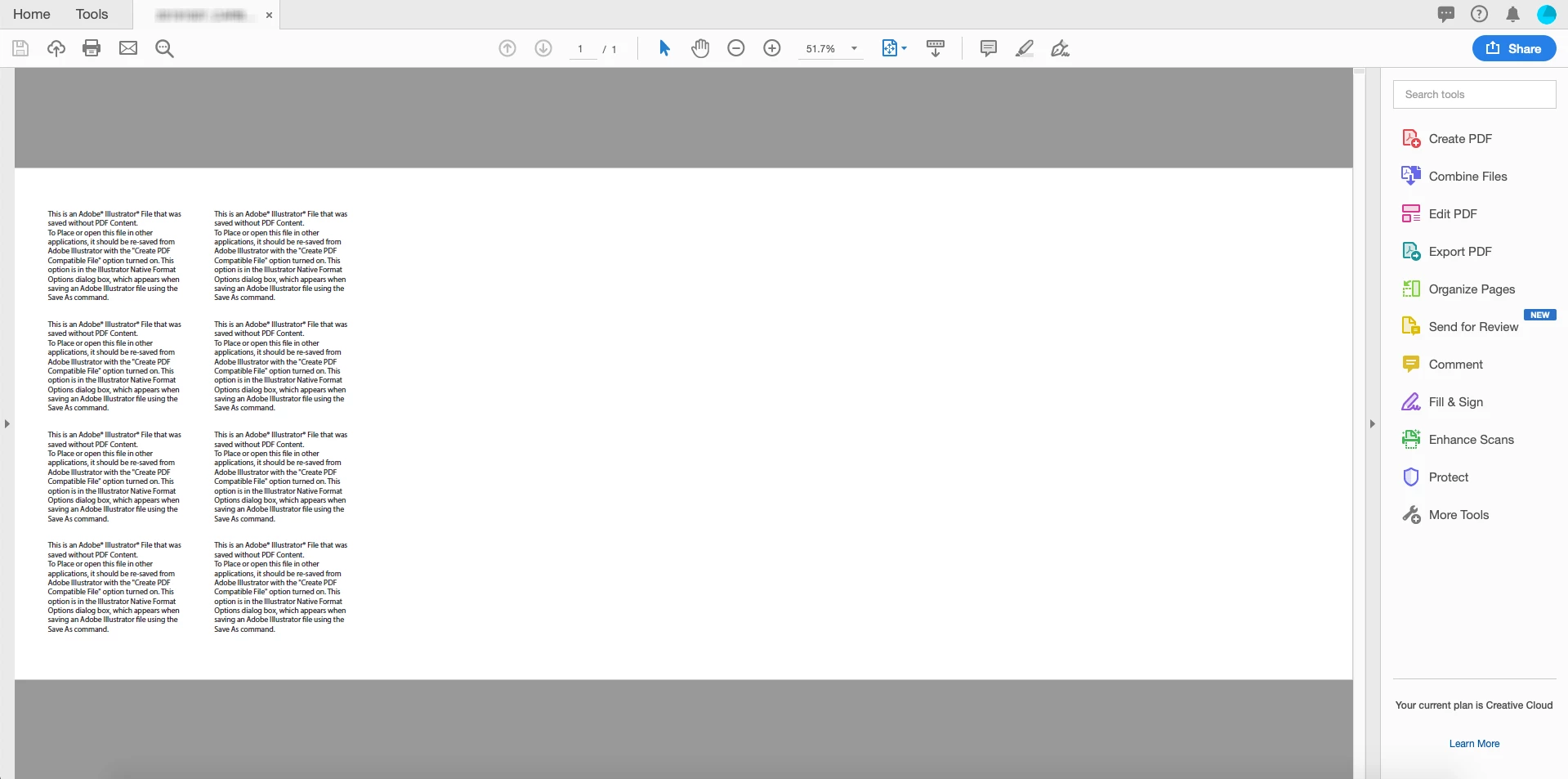
"Create PDF Compatible File" is checked but could not be opened in Acrobat

  • October 7, 2019
  • 1 reply
  • 2349 views

Mac mini (2018) - macOS Mojave

Adobe Illustrator 2019 CC (23.1.1)


[Problem]

Normally I won't check the "Create PDF Compatible File" option when saving AI file because it will make file too big and opened slowly. Today I got a PDF file and made some adjustments then saved with option checked so that content could be seen in gmail but it doesn't work. 


[問題]

通常在存AI檔時我不會勾選「建立PDF相容檔案」,因為這會讓檔案變大而且打開時也要等很久。今天我需要修改一個PDF檔後用gmail寄回,所以希望能在gmail的附檔就能看到PDF的內容,但試了幾次之後都沒有用。


This topic has been closed for replies.
Correct answer miaw27304374

[Solution]

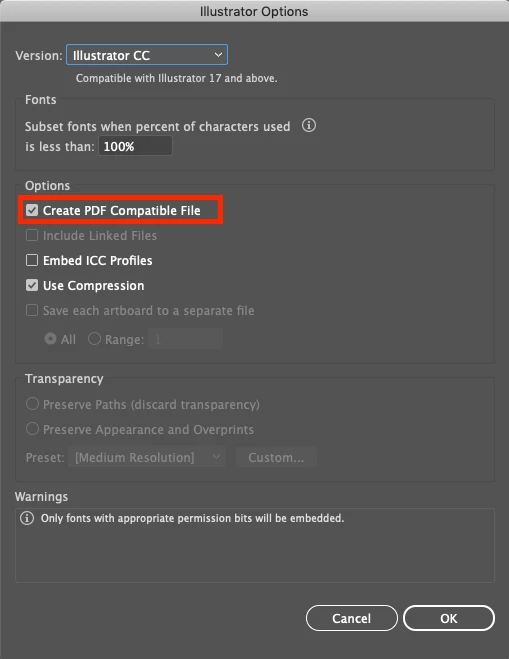
  1. Open PDF file in Illustrator and save it as AI file with "Create PDF Compatible File" checked in "Illustrator Options" dialog box.


  2. Quit Illustrator and run it again.

  3. Open AI file that was just saved and save it as PDF file again. (Remember not to replace the original file.)

  4. Open PDF file in Acrobat and problem should be solved!


[解決方法]

  1. 在Illustrator裡打開PDF檔後另存為AI檔,記得在儲存的對話框裡勾選「建立PDF相容檔案」。
  2. 結束Illustrator後再重開一次。
  3. 打開剛剛存的AI檔後再另存為PDF (盡量避免取代原始檔)
  4. 用Acrobat打開看看,問題應該解決了!


I'm not good at English so not sure that if everyone could understand. Just want to share the solution found by myself with those who with same issue. Wish you have a good day!

1 reply

miaw27304374AuthorCorrect answer
Participant
October 7, 2019

[Solution]

  1. Open PDF file in Illustrator and save it as AI file with "Create PDF Compatible File" checked in "Illustrator Options" dialog box.


  2. Quit Illustrator and run it again.

  3. Open AI file that was just saved and save it as PDF file again. (Remember not to replace the original file.)

  4. Open PDF file in Acrobat and problem should be solved!


[解決方法]

  1. 在Illustrator裡打開PDF檔後另存為AI檔,記得在儲存的對話框裡勾選「建立PDF相容檔案」。
  2. 結束Illustrator後再重開一次。
  3. 打開剛剛存的AI檔後再另存為PDF (盡量避免取代原始檔)
  4. 用Acrobat打開看看,問題應該解決了!


I'm not good at English so not sure that if everyone could understand. Just want to share the solution found by myself with those who with same issue. Wish you have a good day!

Participant
December 30, 2022

Worked perfectly for me, thanks a lot!