Lynnette7
Inspiring
August 5, 2022
Answered

Aligning pages side by side with 0 space between

  • August 5, 2022
  • 6 replies
  • 5678 views

Hi all, 

I can't figure something out. I'm trying to follow this tutorial. https://www.youtube.com/watch?v=nUGNLd8LmEM&t=190s


Her instructions are that once you get the three pages side by side, you can select each of them with the page tool and then "snap" them together using the distribute horizontal space tool with 0 inches set. 

When I align the pages the first time I make the pages, they will align perfectly. Yay!

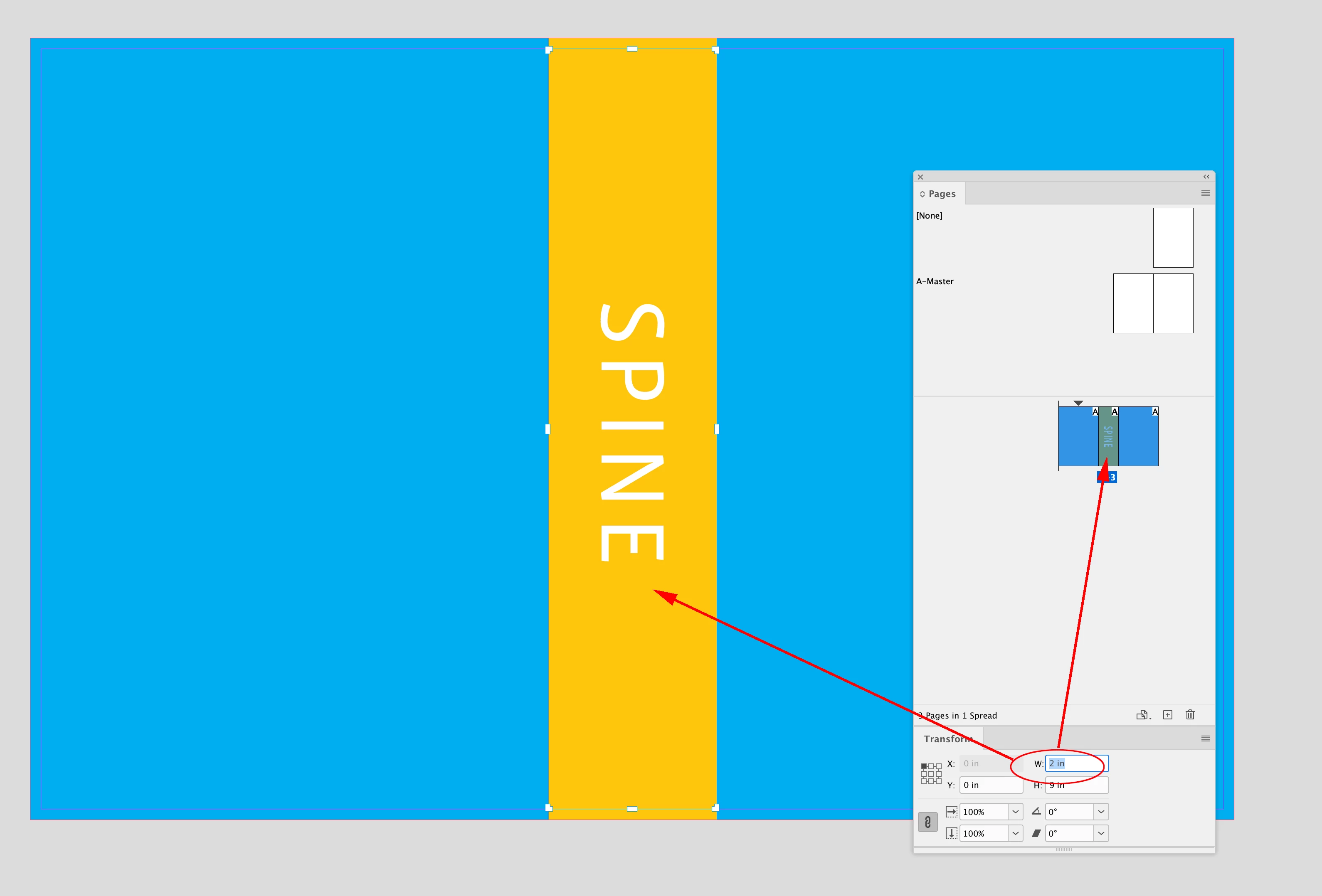
The problem arises when I get to the end of the project and need to change the spine width to the correct size. I change the size of the middle page (spine) and then using the pages tool select all three pages and try to "distribute horizontal space" again with 0 inches, the pages won't move. I have to use the page tool and manually drag them. (At this point in the process each page has text layers etc. on it, so is it that?)


Any idea what I might be doing wrong?
This topic has been closed for replies.
Correct answer rob day

Hi @Lynnette7 , Same question was just asked here:


https://community.adobe.com/t5/indesign-discussions/ability-to-change-page-size-moving-other-pages-in-spread-or/td-p/13116668


If you set your document up with facing pages checked, and create a 3 page spread, the pages will stay together when you adjust the center page with the Pages tool selected—then it’s just a matter of exporting the PDF with Export as Spreads checked.


Non Facing Page documents allow you to pull the pages apart, and the spread’s pages won’t necessarily stay together:


6 replies

Inspiring
March 6, 2023

Lynette:


I'm having the same problem. You said "So the solution, for anyone else who might be having the same problem, is to make sure that you are aligning to 'selection,' not to 'page.'". Where is this alignment option located? Please be specific. Thanks.

James Gifford—NitroPress
Brainiac
March 6, 2023

It's a drop-down next to the alignment icons on the top bar:


Choosing the alignment method can completely change how the selected elements align.


Inspiring
March 6, 2023

James:


I'm not getting that menu. When I select that icon, the drop down menu shows:

  • Object
  • Stroke
  • Fill

When I select Window > Object & Layout, I get an alignment window for objects, not for pages. I can't seem to find a menu that displays what you are showing.


James Gifford—NitroPress
Brainiac
August 14, 2022

And I'm back to say, "Yum, yum, thanks for the humble pie."


I just reconstructed one of my frequently adjusted covers (the one for the Guide, actually) around this three-page model, and... um, yeah, it's one 'elluva lot easier both to set up and to manage changes.


I have no idea why I discarded this technique in favor of [one that probably worked better on some project years back], but it's definitely the number one blade in my cover toolkit now/again. 😛


Lynnette7
Lynnette7Author
Inspiring
August 14, 2022

Well, no humble pie needed. We are all always learning and growing. I'm glad that my silly issue that I overlooked is helping you to find an easier way. All the best,

Willi Adelberger
Community Expert
August 6, 2022

When you work with three pages, which is the correct way and as she does in the YT, you have to set up the document as facing pages, and do not allow to shuffle pages. Output as spread.

James Gifford—NitroPress
Brainiac
August 6, 2022

I'm going to disagree that this is "the correct way" and that I was "wrong" above... however, I do cop to misunderstanding and saying a couple of confused things at the start.


There are two basic ways to lay out a cover: on a single page, using frames and groups to manage the content for each surface and allowing easy placement and adjustment of elements that bridge any of them; and the three-page method, which is essentially the same thing but takes advantage of ID's abilty to do multi-page spreads.


With one page, all layout is "soft" and can be adjusted as necessary without any limitations I can think of.


With three pages, you start with a hard framework that offers no real advantage over three content frames and imposes an extra layer of management  — and is dependent on something of a hat trick to output correctly. Yes, exporting spreads works fine, but I would not be surprised if it has the potential for frustrating glitches and complications at the export/PDF stage. (Transparency lines, anyone?)


I lay out a fair number of covers and because many of my books are updated at intervals, the spine width does change. It takes me a minute or two to set the new page width to whatever the printer or service specifies, then (if needed) tweak the position of the front and rear cover groups, leaving the spine group centered. Elements that span two or all three faces can be adjusted with ease.


With the three-page layout... it's exactly the same, assuming you have defined width bleeds that accommodate the trim range. But unless you adjust the spine width numerically, the content is going to shift off center and need adjustment of it, or both outer pages. (Am I missing some technique that allows for change of a page width while keeping vertical content centered?)


And all of that added management is solely "to allow spine width adjustment," which for most books is a one-time task, and which — in my experience — is trivial to do with a single page layout.


I'd say the techniques are at best equivalent, but the three-page model trades one advantage for several actual and potential disadvantages. For things like a book series (reports, annual volumes, etc.) where a major task in each interation is setting a spine width, it mght have an advantage. But most "art" covers don't have three compartmented sections of content, and breaking it into pages imposes some design and manipulation limits that a single page does not.


So, at least two techniques, both of which work for the common end need. Neither is wrong, I think. But each has a better range of use.


Lynnette7
Lynnette7Author
Inspiring
August 6, 2022

I'm not sure about content frames as I haven't used them. But with the three page layout I can easily export only the front cover. Only the spine. Or only the back cover. The publisher I work for wants all of these for marketing purposes, even though they rarely use the spine.

Can the content frame export just the front cover (for example) with the background imagery?

rob day
rob dayCorrect answer
Community Expert
August 5, 2022

Hi @Lynnette7 , Same question was just asked here:


https://community.adobe.com/t5/indesign-discussions/ability-to-change-page-size-moving-other-pages-in-spread-or/td-p/13116668


If you set your document up with facing pages checked, and create a 3 page spread, the pages will stay together when you adjust the center page with the Pages tool selected—then it’s just a matter of exporting the PDF with Export as Spreads checked.


Non Facing Page documents allow you to pull the pages apart, and the spread’s pages won’t necessarily stay together:


Lynnette7
Lynnette7Author
Inspiring
August 6, 2022

Thank you! I will look into that! I'm honestly kind of new to InDesign, though I've been using Photoshop in my business for years. The tutorial I watched said not to tick facing pages, and I'm wondering why she said that. I'll have to watch it again to see if I might have missed something. Or maybe something has changed since she made that tutorial and what used to be better, now isn't. It would be great not to have to mess with alignment at all. 

rob day
Community Expert
August 6, 2022

Or maybe something has changed since she made that tutorial and what used to be better, now isn't


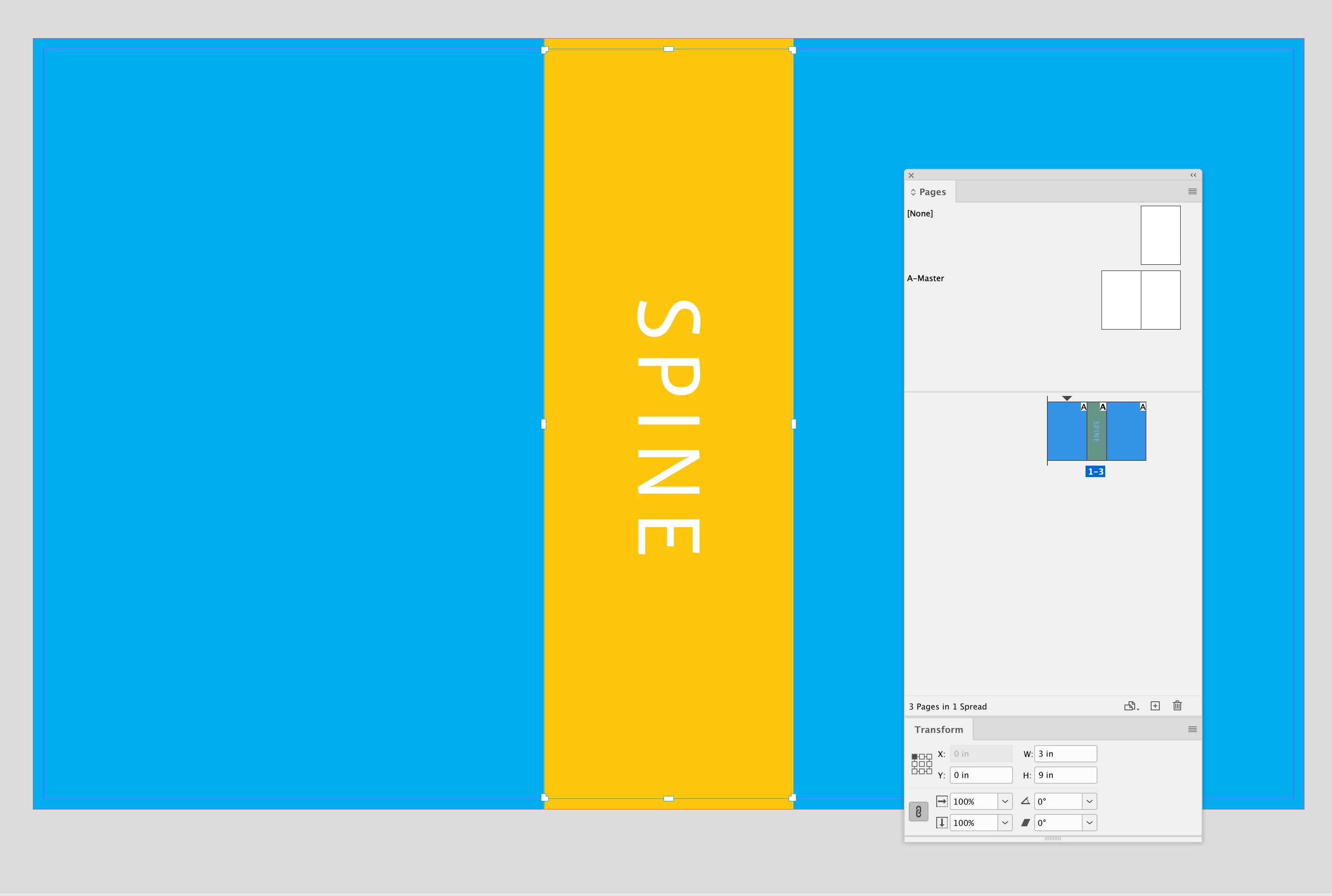
Hi @Lynnette7 , Nothing has changed, I think she’s just missing the usage difference with Facing pages, which doesn’t allow a change in the X position. You can see that with the Transform panel—here Facing Pages is checked and X is grayed out—I can’t change the horizontal position of page 3:


With Facing Pages unchecked you can position up to 10 pages anywhere on the pasteboard. This would be useful in cases where the pages need to be trimmed on all 4 sides (e.g. a design for a tradeshow booth, or a wire-o bound book). A book jacket’s panels are folded, not trimmed.


Lynnette7
Lynnette7Author
Inspiring
August 5, 2022

I came back to say that I figured it out! Of course I just needed to post here on the forum before I was able to do that. 🙂 

So the solution, for anyone else who might be having the same problem, is to make sure that you are aligning to "selection," not to "page." 

James Gifford—NitroPress
Brainiac
August 5, 2022

I must be misunderstanding you here. Are you working with three actual document pages, or three frames on one page layout?


Lynnette7
Lynnette7Author
Inspiring
August 5, 2022

It's three pages. But you just export them as a spread. This way I don't have to mess with making sure that all the text is still centered, etc. Because the text aligns with the pages. When you resize one large block, you are cropping from one edge or another. This makes it to where you constantly have to readjust text box placement etc.

But doing it this three page way, you just adjust the spine width, realign the pages so they are right next to each other, and export as a spread. Done. 

James Gifford—NitroPress
Brainiac
August 5, 2022

IMVHO as a publisher, using three pages for the cover is... a very poor approach. For nearly every book printer and POD service I know of, you need to provide one contiguous 'page' for the cover (or jacket). To set them up as separate elements, and then try and combine them, and be essentially unable to spread graphics across the spine in any simple fashion...


Maybe this is a good technique for someone. Not any book author, printer or publisher I know, though. Use one page, defined to the full height and width suggested by the printer or service, and use frames and guidelines to divide the content and layout.


ETA: Never mind. I spake nonsense. 🙂


Lynnette7
Lynnette7Author
Inspiring
August 5, 2022

I'm placing a photoshop document across all three pages in InDesign. It just makes adjusting the spine width very simple. 


James Gifford—NitroPress
Brainiac
August 5, 2022

Okay. So how do you get the single-page output for the cover?


Adjusting the spine width is usually a one-time operation once you know the block thickness. Doing an entire layout method to make changes easy makes many other things much more difficult. I could see — perhaps — using this method for something like a series of reports or reference books, where you might need to generate multiple covers or a continual series of them with varying spine widths, but that's only one aspect of adjusting a cover layout for varying block thicknesses.


But to each hir own. 🙂