dzgnr89
Inspiring
December 27, 2017
Answered

Auto fit a text box within a page's margins?

  • December 27, 2017
  • 5 replies
  • 20597 views

Is there a quick way to auto size (or resize) the text box horizontally to fit within the page margins (the magenta lines)?

    This topic has been closed for replies.
    Correct answer Barb Binder

    Hi arjun2:

    When you place text (File > Place), InDesign sets the top position of a new text frame based on where you click, but it will also seek out the left, right and bottom margins. It's more accurate than we are.

    Alternatively, what version of InDesign are you using? In CC 2018, you can set up an object style set the size and position.

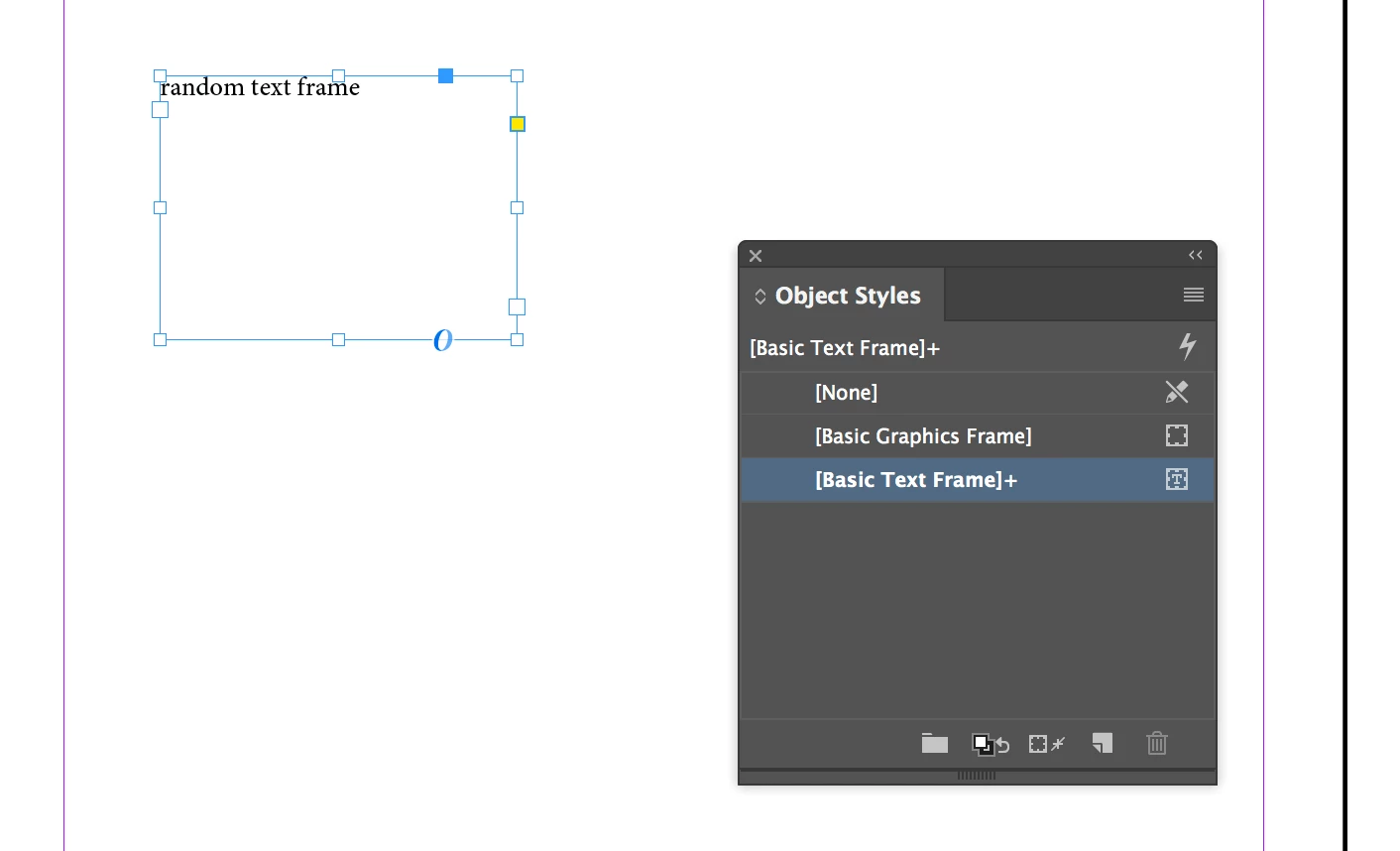
    Select the frame:
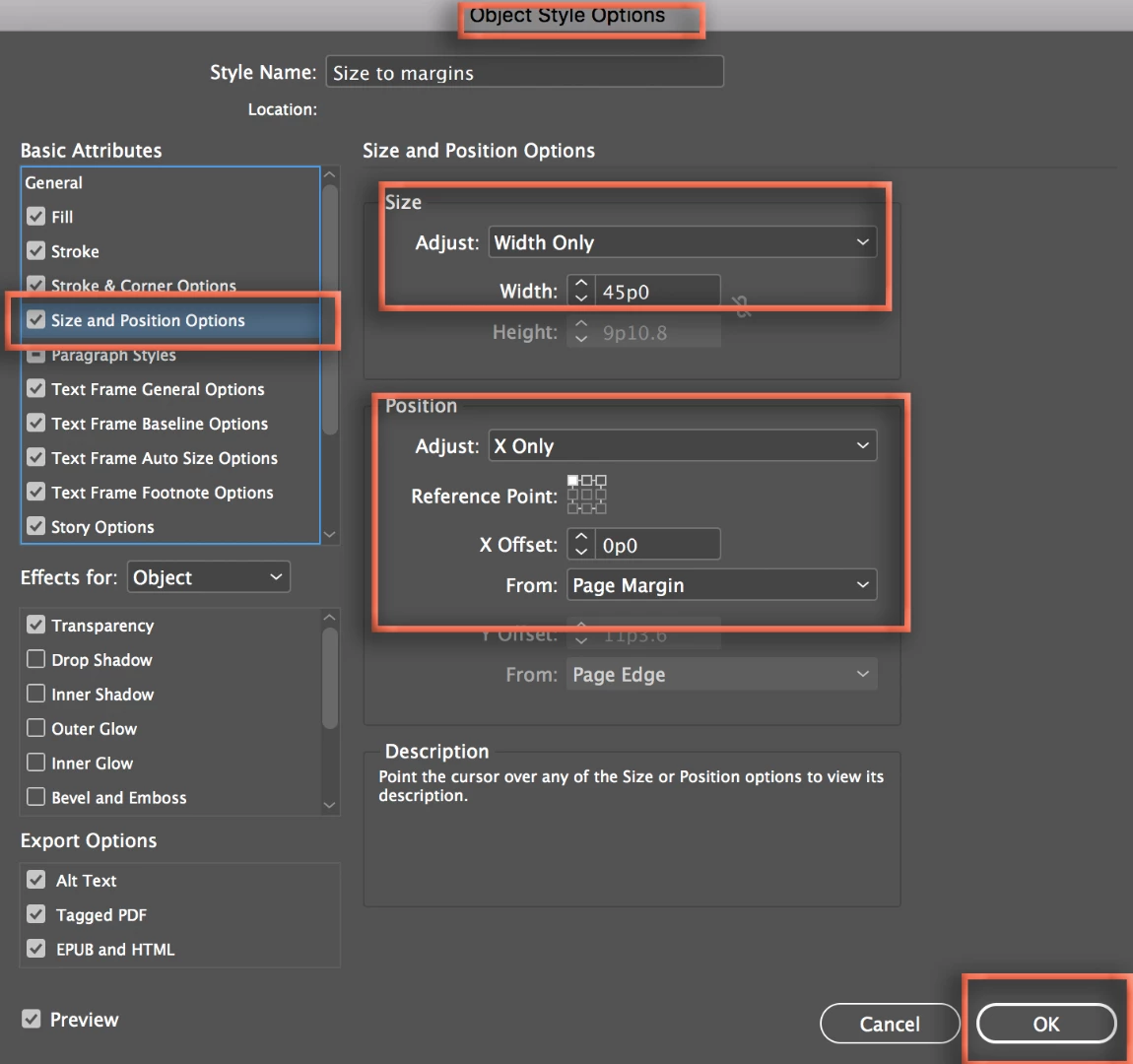
    Create a new object style and set the new Size and Position options. I'm working only with Width and the X-offset, this would also work with Height and the Y-offset, or both. I'm using a new default document (w=51p0) with 3p0 left and right margins, so set the Width to 45p0 (51-6=45).
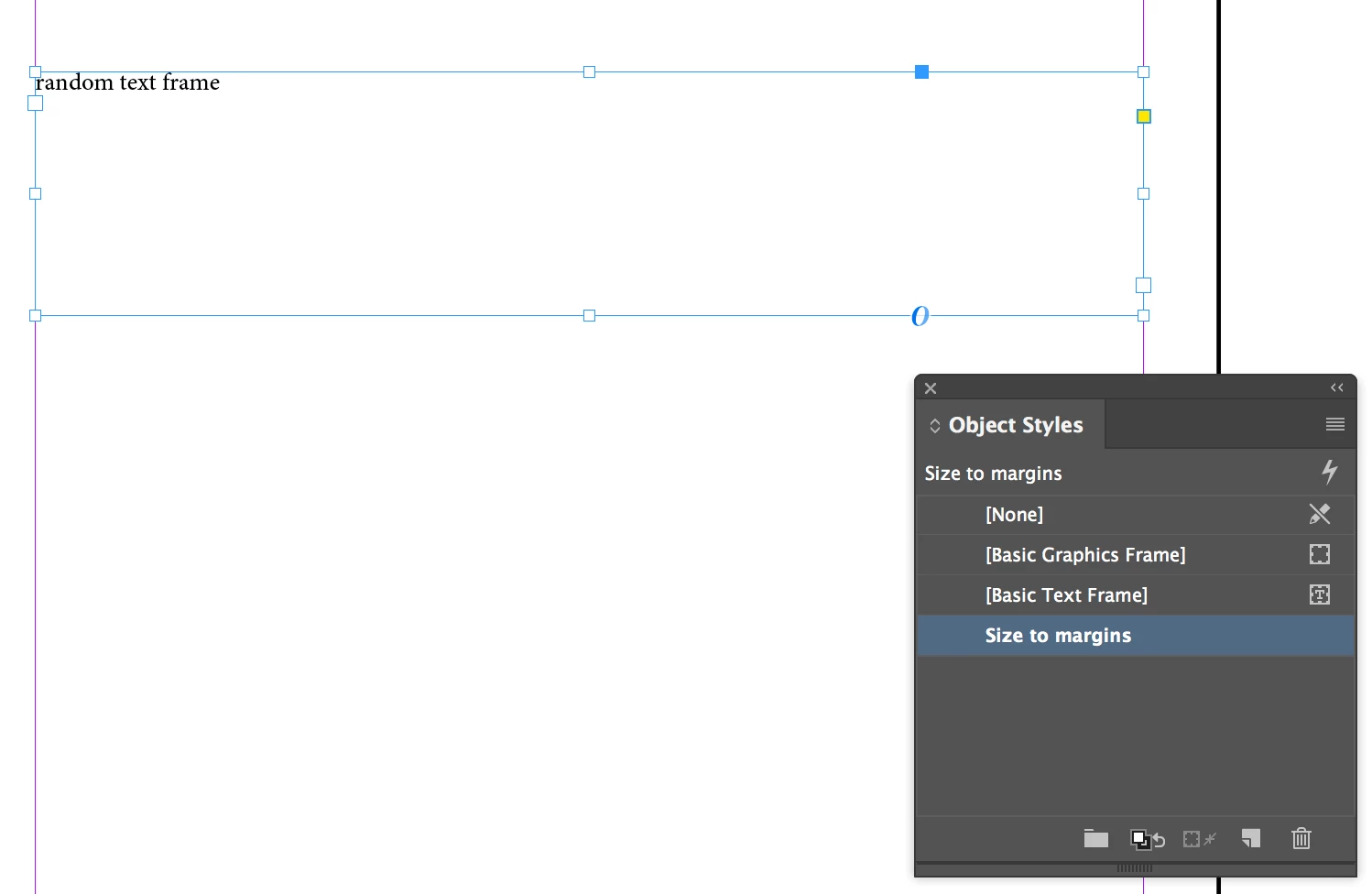
    Click to assign the new object style to the selected frame:
    An advantage to this technique is if the paper size or margins change, you can edit the Object style and update the size and position of all the frames that are using the style.

    ~Barb

    5 replies

    Known Participant
    November 3, 2020

    Thank you!!! Barb. I just had a client change the size of his finished book and I needed this badly!

    manal shanableh
    Legend
    December 27, 2017

    Insert the text in to the document, then click in the outport of text box, with shift click on the next page to auto flow the text within the margins.

    Autoflow by Shift-clicking: Adds pages and frames until all text is flowed into your document (the text box will be within the margins)

    Barb Binder
    Community Expert
    Barb BinderCommunity ExpertCorrect answer
    Community Expert
    December 27, 2017

    Hi arjun2:

    When you place text (File > Place), InDesign sets the top position of a new text frame based on where you click, but it will also seek out the left, right and bottom margins. It's more accurate than we are.

    Alternatively, what version of InDesign are you using? In CC 2018, you can set up an object style set the size and position.

    Select the frame:

    Create a new object style and set the new Size and Position options. I'm working only with Width and the X-offset, this would also work with Height and the Y-offset, or both. I'm using a new default document (w=51p0) with 3p0 left and right margins, so set the Width to 45p0 (51-6=45).

    Click to assign the new object style to the selected frame:

    An advantage to this technique is if the paper size or margins change, you can edit the Object style and update the size and position of all the frames that are using the style.

    ~Barb

    ~Barb at Rocky Mountain Training
    dzgnr89
    dzgnr89Author
    Inspiring
    December 28, 2017

    BarbBinder  wrote

    Hi arjun2 :

    When you place text (File > Place), InDesign sets the top position of a new text frame based on where you click, but it will also seek out the left, right and bottom margins. It's more accurate than we are.

    Alternatively, what version of InDesign are you using? In CC 2018, you can set up an object style set the size and position.

    Select the frame:

    Create a new object style and set the new Size and Position options. I'm working only with Width and the X-offset, this would also work with Height and the Y-offset, or both. I'm using a new default document (w=51p0) with 3p0 left and right margins, so set the Width to 45p0 (51-6=45).

    Click to assign the new object style to the selected frame:

    An advantage to this technique is if the paper size or margins change, you can edit the Object style and update the size and position of all the frames that are using the style.

    ~Barb

    Thank you! This is a really efficient way.

    Willi Adelberger
    Community Expert
    Community Expert
    December 27, 2017

    Turn on Layout Adjustment (it is found in the borders and the margin dialog).

    dzgnr89
    dzgnr89Author
    Inspiring
    December 28, 2017

    https://forums.adobe.com/people/Willi+Adelberger  wrote

    Turn on Layout Adjustment (it is found in the borders and the margin dialog).

    How does it work? I enabled it and nothing happened.

    Barb Binder
    Community Expert
    Community Expert
    December 28, 2017

    Hi arjun2

    Layout adjustment will update frame sizes if you have already drawn the frames, and if they are sitting on guides. In that specific situation, if you activate Enable Layout Adjustment in Layout > Margins and Columns and then change the margins or columns, the frame will resize to match the new margins and columns.

    For example, here is a frame that is snapped to the top and left margins, and is one-column wide.

    If I activate Enable Layout adjustment and then change the margins and/or columns, the frame resizes automatically. If you want to play with this (and it is a helpful feature) be sure that the frame is already snapped to the guides and then turn preview on in Layout > Margins and Columns.

    ~Barb

    ~Barb at Rocky Mountain Training
    Steve Werner
    Community Expert
    Community Expert
    December 27, 2017

    You should try out Primary Text Frames and see if they work for the layout you want to do.

    Here are a few resources to help you learn about it:

    http://www.tech4pub.com/2013/01/02/indesign-cs6-tip-using-primary-text-frames/

    InDesign Primary Text Frames - YouTube

    InDesign interactive document design tutorial: Using primary text frames | lynda.com - YouTube