Participating Frequently
September 27, 2009
Answered

how to align objects on a diagonal axis or line

  • September 27, 2009
  • 6 replies
  • 44360 views

How can I align objects diagonally? Is it possible to turn diagonal lines into guides? If not, what's the best way to do this?

I've created a provisional diagonal line and aligned my other object to this line. But it's a painstaking process and because the diagonal coordinates change incrementally it's easy to make mistakes. I need an error-proof method to do this.

Thanks in advance!

    This topic has been closed for replies.
    Correct answer Laubender

    Hi catdotgif ,

    this is a very old thread started in 2009!

    In the meanwhile some things have changed and we have another tool at hand that will help to align objects to a diagonal axis or a diagonal line. With CS6 and above one could rotate the page plus the elements on the page. Then you can drag out guides that are parallel with the rulers. Aligning to the guides that were created after page rotation is very easy.

    Important note:
    Since there is a bug with page rotation and elements on the page that should be rotated with the page you better rotate two pages instead a single one. Then the bug will not hit.

    Some screenshots below to illustrate this.

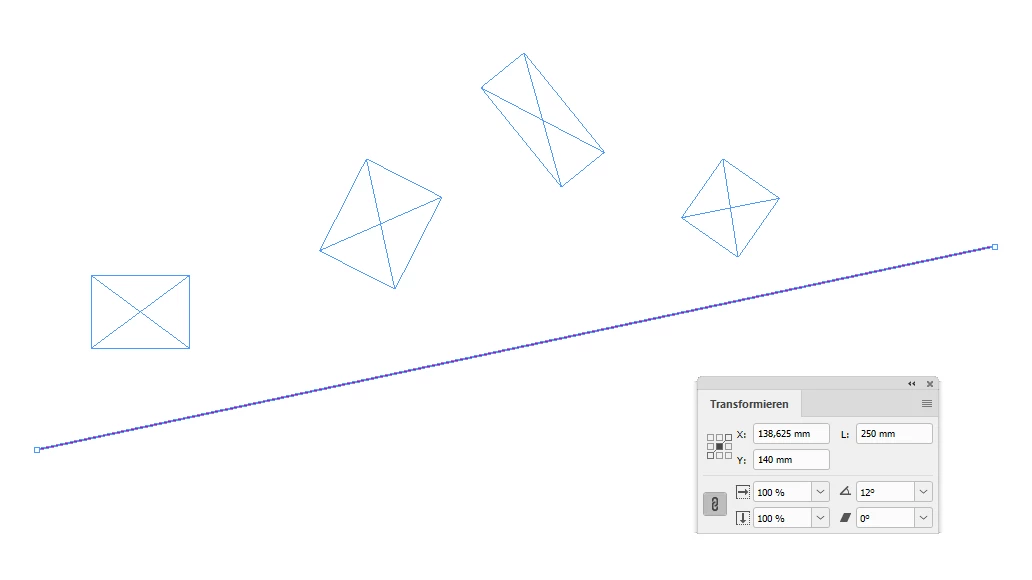
    A straight line rotated by 12° you want to align some objects with.
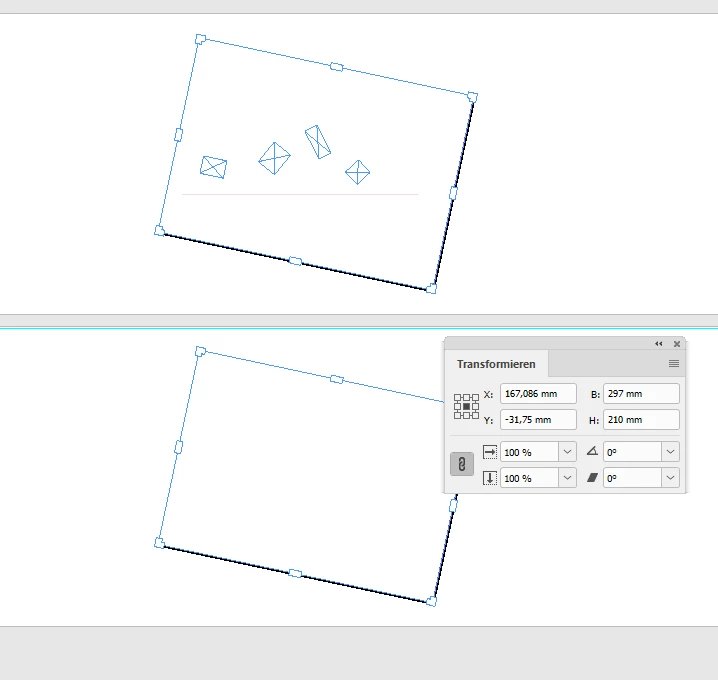
    Use the Page Tool to rotate at least 2 pages with -12°. Note: The checkbox is checked that will rotate all elements on the page together with the page.
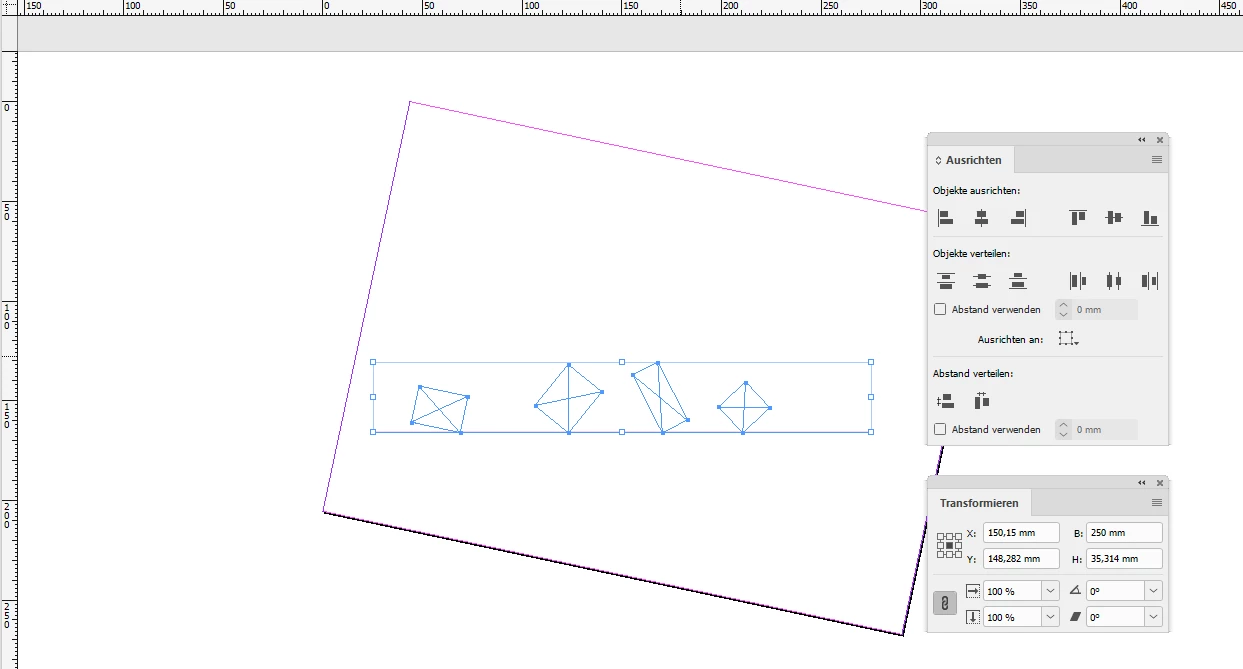
    Now select the graphic line and all other elements you want to align with. Use the Align and Distribute Panel. It will still work parallel to the rulers.
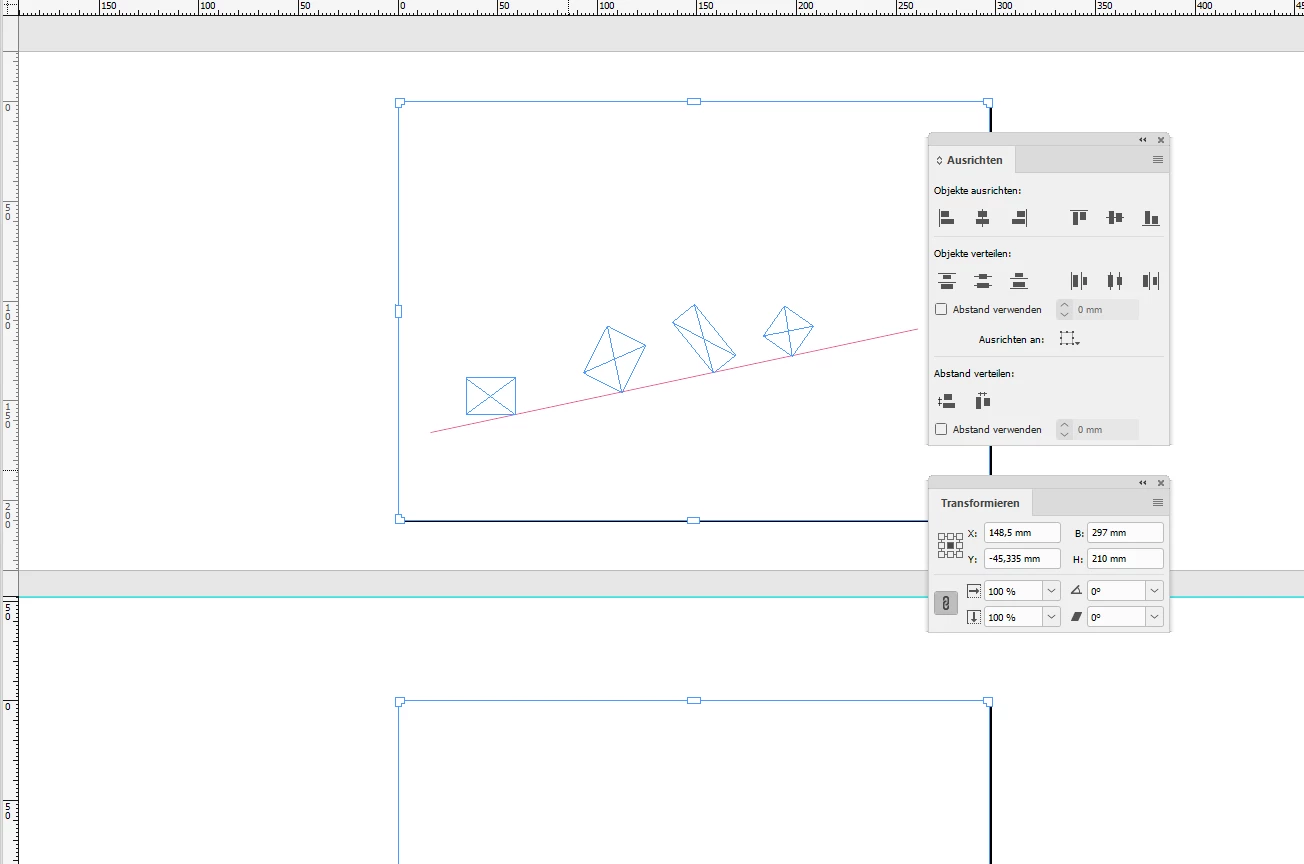
    Rotate back the two pages and you are done:
    To select two or more pages with the Page Tool just start by selecting one, hold the Shift key and add another page to the selection by clicking the next or previous page. Cmd + A ( Mac ) or Ctrl + A ( WIn) will select all pages in the document.

    Regards,
    Uwe

    ( EDITED )

    6 replies

    Participant
    May 3, 2023

    One thing I do is use generate- light sweep set at low width high intensity then adjust angle as needed. There can be no snapping but works ok   Check out after effects afterthought on YouTube for more info

    Community Expert
    April 13, 2021

    TallmanShortWoman said on Sep 18, 2019:
    "… I can't find where to transform the page on a diagonal. I only have the option to rotate 90, 180, etc.…"


    What you see is perhaps the option to rotate the spread view from the Pages panel.

    My solution is to use the Page Tool to select an individual page and the Transform panel ( or the Control panel ) to rotate the page with its contents.


    Regards,
    Uwe Laubender

    ( ACP )

    jpegsexpert
    Known Participant
    July 9, 2018

    Rather than positioning the items and rotating them into place, if you place the beginning and the end items exactly where you want them along the line, then place as many objects as you want between them, then you can use distribute horizontal *followed by* distribute vertical, and it is just like you had distributed along the diagonal line. 

    Simple enough that I don't think a separate tool is warranted, if you're just trying to work with a diagonal line.  Does that address what you're trying to do?

    LaubenderCommunity ExpertCorrect answer
    Community Expert
    July 9, 2018

    Hi catdotgif ,

    this is a very old thread started in 2009!

    In the meanwhile some things have changed and we have another tool at hand that will help to align objects to a diagonal axis or a diagonal line. With CS6 and above one could rotate the page plus the elements on the page. Then you can drag out guides that are parallel with the rulers. Aligning to the guides that were created after page rotation is very easy.

    Important note:
    Since there is a bug with page rotation and elements on the page that should be rotated with the page you better rotate two pages instead a single one. Then the bug will not hit.

    Some screenshots below to illustrate this.

    A straight line rotated by 12° you want to align some objects with.

    Use the Page Tool to rotate at least 2 pages with -12°. Note: The checkbox is checked that will rotate all elements on the page together with the page.

    Now select the graphic line and all other elements you want to align with. Use the Align and Distribute Panel. It will still work parallel to the rulers.

    Rotate back the two pages and you are done:

    To select two or more pages with the Page Tool just start by selecting one, hold the Shift key and add another page to the selection by clicking the next or previous page. Cmd + A ( Mac ) or Ctrl + A ( WIn) will select all pages in the document.

    Regards,
    Uwe

    ( EDITED )

    Community Expert
    July 13, 2018

    Another note on my page rotation solution:
    Best do this in a separate document.

    I found, that if there are guides on the page, rotate-unrotate would move the guides on the page a bit. Not all together by a distinct amount, but every single guide by a different amount. So that problem cannot be fixed easily. That's another bug. Guides from the an applied master are not affected. Also not affected all items on the page that were not selected to align them.

    Regards,
    Uwe

    Kathlene Sage
    Known Participant
    September 28, 2009

    I have had to do the same, though not very often. Select and align all your elements (H&V) so they are on top of one another, evenly distribute them and rotate to the angle you wish. From there, select one of your images, and in the control panel, you will see the angle rotation of your image - change that back to zero with your center point selected and then select your next image, and transform again (cmd+opt+3). That's the best precision I can get myself.

    modern-iAuthor
    Participating Frequently
    September 28, 2009

    Great suggestions, thanks!

    And love the import guides from Illustrator....!

    Adobe, are you following this?

    Kathlene Sage
    Known Participant
    September 28, 2009

    I'll send a user request... Just got the hang of that process and I love telling people who don't listen to me what they should be doing. hehe

    Peter Spier
    Community Expert
    Community Expert
    September 27, 2009

    Alas, this is a feature not yet available. I've been asking for the ability to make arbitrary guides for years, as in Illustrator, and the more who join in the better the chances it will happen. Adobe - Feature Request/Bug Report Form

    Jongware
    Community Expert
    Community Expert
    September 27, 2009

    I think it would be best to align them horizontally or vertically, then select all and rotate the items.

    I'm pretty sure a Javascript could do it, but the maths for rotated items is horrid

    Peter Spier
    Community Expert
    Community Expert
    September 27, 2009

    [Jongware] wrote:

    I think it would be best to align them horizontally or vertically, then select all and rotate the items.

    I'm pretty sure a Javascript could do it, but the maths for rotated items is horrid

    I think you and I are viewing this differently, but your interpretation is also interesting, if I understand it. You think the items should be rotated so an axis matches the slope of the diagonal, right? I'd do that by grouping and rotating the group.

    My interptretation is that the axes of the individual objects should not change, but that you should be able to snap an edge, corner, or center to a sloped or elliptical (let's see you come up with a script for that one ) line.

    modern-iAuthor
    Participating Frequently
    September 27, 2009

    I think you're both saying the same thing... and that's what I've done.

    I have a series of horizontal lines -- stripes -- going across the page, the edges of which have to line up with a line sloping at let's say a 12 degree angle. I created the stripes, grouped them and rotated the group at that angle. Great. But my design isn't done, I'm just experimenting, etc. Or, later I have to make changes, the client wants additional stripes added and placed along that same sloping line. It's impossible to do that without starting over from scratch.

    Plus, there's no way to make any other kinds of adjustments. If one of the stripes is longer or shorter than should be, there's no way to snap it to my diagonal "guide" line. And because the guide line is at a diagonal there's no way to know for sure what the correct coordinates of my new stripes are with relation to the previous stripes.

    So... short of doing this in Illustrator and bringing it in (which I prefer not to have to do)... the above mentioned workaround seems to be the only way.

    Hard to believe this isn't a regular feature in InDesign.

    Thanks for your input.