hekselsior
Known Participant
November 3, 2025
Answered

Illustrator file does not appear correctly when imported to InDesign

  • November 3, 2025
  • 13 replies
  • 2652 views

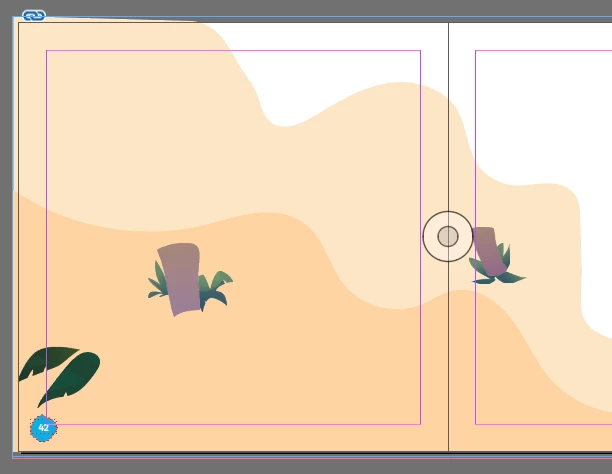
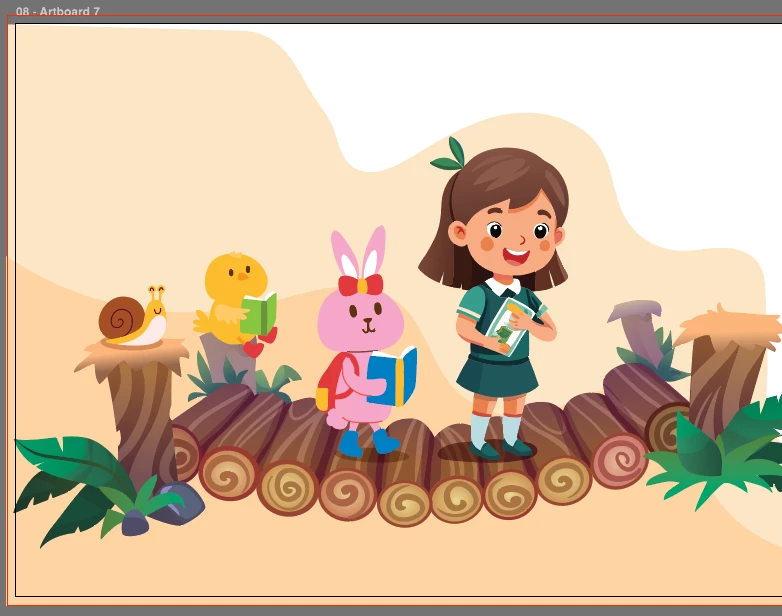
So I have sets of illustration in separated artboard (same layer) in Illustrator. But when I am importing it to InDesign, some parts of the illustration is missing. It occurs on some illustration, especially reused graphic asset from Freepik. 

Funny enough, this isn't happening using the previous version of Indesign. Right now I am using the current latest 21.0 (not beta).


What I have done for the workaround;

  • saved into a new file, only the error artboard. not working.
  • saved the error artboard into EPS, works. But I wish everything works in native format. 
 

Correct answer RCH Creative Studio - CB

I have been having this issue too with graphs that I have created from scratch in Illustrator. For me, it doesn't drop colours, but it moves columns around and doesn't put them in the same place. And this is not something I can outline and expand, as I need to update the numbers as needed.


I have found that if I copy and paste into a new Illustrator document and import that, it fixes my issue. But I should not need to do this.

13 replies

Participant
November 3, 2025

Since updating to InDesign 21.0, files created in Ilustrator (vs. 30.0) seem to drop colors randomly when Imported to InDeisgn. The files render properly when exported as PDFs or even JPGs. Seems to only be when viewed in InDesign. Files I open that were generated and saved in the previous version of InDesign render the files accurately, this is specific to the 21.0 update. Display settings are set to High Quality Display and I've attempted an uninstall/reinstall of the software all to no avail. Images below: Top shows the file as it should appear, bottom file is once imported to InDesign 21.0. To my knowledge, no changes have been made to either file other than opening them in the latest version of each piece of software. Preferences have not been modified as far as I can tell, and neither file was directly modified since updating the software. It may be that some setting was changed in the background when updating, but I can't find anyting that was changed that could be causing this. Both files worked flawlessly prior to last week's update.


Abhishek Rao
Community Manager
Community Manager
November 3, 2025

Hi @Jon31417863q2ip,


Thanks for sharing the details and screenshots. I tested this with Illustrator 30.0 files placed into InDesign 21.0 but couldn't reproduce the color drop issue on my end. Could you please confirm which OS version you're using and whether this happens with all Illustrator files or only specific ones?

Also, please check if you're saving your Illustrator file with the 'Create PDF Compatible File' option enabled before placing it in InDesign. If possible, could you share an affected sample AI file where this issue appears, so we can test it further? A short screen recording showing the save process in Illustrator and then opening the same file in InDesign would also be really helpful.


Looking forward to your update.

Abhishek

Known Participant
February 11, 2026

Hi ​@Abhishek Rao 

I also have the same issue, while some part of the images in not visisble in InDesign eventhough all layers are on in Illustrator and InDesign.

Illustrator version: 30.0 (Windows version)
InDesign version: 21.2 (Windows version)
 
Issue: If i placed Illustrator file in InDesign particular portion of images not visisble in InDesign

Illustrator screenshot: In the below screen shot that 4 icons and 3 rules and 1 triangle not visible in InDesign. It was in Key color layer, all are visible in InDesign


InDesign output: 4 icons and 3 rules and 1 small triangle missing in InDesign


Note: If i do Save as the images the issue is solved. But this is not our regular practice to save as each and every image, we will use the customer supplied file directly in InDesign. In that cases the part of the images is missed out. There is any way to identify this issue without save as the images. Or it seems to be issue in InDesign 21.2

Thanks

Ganesh.R 
 

Participant
November 3, 2025

Hello,


Since your EPS workaround is proof that the vector data itself is fine, here's the quickest and most effective fix to try on the native AI file:

Open the Illustration in Illustrator.

Select the entire illustration (the one with the missing parts).

Go to Object > Expand Appearance.

Then go to Object > Expand... (check both Fill and Stroke options).

This process simplifies complex strokes, effects, and gradients into basic paths, making it much easier


Best Regard,

harriet

hekselsior
Known Participant
November 3, 2025

thanks for the suggestion, I will try it later and see if it works. 

leo.r
Community Expert
Community Expert
November 3, 2025
quote

Funny enough, this isn't happening using the previous version of Indesign. Right now I am using the current latest 21.0 (not beta).


By @hekselsior


If you can consistently reproduce it in InDesign 2026, while not in InDesign 2025 with the same Illustrator files, then it sounds like a bug in InDesign 2026. Are you also using the same import settings? Click Show Import Options when you place Illustrator files in both versions.

hekselsior
Known Participant
November 3, 2025

Can't say it's a consistent occurence. Some assets from stock graphic works just normally, some don't, but ONLY happening in the current InDesign (v 21.0). I was working with the same file with previous indesign never had this problem at all. I do use "Show import options" as well. 


Yes I guess it's a bug. 

Participant
November 3, 2025

I'm seeing the same issue. Inconsistently, but definely there. Opening the file in previous versions works completely fine, and exporting as a PDF shows the files properly... just seems to impact Illustrator files that are imported to InDesign and, at least for me, directly conincided with the 21.0 update.