
Participant
April 12, 2013
Answered

InDesign CS6 - How to Set Text Wrap to Ignore Other Layers

  • April 12, 2013
  • 6 replies
  • 68802 views

I have a layer with text wrap underneath another layer. I don't want the text wrap to affect the layer above but I want it to affect the current layer. The order of the layers and objects is as follows:

Layer 2

     text 2

     circle 2 (text wrap so text 2 stays inside)

Layer 1

     text 1

     circle 1 (text wrap so text 1 stays inside)

However the wrap from circle 1 affects text 2 as well and I don't want that to happen, while I still want it to wrap inside circle 2.

Anyone got any ideas please?
This topic has been closed for replies.
Correct answer ICJ Design

I'm wondering if is this still an issue for people?

I don't want to assume that everyone has made the jump to CC but, if you have and this is still an issue, I've just gotten the upper-layer text object to flow over an object with a wrap applied to it.

  • Object
  • Text Frame Options
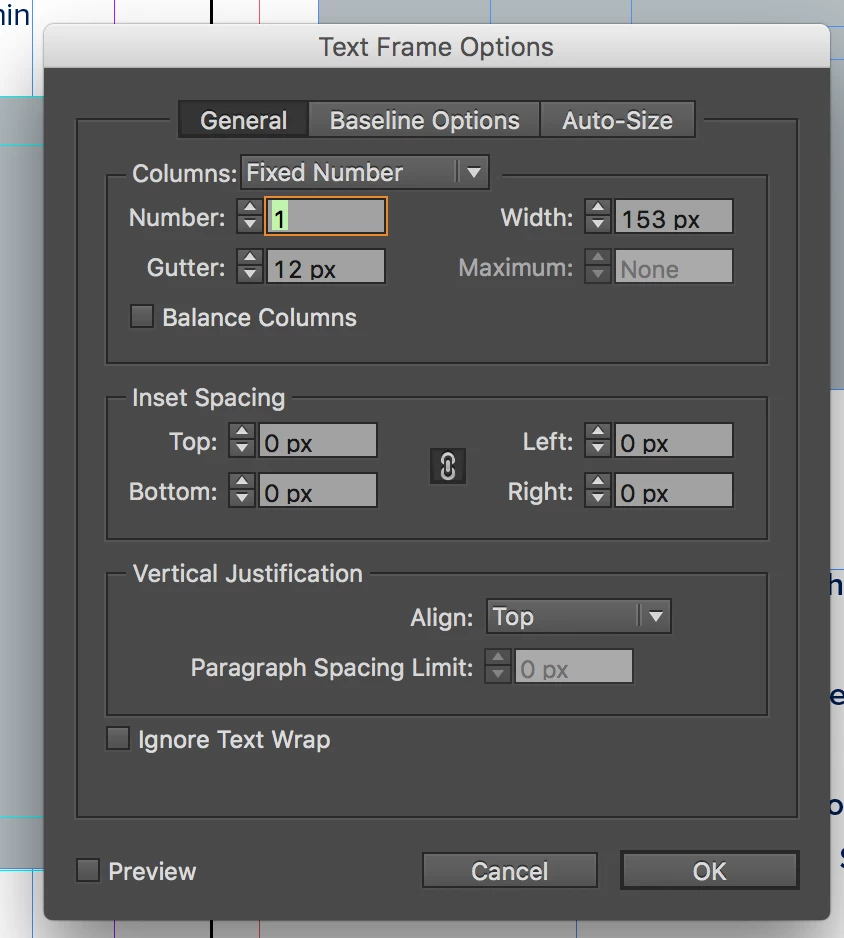
  • In the menu box, lower left ...Select, "Ignore Text Wrap"

6 replies

LauraLeeV
Participant
May 16, 2017

While I doubt anyone who has visited this thread will come back to see my revelation here, I have good news for anyone who comes here looking for an answer in the future.  Ironically, the very first person who answered this question at the top was correct.  But because he used the wrong terminology in his explanation, his answer was dismissed early on.  Too bad!

If you look more closely at his screen capture, you will get all the info you need to make sure a text wrap affects one text box, but not another AND even while on the same layer.

All you need to do is select any text box you don't want wrapping, go to its Text Frame Options dialogue box, and down at the bottom of the General tab select "Ignore Text Wrap."

I hope that helps.  :-)

September 26, 2019

But I wont get the desired output with the above explanation which you have given

sarahc26399794
Participant
August 11, 2016

You could always outline the text and turn it into an image... then it will no longer be recognized as text and lay over top nicely.

John Mensinger
Community Expert
Community Expert
August 11, 2016

sarahc26399794 wrote:

You could always outline the text...

This is not good advice.

While it may produce the desired positioning, perceptually, it would also do irreparable damage to the text and its rendering, in addition to loss of edit-ability. While there are a few—very few—valid reasons for outlining text, making the page layout work a certain way is never one of them.

ICJ Design
ICJ DesignCorrect answer
Participant
May 14, 2016

I'm wondering if is this still an issue for people?

I don't want to assume that everyone has made the jump to CC but, if you have and this is still an issue, I've just gotten the upper-layer text object to flow over an object with a wrap applied to it.

  • Object
  • Text Frame Options
  • In the menu box, lower left ...Select, "Ignore Text Wrap"

Participating Frequently
March 1, 2017

This is apparently still a problem in CC. I use templates to build instruction manuals and I regularly turn off certain layers because they  do not apply to that specific manual I am building. I can't ignore text wrap because I need to wrap around objects that are on the layer I need to use.

As I type this, I thought of an idea. I am going to try creating linked text boxes and selectively applying "ignore text wrap" to those boxes. This might work because the images with the text wrap are in different locations on the page.

An Adobe forums MVP and certified instructor such as Willi Adelberger​ should have a contact at Adobe to get something like this fixed. It's an obvious flaw in the program. I can't think of a reason that a designer would want a hidden layer's text wrap to impact visible layers.

Community Expert
March 2, 2017

FastAmphibian  wrote

… I can't think of a reason that a designer would want a hidden layer's text wrap to impact visible layers.

FastAmphibian​ ,

oh, I can.

Absolutely.

( I hope, I did not misunderstand anything you wrote. )

Example:

During the design phase of complex stuff one could get distracted from items stacked on top of other items organized in different layers. So I would constantly hide some layers to get rid temporarily of stuff I am currently not working at.

And if one of the layers I will hide has an object with text wrap on it I would not like to see the wrap go away from text that is flowing in a different one stacked below or on top.

There may be other reasons as well…

Regards,
Uwe

Participant
April 6, 2014

Right click on Layer Options in Layers Pallette - "Surpress text wrap when layer is hidden" might help.

Willi Adelberger
Community Expert
Community Expert
August 11, 2016

Jan Mikš schrieb:

Right click on Layer Options in Layers Pallette - "Surpress text wrap when layer is hidden" might help.

No, that is only used for documents converted from Quark, otherwise it is not a good idea to use this setting.

Peter Spier
Community Expert
Community Expert
April 12, 2013

You can set text wrap to only affect objects below in the prefs (but that's a bad idea if you use transparency, because text should always be above transparent objects if the design allows it). That said, you say the circles have text wrap applied to keep the text INSIDE them? Why not just use the circles as the text frames?

Participant
April 15, 2013

Steve,

If I pick the option for an object to not be affected by text wrap, it won't be affected by the wrap of its own layer as well. So I can't use that.

Peter,

Because the text isn't going around the edge on all sides. It's left aligned and the only part that wraps is the right hand side so I need a different text frame for that.

Looks like there is no way of doing it :/

Peter Spier
Community Expert
Community Expert
April 15, 2013

Maybe if you show us a screen capture of the page we can see what you want to do and find a way.

Steve Werner
Community Expert
Community Expert
April 12, 2013

You can't select a layer and have it not affected by text wrap.

But you can select the object above the wrap, and in Text Wrap Options, check Ignore Text Wrap.