


Known Participant
September 4, 2012
해결됨

[JS] PageItem Export to PNG: exported image's dimesion is different from PageItem's

  • September 4, 2012
  • 3 답변들
  • 9320 조회

When I try to export a rectangular text frame to PNG with JavaScript, the result PNG image may have bigger dimension than that of the text frame itself in InDesign. I believe this has something to do with the line height of the text.

Is there any Export option I can use to make the exported image's dimension the same as the text frame's?

Please see my attached pictures for an example:

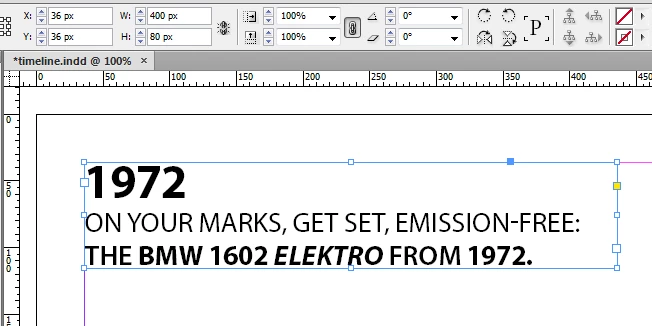
  • The text frame in InDesign has a dimension of 400 x 80 (pixels)
  • This is the exported PNG, which has a dimesion of 400 x 96 (pixels). Notice the padding at the top and bottom of the image.

이 주제는 답변이 닫혔습니다.
최고의 답변: Jongware

Hmm -- moving any item "into" a rectangle is not a straightforward operation. Well, let's (ab)use "app.copy" and "app.paste" then, although, theoretically at least, it should be possible by manipulating the objects.

This duplicates the selected item, removes its contents, sets stroke and fill to none, and then pastes the original selection into the new one. After exporting, the duplicated object automatically gets deleted so you end up with what you started with.

(Warning! Tested only with CS4!)

obj = app.activeDocument.selection[0];

cliprect = obj.duplicate(undefined, [0,0]);

cliprect.texts[0].remove();

cliprect.strokeWeight = 0;

cliprect.fillColor = app.activeDocument.swatches.item("None");

cliprect.contentType = ContentType.UNASSIGNED;

app.copy();

app.select(cliprect);

app.pasteInto();

cliprect.exportFile(ExportFormat.PNG_FORMAT, File(new File("~/Desktop/test.png")));
cliprect.remove();

3 답변

Jongware
Community Expert
Community Expert
September 5, 2012

There seems to be some problem with aligning your text to the very top of the frame. You can see this if you add a black stroke to the text frame before exporting -- left, right, and bottom align perfectly, on the top you can see some additional padding. Presumably it has something to do with ascenders? font size? default line height?

You can solve it by tricking ID. Create a new, empty rectangle the exact size of the text frame, copy text frame, paste "into" the new rectangle, and export this instead. This way, the new rectangle acts as a clipping mask, and the excess space will be cropped off.

Jongware
Community Expert
JongwareCommunity Expert답변
Community Expert
September 5, 2012

Hmm -- moving any item "into" a rectangle is not a straightforward operation. Well, let's (ab)use "app.copy" and "app.paste" then, although, theoretically at least, it should be possible by manipulating the objects.

This duplicates the selected item, removes its contents, sets stroke and fill to none, and then pastes the original selection into the new one. After exporting, the duplicated object automatically gets deleted so you end up with what you started with.

(Warning! Tested only with CS4!)

obj = app.activeDocument.selection[0];

cliprect = obj.duplicate(undefined, [0,0]);

cliprect.texts[0].remove();

cliprect.strokeWeight = 0;

cliprect.fillColor = app.activeDocument.swatches.item("None");

cliprect.contentType = ContentType.UNASSIGNED;

app.copy();

app.select(cliprect);

app.pasteInto();

cliprect.exportFile(ExportFormat.PNG_FORMAT, File(new File("~/Desktop/test.png")));
cliprect.remove();

Hoang_Huynh작성자
Known Participant
September 5, 2012

@Jongware: You're a star! Your trick just works exactly the way I want. I have successfully tested it in CS5.5 and CS6. Thank you!

@Laubender, hans and Harbs: While the work-around to copy the text frame to a new document with the same dimensions may work too, it cannot produce transparent PNGs and is more complicated.

Harbs.
Legend
September 4, 2012

Copy the page item to a page with the dimensions of the text frame and export the page.

Hoang_Huynh작성자
Known Participant
September 5, 2012

Hi Harbs,

That is a great work-around, but I want the PNG background to be transparent. Is it possible with page export?

Community Expert
September 5, 2012

You'll get transparent pixels, if you choose "transparentBackground = true" in the PNG export preferences of InDesign CS6.
This is a new feature in CS6 and not available in older versions.

Uwe

Community Expert
September 4, 2012

@Hoang_Huynh – at the moment you do the export, I think, you cannot do much against that. It's the way PNG export is working…
And it's not only forced by the line height of the text, but could also be caused by effects like drop shadow etc.pp.

After export, you could open the file in PhotoShop and trim the file to its writing pixels.

You could ask that question at the PhotoShop Scripting forum.

Uwe

Hoang_Huynh작성자
Known Participant
September 5, 2012

@Laubender: Thanks a lot for the info.

I'm thinking about about trimming the image file but the point is I don't know the exact padding pixels InDesign has added to top and bottom of the PNG file. Simply trimming the top or bottom of the file may result in lost of data.

Community Expert
September 5, 2012

@Hoang_Huynh – did you try with PhotoShop to trim the size to the writing pixels?

Your background in the PNG are white pixels? Or can you export with a transparent background, so it would be easy in PhotoShop to make a trim area for writing pixels only?

The "padding" you see might  vary, if you choose other examples. So I would not bet on a fixed count of pixels to cut…

Uwe