Inspiring
December 5, 2020
Answered

Missing font error not going away after installing required font

  • December 5, 2020
  • 15 replies
  • 7816 views

Dear all,

I have an issue I do not fully understand why it is still there after I've theoretically fixed the issue.

I've received a bunch of .svg files to insert in the document I'm currently working on. 

Those files require a font that was not used in said file. 

I installed said font and then imported the first SVG.

Preflight came out with a "Missing font error", which should just not happen. In Finder I can see the file properly, if I open it in another app it shows well. Why does it not work in InDesign?

I am attaching a screenshot of the error, with the portion of the file which shows the text in red not being bold as it should and the original SVG file. 


I would really appreciate a helping hand on this. 

Thank you 

This topic has been closed for replies.
Correct answer Laubender

Hi Inélsòre,

here some necessary and extra steps for converting your SVG files from the first batch to AI files with CMYK colors. I mean the ones where the texts are not converted to outlines:


[1] Install the needed fonts in your system

[2] Open the SVG file with Adobe Illustrator 2021

Note: There should be no warning of missing fonts at this point.

[3] Change the color mode of the open artwork from RGB to CMYK.

Theoretically, at that point you could save the file as AI file and place it in your layout in InDesign.


Practically this is not very wise. Why?

You are preparing an InDesign document for CMYK inks printing (my assumption).

Changing the color mode converts the RGB black to a CMYK black where all the four inks have certain percentages and ink black, the K in CMYK, is not 100%. And that will happen to all of the graphics' fills and strokes and also the text that is in RGB black. What we need is text that is filled with 100 K only. And in your case also all other black elements should be colored in 100 K only.


So the some extra steps are necessary to re-color all elements of the graphic in Adobe Illustrator.

The texts as well. For this task you need to know a bit more of Illustrator's features.

E.g. you can select an element and let Illustrator do the hard work to select all other elements of the document that share the same fill color. When done assign the fill color 100 K, that you either have to import or to add to the file.


After you also re-colored all stroke elements, if there are some, you:


[4] Save the file as AI file with the PDF representation included.

Do not include any ICC color profiles!

[5] Place the AI file and use InDesign's feature Separation Preview to control if the blacks are all use the black ink only.


See the following screenshots from my German Illustrator 2021.


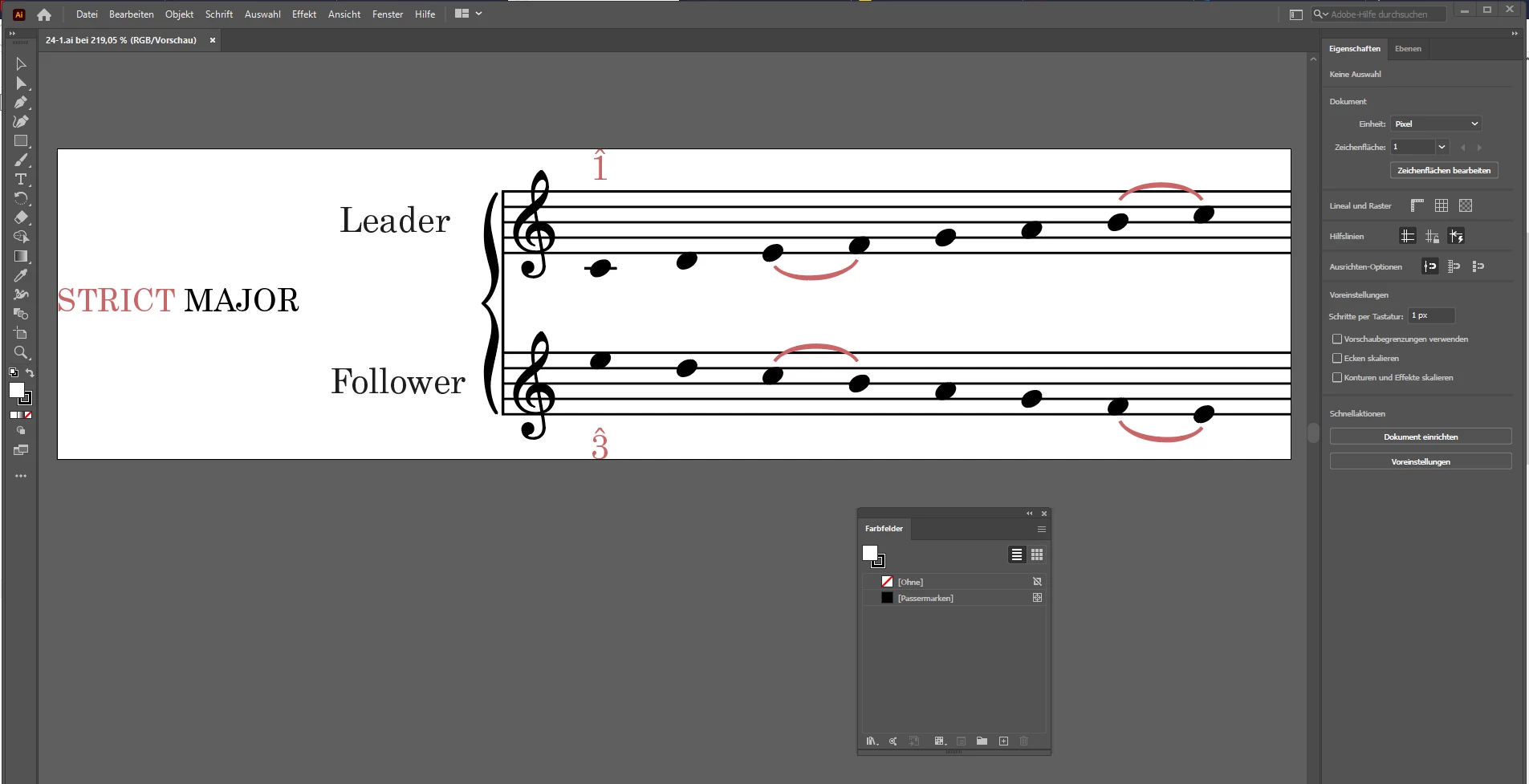
[A] SVG file opened with Illustrator, text is still editable text.

Swatches panel is open with a list view on the available named swatches:
 

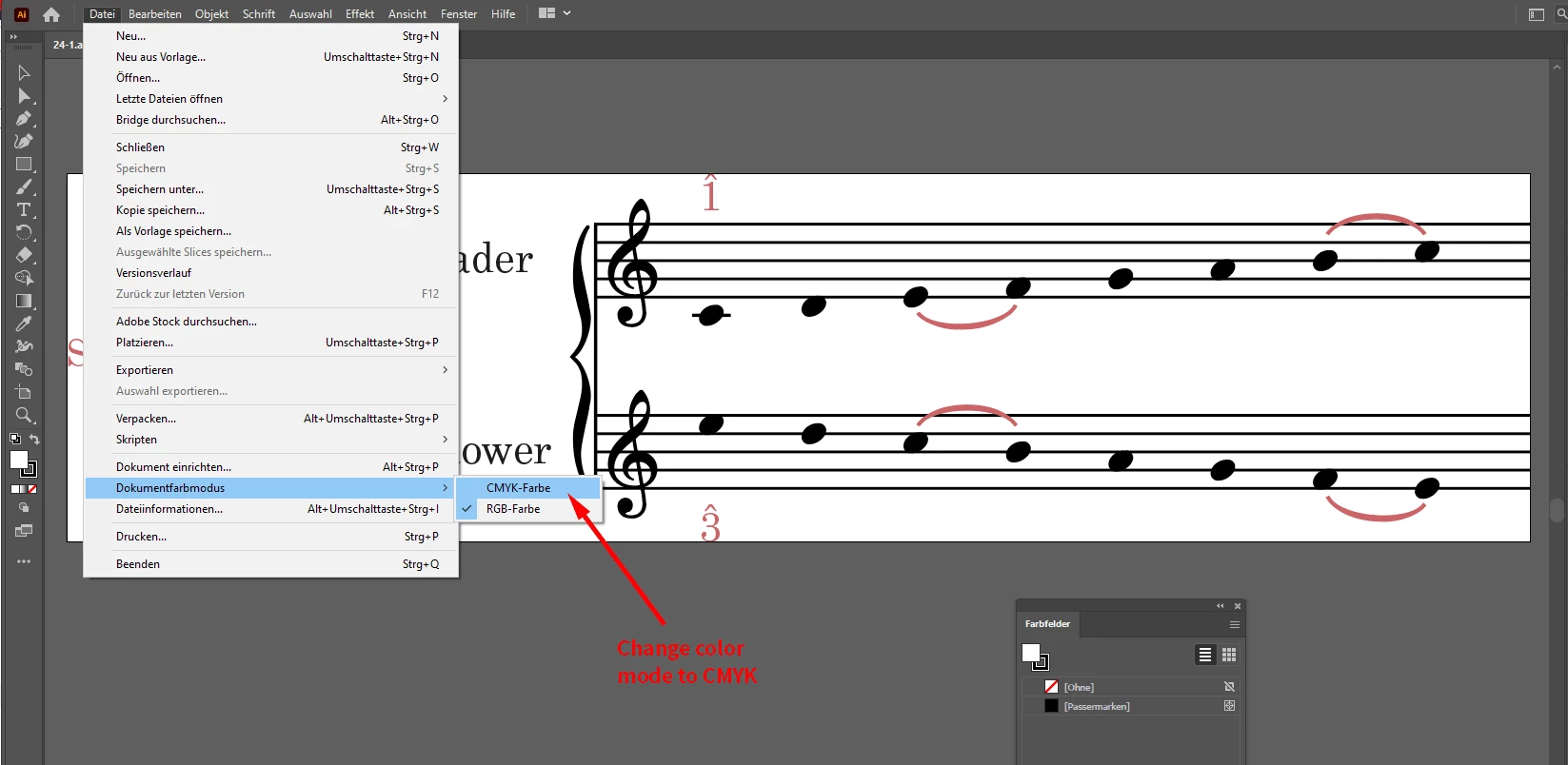
[B] Convert the document to color mode CMYK.

File > Document Color Mode > CMYK
 

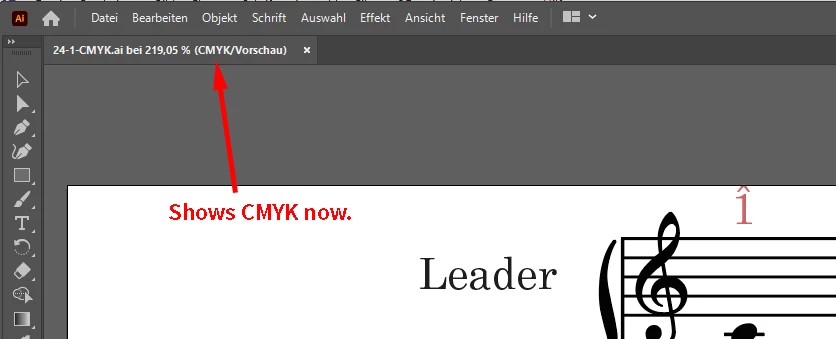
[C] The extra info in the document's tab will inform you if this was done successfully:
 

[D] Inspect the elements. Switch to "Contour View" with keyboard shortcut Cmd + Y ( when on Mac OS X ) .

What we now can see are two different things: Editable text and a lot of shapes.

At first glance I cannot detect any objects that consist of stroked paths only.
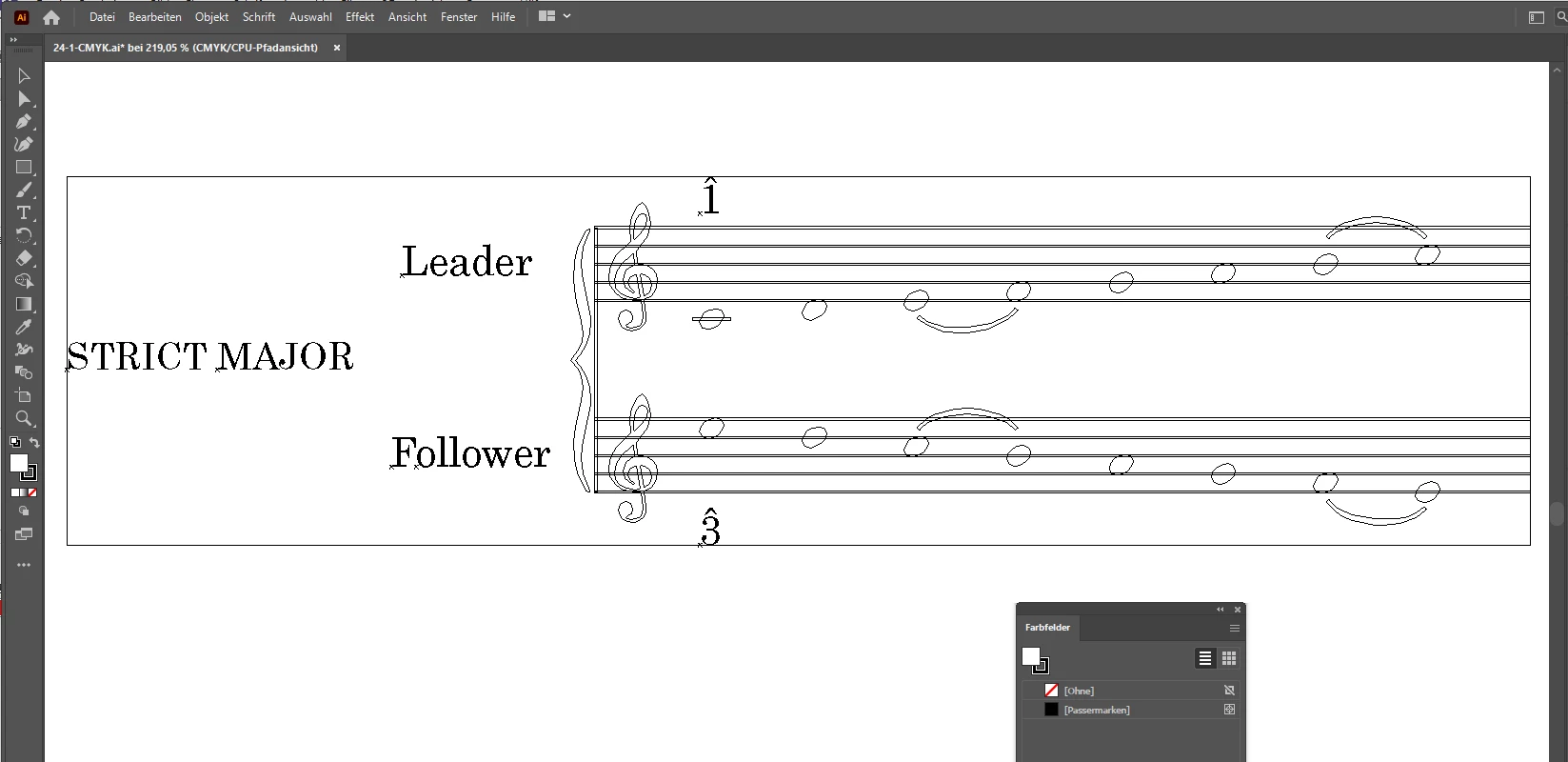


That means we have to deal with fill colors only:
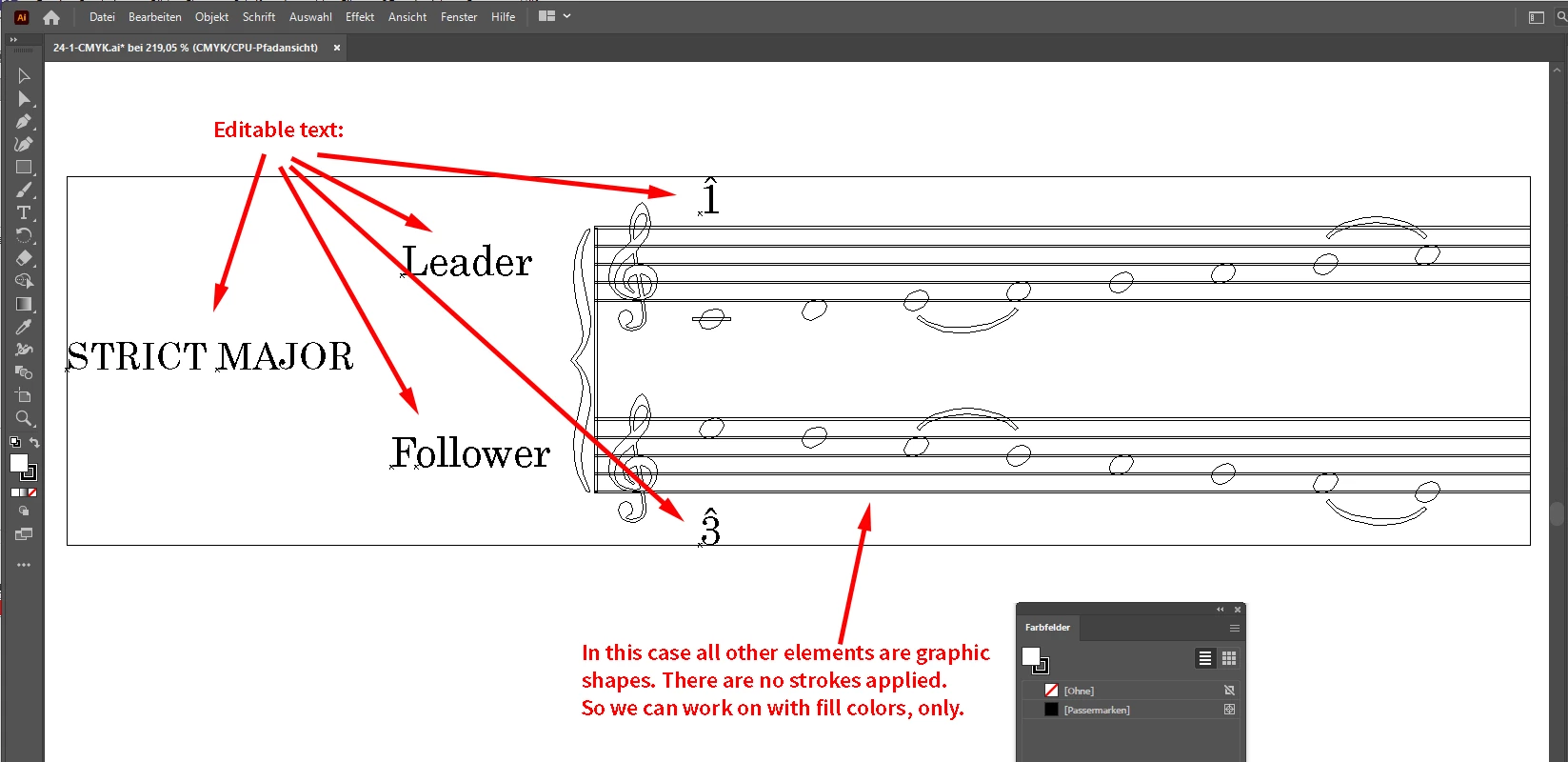
How can I be so sure that there are no elements with stroke colors?


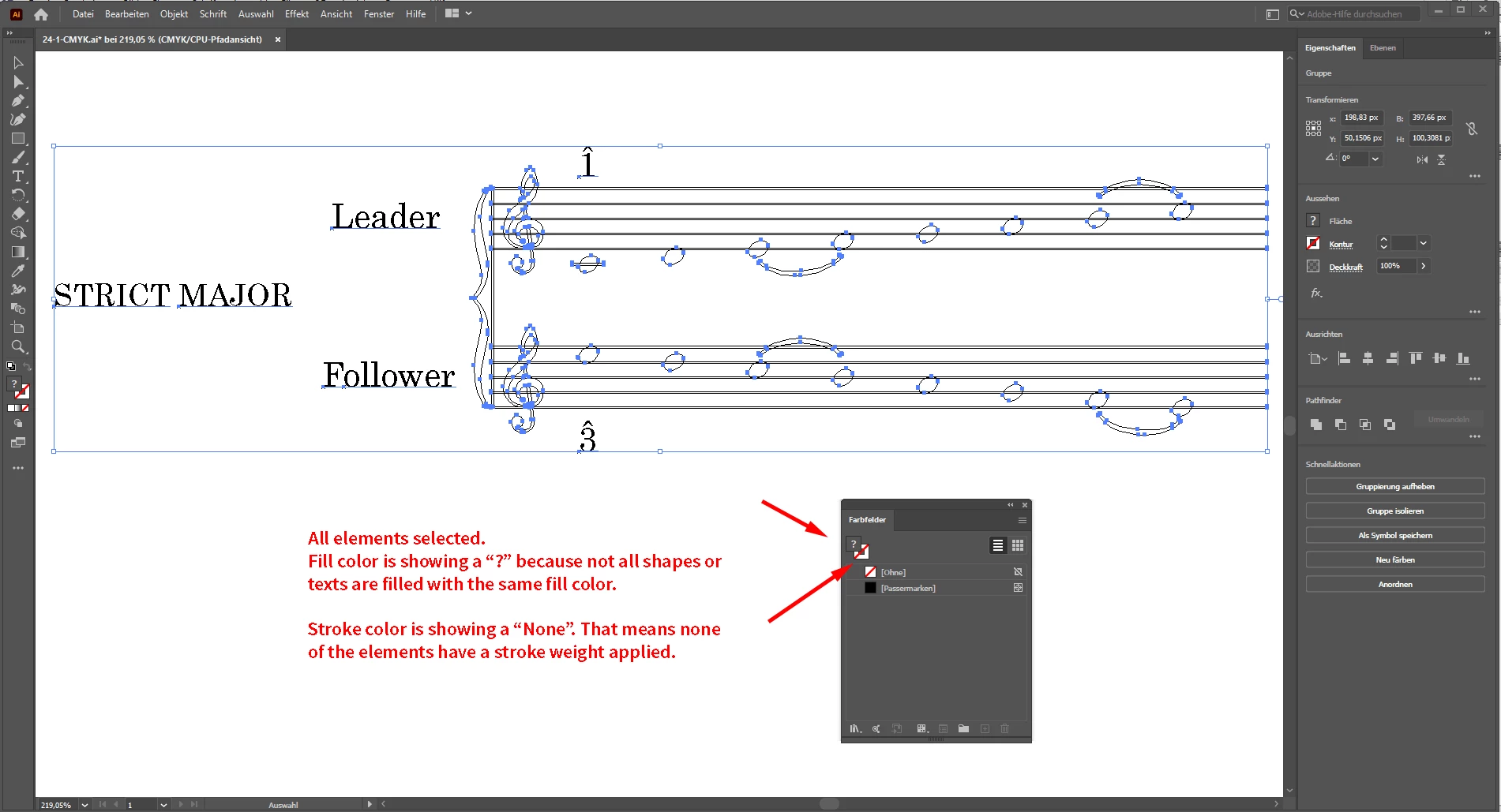
Now, I selected all elements and inspected the Swatches panel. The fill widget is showing a question mark which means not all elements share the same fills, wheras the stroke widget is clearly showing a mutual property: [None] .


[E] Let's select all black elements with a mutual fill color. Note, all elements in that document are grouped. So to select one single element I use the Direct Selection Tool, the "white" arrow tool:
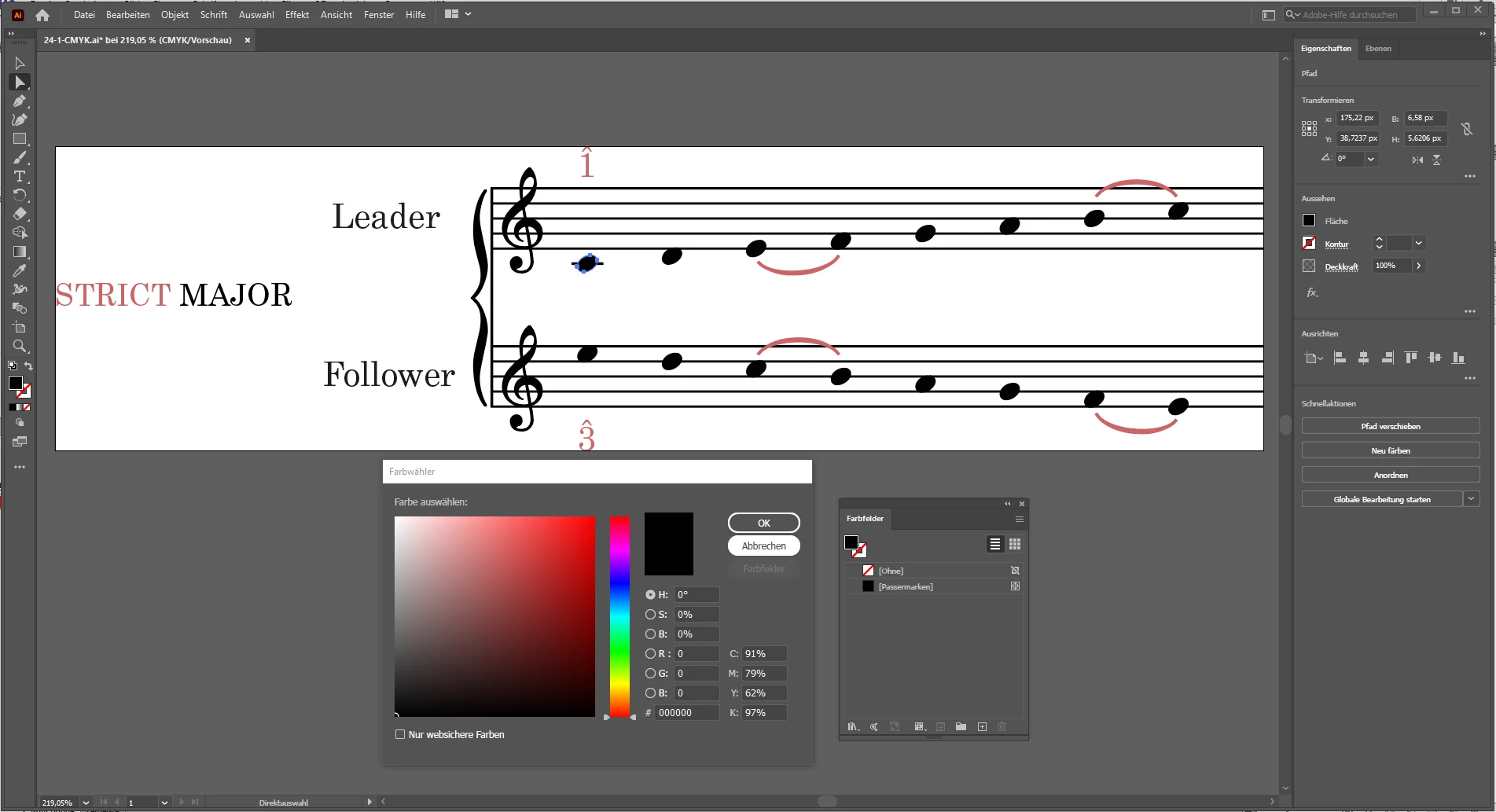
As expected the CMYK swatch applied shows a mix of percentages with every CMYK ink. I'd like to change that to 100% K only. For that I use a menu item that would select all fills with the same fill color as the currently selected one:
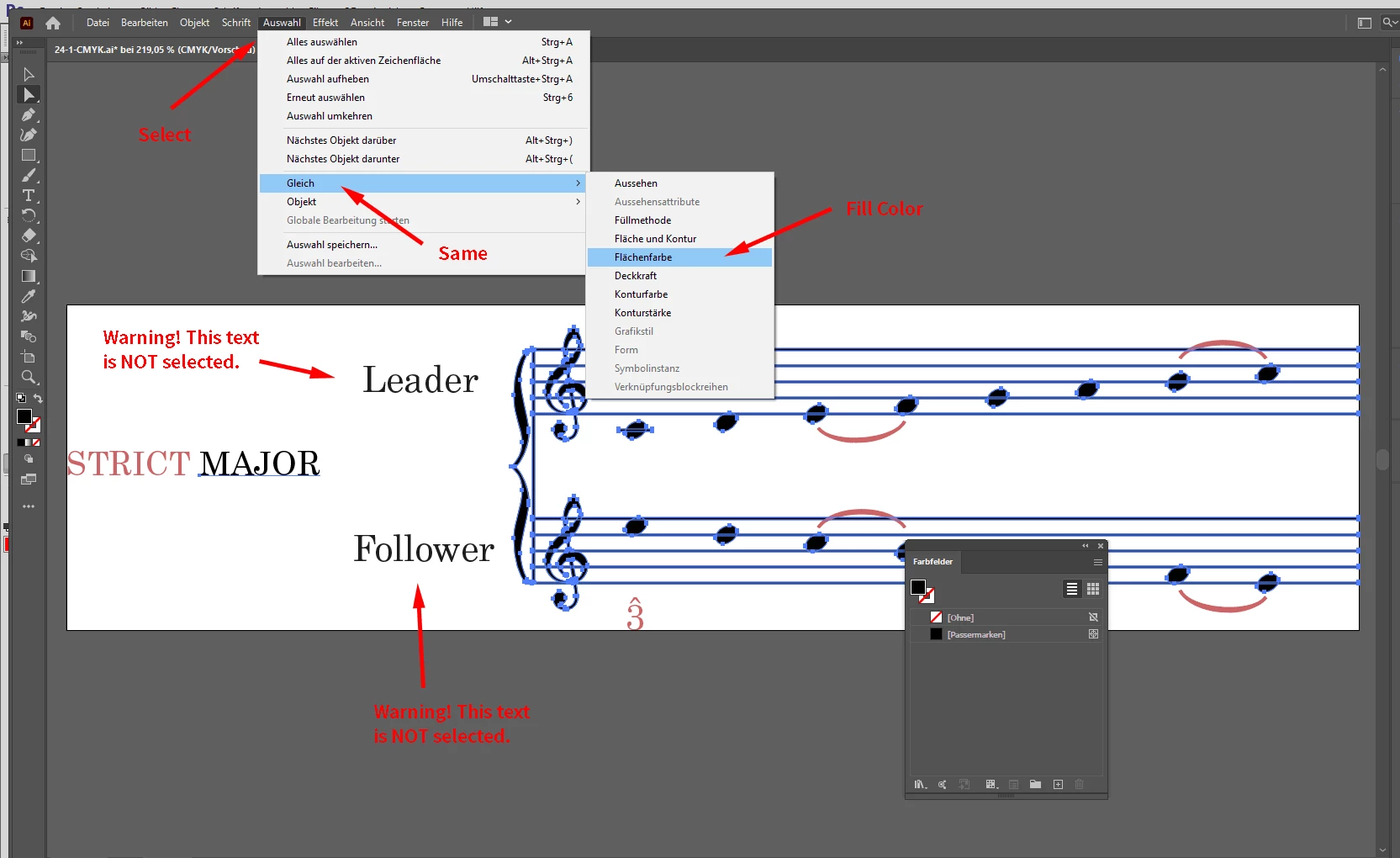
Note, that two elements, two out of several texts are not selected. Why? Because for whatever reason they do not share the same CMYK black with all other CMYK filled elements. Perhaps a glitch in the process to create that SVG file?


In the next step I will add a new CMYK swatch to the Swatches Panel, the selected elements from before are still selected.

I clicked the small black fill widget in the Swatches panel to get the CMYK percentages of the currently applied color:
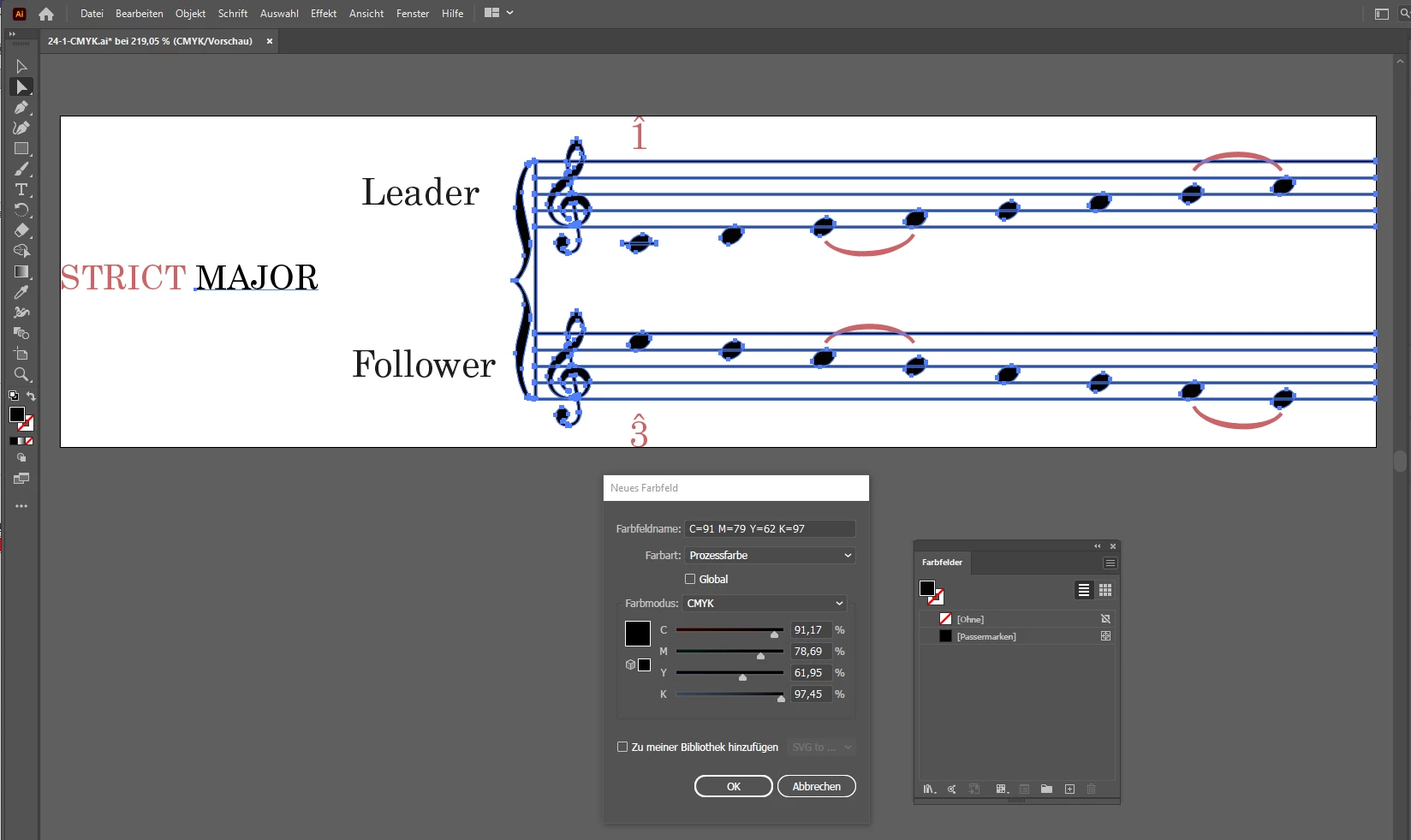
and changed the values to 100% K only:
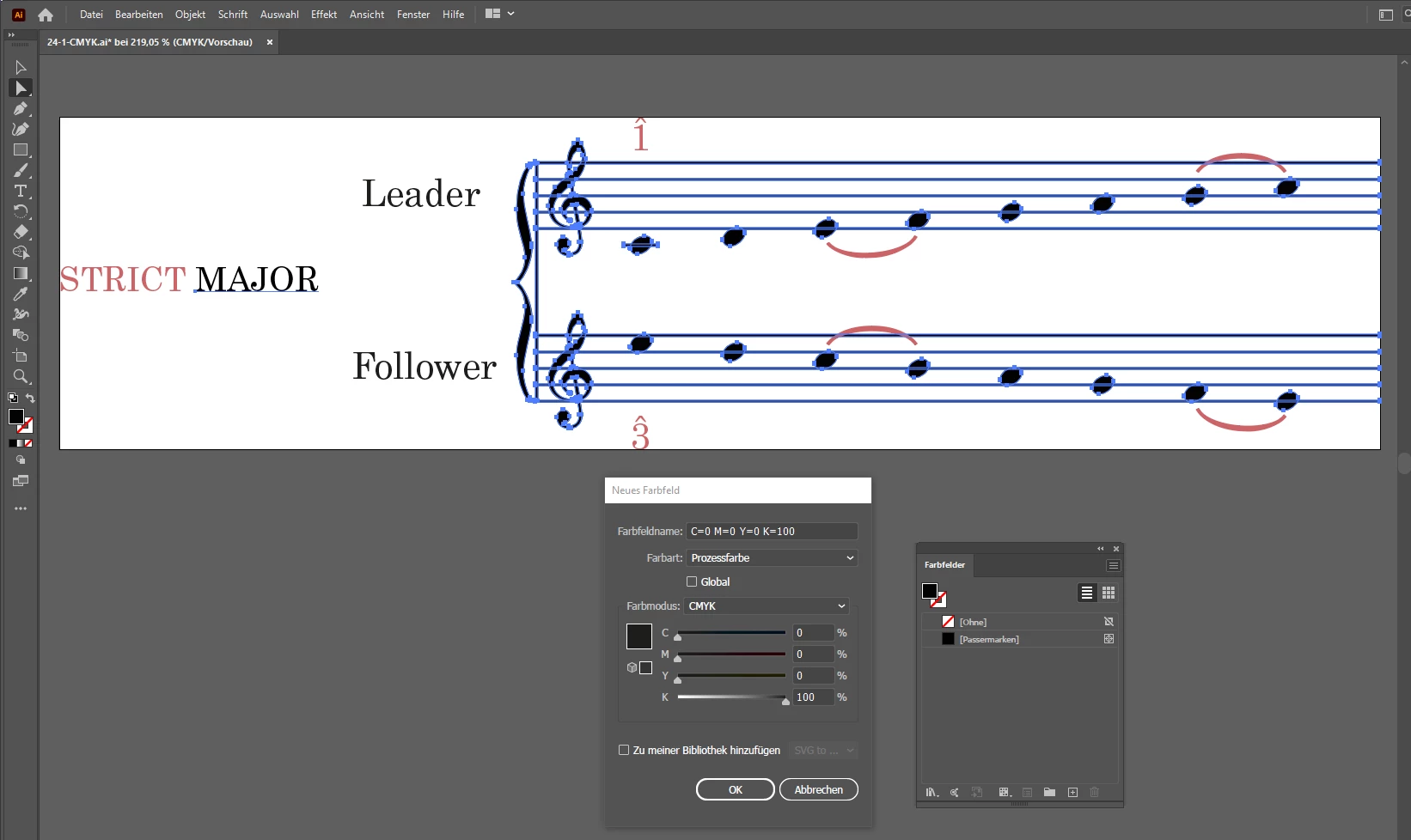
After I hit the OK button the swatch is added to the Swatches Panel and at the same time applied to the selected objects and texts. I select the three missing text elements ( note, that the "F" of "Follower" is on its own ) :
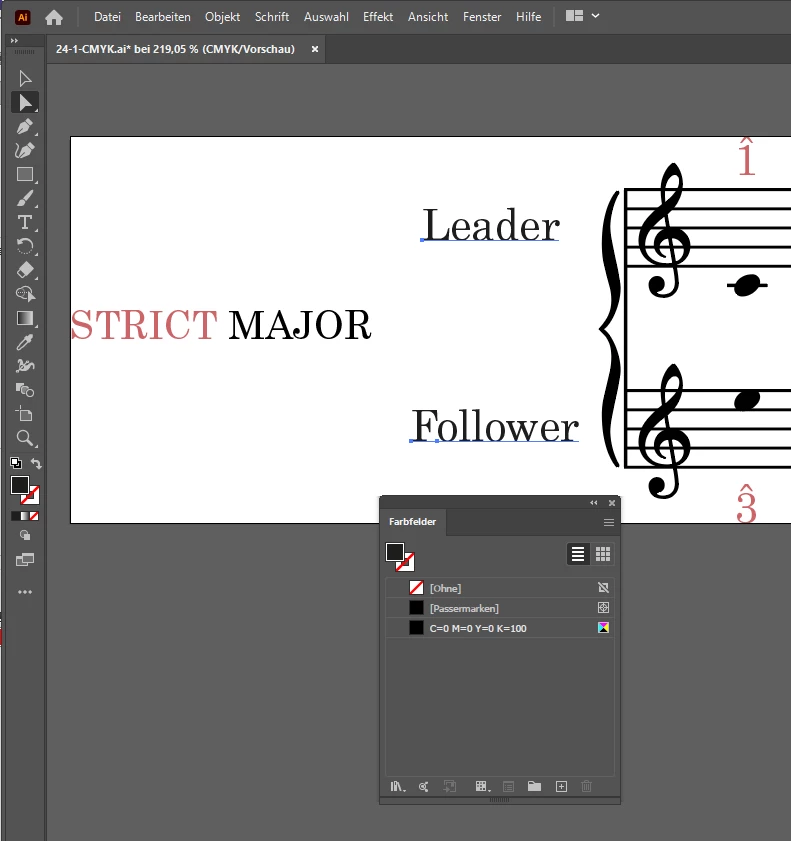
and apply the swatch as fill color:
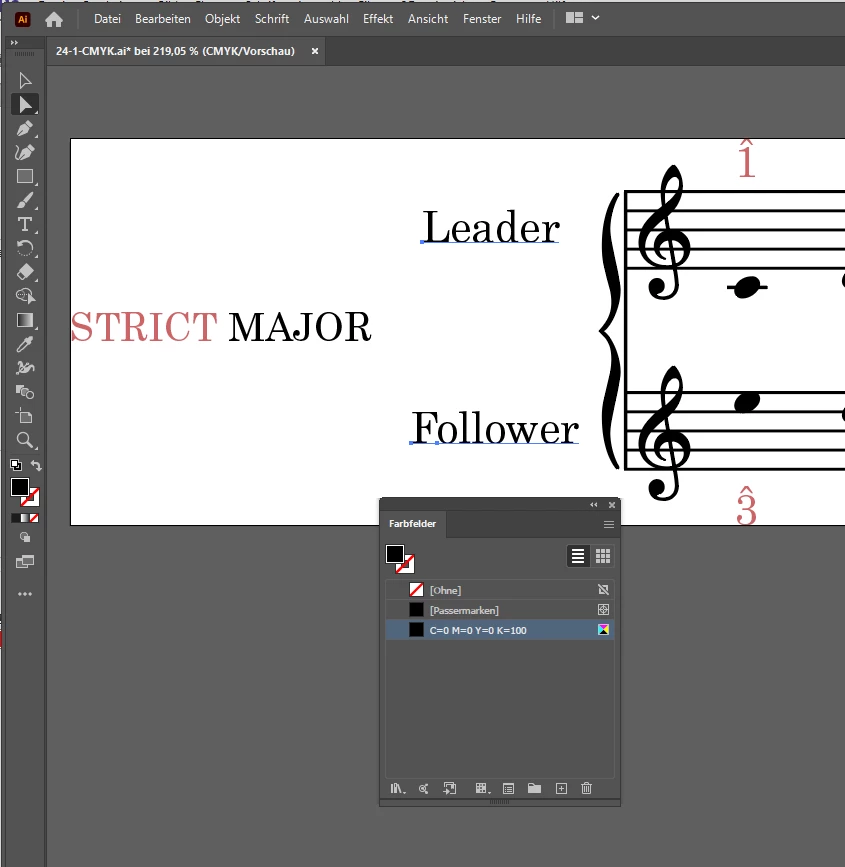
 

[F] Then the final of the necessary steps. I save the file with a new name as Adobe Illustrator file with suffix *.ai :
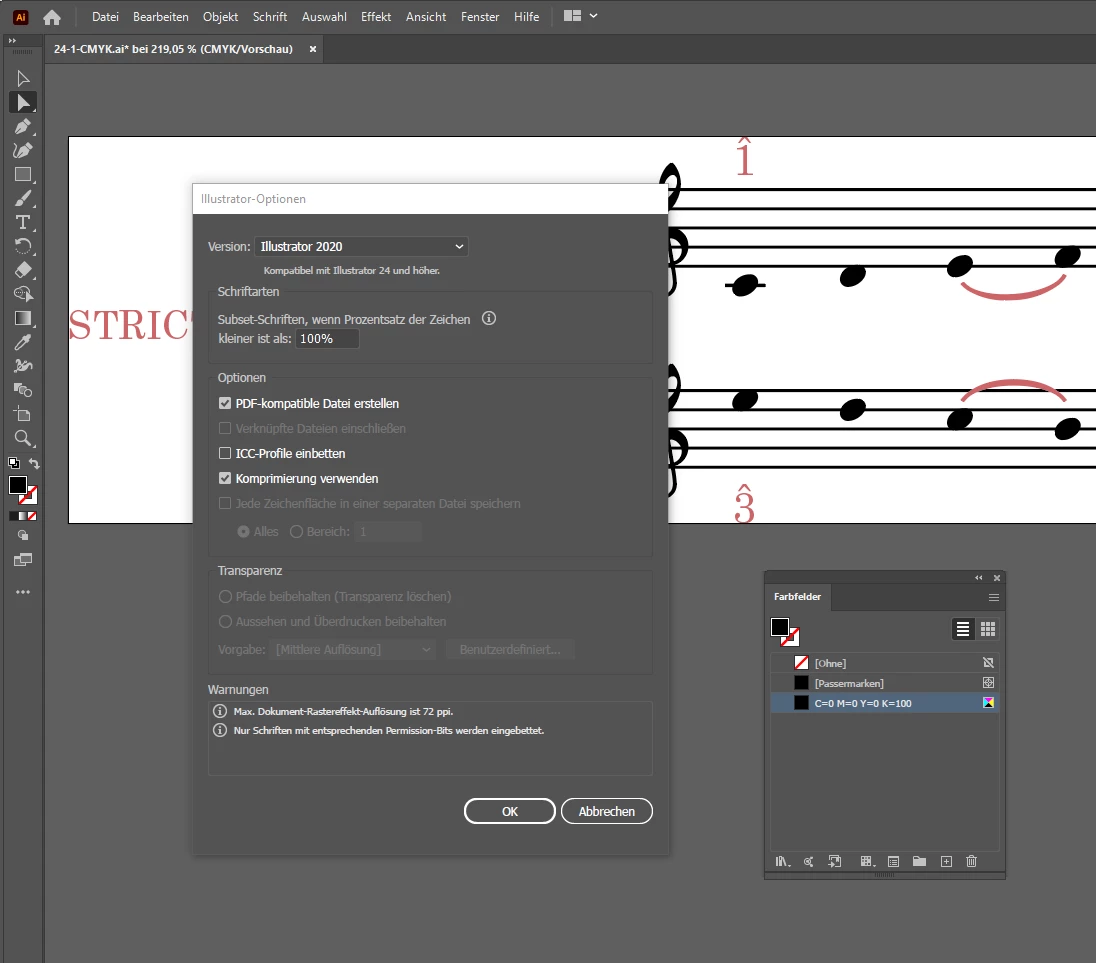
 

Important note: The option to embed the ICC color profile is disabled.

The ai file now is production-ready for InDesign.


What else could be done?

[1] Inspect the red fill color and change that to your liking.

Also make sure that all red fills use the same swatch.

( You will notice that also the red elements use slightly different red fill colors. )

[2] Store the new swatch(es) in a Library so that you have immediate access when re-coloring the next SVG file.


Regards,
Uwe Laubender

( ACP )

15 replies

Community Expert
August 10, 2021

Also did another bug report about the Document fonts folder with fonts that are missing in a placed SVG graphic. The thing is:


[1] InDesign will not use a font file stored in the Document fonts folder to supply the font when it is missing in a placed SVG graphic. Even more important:

[2] If a needed font file for a placed SVG graphic is already in the Document fonts folder it would block the only solution: the font file must be installed for all users in the system (at least that is the case on Windows 10) .

[3] So you have to move that particular font file out of the Document fonts folder AND you have to restart InDesign so that the text is rendered successfully in the placed SVG graphic when the font is installed for all users!


[INDD 2020 and 2021] Document fonts folder does not work with fonts for placed SVGs
Uwe Laubender, Aug 9, 2021
https://indesign.uservoice.com/forums/601180-adobe-indesign-bugs/suggestions/43967364--indd-2020-and-2021-document-fonts-folder-does-no


I consider this an extra bug even if the two bugs are of course related.


Regards,
Uwe Laubender

( ACP )

Community Expert
August 9, 2021

Hi Inélsòre,

just did a bug report at InDesign UserVoice regarding the principal font issue one has when a placed SVG needs a font that is not provided by the system, by a Document fonts folder or InDesign's application Fonts folder:


[INDD 2020 and 2021] Missing font in placed SVG is not detected by Preflight or Type > Find Fonts…

Uwe Laubender, Aug 9, 2021

https://indesign.uservoice.com/forums/601180-adobe-indesign-bugs/suggestions/43965738--indd-2020-and-2021-missing-font-in-placed-svg-is


To check if a font is missing you could do one thing:

Export your InDesign document to IDML and open the IDML as document.

Then Preflight and Type > Find Fonts… will show the missing font of a placed SVG.


When on Windows 10:

The only way to provide the missing font is to install the font for all users. You need admin rights to do this.

It does not help to copy the font file to a Document fonts folder or to the InDesign Application Fonts folder. It does not help to install the font for the active user ( no admin rights needed for that ) .


Please vote at my bug report so that the developers will look into the issue soon.


Thanks,
Uwe Laubender

( ACP )

Community Expert
December 14, 2020

To answer some questions:


[A] "… Not sure what you mean by "editable text" …"

That's in the first version of your SVGs. So, if you later want to do some edits you should stay with editable text.

Edits could also be changes in tracking, point size. You better do that with "live" text.


[D] "Anyway, what I actually see are just shapes"

Of course, because you opened the second version of your SVGs. In that live text is already converted to outlines.


[E] I described the same selection behavior. If you select "MAJOR" and all other filled objects that share the same fills, three already "outlined words" ( their shapes ) are not selected. Why? The fill color is different. Already if you inspect the RGB values of the SVGs.


Regards,
Uwe Laubender

( ACP )

LaubenderCommunity ExpertCorrect answer
Community Expert
December 11, 2020

Hi Inélsòre,

here some necessary and extra steps for converting your SVG files from the first batch to AI files with CMYK colors. I mean the ones where the texts are not converted to outlines:


[1] Install the needed fonts in your system

[2] Open the SVG file with Adobe Illustrator 2021

Note: There should be no warning of missing fonts at this point.

[3] Change the color mode of the open artwork from RGB to CMYK.

Theoretically, at that point you could save the file as AI file and place it in your layout in InDesign.


Practically this is not very wise. Why?

You are preparing an InDesign document for CMYK inks printing (my assumption).

Changing the color mode converts the RGB black to a CMYK black where all the four inks have certain percentages and ink black, the K in CMYK, is not 100%. And that will happen to all of the graphics' fills and strokes and also the text that is in RGB black. What we need is text that is filled with 100 K only. And in your case also all other black elements should be colored in 100 K only.


So the some extra steps are necessary to re-color all elements of the graphic in Adobe Illustrator.

The texts as well. For this task you need to know a bit more of Illustrator's features.

E.g. you can select an element and let Illustrator do the hard work to select all other elements of the document that share the same fill color. When done assign the fill color 100 K, that you either have to import or to add to the file.


After you also re-colored all stroke elements, if there are some, you:


[4] Save the file as AI file with the PDF representation included.

Do not include any ICC color profiles!

[5] Place the AI file and use InDesign's feature Separation Preview to control if the blacks are all use the black ink only.


See the following screenshots from my German Illustrator 2021.


[A] SVG file opened with Illustrator, text is still editable text.

Swatches panel is open with a list view on the available named swatches:


[B] Convert the document to color mode CMYK.

File > Document Color Mode > CMYK


[C] The extra info in the document's tab will inform you if this was done successfully:


[D] Inspect the elements. Switch to "Contour View" with keyboard shortcut Cmd + Y ( when on Mac OS X ) .

What we now can see are two different things: Editable text and a lot of shapes.

At first glance I cannot detect any objects that consist of stroked paths only.


That means we have to deal with fill colors only:

How can I be so sure that there are no elements with stroke colors?


Now, I selected all elements and inspected the Swatches panel. The fill widget is showing a question mark which means not all elements share the same fills, wheras the stroke widget is clearly showing a mutual property: [None] .


[E] Let's select all black elements with a mutual fill color. Note, all elements in that document are grouped. So to select one single element I use the Direct Selection Tool, the "white" arrow tool:

As expected the CMYK swatch applied shows a mix of percentages with every CMYK ink. I'd like to change that to 100% K only. For that I use a menu item that would select all fills with the same fill color as the currently selected one:

Note, that two elements, two out of several texts are not selected. Why? Because for whatever reason they do not share the same CMYK black with all other CMYK filled elements. Perhaps a glitch in the process to create that SVG file?


In the next step I will add a new CMYK swatch to the Swatches Panel, the selected elements from before are still selected.

I clicked the small black fill widget in the Swatches panel to get the CMYK percentages of the currently applied color:

and changed the values to 100% K only:

After I hit the OK button the swatch is added to the Swatches Panel and at the same time applied to the selected objects and texts. I select the three missing text elements ( note, that the "F" of "Follower" is on its own ) :

and apply the swatch as fill color:


[F] Then the final of the necessary steps. I save the file with a new name as Adobe Illustrator file with suffix *.ai :


Important note: The option to embed the ICC color profile is disabled.

The ai file now is production-ready for InDesign.


What else could be done?

[1] Inspect the red fill color and change that to your liking.

Also make sure that all red fills use the same swatch.

( You will notice that also the red elements use slightly different red fill colors. )

[2] Store the new swatch(es) in a Library so that you have immediate access when re-coloring the next SVG file.


Regards,
Uwe Laubender

( ACP )

Community Expert
December 12, 2020

Super-helpful replies so far - if this is resolved please let me know which one helped or you can mark is correct yourself.


Community Expert
December 10, 2020

Hi Inélsòre,

yes, this is all important information!


I'm not sure, but I do not think the issue is the OTF font itself.

To proof that I need to do more tests, but one of my tests, editing the SVG file, was rather successful.

The question is what happens on your side. On Mac OS Big Sur.


For that you could open the panel Type > Find Fonts in InDesign and inspect the info under the More button when selecting the installed Academico fonts. There is a "Path" info that shows where the font is installed on your machine. Best show a screenshot of that.


Other topics:
[1] The SVG files are simple text files you could open and edit with Apple's TextEdit App.

When you do this make sure that TextEdit is running in "Text-Only" mode; means TextEdit should not offer text formatting of any kind.

[2] Document fonts: You are guessing right.

If you save an InDesign document and you add a folder with the exact name Document fonts in the same folder with the InDesign document all font files moved to that Document fonts are recognized and used by the InDesign document.


However, my tests on Windows 10 are showing that this is no wise decision in your case with the placed SVG files.

I would also rule out the use of the Fonts folder in the Application folder of InDesign.


Note: This all is about seeing where some bug hit.


To solve the publishing issues you have with this workflow I would recommend not to use SVG files at all.

Just open the original SVG files in Adobe Illustrator, recolor the artwork and the text to CMYK, black text in 100 % Black only, save the file as AI with PDF included and place the AI file in your layout. Then you are good to go.


Regards,
Uwe Laubender

( ACP )

Inspiring
December 10, 2020

What's better than a video to show things?

In the attached video you will see the path of all the Academico fonts.

The non-"ScaleDegree" ones were installed by Steinberg Dorico so are in the Computer folder, while the ScaleDegree ones are in my user's folder.

Path video 


I need those files to stay coloured so, by now, I have done this:

  1. open SVG in Illustrator
  2. Save As ... Illustrator File (.ai) with PDF Compatible checked
  3. Insert in InDesign document directly as .ai file.

For what I need that is enough but I understand that this seems to be a much bigger issue.

Community Expert
December 9, 2020

Now on with the case where all needed fonts are supplied with a Document fonts folder.

Some bugs are the same compared with the fonts supplied with the Fonts folder in InDesign's Application folder.

If you open the document where one SVG file is already placed, no missing fonts are detected, but the fonts are missing in the placed SVG:


A new bug with ExtendScript shows up:

All but two property/value pairs of the applied font of selected text cannot be read.

Instead error messages with the following error numbers and descriptions:


Error: 15875: $ID/FontFamilyNotAvailableError

Error: 15882: $ID/FMCantGetFontProperty


Wheras property name gives the right value:

Academico Regular

Also property fontFamily with value:
Academico


And if you place a new SVG file, suddenly you are confronted with three missing fonts in the newly placed SVG:


And the same issue as before:

If you save, close and reopen the document absolutely no missing font is detected.


Well, that's it for now.

There are quite different issues with placed SVG files where the supplier opened and saved the now placed SVGs with Adobe Illustrator. I'll discuss these in another post.


Regards,
Uwe Laubender

( ACP )

Inspiring
December 10, 2020

Thank you for all this analysis, Uwe!

I do not know if it helps knowing that the designer who supplied the font and the SVG is working on Windows 10 while I am working on macOS 11. 

I am not aware of what software he did use to create the font but I could ask while I know he is using Illustrator to create the SVG. Another important thing to mention is this: those musical files are PDFs exported from Avid Sibelius on Mac, then imported in Illustrator on PC, coloured and exported as SVG. I mentioned this because Sibelius is having crazy (and sincerely unacceptable) issues with fonts handling under Big Sur (actually, in general, but this time it is dire serious, I had to buy 300EUR of font weights to overcome their bugs and keep working...). 

I wonder if this piece of information could be of any help to the investigation. 


Thank you

Community Expert
December 9, 2020

Let's go on with my tests.

Now I show you the dark side of a placed SVG that is in need of some fonts.


Well, the fonts are installed.

But this time not through my Windows system, but they are made available through InDesign's Fonts folder in the Application folder. At first glance nothing is wrong with that: InDesign can see the fonts, you can apply the fonts to live text of text frames.


But InDesign cannot detect that the fonts are missing in that placed SVG file.

The preflight says all's ok, all's green, but the screen rendition shows a different picture.

Clearly the needed fonts are replaced by substitutions in the placed SVG file.


The above screen shows the document after I opened it.

What will happen in the moment I place another SVG file?


InDesign's Preflight detects one missing font. One that is not needed and only thought as alternate or substitution font for the preferred one. I already discussed that when showing the SVG code of element .cls-6 .


That two other fonts are missing in the placed SVG file is not detected!

Save, close and reopen that document and Preflight will not flag the element that was flagged before:


Enough for now.

Believe me, it get's even more weird if you supply the fonts with a Document fonts folder.


Regards,
Uwe Laubender

( ACP )

Community Expert
December 9, 2020

Going back to the first post here in this thread and inspecting the screenshot there:


maybe the solution for this is to edit the SVG code and removing the name of that missing font when a different one is preferred and suggested by the code:


Before:


.cls-6 {
font-family: AcademicoScaleDegree, Academico ScaleDegree;
}


After editing:


.cls-6 {
font-family: AcademicoScaleDegree;
}


Regards,
Uwe Laubender

( ACP )

Inspiring
December 10, 2020

I have a very modest knowledge of coding and none in editing the SVG code. 

Is this possible from within InDesign?


Quick correction, I am on macOS Big Sur 11.0.1, just saying that it stopped being called Mac OS X a few years ago and its architecture changed a lot internally. 

As far as I know, on macOS apps install font in the Computer side (which is in Macintosh HD/Library/Fonts) while when a user double-clicks on a font-file they are installed in the User side (which is in ~/Library/Fonts, ~ being a shortcut for Macintosh HD/Users/<username>/Library/Fonts). 

I do not know what Document fonts are, but I try to guess they are just installed in a folder accessible only by a specific InDesign document? How does one achieve that? 

Community Expert
December 9, 2020

Hi Inélsòre and all interested lurkers,

I did some extensive tests with files supplied by Inélsòre.


The preliminary results on my Windows 10 machine with InDesign 2021 were these:

It highly depends where the fonts are installed if InDesign is able to detect a "font call-up" ( a font that is used, but is not embedded ) in a placed SVG file and use that installed font successfully to produce the right screen representation and will embed it with an exported PDF.


Simply put, it worked as expected with the first batch of SVG files not saved from Illustrator, the one our OP attached to his first post, not the one that I edited, if the provided OTF fonts were installed for all users on my Windows 10 machine.


In the screenshot below you can see the same SVG file placed twice plus one version that I edited. The original and the edited pieces of code are presented right to the placed graphics. On the far right you see the tabular results of an ExtendScript script that read out the property/value pairs of some text on the page that is formatted with Academico Regular. The yellow row in that table is the one that shows where the font is installed on my machine:


So all is good and well now?

I doubt it. First, because our OP Inélsòre is not on Windows 10, but on Mac OS X, second, because this happy picture changes immediately if the needed fonts are installed in the Fonts folder of InDesign's Application folder ( I see one bug in this case! ) or if the needed fonts are made available with a Document fonts folder ( even more bugs with this! ).


More on this later…


Regards,
Uwe Laubender

( ACP )

Community Expert
December 8, 2020

Hi Inélsòre,

sent you a personal message over this forum.


Regards,
Uwe Laubender

( ACP )