


Copy link to clipboard
Copied
I am copy/pasting vector graphics from Illustrator to Indesign. Mostly simple charts and diagrams that are re-used and I find that they are easier to work with this way as opposed to placing them. Normally the bounding box hugs the dimensions of the graphic, but one in particular has something weird going on with it... (see below) I have tried grouping it in different ways, re-saving it, playing with the artboard and triple checked for stray points.... anyone have any idea what is going on here?
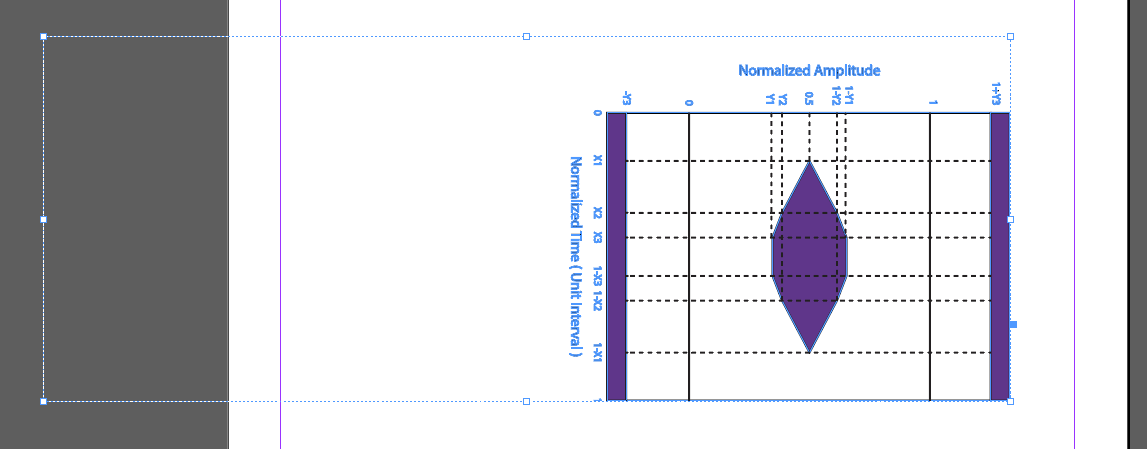


 1 Correct answer

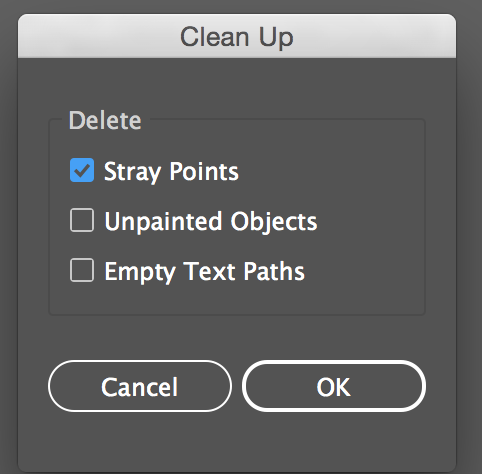
I took a look at this - even though I could not see any stray points in the Illustrator file, I tried using Object > Path > Clean Up to remove stray points.
It seemed to fix the problem - give it a try and let me know if it works for you.

 11
Replies
11
11
Replies
11



Copy link to clipboard
Copied
Hi Scooter:
The dotted line border indicates that you are working with a group. I suspect there is an invisible object over to the far left. You could carefully ungroup in InDesign, locate the object, delete it and then regroup those blue elements. Or you might want to return to Illustrator, change to Outline View—which will show you exactly where that object is—delete it, then reselect and copy and paste the content back into InDesign.
~Barb
Copy link to clipboard
Copied
That was my first thought, It's happened before but this is how it looks in outline and after a command-A
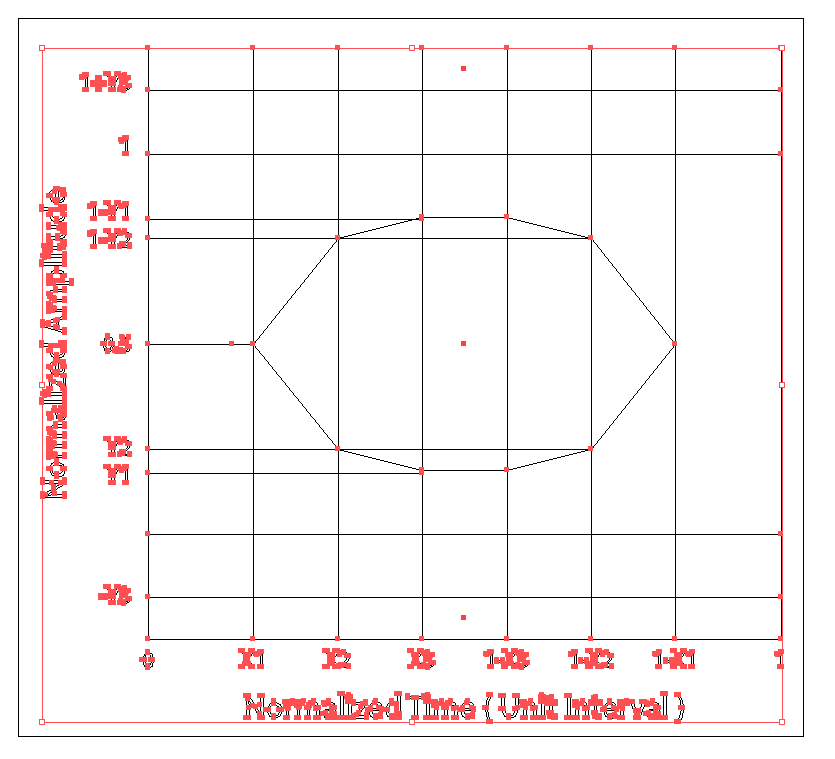
Edit: I do group them before copying them into ID, I did not know it knew the difference (TIL!) also need to outline fonts, as Type behaves oddly when scaling in Indesign
Copy link to clipboard
Copied
Hmmm. Do you want to share the files? That InDesign page and that Illustrator graphic? You can put them on dropbox and post the link here (public) or hover over my name and message me (private).
~Barb

Copy link to clipboard
Copied
In Illustrator, is there a Guide way over to the left?
Copy link to clipboard
Copied
No guides- I wish that were the case ....
BarbBinder here is the file if you want to have a look. Its not life or death just a weird anomaly I've never seen before.
Thanks! 
Copy link to clipboard
Copied
I took a look at this - even though I could not see any stray points in the Illustrator file, I tried using Object > Path > Clean Up to remove stray points.
It seemed to fix the problem - give it a try and let me know if it works for you.
Copy link to clipboard
Copied
Winner Winner Chicken Dinner.
It did work... still dont understand what the heck was going on but THANKS!!!

Copy link to clipboard
Copied
Hi ScooterD76 ,
placing your AI file with option Bounding Box ( All Layers ) or Bounding Box ( All Visible Layers ) will be ok.
No extra space to the left. The creator tag in the file says Adobe Illustrator CC 22.1 .
( However my InDesign CC 2018.1 on Windows 10 crashed while trying to remove the placed files. )
Ok, then let's test this with InDesign CC 2018.1 on one side and Adobe Illustrator CC 22.1 on the other.
Hm. Select the paths in Illustrator, copy to the clipboard, switch to InDesign and paste. Yes, I can see the issue. Confirmed. But I can see it differently compared to the one you see:
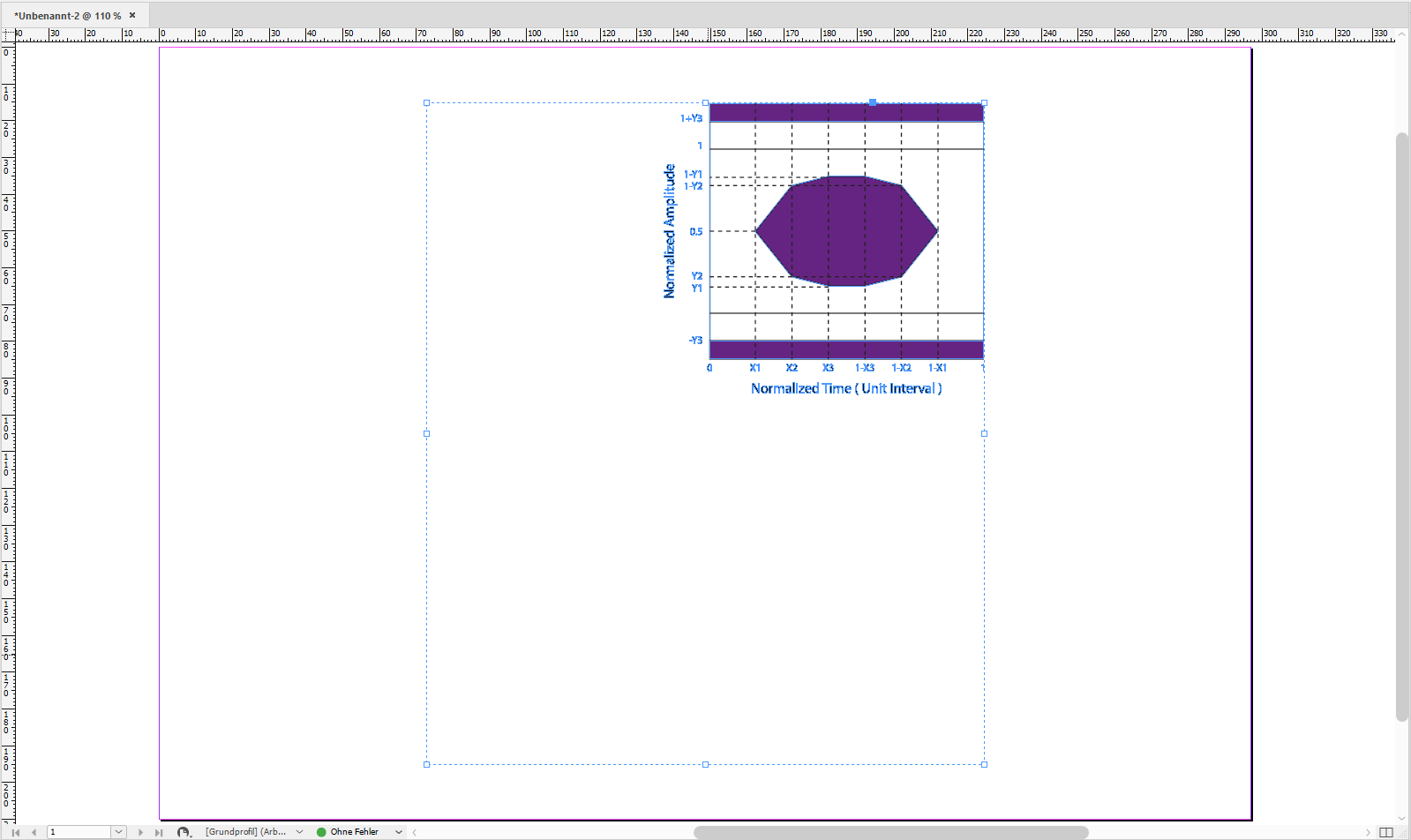
If I ungroup the group there is no item in the lower left corner of the selected group you can see from my screenshot.
Currently I have no explanation …
EDIT: OK, now we have something like an explanation. Stray path points. But shouldn't stray path point be selectable?
Regards,
Uwe
Copy link to clipboard
Copied
- My sample was turned sideways to fit the screenshot, also, My original document has several layers with different versions of the same chart, (all with the same problem) so i just picked one for the doc i uploaded. You would think that they would be selectable, especially command-A... ::shrug::
Copy link to clipboard
Copied
It's a puzzle. I could find no stray points in the illustrator document, but this worked anyway.

Copy link to clipboard
Copied
downloaded image … tried opening illy-2018 and indd-2018 … as expected, same results as op.
then tried opening illy-cs6 … immediately, bounding-box (8.5x11(def)) was evident … clipping-path was engaged with that bounding-box … no “grouping” evident. upon selecting only the bounding-box … object/clipping-mask/release … deleted the bounding box … resaved image … no further issue.
since op did not include an image which did not have issue … i couldn't trouble-shoot/speculate further as to which action op performed that caused the issue in first place. [could be op had some interaction with layer/group/font-outli8nes, etc.]


Get ready! An upgraded Adobe Community experience is coming in January.
Learn more
 AdChoices