



View reviewer comments – FAQ
As a designer, you can access and manage feedback using the Review panel in InDesign. Check out the help document here to know how to access the Review panel.
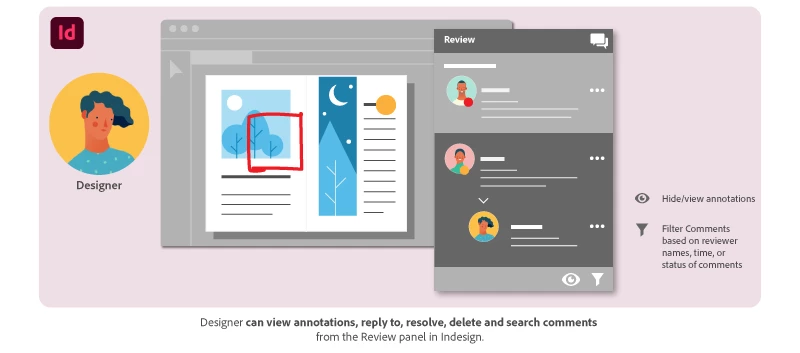
1. Why am I not receiving notifications from stakeholders?
After the reviewer provides feedback, you will receive a notification through the Creative Cloud application and through an email sent to you. If the email doesn’t show up, please check your junk/spam folder or refer to the best practices thread in the community.
2. Can I hide annotations while working on the reviewer’s comments?
Yes you can! Sometimes too many annotations can be confusing.
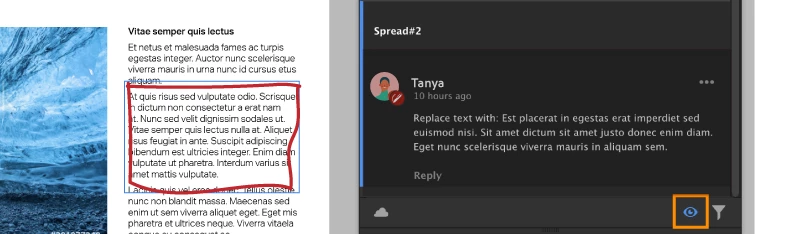
To hide annotations on the layout, click the Hide annotations button at the lower-right bottom of the panel. To show the annotations click the button again.
3. How can I filter comments by reviewers?
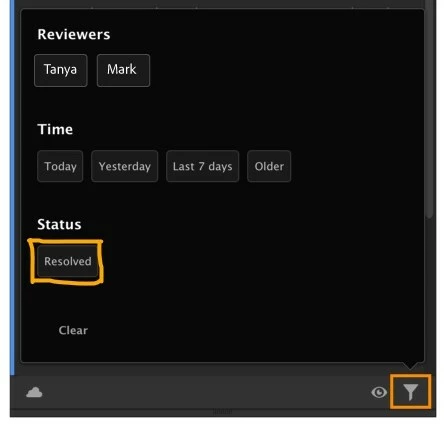
The filter option is available on the lower-right bottom corner of the review panel. You can filter the comments based on reviewer names, time, or status of comments.
For more info, see Manage feedback.
4. How does a reviewer know that I have worked on their feedback?
After you have worked on the feedback from the reviewer, you can respond to that specific comment with the @mention of the reviewer. Stakeholders receive a separate notification for their mentions through email and through the CC desktop application.
5. How do I resolve comments after I have worked on them?
You can resolve comments using More options to the right of the comment.
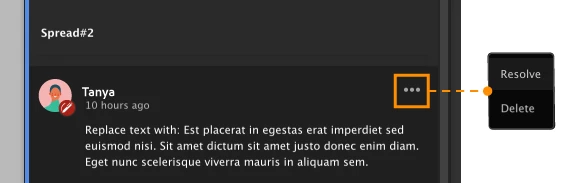
Learn more about managing the comments here.
6. If the changes requested by the first reviewer are completed and sent for approval before a second reviewer responds, does this create multiple versions of the document on Creative Cloud?
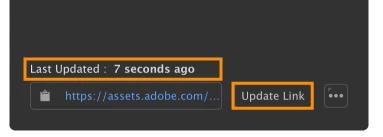
No, it doesn’t. After you have incorporated feedback from the first reviewer, make sure you update the link that has been shared. When other reviewers open the document for review, they’ll see the updated copy of the document. The link is always up to date with the latest comments.
7. How do I see comments that I have previously resolved?
Under the filter options, you can filter the comments based on the status of the comment which will help you see the comments that have been resolved.
8. What’s the difference between ‘resolve’ and ‘delete’ actions for a comment?
Marking a comment as resolved means that you’ve worked on it and it can now be hidden. Additionally, you can unhide the resolved comments using the filter options.
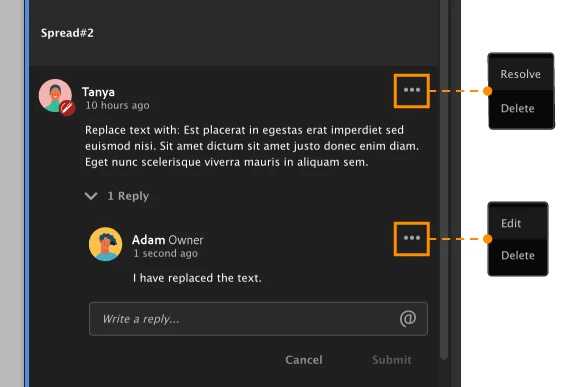
Deleting a comment permanently deletes it and this action cannot be undone.
9. Can I directly accept the text comments into my InDesign document?
No. There is no way to accept the text comments in the document. You will need to manually make the desired edits to your document.
To view the ‘Share for Review’ FAQ, see InDesign Share for Review - FAQ.
 AdChoices