
Participant
February 26, 2018
Answered

How to remove vertical spacing between pages

  • February 26, 2018
  • 4 replies
  • 22912 views

Hi,

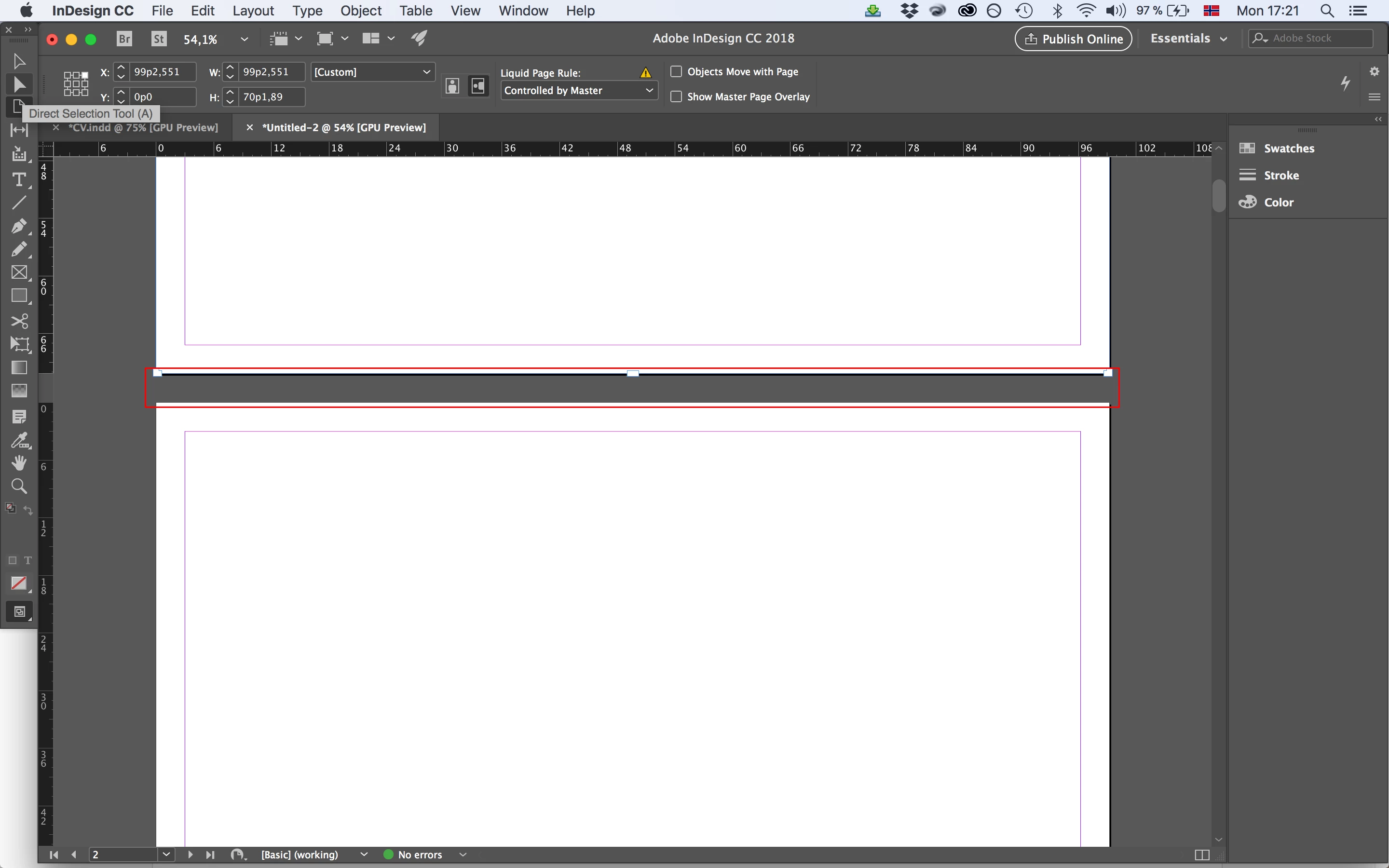
I have tried to google the matter but cannot find the answer anywhere. I simply want to view my pages touching each other top against bottom so they form one continuous row. Is this possible somehow.

I have gone to preferences-guides and pasteboards and set the vertical margin to 0, but the marked spacing is still there.

Please see attached screenshot with spacing I want to remove marked in a red rectangle.
Correct answer Steve Werner

Not possible. The minimum pasteboard size is 0, set in Guides & Pasteboard preferences. Nevertheless, there is still a gap between pages.

Instead, make a PDF file. In Reader or Acrobat, make sure you Enable Scrolling in View > Page Display and if necessary turn off the gap.

4 replies

Participant
February 16, 2025

New to this and my examples not showing automatically, but here's a combo comparing size difference between pages better. : )

Robert at ID-Tasker
Legend
February 16, 2025

@Patty Berglund


To change the size of the pasteboard, choose Edit > Preferences > Guides & Pasteboard in Windows or InDesign > Preferences > Guides & Pasteboard in MacOS.


But sometimes it can be a side effect of the corrupted file: 


https://community.adobe.com/t5/indesign-discussions/1-page-of-pasteboard-suddenly-extending-far-out/td-p/15138590


Participant
February 16, 2025

There has to be a setting for vertical space between pages (gray area seen as you scroll). The smaller space is my default setting, and the second (much larger) is a file set up by someone else. I would also like to know how to reduce the space.

Community Expert
February 26, 2018

Hi,

under specific circumstances one page can touch the other one the way you want it.


1. You need a non-facing pages document.
2. One single spread with a maximum of 10 pages. My screenshot is showing one spread with 4 pages:

To make that happen I turned off "Allow Page Shuffle" for the first spread of the document and added pages to the spread or moved pages from other spreads to the first one in the document:

3. Then I re-arranged pages with the Page Tool and moved page 2 below page 1, page 3 below page 2 and so on:

Regards,
Uwe

Participant
February 26, 2018

Thank you Uwe! This was the solution to my problem.

Steve Werner
Community Expert
Steve WernerCommunity ExpertCorrect answer
Community Expert
February 26, 2018

Not possible. The minimum pasteboard size is 0, set in Guides & Pasteboard preferences. Nevertheless, there is still a gap between pages.

Instead, make a PDF file. In Reader or Acrobat, make sure you Enable Scrolling in View > Page Display and if necessary turn off the gap.

Participant
February 26, 2018

OK. Thank you for your answer Steve. The output view mode you describe is the way my document is intended to be viewed, thats why I would like to actually view it like this while working on it in Idesign itself. But I guess that's not gonna happen then.