


Known Participant
January 5, 2023

P: LrD and LrC display wrong font size on dual monitor when Windows Display Scale differ

  • January 5, 2023
  • 6 replies
  • 1456 views

ISSUE (relates to both Lr and LrC): 


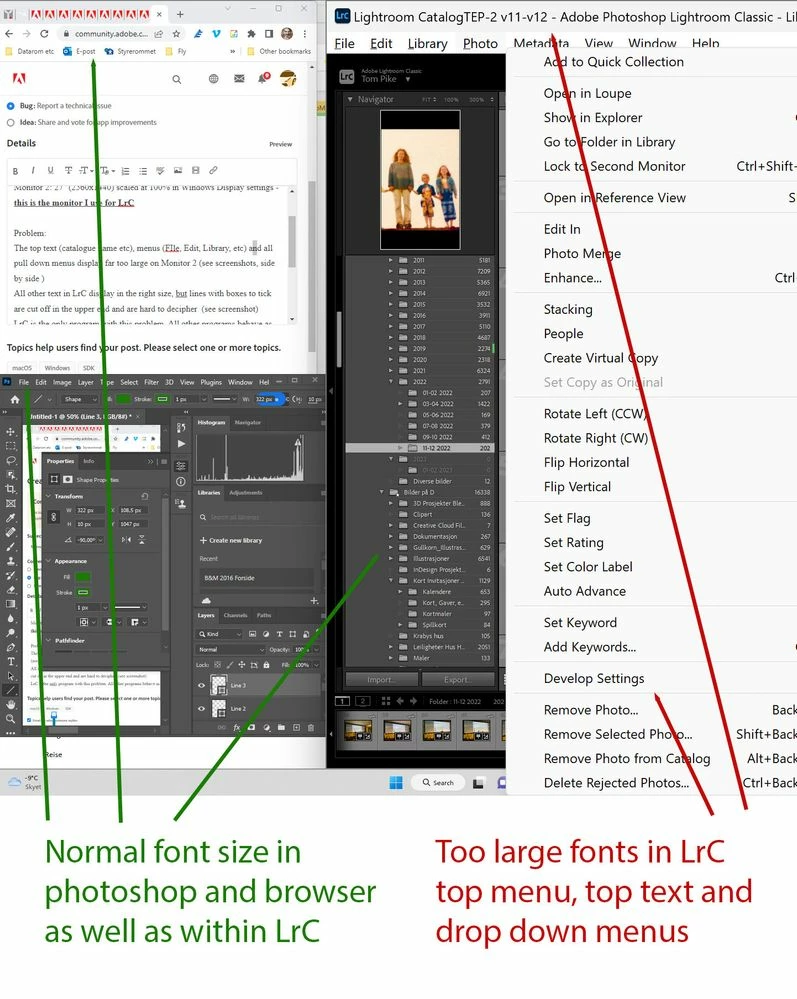
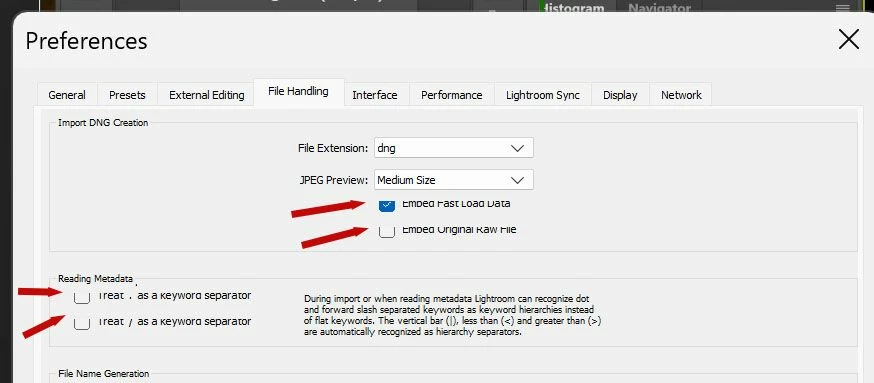
Short description: when dual monitors are set to different Scale in Windows then the top menu (File, Edit, Library, etc) and the dropdown menu text size displays in the wrong size (too large in my case).  Also, lines with check boxes in the Preferences menu are cropped in the upper end and are hard to decipher.


Suspected bug: when Lr opens it looks up the scaling set in Windows for the primary display (Monitor 1) regardless of which monitor it resides in. It should look up the scaling of the monitor it is displayed in at any given time.


Background:

johnrelis asked me to post this as a bug.

Original discussion thread: Re: Menu and context text size in LrC too large - Dual monitor


System Specs: 

Lightroom CC 6.1

Lightroom Classic 15.1

Windows 11 Pro for Workstations

NVIDIA RTX A4000

Intel(R) Xeon(R) W-11955M CPU @ 2.60GHz 2.61 GHz

RAM 128 GB

Monitor 1: Internal laptop 17'' (3840x2160) scaled at 200% in Windows Display settings

Monitor 2: External Eizo 27'' (2560x1440) scaled at 100% in Windows Display settings - this is the monitor I use for LrC 

LrC settings: Preferences>Interfase>Font Size: Automatic (changing this did not affect the problem)


Steps to reproduce:

  1. Laptop display (Monotor 1/primary display) set to Windows>Display>Scale = 200%, This is a must for me in order to make any text in any program large enough to read on the 17'' 3.  840x2160 screen.
  2. Monitor 2 (Excternal Eizo 27'' 2560x1440) set to Windows>Display>Scale = 100%.
  3. Open LrC or LR CC and observe.  Drag from one monitor to the other


Expected result

I expect all text in LR to behave as they do for any other program (Photoshop, Office, etc). I.e. adapt to the settingsd of the monitor they reside in at any time. 


Actual result:

  • The top text (catalogue name etc), menus (File, Edit, Library, etc) and all pull down menus display far too large on Monitor 2 (see screenshots, side by side ). It seems to display this text in 200% which is the setting for Monitor 1, insted of 100% which is the setting for Monitor 2.
  • Text in the Preference settings are the right size, but lines with check boxes are cropped in the upper end and are hard to decipher  (see screenshot)
  •  

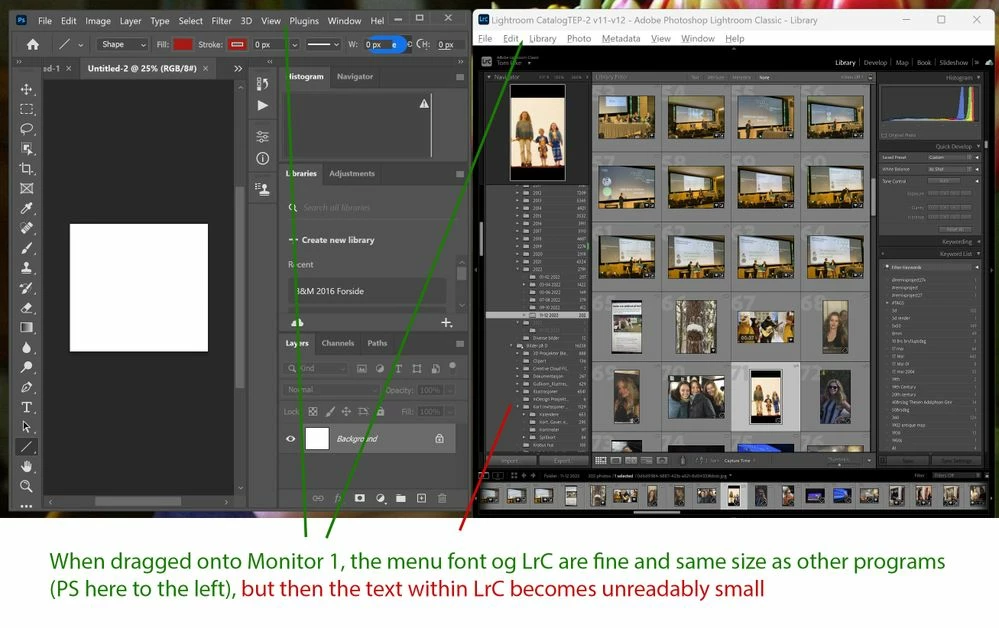
  • When i drag LrC to monitor 1 (higher resolution, but smaller screen) then the top menu text has the right size but all the rest of the text becomes to small to read.
  •  

  • All other text in LrC display in the right size


Troubleshooting steps performed:

Resetting all LrC preferences had no effect.

Changing Lr Preferences>Interface>Font size did not resolve the problem


But resetting Monitor 1 to 100% in the Windows>Display Settings so that both monitors are at 100% did the trick, in the sense that LrC now behaves as the other programs on both monitors. I.e. LrC now looks fine on Montor 2 which is where I use it. The cropping of the check box lines in LrC settings were also fixed.  Paradoxically this does not help me at all, since havin my 17'' (3840x2160) Monitor 1 scaled at 100% leaves this screen useless as all text on thet screen becomes far too small to work with.  So I have to reset Monitor 1 to 200%.  When I reset Monitor 1 to 200% with LrC open in Monitor 2 it stays fine for one session.  However, when I close the program and repoen it straight into Monitor 2 then the menu texts in LrC becomes too large again, even when the program is opened straight into Monitor 2 (which is at 100%) without having breen in Monitor 1 (200%) at all.  So the bug is that when LrC opens it reads the scaling set at the primary monitor 1 regrdless of which monitor it curretly resides in. It should look up the scaling of the monitor it is displayed in at any given time.


6 replies

Participant
August 16, 2025

Lightroom Classic 14.5 on Windows 11 suffers from serious UI scaling issues on high-resolution monitors (QHD 2560×1440) with 150% Windows scaling — the recommended setting for high-DPI displays.
⚠️ Key Issues:
• Font and UI elements too small: No native option to increase font size, making the interface uncomfortable for extended use.
• DPI override breaks rendering: Causes misaligned previews in the Develop module, with white margins and off-center images.
• Preferences window becomes unusable: Performance tab is non-interactive, buttons are off-screen, and mouse clicks don’t register.
• Dialogs are cut off: Many windows are partially hidden, with invisible buttons that require blind keyboard navigation.
🧯 Workarounds Attempted (none viable long-term):
• Disabled GPU acceleration via config file — no improvement.


Please prioritize fixing these scaling issues, as they severely impact usability on modern high-DPI setups.

💻 System Specs:
• CPU: AMD Ryzen 7 6800H with Radeon Graphics (3.20 GHz)
• RAM: 16.0 GB
• GPU: NVIDIA GeForce RTX 3060
• OS: Windows 11 24H2 – Build 26100.4652
• Set DPI override to “Application”
• Lowered Windows scaling to 100% (hurts readability)
• Changed resolution to 1920×1080 (degrades image clarity)
🛠️️ What Lightroom Classic Really Needs:
Lightroom Classic urgently needs a modern, modular UI scaling system that adapts dynamically to DPI and resolution.
Photoshop, built by the same company, handles high-DPI scaling flawlessly — with flexible, DPI-aware UI components. Lightroom should follow the same model:
• Independent scaling for panels, fonts, sliders, and dialogs
• Consistent rendering across multi-monitor setups
• Dedicated preferences for UI customization and accessibility

a.wojtas
Known Participant
May 31, 2023

Lightroom appears to scale the fonts too large on my external monitor.


The "auto" font setting is fine on the external monitor. But it's way too small on the laptop.

I have to keep changing the setting back and forth, and tbh, my use of Lightroom has really stopped a lot because of this hassle. I bought this laptop thinking I'd use LR more but it's just uncomfortable to use for any length of time without changing the font size back and forth.


The external monitors are both Lenovo 24" QHD 2560x1440 which I run at 125% scaling in Windows 11.

The laptop is a new Dell 16 Plus with 16" 3K screen at 3072x1920 which is 175% scaling.


If I manually set the font size in LR to 200% it's fine on the laptop. But then it's huge on the external monitors.


Here's how it looks with LR font size set to 200%.

Laptop screen - just right:

External monitor - too huge:


a.wojtas
Known Participant
May 31, 2023

Not sure if I can make a request but ideally the font size would remember the setting based on which monitor it's opened from. I don't need it to automagically resize if dragged between different screen sizes. Just whatever it's started up on, as either laptop is open by itself, or laptop is closed and docked to usb-c external monitors. And if you dock the laptop with LR open too bad you need to close/re-open. This would still be a huge improvement over current!


Then for me it'd be Auto or Medium on external monitor, and 200% on laptop.

johnrellis
Legend
May 23, 2023
Participating Frequently
May 22, 2023

Hey all,


I am having trouble with my menus and interface in Lightroom Classic. The taskbar menu at the top is huge and the preferenece menu is small and some parts cut off. I recently started to use an XPPen display as my second monitor to my Dell XPS 17 with a 4k screen. The XPPen is a 2k resolution. I have both set up to the correcty display settings in Windows system. I also noticed that the  This only happens in Lightroom. When I open photoshop the menus are as they should be. What am I doing wrong?


AxelMatt
Community Expert
Community Expert
May 22, 2023

The first thing that you should try is to switch off the GPU support from the Lightroom preferences and check if that helps to fix the issue.

Go to Lightroom > Preferences > Performance tab > Uncheck "Use Graphics Processor" > Restart Lightroom.

https://helpx.adobe.com/lightroom-classic/kb/troubleshoot-gpu.html


Another step is to try to reset the Lightroom preferences.

https://www.lightroomqueen.com/how-do-i-reset-lightrooms-preferences/

It's recommended to backup your preferences before you reset the preferences to the default settings:

https://helpx.adobe.com/lightroom-classic/kb/preference-file-and-other-file-locations.html


If this doesn't help we need more informations about your environment.

Please provide also a copy of your 'System Info'. This can be get from the LrC Help > System Info menu item. There's a copy button in the System Info dialog. Press this button and paste the info into your next forum post.


My System: Intel i7-8700K - 64GB RAM - NVidia Geforce RTX 3060 - Windows 11 Pro 25H2 -- LR-Classic 15 - Photoshop 27 - Nik Collection 8 - PureRAW 5 - Topaz Photo
Participating Frequently
May 2, 2023

I have a large screen 4K monitor as my main and a secondary monitor at 1920x1080. I use the lower resolution for the core program and the 4K for the second screen developing window. The 1920 is set in Display Settings to 100% "Change the size of text, apps, and other items" and the 4K to 200%. Even though LR is on the screen set to 100%, pop-up selection windows are all messed up (text is increased in size, but the accompanying region is not, cropping the text and everythign within the window region). The attached is when the size is set to 200%.
Regardless the setting, if both screens aren't set to 100%, LR will mess up the subwindows. They work fine when both monitors are set to 100% (but then I can't read anything on the 4K because it's too small). 
Windows 10 machine, i9 processor, NVidia RTX 3080 video card.
Hoping someone has a solution or the program can be fixed so it scales regiouns and the window and adds scroll bars when necessary.

Rikk Flohr_Photography
Community Manager
Community Manager
January 11, 2023

LrC Team has reviewed and acknowledged the issue and created a ticket. 

Rikk Flohr: Adobe Photography Org
Tom E PAuthor
Known Participant
January 8, 2023

Related problem also in Premiere Pro:  When reporting the above bug I wrote that Lr and LrC were the only programs with this scaling problem.  While all menu texts behave as expected in Premiere Pro on Monitor 2, it turns out that the specialized cursor in the timeline, which changes with the tool in use is displayed too large. Probably the same/similar cause as in Lr/LrC.  Primarely a cosmetic issue rather than a practical problem, in contrast to the Lr/LrC bug which makes parts of menus (check box items) unreadable and dropdown menus filling the entire screen, etc