
Known Participant
October 26, 2024
解決済み

14.0.1 Stuck at "Copy and import photos"

  • October 26, 2024
  • 返信数 12.
  • 9582 ビュー

Long time Lightroom user since version 1.0. Since Lightroom updated to 14.0.1 (Windows) I have been having trouble Importing photos from my memory card to the (internal) hard drive on my workstation. The process would be stuck at "Copy and Import Photos" and nothing happens. It would not copy the files, let alone renaming and cataloging them. When I cancel the import, Lightroom Classic would say "No photos or videos were found to import" and eject the card.

This is the stuck screen.
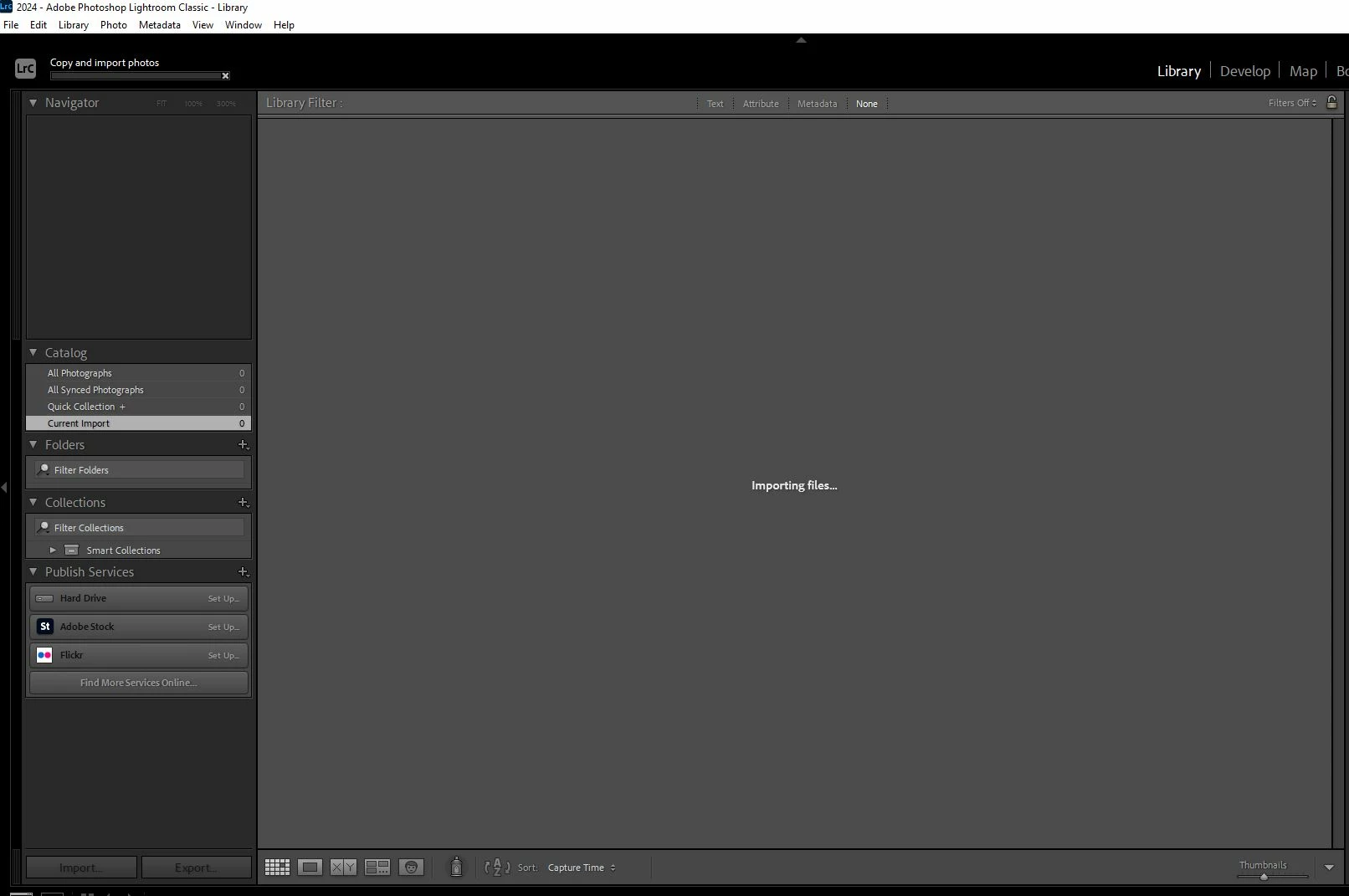
I have tried to:

1) Start a new catalog. Same result.

2) Uninstall, restart, reinstall Lightroom Classic. Same result.


Lightroom has basically become useless. Is anyone else encountering this issue?

解決に役立った回答 Henkki Zakkinen
quote

I agree. I can't understand how an under-powered GPU would cause Lightroom not to copy files and import into the catalog. I don't mind slow rendering, I do mind being stuck.


By @lll0228


I do not think it is the GPU itself, but is because Import in Lr14 renders videos by calling a new version of the common Adobe file dynamiclinkmediaserver.exe, as I mentioned above.


This exe fails to start if its system requirements have not been met, and I have seen a range of impacts on my older Windows PC:

  • Import stalls if it contains any videos
  • LrC fails to render thumbnails of some videos that are already in the catalogue (those which don't already have thumbnails)
  • LrC's Sync stalls when sync down files imported into LrDesktop/Mobile/Web if they include a video file


I wouldn't be surprised if there are other problems caused when video files are present.


On the same computer:

  • Adobe Bridge 14 triggers an error message about not supporting video - it's triying to call the new dynamiclinkmediaserver.exe
  • Older versions of Lightroom and Bridge can import/render video because they call an older version of dynamiclinkmediaserver.exe


One thing I mean to test is if one can simply replace the new dynamiclinkmediaserver.exe with an copy of the old one. But I'd expect some smart programmer already thought of that and included code to check the version.


@john beardsworth, I think your suspicion is correct. I actually had one video in my import set. The moment I deselected it, the photos imported fine. 

返信数 12

Participant
December 18, 2024

SOLVED for Me: I have a very very old Dell computer, same exact problem. The solution was to remove any video files from the folder I was importing from.


To recap:

There is no problem importing photos and videos with LR version 13.5.1

LR version 14.0 and above I need to remove Video Files before I import.  I can only import photos.

Inspiring
August 6, 2025

It seems I have to completely remove LR and then re-install to recover from this problem.  Just moving the non-photo files out of the folder does not allow it to recover once it starts happening.


Adobe should fix this version (14.0.1) for this bug since their new versions won't work on my 4GHz 8core 32GB RAM PC anymore.

dj_paige
Legend
August 6, 2025

The current version of LrC is 14.4 and I'm pretty sure Adobe will not go back and fix 14.0.1.


By the way, there is nothing obvious about your "4GHz 8core 32GB RAM PC" that will prevent you from installing newer versions of LrC, which may (or may not) have the problem fixed.

Participant
December 1, 2024

SAME ISSUE!  I was able to import files if I deleted all video files from the import-source.  THANKS. But, this is still problematic and beyond glitchy.

Looking for better solutions than avoiding videos!


johnrellis
Genius
December 1, 2024

@Paugustz, please do the LR menu command Help > System Info and copy/paste the entire contents here so Adobe can see exactly which versions of hardware and software LR thinks you're running and important LR options that are set.

Participant
December 8, 2024

Can't even get the program to open now.  Trying to restart to that I can post the version and hardware.


Participant
November 24, 2024

For anyone still having this problem. I have tried every step recommended by adobe. I have reinstalled lightroom several times, I have reset preferences, I created a new catalog, I moved files around from different external to local drives, I tried safe mode, I changed read only settings. Nothing worked. I deleted all video files from folders I was trying to import and that seemed to work. Not sure what is causing this but it has been my only work around.

john beardsworth
Community Expert
Community Expert
October 30, 2024

There is an alternative to rolling back to 13. Here is what I am doing:


  • When I know I've shot video on a proper camera:
    • Use other tools (Explorer, Bridge Downloader) to transfer files from the card to my hard drive
    • Separate the videos into a new neighbouring folder
    • In LrC, import the photos
    • In another tool, create a JPEG file for each video
    • In LrC, import these JPEG placeholders
    • Alternatively, I think John Ellis's AnyFile will do a similar job
  • Stop importing new videos directly into any of the Lightroom mobile apps (LrMobile, LrWeb, Cloudy Lr)


Far from ideal, but workable if you don't create many videos and want to upgrade your computer in your own good time.

johnrellis
Genius
November 24, 2024

Moderators, @Rikk Flohr: Photography: Please merge with this thread about importing video on Windows 10 and/or older CPUs:

https://community.adobe.com/t5/lightroom-classic-bugs/p-import-fails-when-it-encounters-a-corrupt-vi...

Participating Frequently
October 30, 2024

Yes it's completely unusable for me. It started off ok. Synced 400 photos then ground to a halt. Can't open or delete any photos. 
I have now gone back to 13.5.1. 

Cshortt
Participant
October 31, 2024

One of the issues I found early on was an outdated driver for my card reader. IT was not automatically updated by Windows and I had to update it manually. Then I had no problems importing from my card reader.

DdeGannes
Community Expert
Community Expert
October 31, 2024

@Cshortt , you stated.

" IT was not automatically updated by Windows and I had to update it manually."

It's what you need to do to keep your drivers up to date.


Regards, Denis: iMac 27” mid-2015, macOS 11.7.10 Big Sur; 2TB SSD, 24 GB Ram, GPU 2 GB; LrC 12.5,; Lr 6.5, PS 24.7,; ACR 15.5,; (also Laptop Win 11, ver 24H2, LrC 15.0.1, PS 27.0; ) Camera Oly OM-D E-M1.
Cshortt
Participant
October 30, 2024

You have described EXACTLY the issue I am having. I'm like you, been using LR since version 1.0. Have you found a fix for it yet? I have over 25K images that I have been using LR for and now can't access any of them. Tried everything I have read here so far. Noting has worked for me. What say you?

lll0228作成者
Known Participant
October 30, 2024

Adobe Support rolled me back to version 13 and told me not to update to version 14 until I get a more powerful GPU. I lost a little work because LR 14 also "upgraded" the catalog file and version 13 wouldn't read it. I had to use an older version of the catalog to reopen my files.

Participating Frequently
October 27, 2024

Mine is working now... I started a new catalog which did the same so I went back to the previous catalog which caused a restart.... all of a sudden it worked when I tried to import again.

john beardsworth
Community Expert
Community Expert
October 27, 2024

Did you try to import videos?

Participating Frequently
October 27, 2024

There were no videos in my last import so no....

Inspiring
October 26, 2024

Same issue. Yes, I know, my system isn't new and could have more power, but then, I'd accept slow. Hanging ... well, not so much.

lll0228作成者
Known Participant
October 26, 2024

I agree. I can't understand how an under-powered GPU would cause Lightroom not to copy files and import into the catalog. I don't mind slow rendering, I do mind being stuck.

GoldingD
Legend
October 26, 2024

Unless you are running a preset during the import that involves AI, or unless you have in your Develop RAW defaults something along those lines (not st a PC, so cannot verify that) then the GPU should  not IMO matter. 

TVW1958
Participant
October 26, 2024

You have just perfectly described my problem since the update... I am at the stage now where I am contemplating ending my association when its due for renewal at Xmas. U have tried everything you have done also..


lll0228作成者
Known Participant
October 26, 2024

Just spent 2 hours with Adobe Support. They tried everything I did.

They blamed my GPU for not being powerful enough/compatible with version 14. They reinstalled version 13 so I have something that can work for now. They recommended me to get ​RTX 2040 RTX 3060 RTX 4060, before reinstalling version 14.

Participant
December 3, 2024

It’s frustrating that Adobe support couldn’t fully resolve the issue but at least you’re back on version 13 for now. Before upgrading your GPU, try these:

  1. Update GPU Drivers: Ensure you’re running the latest drivers for your current GPU.
  2. Disable GPU Acceleration: In version 14, go to Preferences > Performance and turn off GPU acceleration to see if that helps.
  3. Check System Requirements: Confirm version 14’s GPU requirements on Adobe’s site before investing in a new card.

If upgrading is necessary, the RTX 3060 or 4060 is a good choice for future-proofing. Hopefully, Adobe releases a fix or update soon!

dj_paige
Legend
October 26, 2024

@lll0228 


Show us the ENTIRE import screen. Do not chop off the right side as you did. We don't need to see the Library module, which is what you showed.

lll0228作成者
Known Participant
October 26, 2024

Here you go. I showed the screen it was "stuck" on. The Import screen had nothing unusual. Same screen I have seen millions of times.

TVW1958
Participant
October 26, 2024

In the Destination Panel, is a folder selected? I can't tell because it is too long to fit on the screen.


And just to be 100% sure, you are clicking on "Import" and not clicking on "Done", right?


Have you checked your card reader for malfunctions? Perhaps by using a different card reader; or by using the OS to copy the photos to a hard drive and then import from there? Could it be the USB port that is a problem? Connect to a different USB port.


It is not his card reader.. same thing happens to me