SdeGat
Inspiring
October 7, 2023
Question

AI Denoise not working Lightroom Classic

  • October 7, 2023
  • 12 replies
  • 3552 views

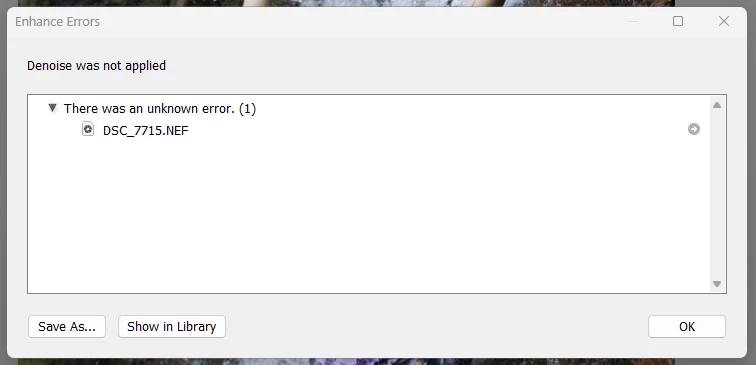
First time I wanted to try Denoise, it wouldn't work as is was trying to save with the same filename.

Seems to be the case as I got a dialog box with "Save As" and then offered to save as .TXT

Restarted LR and was able to Denoise one picture. 

Ended up with a similar error when trying another picture (after the second LR restart).

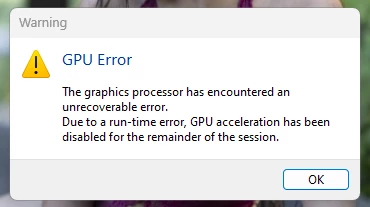
This time, with an additional error message about the GPU.


Anyone with insight into this issue?

Note that it did work well for one time (and pretty quickly too).


Lightroom Classic version: 12.5 [ 202308091523-68a7abd6 ]
License: Creative Cloud
Language setting: en
Operating system: Windows 10 - Home Premium Edition
Version: 10.0.22621
Application architecture: x64
System architecture: x64
Logical processor count: 16
Processor speed: 3.6GHz
SqLite Version: 3.36.0
CPU Utilisation: 0.0%
Built-in memory: 32652.7 MB
Dedicated GPU memory used by Lightroom: 2973.0MB / 5968.0MB (49%)
Real memory available to Lightroom: 32652.7 MB
Real memory used by Lightroom: 4863.7 MB (14.8%)
Virtual memory used by Lightroom: 7601.0 MB
GDI objects count: 880
USER objects count: 2474
Process handles count: 4216
Memory cache size: 215.6MB
Internal Camera Raw version: 15.5 [ 1595 ]
Maximum thread count used by Camera Raw: 5
Camera Raw SIMD optimization: SSE2,AVX,AVX2
Camera Raw virtual memory: 1452MB / 16326MB (8%)
Camera Raw real memory: 1515MB / 32652MB (4%)
System DPI setting: 96 DPI
Desktop composition enabled: Yes
Standard Preview Size: 1440 pixels
Displays: 1) 2560x1440
Input types: Multitouch: No, Integrated touch: No, Integrated pen: Yes, External touch: No, External pen: Yes, Keyboard: No

Graphics Processor Info:
DirectX: NVIDIA GeForce RTX 2060 (31.0.15.3699)
Init State: GPU for Image Processing supported by default
User Preference: GPU for Image Processing Enabled

Application folder: C:\Program Files\Adobe\Adobe Lightroom Classic
Library Path: C:\Users\User\Pictures\Lightroom\Lightroom Catalog-v12.lrcat
Settings Folder: C:\Users\User\AppData\Roaming\Adobe\Lightroom

Installed Plugins:
1) ColorChecker Passport
2) Flickr
3) Loupedeck2
4) Nikon Tether Plugin
5) ON1 Effects 2023
6) ON1 HDR 2023
7) ON1 NoNoise AI 2023
😎 ON1 Photo RAW 2023


Windows11 SysInfo:


System Information report written at: 10/07/23 16:20:16
System Name: SYLVAIN-I9-TOWE
[System Summary (C:\Users\User\Documents\SystemInfoW11.nfo)]

Item Value
OS Name Microsoft Windows 11 Home
Version 10.0.22621 Build 22621
Other OS Description Not Available
OS Manufacturer Microsoft Corporation
System Name SYLVAIN-I9-TOWE
System Manufacturer System manufacturer
System Model System Product Name
System Type x64-based PC
System SKU ASUS_MB_CNL
Processor Intel(R) Core(TM) i9-9900K CPU @ 3.60GHz, 3600 Mhz, 8 Core(s), 16 Logical Processor(s)
BIOS Version/Date American Megatrends Inc. 3006, 2021-10-12
SMBIOS Version 3.2
Embedded Controller Version 255.255
BIOS Mode UEFI
BaseBoard Manufacturer ASUSTeK COMPUTER INC.
BaseBoard Product PRIME Z390-P
BaseBoard Version Rev X.0x
Platform Role Desktop
Secure Boot State Off
PCR7 Configuration Elevation Required to View
Windows Directory C:\WINDOWS
System Directory C:\WINDOWS\system32
Boot Device \Device\HarddiskVolume5
Locale Canada
Hardware Abstraction Layer Version = "10.0.22621.1413"
Username SYLVAIN-I9-TOWE\User
Time Zone Eastern Summer Time
Installed Physical Memory (RAM) 32.0 GB
Total Physical Memory 31.9 GB
Available Physical Memory 13.2 GB
Total Virtual Memory 36.5 GB
Available Virtual Memory 9.38 GB
Page File Space 4.66 GB
Page File C:\pagefile.sys
Kernel DMA Protection Off
Virtualisation-based security Not enabled
Windows Defender Application Control policy Enforced
Windows Defender Application Control user mode policy Off
Device Encryption Support Elevation Required to View
Hyper-V - VM Monitor Mode Extensions Yes
Hyper-V - Second Level Address Translation Extensions Yes
Hyper-V - Virtualisation Enabled in Firmware No
Hyper-V - Data Execution Protection Yes

This topic has been closed for replies.

12 replies

GoldingD
Legend
February 25, 2024

Another inquiry.


NVIDIA, so have you ever modified any settings in the NVIDIA Control Panel (NVIDIA Settings) ? If so, could a setting have been incorrect. If you have never brought up the NVIDIA control panel, then it is unlikely something is wrong in one of the settings (that would be at default) Some performance improvements can be had via the NVIDIA Control panel, their are videos on the web on that. But probably best left to later, after the LrC behaves.


One way to access is down in the Windows task bar near far right, that up mark (show hidden icons)


or via Apps


It will look something like this

 and in reference to GeForce Experienceand NVIDIA settings, see:


GoldingD
Legend
February 25, 2024

Another item to look at, this also in PS (yes I know issue is LrC, but just in case)

See this link:


Try the GPU Compatibility Check, see if an error pops up.


Oh and read the link, see if anything else gives a hint.

GoldingD
Legend
February 25, 2024

Not a question I would normally ask, as LrC is such a resource hog compared to PS. And the ACR for PS is a plug-in instead of burnt in the program code in LrC, and I suspect PS has an easier time with the process, and a PS and a LrC DeNoise DNG may not equivalent. but.


Do you have the same problem if you try Enhance (AI DeNoise) in PS. Not a heavy PS user, so some lack of knowledge, apparently right click on an image and select Enhance.


GoldingD
Legend
February 25, 2024

One point and a inquiry


1. Looking at both the LrC System Info and the WIN 11 System info the following oddity appears:


Operating system: Windows 10 - Home Premium Edition
Version: 10.0.22621

vs

OS Name Microsoft Windows 11 Home
Version 10.0.22621 Build 22621
Other OS Description Not Available
OS Manufacturer Microsoft Corporation


I suspect this is just an annoyancw caused by early Window 11 reporting, and does not actually cause problems. And yes this is Windows 11. Mind you one update is available, version 23H2 build 22631


2. Looking at that Windows 11 system info, I notice the following:


BaseBoard Manufacturer ASUSTeK COMPUTER INC.
BaseBoard Product PRIME Z390-P
BaseBoard Version Rev X.0x
Platform Role Desktop


So, this computer appears to be a desktop, either a brand name PC or a self built unit. Containing a ASUS Prime Z390-P Motherboard. Perhaps this one:


Question is make/model of computer.

Oh and, as I see their appears to be two slots that could support GPU's do you have just the norma; one GPU card plugged in?


SdeGat
SdeGatAuthor
Inspiring
February 25, 2024

Hello @GoldingD,

1.  My windows 11 machine has been updated once (or twice) since October. It is up to date. 
2.  It is indeed an ASUS Prime Z390-P Motherboard based tower machine (from a local shop). BIOS 3006 is also up to date (not that it would change anything for LrC). NVIDIA GeForce RTX 2060 Is the video card in use as shown in my initial post. 

SdeGat
SdeGatAuthor
Inspiring
February 24, 2024

Could this be fixed in release 13.2 that was just made avalaible? 

D Fosse
Community Expert
Community Expert
February 24, 2024

Is this a laptop with dual graphics? The two GPUs may conflict (known and fairly common problem).


Disable the integrated GPU as per the instructions here (scroll down to secton 4): https://helpx.adobe.com/lightroom-classic/kb/troubleshoot-gpu.html 


Also, the GeForce Experience app has been known to cause problems in Photoshop. I'd recommend not installing it (I haven't). It's not needed.

SdeGat
SdeGatAuthor
Inspiring
February 25, 2024

It's a big tower system but there is an integrated video "card" on the CPU; disabling that "video card" is an interesting option. 🤔 🤔 I checked it out through Device Manager and there is no graphics card listed other than my main NVidia card. Maybe I've already disabled the CPU graphics card in the past...


I didn't know about the GeForce Experience app, I'll get rid of it. 

Thanks @D Fosse.

SdeGat
SdeGatAuthor
Inspiring
December 18, 2023

Still got the same error message today after sucessfully "denoising" two pictures.

I was hoping this issue was addressed/solved in the latest Lightroom update. I guess not. 😞 

GoldingD
Legend
October 25, 2023

Also, a stray thought occurred.

Are you  using any third party GPU accelerators? Overclocking?


SdeGat
SdeGatAuthor
Inspiring
October 25, 2023

My GPU is NVidia and has not given me any issues with anything since I bought it installed in my current computer (3 or 4 years ago).  I don't use any overclocking. 
I did not try turning off GPU acceleration but LR does turn it off after the GPU error occurs (see above). 🤷🏻‍

GoldingD
Legend
February 24, 2024

After the error occurs, you would need to restart LrC in order to change the use graphics processor option.


Now if that fails, then see Solution 3 in the following link. In fact read that entire link. You may need to delete a text file and let LrC recreate it upon startup


Other members, Do I have this correct?


https://helpx.adobe.com/lightroom-classic/kb/troubleshoot-gpu.html


SdeGat
SdeGatAuthor
Inspiring
October 25, 2023

I could not even Denoise a single picture today.  😞 

I got the same errors as originally mentioned above when trying for the very first time (today).

GoldingD
Legend
October 25, 2023

I suspect going into /preferences/performance/ and turning off the use of the GPU, will not actually turn off using the GPU for advanced AI functions like Denoise AI. But have you tried anyhow?


GoldingD
Legend
October 7, 2023


Graphics Processor Info:
DirectX: NVIDIA GeForce RTX 2060 (31.0.15.3699)


So GPU driver v536.99. (released 8 August 2023) At NVIDIA v537.42 (released 21 September 2023) is available. Both Game Ready and Studio. Advise using  Studio. GPU drivers can be an issue. Your computer probably has an NVIDIA App called GeForce Experience, use that to check for and update GPU driver, Select Custom for install type as to force a clean install.

SdeGat
SdeGatAuthor
Inspiring
October 8, 2023

@GoldingD I did get get the notification for the new GPU drivers but it was only for games (according to the NVidia message). I'm no gamer at all. 🙂

Having said that, I usually update regularly.

SdeGat
SdeGatAuthor
Inspiring
October 8, 2023

SdeGat
SdeGatAuthor
Inspiring
October 7, 2023

I rebooted my computer, went to the very same picture and Denoise worked fine in just 25 seconds or so.