
heatherc15475534
Participant
June 4, 2022
Answered

Batch Auto-straightening isn't working

  • June 4, 2022
  • 4 replies
  • 35233 views

Good morning! I'm trying to auto straighten a bunch of photos, something I haven't had issues with in the past. I select my images, select 'auto sync', go to the crop tool and hit Auto to straighten. All of my images look like they've had an adjustment made (or LR thinks they have) but if I go back into the image and hit the auto straighten, more adjustments are made. This is frustrating as this used to work, so I don't think it's my technique. Any ideas on how I can make this functional again? Anyone else having this issue? TIA.
Correct answer johnrellis

[This post contains formatting and embedded images that don't appear in email. View the post in your Web browser.]


When you click the crop tool's Auto button, Auto Sync copies the computed crop angle from the current photo to all the other selected photos, so they all end up with the same angle.  It does not recompute the straighten angle for each selected photo.  I verified this behavior in LR 11.3.1 and 10.4.


To batch-straighten all the selected photos, computing the correct angle for each photo separately, do this instead:


1. Select all the photos and go to Develop.


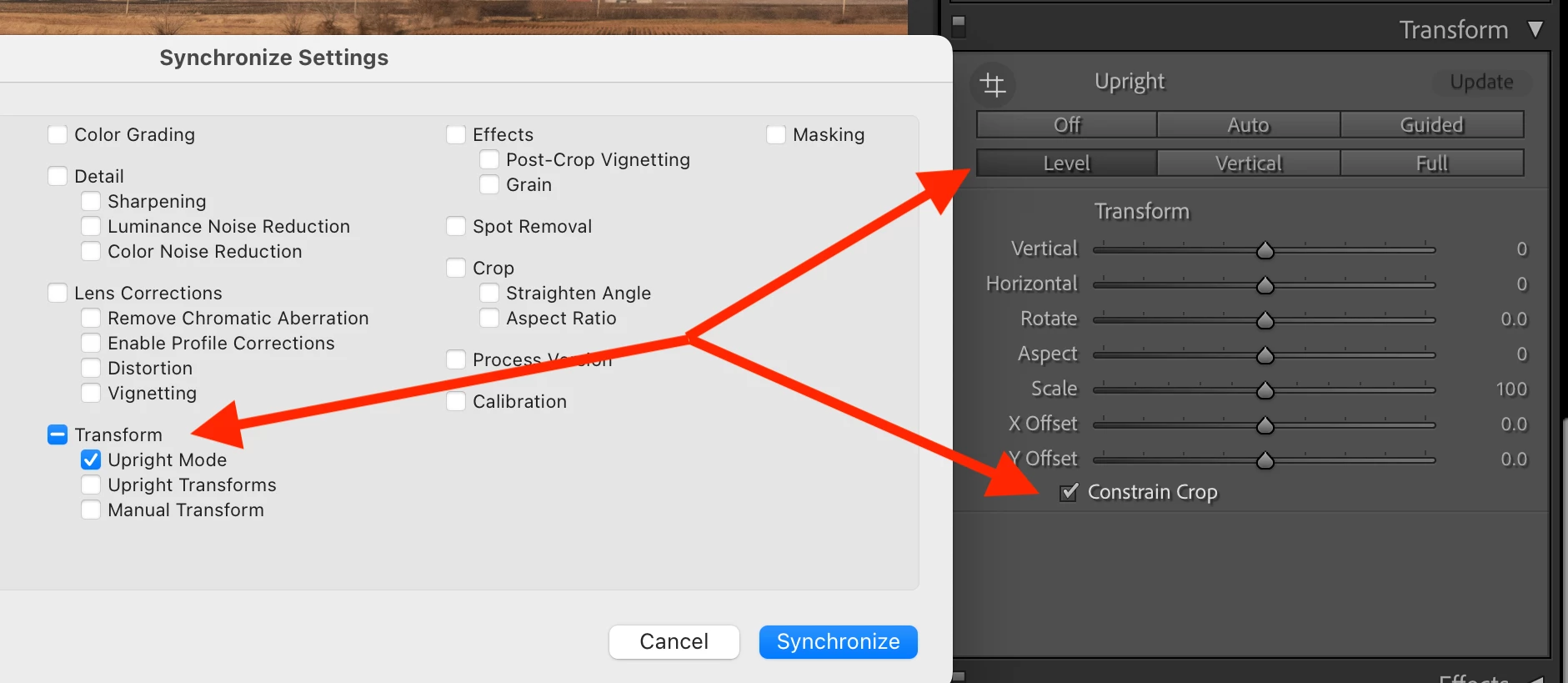
2. In the Transform panel, select Level and Constrain Crop.


3. Click the Sync button and select Upright Mode only:


And yes, you could also use Auto Sync, but it's dangerous, and for too many people, using it eventually ends in tears.

4 replies

Participant
January 3, 2024

2024. Still paying a premium subscription price and Adobe can't give us the ability to batch correct. 

johnrellis
Legend
January 4, 2024
Participant
November 1, 2023

Good day! I found this solution earlier this year and it had been working great for months. but then recently after these new updates, it hasnt been working right for each image any more. Is there a new solution or something I should be doing now?


johnrellis
Legend
November 2, 2023

Hmm, I just retested my steps above, and they worked in my test catalog with LR 13.0.1.  Do Help > System Info -- which exact version of LR are you running?

Nicolas Gop
Participant
December 5, 2023

Hi John! 
there is not Shortcut for  Crop - Auto.  isn´t ?

roc97007
Known Participant
November 1, 2022

I'd like to suggest an enhancement request.  There's currently no way to auto-straighten a batch of photos.  Auto-straighten sometimes gets it wrong, but it would still be a net timesaver.  I deal with thousands of photos over multiple days, and the single most common buttons I press in Develop is "r" followed by clicking on the "Auto" button.  There doesn't even seem to be a keyboard shortcut for auto straighten, which although not ideal might be faster.


Ideally, I would Select a bunch of photos, click "Auto" once, and have them all auto straighten, NOT to the same tilt as the first photo, but each straightened as if I did it individually.


   Ron

JohanElzenga
Community Expert
Community Expert
November 1, 2022

There already is a way to do this, even more than one way. The first way is to select the photos, go to the develop module, toggle the little switch of the 'Synchronize' button so it changes to 'Auto Sync' and then click that 'Auto' button to straighten. The second way is to save auto straighten in a preset. Save only the Transformation mode, nothing else. The third way is copy/paste, where again you should only select the mode.


-- Johan W. Elzenga
Melda
Participant
July 6, 2025

@juliaanastazja: "When selecting several pictures and applying Auto Allign photo (Crop Overlay menu), all photos will get the same Autolevel settings as the first picture rather than every individual photo getting their own auto level."


See the steps here for how to use Transform rather than Crop to auto-level a batch of photos:

https://community.adobe.com/t5/lightroom-classic-discussions/batch-auto-straightening-isn-t-working/m-p/12985214#M277012


Hi all,
I’m trying to batch straighten multiple photos in Lightroom Classic 14.4 (June 2025) using Upright – Level + Constrain Crop.

I’ve tried all usual methods:

  • Syncing from a reference photo

  • Auto Sync in Develop

  • Creating & applying a preset with "Upright Mode: Level"

  • Quick Develop (but "Upright – Level" is often missing)

In every case, Lightroom sets the Upright mode to “Level” but does NOT analyze the photo — each image still requires manually clicking “Update” in the Transform panel. That defeats the entire point of batch processing.

This exact issue was mentioned recently by @juliaanastazja on June 26, 2025:

“When selecting several pictures and applying Auto Align photo (Crop Overlay menu), all photos will get the same Autolevel settings as the first picture rather than every individual photo getting their own auto level.”

@johnrellis responded with a link to the original 2022 thread, but unfortunately that method (using Quick Develop > Saved Preset > Upright – Level) still doesn’t work in LrC 14.4 — the option is often missing entirely, or when applied, it just marks the image with "Level" mode but leaves it in the "Update" pending state.

So the core issue remains:
🔴 There is still no reliable way to auto-level a batch of images with individual image analysis — unless you manually click "Update" for each one.

Is there any confirmed method or plugin that actually works in current Lightroom Classic?

Thanks in advance!

johnrellis
johnrellisCorrect answer
Legend
June 4, 2022

[This post contains formatting and embedded images that don't appear in email. View the post in your Web browser.]


When you click the crop tool's Auto button, Auto Sync copies the computed crop angle from the current photo to all the other selected photos, so they all end up with the same angle.  It does not recompute the straighten angle for each selected photo.  I verified this behavior in LR 11.3.1 and 10.4.


To batch-straighten all the selected photos, computing the correct angle for each photo separately, do this instead:


1. Select all the photos and go to Develop.


2. In the Transform panel, select Level and Constrain Crop.


3. Click the Sync button and select Upright Mode only:


And yes, you could also use Auto Sync, but it's dangerous, and for too many people, using it eventually ends in tears.

heatherc15475534
Participant
June 6, 2022

Thanks so much, I'll try this!