 Adobe Community

- Home
- Lightroom Classic
- Discussions
- Re: Can only delete one photo in Develop module
- Re: Can only delete one photo in Develop module
Can only delete one photo in Develop module

Copy link to clipboard
Copied
12.1 release / Camera Raw 15.1
In Library, I select one photo by left clicking on it. Then I chose the tab for the Develop Module. I hit the Delete key and choose Delete From Disk. The photo is deleted. The next photo appears. I hit the Delete key again, and nothing happens. Delete doesn't do anything. The arrow keys will not allow me to go forward or backwards through my photos. I've lost the ability to go picture by picture and delete as I go. Have confirmed that this is not an issue with my PC, as I have tried it on 1 laptop and 2 desktop PC's (win10 and win11) all updated to the latest version of LRC.
Thank you.


 18
Replies
18
18
Replies
18


Copy link to clipboard
Copied
Not a bug, by design. The most selected (and shown) in Develop is deleted, as the dialog explains. The next selected image is deleted too but one at a time. The Arrow key works as it should on this end after this too. If not:
Try resetting your Lightroom preferences.
https://helpx.adobe.com/lightroom-classic/help/setting-preferences-lightroom.html
Also see: https://community.adobe.com/t5/lightroom-classic-discussions/important-steps-for-manually-resetting-...
Quit Lightroom Classic.
macOS: Press and hold the Shift + Option keys.
Windows: Press and hold the Shift + Alt keys.
While holding down the keys, launch Lightroom Classic.
When asked, select "Yes".
Copy link to clipboard
Copied
I don't understand how this is by design. What do you mean by most selected and shown is deleted? I am selecting the photo that I want to delete, deleting it, and trying to move forward to the next. If I go to the Performance tab and change the "Use Graphics Processor" option to Custom or Off, I can delete one by one in the Develop Module, and this only lasts until I close the program and reopen it. Then, I have to change the setting again in order for it to work again. This has nothing to do with resetting preferences, as I have tested it on 3 different computers with 3 different installations.
Copy link to clipboard
Copied
In LR you can select one or more images in the film strip but the first is known as “most selected”. Notice it looks slightly different from the others selected and of course none selected.
See:
https://digital-photography-school.com/lightrooms-selected-and-most-selected-images/
Copy link to clipboard
Copied
If turning OFF the GPU works, it's a GPU bug, and you need to contact the manufacturer or find out if there's an updated driver for it. This is why disabling GPU is an option as more and more functionality moves to the GPU in newer versions of many Adobe products.
Also see:
https://helpx.adobe.com/lightroom-classic/kb/lightroom-gpu-faq.html
https://helpx.adobe.com/photoshop/kb/photoshop-cc-gpu-card-faq.html
https://helpx.adobe.com/photoshop/kb/acr-gpu-faq.html
Disable third-party graphics accelerators. Third-party GPU overclocking utilities and haxies aren't supported.


Copy link to clipboard
Copied
12.1 release / Camera Raw 15.1
In Library, I select one photo by left clicking on it. Then I chose the tab for the Develop Module. I hit the Delete key and choose Delete From Disk. The photo is deleted. The next photo appears. I hit the Delete key again, and nothing happens. Delete doesn't do anything. The arrow keys will not allow me to go forward or backwards through my photos.

I have no explanation as to why you are seeing that behaviour. On my Mac system it all works exactly as you would expect, i.e. I can continue to delete images one by one in the Develop Module, the photo is deleted and the next photo appears which can also be deleted and so on.
In normal circumstances I would advise trying a reset of the preferences, but I accept that sounds unlikely if you are seeing the same issue on three different systems.
I can't test on my Windows system at this time as it's in the middle of a complete rebuild, but perhaps some other Windows users can confirm the situation there.

Copy link to clipboard
Copied
I can confirm on my LrC 12.1, Win 11 latest update.
1. Carry out the following in the Develop Module with one image selected hit the delete key on the keyboard and the dialog pops up and the image can be deleted from disk or removed. Mouse click to delete from disk the image gets deleted and the next image in the filmstrip is automatically selected, hit the delete key on the keyboard "nada" nothing happens.
2. Next use the mouse to click on the image in the filmstrip (which is presently selected) and then hit the delete key on the keyboard and the pop up is immediately displayed allowing the image to be removed or deleted.
3.Not my normal workflow and I have never attempted to delete multiple images from the Develop module filmstrip as described by the Author of thread so have just posted what I am experiencing at the present time.
If I wish to delete multiple images I utilize the Library module grid view to select multiple images. This functions as expected.
Selecting multiple images in the filmstrip, Library module and Develop module will only delete the most selected image. This is my expectation.

Copy link to clipboard
Copied
Since no one else is able to reproduce this problem, I think the only way to make progress is to provide a full-resolution screen recording (not made with a phone or camera). That could provide clues about the precise conditions for triggering the problem.
Copy link to clipboard
Copied
I have made multiple edits to my original post so you can have another read.
I have read your PM response to my PM.
Copy link to clipboard
Copied
@DdeGannes, I tried to follow your steps precisely on my LR 12.1 / Windows 10, but I don't observe the bad behavior -- the Delete key always pops up the dialog. I've attached a screen recording. There must be something different about our configurations or something we're missing that's different.
Copy link to clipboard
Copied
John, I've just installed LrC on my old Win10 system, and am seeing the same issue that the other Windows users are reporting.
Specifically, in Develop module I can use the Delete key to delete the (first) active image. The next image then becomes the active image, but now the Delete key in no longer operational. However, the right-click option still produces the standard sub-menu choices which includes the Remove option. But interestingly, the Backspace key can be used in place of the Delete key to allow the Remove menu (and that also applies on my Mac systems) and that works with consecutive photos.
Copy link to clipboard
Copied
Actually, thinking about it a little more, I wondered if the reason it was working on my Mac system was because the Mac I was using (old MBP) doesn't actually have a dedicated "Delete" key, the Backspace key has to suffice. However, I just tried it on my Mac Mini where I'm using a dedicated Logitech MX Keys keyboard, which has separate Delete and Backspace keys, and both of those keys produce the result we would expect when working in Develop. Definitely a difference of behaviour on my old Windows which also has a dedicated MX Keys keyboard....the Delete key works first time only, the Backspace key works every time.
Copy link to clipboard
Copied
"the Delete key works first time only, the Backspace key works every time."
Very interesting -- both keys work correctly for me. But @DdeGannes and @Brooks27841779j6fp, do you notice a difference between Delete and Backspace?
Copy link to clipboard
Copied
I can confirm the Backspace key works for me also.
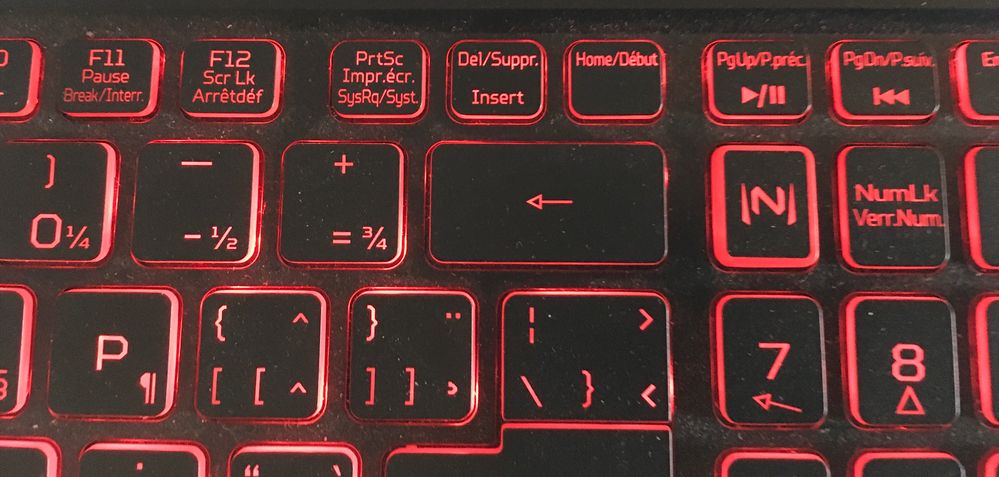
Just a thought, as I indicated in an earlier post the Laptop I am using is my wife's and we are on vacation at the moment. The laptop is a Gaming PC and the key board is built in and not a standard keyboard, when at home we used a Bluetooth connected standard keyboard. See the screen capture of the section of the Del/Suppr.Insert key used on the Laptop. The standard keyboard usually has a individual Delete key. Possibly that is what is creating my experience.
Copy link to clipboard
Copied
I connected an old Logitech USB keyboard with the traditional Windows layout, and both Backspace and Delete work as expected in my installation:
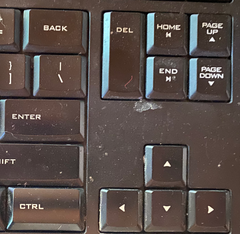
So we're not much closer to understanding the differences in behavior.
Internally, the mapping of Backspace to the Delete Photos command is specified by the TranslatedStrings files, while the mapping of Delete to the command is hard-coded (it's not in TranslatedStrings), which is pretty common for many of the core LR commands.
Copy link to clipboard
Copied
Ok, I got to use a standard usb keyboard to use with the laptop and the delete key works as expected.
Copy link to clipboard
Copied
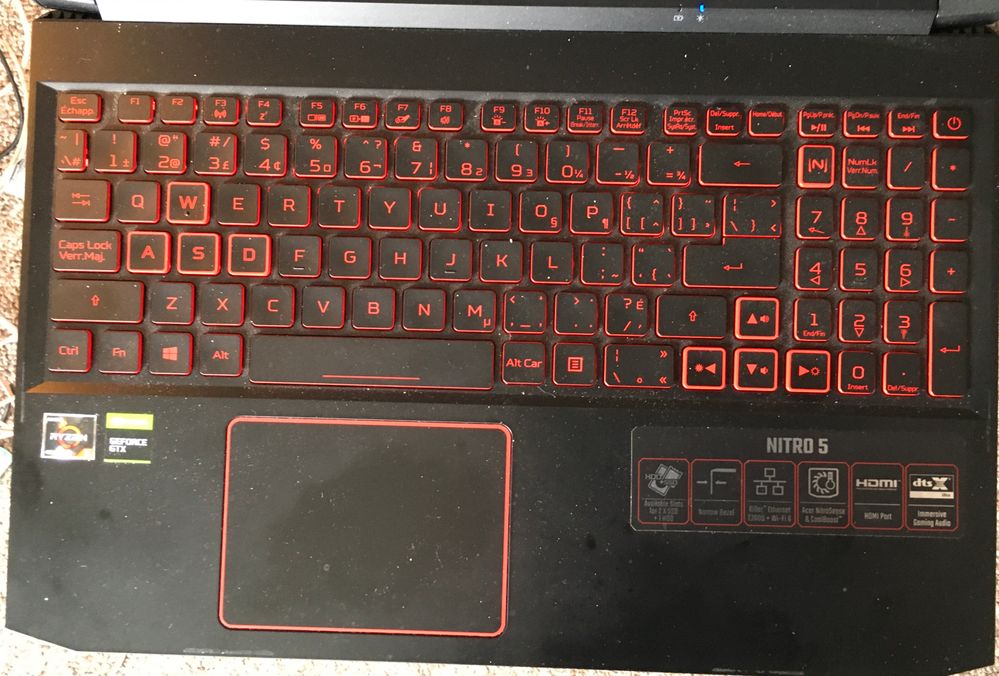
@Jim Wilde, @DdeGannes, and @Brooks27841779j6fp, can you please post phone pics of the entire keyboards that are causing the bug?
LR has another obscure bug with properly decoding non-letter keys on some keyboards, and I'm wondering if this is in the same category.
Copy link to clipboard
Copied
ACER Laptop.
Copy link to clipboard
Copied
Logitech MX Keys keyboard as used on my Win10 system:


 AdChoices