Inspiring
November 11, 2019
Answered

Diagonal cross lines in Crop Tool overlay Lightroom

  • November 11, 2019
  • 3 replies
  • 3137 views

Hi guys,

Why do I get diagonal cross lines when I click the crop tool. and how to get rid of them?

What are they about?


Thanks a lot,


Raphael


{Thread renamed by moderator}

 

This topic has been closed for replies.
Correct answer Conrad_C

There are two ways to get what you want:

  • Choose Tools > Crop Guide Overlay > Grid.
  • Follow WobertC's instructions to press the O key as often as necessary, to cycle through the Crop Tool Overlay options which are on the menu, until it cycles to Grid. The O key is the shortcut for Tools > Crop Guide Overlay > Cycle Grid Overlay.


In other words, the answer is not in the bottom toolbar, but up in the menu commands. The Grid, Diagonal (your currently set option), and Cycle Grid Overlay commands are all shown in the picture below.
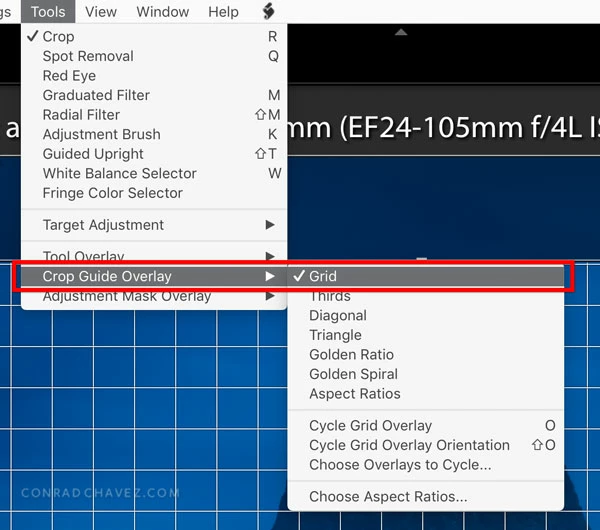


To explain how you ended up with the overlay set to Diagonal: Maybe you pressed the O key (probably unintentionally), and that changed the grid type.

3 replies

Rob_Cullen
Community Expert
Community Expert
November 12, 2019

keyboard [O]   Oooh , the key between [i] and [p]

As eloquently detailed by Conrad- Thanks.


Regards. My System: Windows-11, Lightroom-Classic 15.1.1, Photoshop 27.3.1, ACR 18.1.1, Lightroom 9.0, Lr-iOS 10.4.0, Bridge 16.0.2 .
Inspiring
November 12, 2019

And thak you WobertC. Always present with helpful suggestions.

Rob_Cullen
Community Expert
Community Expert
November 12, 2019

The lines are guides to composition. (Thirds, Paper Ratio, Fibonacci, etc)

Press the keyboard [O] to toggle through the varities-

And on the Tool Bar below the image there is a menu-  (Press [T] to show/hide the toolbar)

[Never] will hide the lines.

Regards. My System: Windows-11, Lightroom-Classic 15.1.1, Photoshop 27.3.1, ACR 18.1.1, Lightroom 9.0, Lr-iOS 10.4.0, Bridge 16.0.2 .
Inspiring
November 12, 2019

Thanks. Yes, I know vertical and horizontal lines lines are for composition but these are diagonal. 


Now, I don't want to hide the lines, but I want a grid made up of vertical + horizontal lines as I used to get - not a grid made up of diagonal lines.


And so far, even with your instructions, I can't figure out how to do that. The dropdown menu on the tool bar does not offer that option.

Conrad_C
Community Expert
Conrad_CCommunity ExpertCorrect answer
Community Expert
November 12, 2019

There are two ways to get what you want:

  • Choose Tools > Crop Guide Overlay > Grid.
  • Follow WobertC's instructions to press the O key as often as necessary, to cycle through the Crop Tool Overlay options which are on the menu, until it cycles to Grid. The O key is the shortcut for Tools > Crop Guide Overlay > Cycle Grid Overlay.


In other words, the answer is not in the bottom toolbar, but up in the menu commands. The Grid, Diagonal (your currently set option), and Cycle Grid Overlay commands are all shown in the picture below.


To explain how you ended up with the overlay set to Diagonal: Maybe you pressed the O key (probably unintentionally), and that changed the grid type.

Sahil.Chawla
Adobe Employee
Adobe Employee
November 12, 2019

Hi Raphael,


Welcome to the Adobe Community!

As you want to turn off the grid from the Crop tool in Lightroom, please set the Tool overlay option to Never


Hope this helps.
Regards,
Sahil