


Known Participant
August 17, 2025

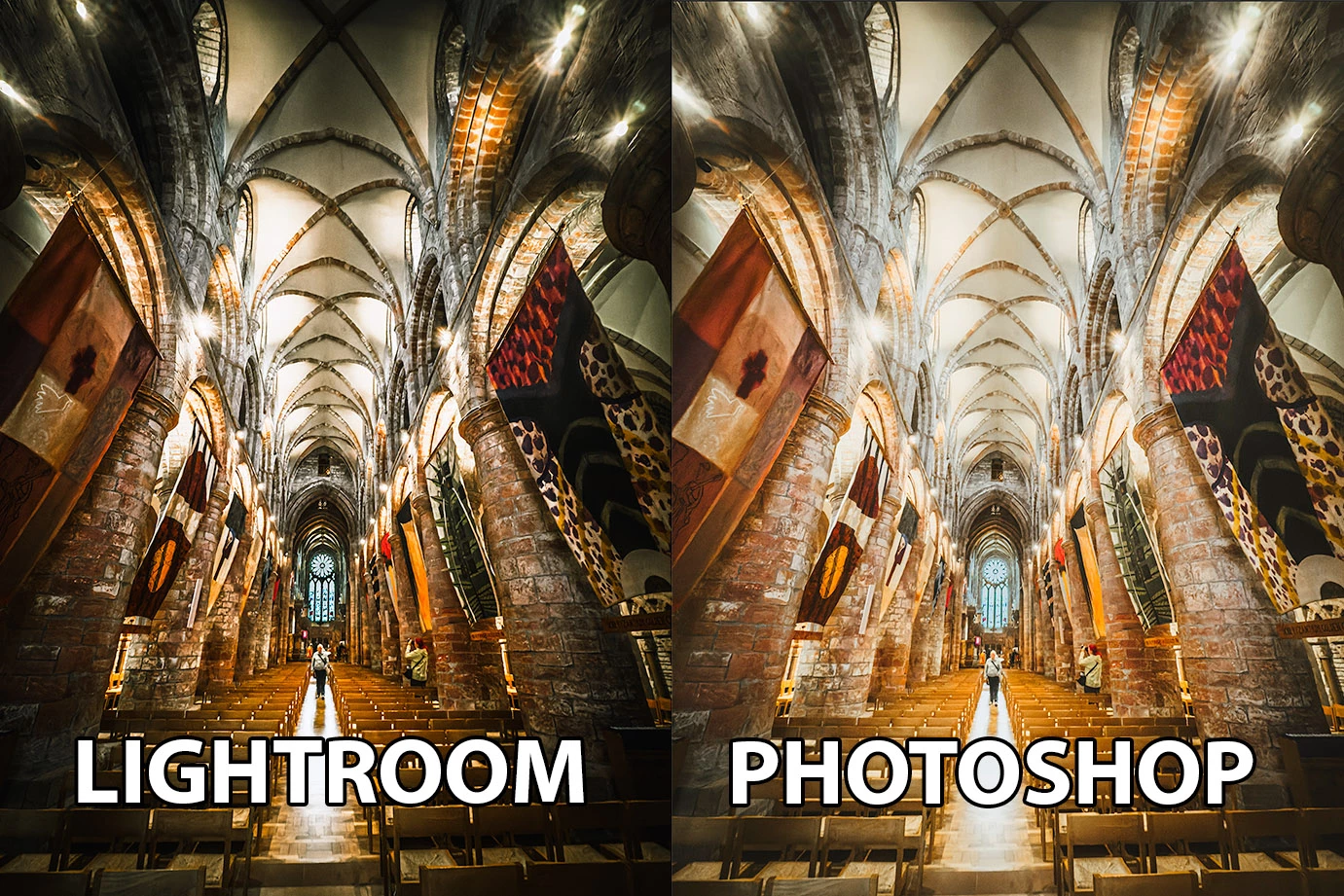
P: Edit in Photoshop image not the same as in LrC.

  • August 17, 2025
  • 5 replies
  • 516 views

When Command-E to send an image to Photoshop, (DNG from iPhone), the image is much lighter. I've been using Photoshop since verion 3 and Lightroom since version 1 and have never come across this. In order to make it work, I have to Export as PSD, only then does Photoshop match what I see in Lightroom.

Any thoughts?

Mac Studio 2025, M4 Max 128 GB,  15.6, latest versions of LR and PS.


5 replies

Sameer K
Community Manager
Community Manager
October 28, 2025

Hello everyone,


An update for Adobe Photography products has been released as part of the MAX cycle. This update addresses the reported issue.


If you don’t see the update in your Creative Cloud app, refresh it using [Ctrl/Cmd] + [Alt/Opt] + [R].

Please note: It may take up to 24 hours for the update to appear.


Thank you for your continued patience.

johnrellis
Legend
August 22, 2025

[This post contains formatting and embedded images that don't appear in email. View the post in your Web browser.]


@Rikk Flohr: Photography, using GeoffreyH's catalog with its Develop history, I was able to create a recipe for producing the inconsistent settings of Adobe Color and Adaptive Profile observed above:


1. Define a preset Adaptive Color that applies the Adaptive Color profile.


2. Set Preferences > Presets > Global to Preset > User Presets > Adaptive Color.


3. Import a raw. In Develop, observe that Profile is Adaptive Color and the AI Edit Status button is yellow (correct).


4. Do AI Edit Status > Update.


5. Change Profile to Adobe Color and observe that AI Edit Status button is again yellow, and its menu shows that Adaptive Profile needs updating (incorrect):


6. Click Update.


7. Do Metadata > Save Metadata To File, and observe that the .xmp sidecar contains both the settings for both the Adobe Color profile and the AILook setting for the adaptive profile (incorrect)

   crs:CameraProfile="Adobe Standard"
   <crs:AILook
    crs:Version="285212672"
    crs:ModelVersion="285409280"
    crs:Active="true"
    crs:InputDigest="6390A7A83538CBFDB0F0693EE88BB610"
    crs:InputDigestVersion="5"
    crs:AILookData="48D00981D839FD9EB4DCEE045FA8C570"/>
   <crs:Look>
    <rdf:Description
     crs:Name="Adobe Color"
     crs:Amount="1"
     crs:UUID="B952C231111CD8E0ECCF14B86BAA7077"
     crs:SupportsAmount="false"
     crs:SupportsMonochrome="false"
     crs:SupportsOutputReferred="false"
     crs:Copyright="© 2018 Adobe Systems, Inc.">


GeofferyHAuthor
Known Participant
August 22, 2025

Here is the LINK to the Catalog.

Thanks, yes, when applying the profile everything works as it should.

Rikk Flohr_Photography
Community Manager
Community Manager
August 20, 2025

Updating status - adding the customer's files. 

Rikk Flohr: Adobe Photography Org
johnrellis
Legend
August 18, 2025

As a first troubleshooting steps:


1. Upload a problem DNG to Wetransfer, Dropbox, Google Drive or similar free service and post the sharing link here.  We can see if the issue occurs in other installations and if so, consider filing an actionable bug report. Or else start investigating what's going wrong with your installation.


2. Do the LR and PS menu commands Help > System Info and attach or copy/paste the entire contents here so we can see exactly which versions of hardware and software LR and PS thinks you're running and important options that are set.

GeofferyHAuthor
Known Participant
August 18, 2025

Thanks johnrellis

Here is a LINK  to Dropbox. 

johnrellis
Legend
August 19, 2025

Somehow LR has put the settings of that photo in an inconsistent state -- the Develop panel shows that Profile is set to Apple ProRaw, but it's applying the look from Adaptive Color Profile. To correct that, simply change Profile to Adaptive Color. Now, when you did Edit In Photoshop, it will look identical to LR.


But BEFORE you correct the photo, you could help Adobe track this down by sharing the catalog entry for the photo, which will include its Develop History:


1. In Library, select just the photo.


2. Do the menu command File > Export As Catalog, with the options Export Selected Photos Only and Export Negative Files.


3. Zip up the catalog folder, upload it to Dropbox, and post the sharing link here.


* * *


Internally, the plugin SDK shows both the AILook settings (from Adaptive Color) and the Apple ProRaw profile settings being applied, which is incorrect:


    AILook = {--table: 2
        Active = true, 
        AILookData = "245DC565EEA98B2C9A1943C11CD14DCD", 
        InputDigest = "5855AF1F860926FC1B29A3A6345139F4", 
        InputDigestVersion = 5, 
        ModelVersion = 285409280, 
        Version = 285212672}, 

    Look = {--table: 3
        Amount = 1, 
        Copyright = "© 2021 Adobe Systems, Inc.", 
        Group = {--table: 4
            ["x-default"] = "Profiles"}, 
        Name = "Apple ProRaw", 
        Parameters = {--table: 5
            CameraProfile = "Apple Embedded Color Profile", 
            ConvertToGrayscale = false, 
            FilterList = {}, 
            PointColors = {}, 
            ProcessVersion = "15.4", 
            ProfileGainTableMap = 100, 
            Version = "17.5"}, 
        SupportsMonochrome = false, 
        SupportsOutputReferred = false, 
        UUID = "D866CAE82BD24C3F896B6762BDDA6C50"},