

johnrellis
Legend
February 14, 2023

P: File Not Found shown in Metadata panel's File Size after reconnecting a drive

  • February 14, 2023
  • 5 replies
  • 2080 views

When an external or network volume is disconnected and later reconnected, the Metadata panel can sometimes still show "File not found" in File Size rather than the actual size.  I think this is another bug with the caching of metadata in "<catalog> Helper.lrdata".


There have been three recent reports about this:

https://community.adobe.com/t5/lightroom-classic-discussions/file-size-not-shown-for-files-on-network-drive/m-p/13588066

https://www.lightroomqueen.com/community/threads/metadata-says-file-not-found-in-the-file-size.46971/ (two reports)


The workaround is to exit LR and delete "<catalog> Helper.lrdata".


To reproduce:


1. Import a photo from an external drive with Add.


2. Exit LR, disconnect the drive, delete the "<catalog> Helper.lrdata" file, restart LR.


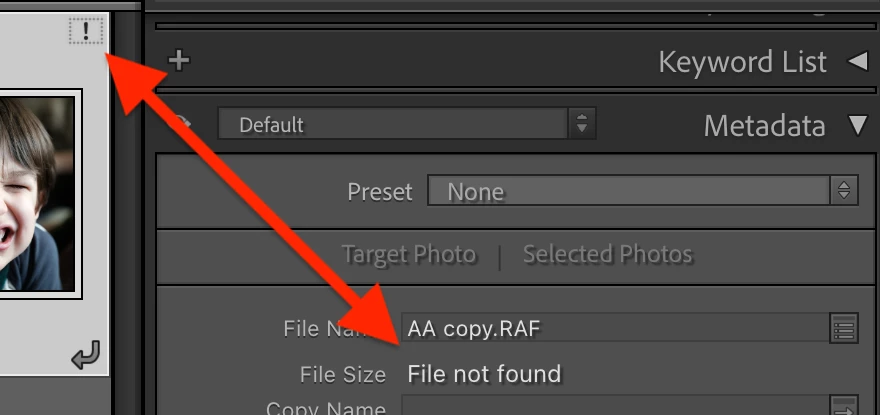
3. Observe that the photo is correctly marked missing and the Metadata panel shows "File Size: File not found":
 

4. Exit LR, connect the drive, restart LR.


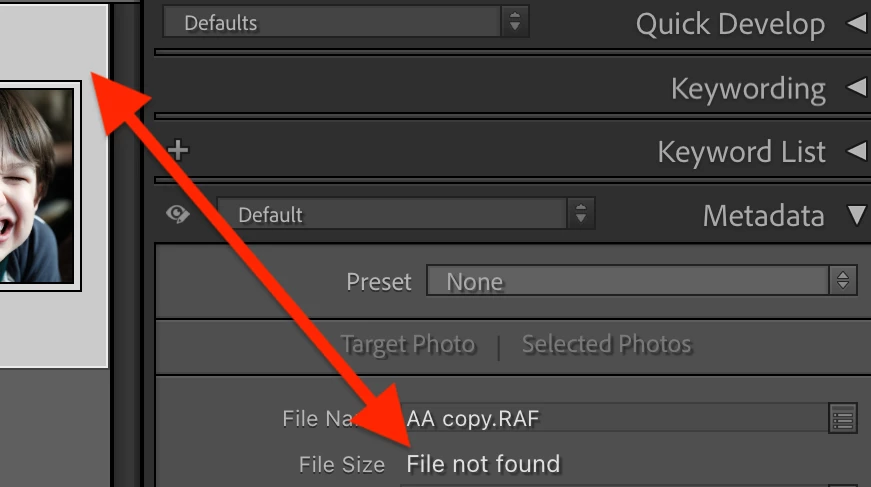
5. Observe that the photo is no longer marked missing but the Metadata panel still incorrectly shows "File Size: File not found":
 

6. Exit LR, delete "<catalog> Helper.lrdata", and restart LR.


7. Observe that the Metadata panel now shows a correct value for File Size.


Tested on LR 12.2 / Mac OS 12.6.1.


5 replies

johnrellis
Legend
June 18, 2025

I confirmed the fix, thanks.

Rikk Flohr_Photography
Community Manager
Community Manager
June 17, 2025

Greetings all, 


A new update for the Adobe Photography products has been released.  The June update contains an update for this issue. 

If you do not see the update in your Creative Cloud Application, you can refresh it by hitting [Ctrl/Cmd]+[Alt/Opt]+[ R ].

Note: It may take up to 24 hours for your update to be available in your Creative Cloud app.


Thank you for being so patient.

Rikk Flohr: Adobe Photography Org
reinholdk
Participant
November 25, 2024

Ich nutze die aktuelle Version von LR Classic. Im Metadatenbedienfeld des Bibliothekmoduls wird bei einigen Fotos bei "Dateigröße" angezeigt:

"Datei wurde nicht gefunden". Das Foto ist aber tatsächlich vorhanden und kann normal bearbeitet werden. Wie entsteht die Fehlermeldung?

johnrellis
Legend
November 25, 2024

It's a longstanding bug that can be triggered by disconnecting an external drive or network volume containing photos in the catalog and later reconnecting it:

https://community.adobe.com/t5/lightroom-classic-bugs/p-file-not-found-shown-in-metadata-panel-s-file-size-after-reconnecting-a-drive/idi-p/13588619


See step 6 of that post for how to get LR to display the file size correctly again.

Rikk Flohr_Photography
Community Manager
Community Manager
February 18, 2023

Setting status and adding bug number

Rikk Flohr: Adobe Photography Org
addieleman
Known Participant
February 14, 2023

Issue: Metadata panel does not show File Size for network drive

  • Lightroom Classic Version Number: 12.2
  • OS Version Number: macOS Ventura 13.2
  • Network drive: Synology DS214, attached as SMB share


Steps to reproduce:

  1. Go to Jeffrey’s “Metadata-Viewer Preset Editor” Lightroom Plugin
  2. Install the plugin
  3. Select "File Size" as an item to be shown in the Metadata panel
  4. Select file on network drive and look for file size on the Metadata panel


Expected result: File size should be reported for the file viewed in the Grid view
Actual result: File size is reported as "File not found" (see image below)


johnrellis
Legend
February 16, 2023

[This post contains formatting and embedded images that don't appear in email. View the post in your Web browser.]


I tried both that plugin and my own custom metadata tagset with files located on an SMB-connected volume on another Mac, and the file size was properly shown:


(Tested with LR 12.2 / Mac OS 13.1 connecting to a volume on Mac OS 12.5.)


Steps to narrow down the problem:


1. Do the command Library > Find All Missing Photos -- does it show photos on the Synology as missing?  (Sometimes LR is slow in updating the thumbnails in grid view with the "!" missing badge.)


2. In the Metdata panel's Default tagset, click the Customize button and check File Size. Does the size properly appear in the Default panel, or do you see "File not found"?


3. If you have another computer (Mac or Win), try mounting a shared folder from that computer as a network volume and importing a test photo.  Does the test photo's File Size properly appear?


4. If your Synology still supports it, try temporarily changing the protocol from SMB to the deprecated AFP. Does File Size properly show?


addieleman
Known Participant
February 17, 2023

I finally found the other recent thread about "File not found" being displayed for File Size:

https://www.lightroomqueen.com/community/threads/metadata-says-file-not-found-in-the-file-size.46971


I think this may have to do with bugs in how recent versions of LR cache metadata for faster display in Grid view. If you're still seeing those symptoms, please try these steps:

1. In Catalog Settings > General, click Show to open Finder / File Explorer on the current catalog folder.

2. In the catalog folder, delete the file "<catalog> Helper.lrdata".

3. Restart LR -- it will rebuild the Helper.lrdata


Well, thanks, that fixes the "File not found" for the File Size property. Unfortunately, it didn't help for the inability to move a file to the NAS, but hopefully my other bug report will yield a solution to that.