


February 4, 2019
해결됨

How to promote folder to 'parent folder' in heiarchy

  • February 4, 2019
  • 1 답변
  • 560 조회

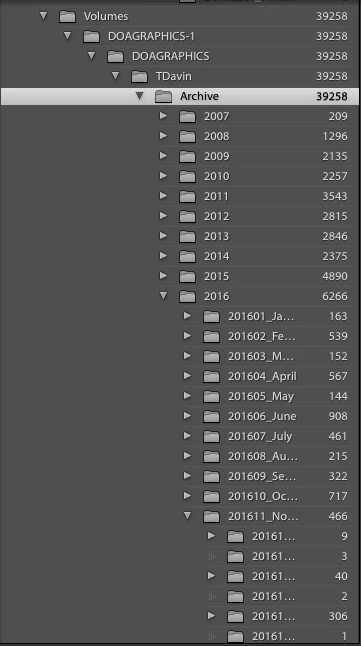
I have a folder that holds my archive on a server but lightroom is displaying the actual contents of the folder 5 levels down so that by the time i get to the month the job is located in, the text is unreadable due to the limited column space.  I dod not have admin permission to move the folder location so i cant just move it to the top level, and it's just shy of 40k files so adding the files different ways to try it out is very time intensive.  You used to be able to promote files to parent, is there still a way to do this or what would be the way to mount the file so that the parent folder is the one actually holding the images instead of the top level server address?

currently:

top level of the server > server folder > server folder > User > Archive > Year > Month > Archived job

what I'd like (and used to have prior to the upgrade to Classic):

Archive > Year > Month > Archived job

Thoughts and suggestions appreciated. See attached photo for visual reference. Running Classic CC build 7.5 on High Sierra.
이 주제는 답변이 닫혔습니다.
최고의 답변: JohanElzenga

You should be able to select "volumes" and the "Hide this Parent" will show up.  I don't think you can hide lower folders.


https://forums.adobe.com/people/Bob+Somrak  wrote

You should be able to select "volumes" and the "Hide this Parent" will show up.  I don't think you can hide lower folders.

Correct. The only parent folder you can hide is the top folder, so you have to do this step by step, starting with 'Volumes', then 'DOAGRAPHICS-1' etcetera till 'Archive' has become the top folder.

1 답변

dj_paige
Legend
February 4, 2019

The easiest approach IMHO is to right-click on Archive and select Hide Parent Folder. This keeps the folder in the same place in the hierarchy, you just don't see the hierarchy. Is that what you want?

There are other ways of re-arranging this folder hierarchy, so that Archive now is in a different place (both in Lightroom and your hard disk) in your hierarchy. I'm not a fan of doing this, but maybe you are ...

February 4, 2019

Thats exactly what i was looking for but i cant seem to find it in this update.

JohanElzenga
Community Expert
Community Expert
February 5, 2019

So i cant select 'Volumes' because LR has placed this folder as being on my hard drive even though its not.

So if i go to the very top level folder on the hard drive and 'hide this parent' then everything grays out completely.  It then allows me to select 'hide this parent' for 'volumes.'

The dialogue asking if i want to promote subfolders comes up, and then it thinks a minute and i get this error message.

Also it deleted the listing completely from my library.

I force closed LR after trying to re-add the missing folder location and upon relaunching it now correctly displays the folder as being on an external device.  I guess i had created some internal conflict based on how i originally added the file, I'm not sure, but the file hierarchy seems to have straightened itself out.  Thanks for the guidance and help everyone.


Yes, the problem is that 'Volumes' is a hidden folder where MacOS X stores the disk mounts. That folder should ever show as folder in Lightroom, because that means that the disks will show as subfolders instead of disks. By hiding it and then restarting Lightroom this can be solved.

-- Johan W. Elzenga