
Inspiring
October 18, 2019
Question

How to use Printer Settings?

  • October 18, 2019
  • 4 replies
  • 3003 views

Hi guys,

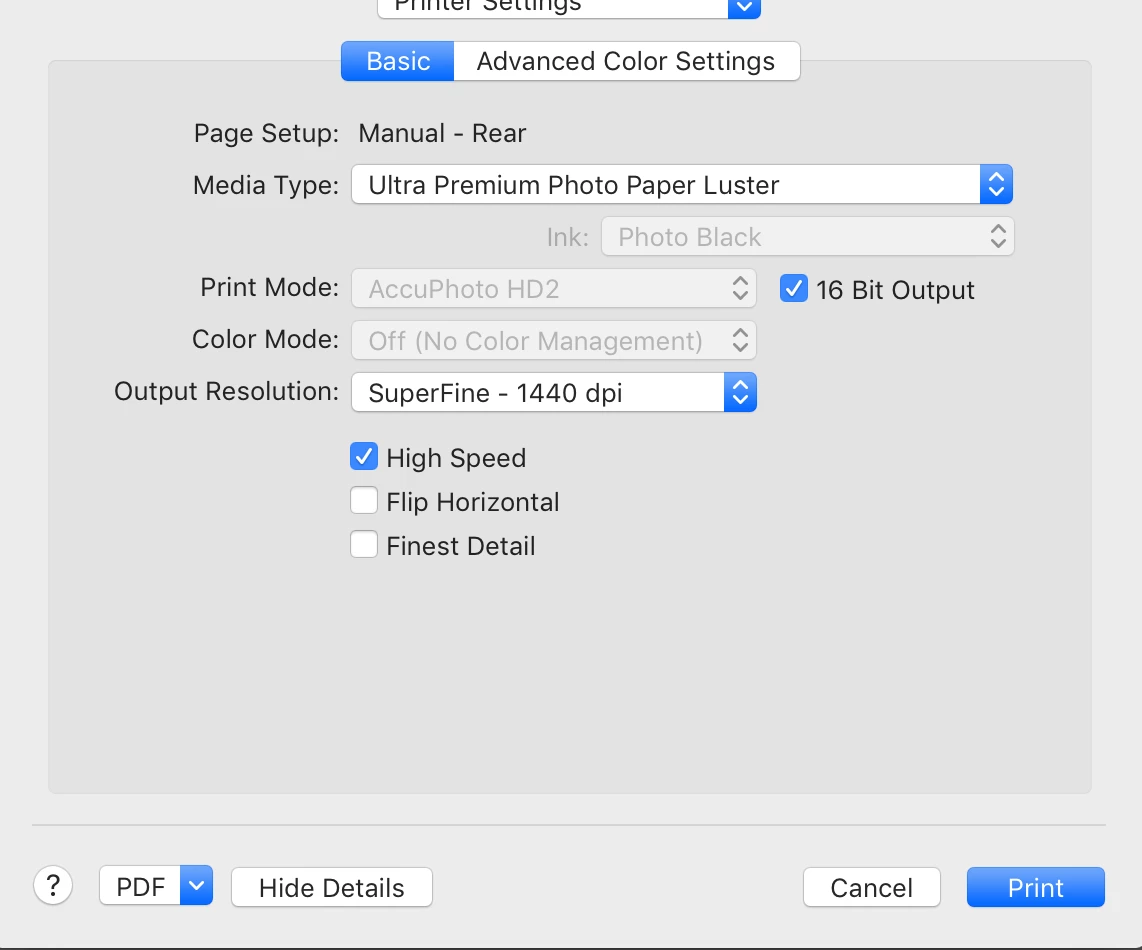
No matter how many times I click "Save" after selecting Epson's "Hot Press Natural" paper (I click Save at every opportunity in the Printer Settings window - and in the User Templates window), when I check back just prior to printing, I see a different paper setup in the Printer Settings window - always the same, wrong set of paper and specs (which won't allow 288 dpi or Finest Detail).

Means my paper choice, and other spec selections, simply do not stick in spite of all the Saves - and that system reverts to another set of specs for some unknown reason. 

It also means I have been unable to print. 

See attached Screen Shot of the specs relentlessly imposed upon me by the system. I must be doing something wrong; but what?


Any ideas? Thanks a lot,


Raphael


    This topic has been closed for replies.

    4 replies

    Rob_Cullen
    Community Expert
    Community Expert
    October 20, 2019

    Pressing "Save" in the Printer setup dialog does not create a Print "Template". It is only a temporary printer setup that exists until you either change the Printer Setup again or select a template in the Template Browser panel.

    After setting both the Printer Setup and all the Layout panels- then you 'Save' a Template to re-use as noted by Michael above.

    Regards. My System: Windows-11, Lightroom-Classic 15.1.1, Photoshop 27.3.1, ACR 18.1.1, Lightroom 9.0, Lr-iOS 10.4.0, Bridge 16.0.2 .
    Inspiring
    October 20, 2019

    Thank you WobertC

    Per your advice I set the right specs again in Printer Settings, clicked Save, created a new preset and named it, right clicked the new preset and clicked Update with Current Settings, went back to Printer Settings to check if the right specs were still there ... unfortunatelt, they hadn't stuck. Again.

    Back to square one.


    Rob_Cullen
    Community Expert
    Community Expert
    October 21, 2019

    "Per your advice I set the right specs again in Printer Settings, clicked Save,"

    "Save" is NOT necessary here!  This only saves in the Printer dialog! (mayabe useful if printing from Photoshop, etc)


    "created a new preset and named it, right clicked the new preset and clicked Update with Current Settings,"

    No need here either to "Update"- Create a new template that has the Printer settings you made in the Printer Setup Dialog.

    (You cannot Update any of the Adobe default supplied templates!- Only make a new 'User' template!)


    "went back to Printer Settings to check if the right specs were still there ... unfortunatelt, they hadn't stuck. Again."

    I cannot understand what might be happening for you!-

    Do NOT go back to Printer Setup- the new  Template you created should have retained the printer settings you had made.

    Regards. My System: Windows-11, Lightroom-Classic 15.1.1, Photoshop 27.3.1, ACR 18.1.1, Lightroom 9.0, Lr-iOS 10.4.0, Bridge 16.0.2 .
    Inspiring
    October 19, 2019

    Thank you Jim; that had already been done.

    What's next?

    JP Hess
    Inspiring
    October 19, 2019

    I guess nothing. If all that has been done, whatever that is, then I'm out of ideas. I don't think spending that much time on the forum is a good use of forum space. Perhaps you should review some of the printing tutorials that are available on YouTube. I'm sorry.

    Inspiring
    October 19, 2019

    Thank you Jim. 

    I guess we're both stumped (notice how no one from Adobe stepped in).

    Nevertheless, I appreciate your willingness to help and support. Means a lot to me.

    Sleep tight. 

    GoldingD
    Legend
    October 19, 2019

    Second comment, you are letting your computer control print jobs. Not recommended.  You want to use ICC profiles instead. Your print driver install will have placed several onto your computer, these are specific to printer mfg, model, ink, and paper.


    see: https://www.youtube.com/watch?v=OisBJ2aldes


    see: https://www.redrivercatalog.com/profiles/lightroom/how-to-use-icc-color-printer-profiles-lightroom-epson-mac.html


    and: https://www.color-management-guide.com/print-with-lightroom.html

    etc


    Inspiring
    October 19, 2019

    Thank you David for your suggestions.


    Prior to my message to this forum today, the latest Drivers and Profiles were re-installed to my Macbook Pro - with Epson's tech support.  I've used this Stylus Pro 3880 for 4-5 years, so this is not my first time printing or using profiles. So that's not the problem.


    The problem as described in my earlier messsage as best I could is of a different sort. As it stands right now, I am unable to use the printer because the system neutralizes the specs I enter into the Printer Settings window after I click Save. Am I missing something?


    Raphael 

    JP Hess
    Inspiring
    October 19, 2019

    I'm a Windows user, and I am a Canon printer user. So I'm a little confused and out of my element looking at your printer setup. As I look at it, it looks to me as if you have configured everything and chosen PDF as your printer output. Perhaps I'm wrong, and if so I apologize.


    If you want a certain paper type and print resolution, what I would do is create a print template choosing a paper size that you frequently use. Specify the paper and everything else that needs to go with that setting and create a template. Then, it should be easy enough to just use that template, and all of those settings should be applied automatically. Of course, it's necessary to ensure in the printer driver that you have chosen the appropriate paper type as outlined in the instructions that accompany your paper.

    GoldingD
    Legend
    October 19, 2019

    That screen is not from the Adobe software, but from the Windows OS using the Epson driver(s)


    Note, you might get multiple versions of that based on what printer you select, Epson printer via IP (ethernet), via USB, via WiFi, via whatever.

    PLEASE USE THE BLUE BUTTON WHEN REPLYING TO POSTS.
    Helps to show posts in date/time order, improves visibility (as not hidden in a reply to a reply), and is easier to use