
danielg50178951
Known Participant
May 27, 2017
Answered

Image in Lightroom Develop Module looks dramatically different than image in Library module or exported image. How do I fix this?

  • May 27, 2017
  • 12 replies
  • 25279 views

Forgive me, I know this has been discussed at length, but (partly due to my ineptitude) I'm unable to figure it out.

My issue is:

I work on an image in the develop module and when I become satisfied with it, I export it. The exported image loses clarity and becomes lighter. I am exporting the image as a Jpeg (I've tried other formats too) at 100% and have tried every color space variation but have gotten the same disappointing results. The exported image is identical to how the photo looks in the library module, not the develop module. This is very frustrating, because I want it to appear identical to the image on the develop module (since that's what I have control of). It seems pointless to put all this effort into editing the image to have the export look so different and then need to over edit your photo in hopes of making the library/export image look how you want it. It doesn't make sense.

I've read various, confusing things about how to remedy this.

The first photo is a screenshot of the Develop Module (How I want the export to look), the second one is the library (How the export actually looks). As you can see, the top one is darker and sharper.
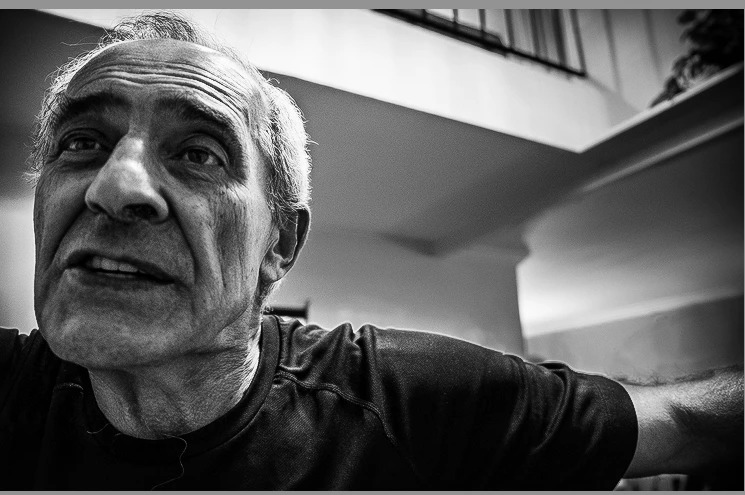
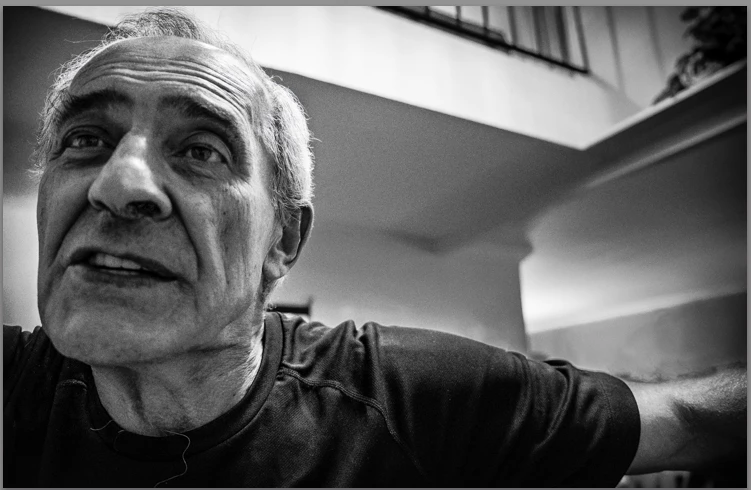
Some stuff I've read:

1. The library module uses a different color spacing than the develop module and for them to look the same, I need to properly calibrate my screen. I don't have Spyder or any external products to calibrate the screen but I did attempt to do it through my MacBook Pro's settings. I've tried many different variations of this but have never been able to have the develop image look the same as the library/export. Beyond that, it doesn't seem to make sense that calibrating the screen would fix this since I'm looking at these images on the same screen, no? Even if the screen is improperly calibrated, both images would be viewed on the same screen, so how would that cause a disparity in how they look?

Also, is there a way to adequately calibrate my screen without having to buy a pricey product like Spyder?

2. The library module and export will apply noise reduction which changes the appearance of the image. This seems to be true and I tried reducing the noise reduction in the develop module, in hopes of making the library/export image look the same, but I didn't achieve the results I was looking for.

3. People have pointed out that the Library and Develop module do look identical when both are viewed at 1:1 ratio. This is true, but it seems to be a moot point. They may be identical at a a 1:1 ratio, but the export isn't meant to be viewed that way. I'm putting these images on the web, so yes, theoretically the export will look identical to the develop module's image when magnified to 1:1, but nobody will be viewing it at that level of magnification.

Basically, I just want my exported photo to look like what I've worked for in the develop module. Is this possible? How? I'm at a loss here.

    Correct answer Todd Shaner

    I suggest also checking the Detail panel settings. If the image was shot at a high ISO setting noise in the image can cause the difference you are seeing between the Develop and Library module as well as Export files. Adjust the Detail panel Sharpening to Amount 50 or less and apply Luminance and Color setting to reduce noise in the image visible at 1:1 Zoom view setting. This should make the images appear virtually identical. The Develop module uses a simpler algorithm for creating the Loupe preview to prevent adjustment slider lag. The Library module creates a Preview file, which is created using the Bicubic algorithm (same as the Export module), which provides much more accurate interpolation. BTW- The most accurate view in the Library module are the pyramid Zoom settings 1:16, 1:8, 1:4, etc. rather than Fit of Fill. This is because a 2nd interpolation is applied to Fit and Fill previews, which may slightly soften the image detail. The 1:1 view is the most accurate, but of little value for most viewing purposes.

    12 replies

    Todd Shaner
    Todd ShanerCorrect answer
    Legend
    May 27, 2017

    I suggest also checking the Detail panel settings. If the image was shot at a high ISO setting noise in the image can cause the difference you are seeing between the Develop and Library module as well as Export files. Adjust the Detail panel Sharpening to Amount 50 or less and apply Luminance and Color setting to reduce noise in the image visible at 1:1 Zoom view setting. This should make the images appear virtually identical. The Develop module uses a simpler algorithm for creating the Loupe preview to prevent adjustment slider lag. The Library module creates a Preview file, which is created using the Bicubic algorithm (same as the Export module), which provides much more accurate interpolation. BTW- The most accurate view in the Library module are the pyramid Zoom settings 1:16, 1:8, 1:4, etc. rather than Fit of Fill. This is because a 2nd interpolation is applied to Fit and Fill previews, which may slightly soften the image detail. The 1:1 view is the most accurate, but of little value for most viewing purposes.

    danielg50178951
    Known Participant
    May 27, 2017

    Thank you. Just to clarify when you say, "setting noise in the image" are you talking about how a high ISO causes noise in the image or is there an actual Lightroom control called "noise in the image"?

    My sharpening was much higher than 50. If I were to reduce it to that, the image would be a lot blurrier. Is there an alternative?

    Todd Shaner
    Legend
    June 13, 2017

    Correct, it has no settings applied. This was the .raf straight out of camera and it jumped right out at me on import. Then I simply exported this dng out of Lightroom. If I then re-import the dog back into Lightroom I see the same issue.

    Im using a 2010 iMac. Its not calibrated but, and correct me if Im wrong, wouldn't that be irrelevant as the issue seems to be that the develop and library modules treat the process the image differently anyway?

    Thats super interesting that you're not seeing any banding. Heres a .psd file with some cropped screen grabs.  Dropbox - developLibrary.psd

    The bottom layer is from the develop module, and the top is from the library. As I switch the top layer on & off I can see the image change as banding comes and goes. Its subtle but its there.

    Anyway, so long as the develop is fine and I can export jpegs at 100% which are also fine then Im good to go.

    Thanks so much for looking into the issue. Im leaving on vacation now. Hopefully, I'll take some good photos!

    -A


    andrewg5381176  wrote

    Im using a 2010 iMac. Its not calibrated but, and correct me if Im wrong, wouldn't that be irrelevant as the issue seems to be that the develop and library modules treat the process the image differently anyway?

    It shouldn't matter if the display profile assigned to it is fully compatible with LR. I'm guessing it's not or your display's settings are causing the issue. When you use a hardware calibration device it helps you to properly adjust the display controls and settings and then it creates a monitor profile. LR works best with a matrix type, ICC Version 2 profile. You can determine if this is the issue by replacing the currently assigned profile with the sRGB profile as outlined below. You'll need to close and reopen LR to load the sRGB profile and see if the Library and Develop module previews are now the same.

    https://www.lightroomqueen.com/articles-page/how-do-i-change-my-monitor-profile-to-check-whether-its-corrupted/

    andrewg5381176  wrote

    Thats super interesting that you're not seeing any banding. Heres a .psd file with some cropped screen grabs.  Dropbox - developLibrary.psd

    The bottom layer is from the develop module, and the top is from the library. As I switch the top layer on & off I can see the image change as banding comes and goes. Its subtle but its there.

    I can see a very subtle banding in the Library image layer.  The Develop and Library modules use the monitor profile differently, so it still could be due to a corrupt or incompatible monitor profile. I suggest trying the above suggested check and see if that resolves the issue.

    F. McLion
    Community Expert
    Community Expert
    May 27, 2017

    Try to reset your monitor profile: https://www.lightroomqueen.com/articles-page/how-do-i-change-my-monitor-profile-to-check-whether-its-corrupted/

    For serious photo work you need to buy a product like a Spyder or alike. Compare the price to any piece of your photo gear and I'm sure it will be among the cheapest.

    --- Got your issue resolved? Please label the response as 'Correct Answer' to help your fellow community members find a solution to similar problems. ---