


Participating Frequently
March 29, 2014
Answered

Lightroom corrupting RAW files? Hardware issue?

  • March 29, 2014
  • 7 replies
  • 23609 views

I've started having some issues with RAW files being corrupted when I open them in Lightroom. I've done a lot to troubleshoot and narrow down the symptoms, and here is what I can tell you. If anyone has any ideas for how to solve this, I'd really appreciate it!

Equipment

Canon 7D, 1 32GB CF card, 1 4GB CF card

Lenovo Laptop, Win 8; Lightroom 4

Dell PC, Win7, Lightroom 5

Here's what the corruption looks like in my Library view. Note that all of the photos are the same. I just rapid-fired a bunch of shots down the hallway to test this out.
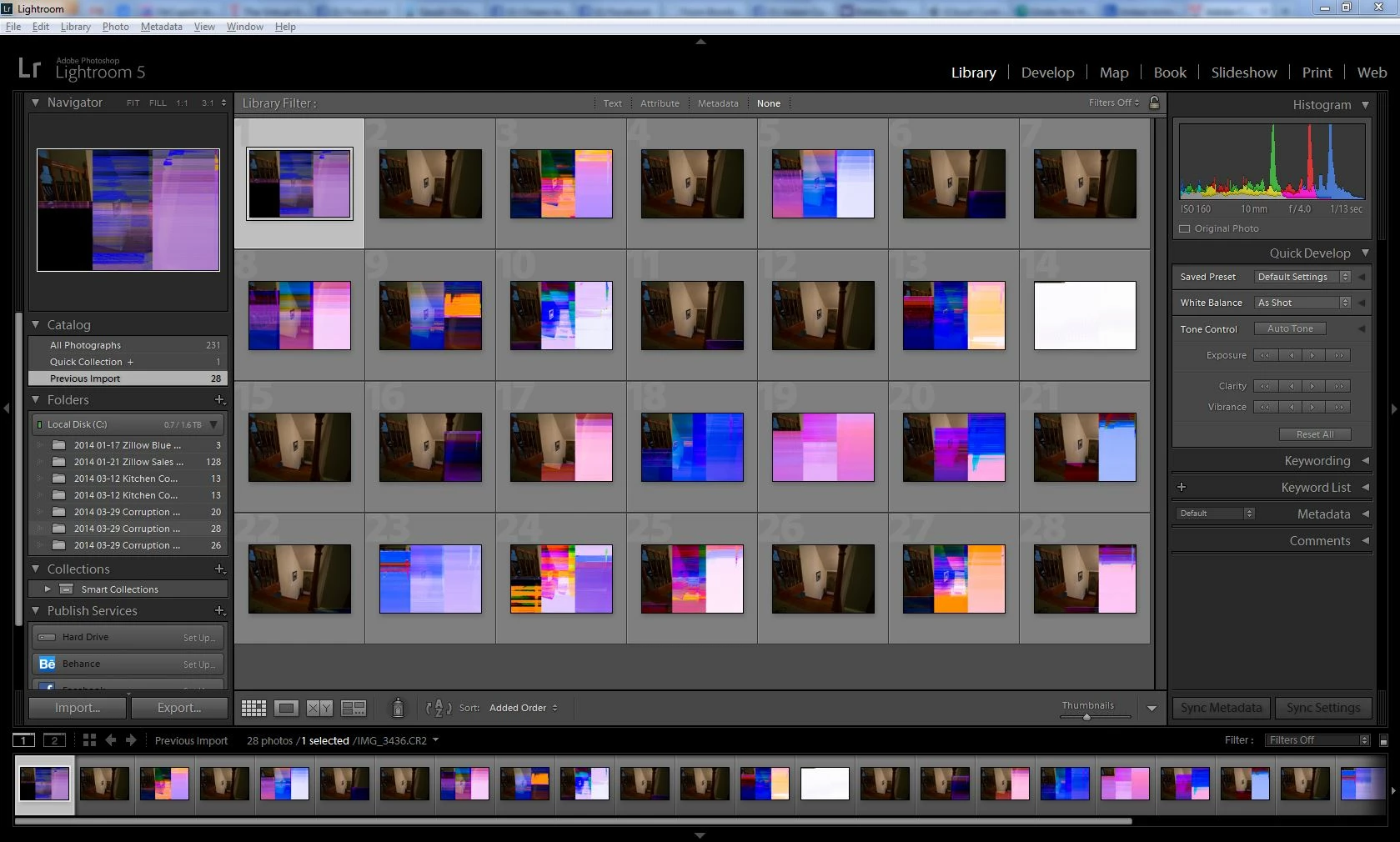
I first noticed the corruption on the PC, pulling photos from the 32GB card. I bought a new hard drive (SSD hybrid), installed a clean version of Windows 7, and upgraded to Lightroom 5, then the 5.3 update. I re-downloaded some photos from the 32GB card, and they still show up corrupted. So here is my further testing:

  • I shot a series of photos like shown above on the 32GB card, downloaded them on the laptop with a new USB cable. The photos look good.
  • I shot a series of photos on the 4GB card, downloaded them to the laptop with the same cord, they look good.
  • I imported the same photos photos from the 4GB card and from the 32GB card on the PC with my existing Lighrtoom Catalog and they are corrupted.
  • I created a new Lightroom Catalog on the PC and downloaded the same photos from the 4GB card and from the 32GB card on the PC and they are corrupted.

So what gives? I think we can rule out corruption or issues on the hard drive, the OS, the USB cable, and both of the CF cards. It baffles me that a new HD, clean OS install, new catalog, new USB cable, and upgraded Lightroom haven't solved the problem. Is it possible that there is some other part of the hardware on my PC which is corrupting the files?

I'd love some insight if folks have any ideas!

Thanks,
Adam

This topic has been closed for replies.
Correct answer digitaloxygen

I appreciate the kind advice Modesto but I think you're off base on the graphics card problem.  There is no way a graphics card would cause only some images to show corruption.  The graphics card has no concept of individual files. Graphics card issues would be more widespread and would not somehow limit themselves perfectly to individual files displayed in different visual locations on the screen in different applications.  Just a PSA for others reading this thread.

I also won't bother copying the corrupted files to another system.  The corruption has already happened.  100% guaranteed.  If two pieces of industry leading software show the same issue as well as multiple OS viewers there is no reason to try another.  This is not a general format or compatibility issue (which might benefit from trying another piece of software), it is clear cut corruption.


Ah HA!  Found the issue.

I was mistaken when I said I had viewed / edited / exported one of the files earlier.  It turns out it was another file in the series.  After more testing with the original memory card it's clear the corruption happened at on the card it self.  Attempting to view the images on that memory card via the built-in card reader on my Macbook Pro as well as a 3rd party USB card reader both show the same corruption.  The card (or perhaps camera, though less likely I think) corrupted the file at capture / write time.

I believe the reason the corruption was not visible in Lightroom until I viewed them in Loupe view was that I had the "Build Previews" option in LR set to "Minimal" meaning it was using the embedded previews and not rendering a preview from the RAW file itself. Lightroom only attempted to build a standard preview from the RAW file once I opened it in Loupe view, thus that's when the corruption was first visible in LR. This is what made me think I was witnessing the file becoming corrupt on the fly. Had I set Lightroom to build a preview from the RAW file during import (using "Standard" or "1:1") the corruption likely would have shown right away.

Appreciate the sounding board and advice.  Apologies for not doing my due diligence ahead of time and ruling out the memory card.  I had been mistaken about my previous interactions with the files which threw me off path a little during troubleshooting.

Carry on, nothing to see here

7 replies

Nardnob
Participant
May 12, 2017

I had this problem on a MacBook and an iMac and corruption was only appearing through Lightroom, not PhotoMechanic or any other editing platform.

It wasn't until I was editing on the road without an Internet connection that I realized the problem was not occurring. That led me to believe something was wonky with one of my other services that was always on and connected to the Internet that had any contact with my files...

DROPBOX!

Then I did some testing by putting my raw files in another folder - same hard drive, but not a folder connected to any type of file-syncing service. No issues. None whatsoever.

Now this may not be the solution for everybody, but it worked for me. Frustrating to have another step added to the workflow - copy/pasting to a dropbox folder after editing, but hey, glad to have it figured out.

Happy shooting!

Nardnob
Participant
May 12, 2017

I suppose you could also pause syncing and see if that helps, then resume when you're done editing. I have not tried it.

Geoff the kiwi
Community Expert
Community Expert
May 13, 2017

Nardnob  wrote

I suppose you could also pause syncing and see if that helps, then resume when you're done editing. I have not tried it.

Backing up/syncing while using Lightroom is a recipe for disaster for both the image files and catalog. Two applications trying to read files at the same time is not sound practise!!

mattp78331333
Participant
January 16, 2017

I have only had this issue in LR. Aperture never did it, and Capture One has never done it either.

The issue in LR6CC is becoming more frequent and very annoying.

Also when I have LR6CC on my machine it crashes, when not it doesn't. Seems to be a common denominator here.

Participant
April 21, 2017

Hello,

I took 85895 pictures before I used Lightroom CC all this pictures were taken in RAW and with the original canon program.

Non of this pictures were corrupted

Since I use CC I have too many corrupted files , I have one laptop MAC BOOK PRO and one iMAC , on both i see corupted files.

I learn to copy my CF card before I ask LR to convert it to DNG.

All the CR2 files are correct in Digital Photo Professional , but most of the time I have one or more corrupted files after converting it to DNG.

I did some test with a direct USB cable from the CANON 7D MK1 or 5D MK3 and also with a LEXAR card reader. Again the files only corupt when I use LR.

Any idea why I have this issue ?

Light Room is the bet program I have seen until now , it is a pity that it will corrupt the files.

Thank You in advance for your help.

Best Regards,

Didier

Legend
April 21, 2017

Lightroom never writes to the image portion of your original RAW files. So Lightroom cannot corrupt the files.

The reason DPP is showing un-corrupted files is because DPP usually shows the embedded JPG preview, rather than some version of the RAW, and often the JPG preview is uncorrupted even when the RAW itself is corrupted.

Anyway, because of the above facts, you still need to investigate to see which component of your hardware has caused this corruption.

A_D800
Participating Frequently
December 25, 2015

I just began to suffer from this issue on my iMac 27 after not having problems for nearly 2 years.  It affects about 1% of my .nef images.  New observation to report.  In beginning to edit about 300 photos that all had 1:1 previews generated upon import, there were at first only 2 images affected.  Then, while looking at this collection of photos in Grid view, a third suddenly sprouted the horizontal colored stripping others have described.  The colors are completely different in Loupe view (matches Grid) than in the Develop module.  I shifted to the finder and the preview also showed corruption of these three images.  A day later I switched back to LR (never quit the program) and within 10 sec a fourth image spontaneously became 'infected'.  Now it also shows in Finder preview.  This leads me to think that LR is actually causing the problem.  One caveat, this was the first set of photos that I began using LR CC 2015.3 and also a Lexar USB 3.0 Dual Slot Reader.  Fairly certain it is not the card reader, since the corruptions appeared after the files had been read from the CF card and had initially appeared normal in LR.

Adobe, please troubleshoot this issue, my information points to LR as the source of the issue.

Participating Frequently
December 25, 2015

Sorry, but with the exception of writting new capture time to raw files, Lightroom simply does not touch your raw files. So, sadly for you, you have a hardware problem not connected to Lightroom. It's either a card problem, a card reader problem or an HD problem that is causing your files to corrupt. Look elsewhere since LR can't corrupt files.

A_D800
Participating Frequently
December 25, 2015

Appreciate your responses Jeff Schewe and Shootistbond007‌ and I understand that LR policy and intent is not to write to files but that does not convincingly prove that it does not actually do so.  Additional data.  My photos are stored on an external thunderbolt dive and in two years I have never seen any signs of type of file on that drive being corrupted or unreadable.  Only raw .nef files from my Nikon have been affected, the corresponding .jpegs have not.  The files on my CF card are not corrupted - I removed the 4 files of the bad images from my library (using Finder) and replaced them from the CF card and they were restored back to normal in Loupe and Develop after I recreated the 1:1 previews.  Then, during routine culling and editing of the 300 photos, the problem appeared on two additional .nef images at different points in time.

Statistically, the odds are heavily in favor of this being a problem that only affects my .nef images, which should be enough for you to allow the possibility that LR is the cause, since hardware would be expected to indiscriminately affect .nef and .jpeg as well as all other types of none photo documents on my computer system.

The idea occurred to me to try rebuilding the 1:1 previews in LR.  This removed the corruption in Grid, Loupe, and Develop.

Now, the problem initially concerned me because I used Jeffrey Friedl's LR Plug In for Zenfolio (20151105.281) to export photos to a gallery and the corruption of images passed through to Zf.  I went back and tested exporting .nef files using LR, and the color striping corruption does not appear in my exported .jpeg files on my hard.  However, it does using Friedl's Plug In to Zf gallery.

Conclusions.  LR is affecting .nef previews and not the .nef files themselves.  Jeffrey Friedl's LR Plug In for Zenfolio (incorrectly? to save processing time?) uses the LR preview rather than the actual source files to generate exported images.

Adobe, please address the first conclusion.  I will contact Jeffrey Friedl regarding the second.

craigs48531685
Participant
April 17, 2015

Hello, I just came across this discussion and am having the exact same issue. The difference is, I downloaded the files from the camera to the PC last July and have worked on them, on and off, up until a couple months ago. I have only used Adobe Camera Raw and PS in the past. I loaded up Lightroom 5 a couple weeks ago. Yesterday, I pulled those same files up in LR5 and am having the same issue that your RAW files had. Now, when I try to look at them in PS, they are corrupted there as well. Possibly my drive is going bad, but it seems very coincidental that I had no issue until I used LR. Again, these are files that I've worked on without issue before. Have you had any additional problems?

AdamCohnAuthor
Participating Frequently
April 17, 2015

I circumvented the problem by buying an entirely new computer, and by creating a new Lightoom catalog entirely, starting with the next set of photos I shot. Using the same camera, cards, cords, etc, I never encountered the issue again.... until coincidentally just yesterday. I imported into my new catalog some of the photos shot before I made this switch, and they corrupted again. Thankfully so far, it appears that my other photos aren't corrupting. I am still baffled by this phenomenon.

craigs48531685
Participant
April 17, 2015

Thanks for your follow up. I chatted with Adobe Support just after I left my comment here. They shed light on my particular problem. When the problem occurred for me, I was adding a folder to my Library that was on a network drive. I keep my backups on a NAS device. Support told me that LR had latency issues with networked drives and can cause the corruption issues I ran into. I was told to only add folders to the library that are on the PC hard drive or a USB external drive. NOT a network drive. I've read so many comments that LR does not affect the RAW files and I believe that is true as far as processing, but it appears in this case, LR was the problem. I have never experienced this issue with Adobe Camera RAW. So, going forward, I will only process files with LR in the way Adobe suggested.

As for the corrupt files. Adobe has a free DNG converter that they have told me will repair the RAW files into DNG format files. I will try that this weekend and will let you know if that repairs the files. Link to the DNG converter (Windows version. They have a Mac version as well) Adobe - Adobe Camera Raw and DNG Converter : For Windows : Adobe DNG Converter 8.8 : Thank You

Hope this helps with your issue as well.

Hal P Anderson
Inspiring
March 29, 2014

Adam,

You say the images look good on the laptop, but they're corrupted on the PC. I assume that you're using LR to view them in both places.

So there is something in the PC that is corrupting them. I don't see why you can rule out the hard drive. New hardware fails more often than hardware that has run for a few months.

I'd check my hard drive and my RAM. Either can lead to corrupted images. Download Memtest and run it against your memory. Disk manufacturers often supply diagnostic programs for their drives. You probably can find one on their website.

Hal

AdamCohnAuthor
Participating Frequently
March 29, 2014

Correct, I am using Lightroom to view and develop on both computers. LR4 on the laptop, LF 5.3 on the PC.

I think that I can rule out the hard drive because the problem surfaced on my old hard drive and also is apparent on my new hard drive. I think you might be right that it is a RAM issue. I'll try out Memtest... hopefully I will be able to understand what the results tell me. I'll report back. Thanks!

areohbee
Legend
March 29, 2014

On laptop, you assessed "photos look good" by importing in Lightroom, and waiting until initial view is replaced by raw rendering? (or some other software which renders the raw instead of showing jpeg preview. if not, then that test doesn't mean much, except that it might take a few seconds before thumbs appear corrupt in Lightroom).

Have you tried a different card reader?

~R.

AdamCohnAuthor
Participating Frequently
March 29, 2014

Just to make sure, on the laptop I developed one of the photos which appears corrupt on the PC, and it looks fine in Develop mode in Lightroom as well as in the final jpeg I developed. So I think that the preview isn't the issue. In terms of card reader, I just plug the USB into the side of my camera. I've never seen a reason to add another piece of hardware into my process. Is there something I am missing there? Thanks though!

areohbee
Legend
March 29, 2014

AdamCohn wrote:

Is there something I am missing there?

No. If camera works then you don't need (and problem isn't) reader. But for the record: many people use readers because direct from camera either doesn't always work reliably, or it's less convenient. For example, I use reader because I have one permanently installed and available, whereas I don't keep USB cables permanently strung - 6 o' 1 half-dozen of other...

PS - I think ram problem is likely given the rest..

Standing by...

R

99jon
Genius
March 29, 2014

I would suggest getting Dell or you reseller to run a utility check on the hard drive or USB ports. Definitely a hardware fault as LR does not write to CR2 files.

AdamCohnAuthor
Participating Frequently
March 29, 2014

Can you explain a little more what you mean when you say that Lightroom doesn't write to CR2 files? Thanks!

JP Hess
Inspiring
March 29, 2014

Your raw files remain completely untouched. When you make changes in Lightroom they are stored in the catalog or written to XMP files if you have that option selected. Nothing is ever written directly to the raw file in Lightroom, or Camera Raw if you are using Photoshop, or Photoshop itself.