


- Home
- Lightroom Classic
- Discussions
- Re: LR Classic Sync Stuck Downloading
- Re: LR Classic Sync Stuck Downloading
LR Classic Sync Stuck Downloading

Copy link to clipboard
Copied
LR Sync is stuck downloading files. I see this when I go to Lightroom Sync in preferences. how do i clear this?
Thanks for the help.
Denise


 33
Replies
33
33
Replies
33


Copy link to clipboard
Copied
Hi Denise - Try going into the Catalog panel in the left column > Sync Errors > remove images
If that doesn't work go into Preferences > Lightroom Sync tab > see what the error messages are being caused by
Copy link to clipboard
Copied
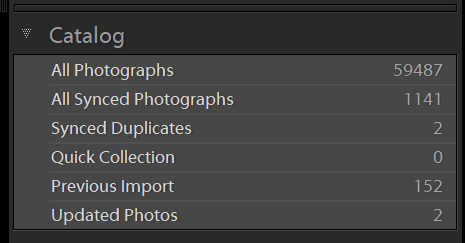
Thank you. Under the Catalog Panel there isn't a choice for Sync Errors.
I have been to the Sync Tab in preferences, that's how I know that it is stuck. It is downloading 470 files and 16 are pending. It shows a very long URL to each image that it is trying to download. I have tried removing the synced collection that contains the image, but that didn't work. I've tried saving a new version of the image, and that didn't work either.
Why is sync downloading and where does it download to?
Copy link to clipboard
Copied
Under your name in the top left corner pull down the white arrow to turn off sync if you don't want to sync images.
If you want to access images that you've put into a collection you can enable syncing again later. Syncing collections allows you to access them via the Lr mobile app across all of your devices and in a browser.
Syncing images via collections uploads smart previews (jpgs) to Adobe's server which you can access by going to lightroom.adobe.com
Copy link to clipboard
Copied
I don't want to turn of syncing. I have catalogs that I have shared out through LR Mobile.
Do you know how to correct the download issue?
Copy link to clipboard
Copied
Try going back into Preferences > Lightroom Sync > hold down the option key and tap the rebuild sync data button.
Copy link to clipboard
Copied
I don't see "Rebuild Sync" I see "Delete All Synced Data" is this what you mean?
Copy link to clipboard
Copied
No!
Hold down the option key and look at the bottom of the window where the table was that showed all of the sync errors. Holding down the option key will change the view that you see and two buttons will be available.

Copy link to clipboard
Copied
Don't see that...
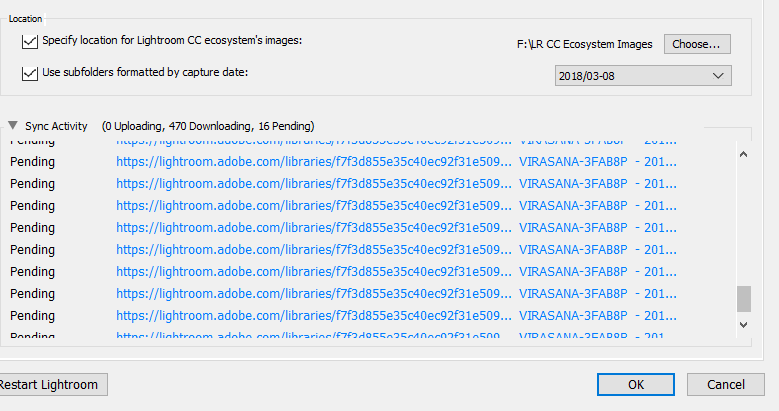
Copy link to clipboard
Copied
are you holding down the Option key? Are you on Windows? That would be the ALT key.
Copy link to clipboard
Copied
Ahhhh.... but no luck.
Copy link to clipboard
Copied
This didn't clear the list? Hmmm... and you don't see sync errors in the left column under catalog... where are these images in your catalog? Can you test deleting one of the images from it's location in your catalog? Just one for now.
Copy link to clipboard
Copied
not sure about deleting photos. I can try moving one. I've tried renaming one and that didn't work.
here is what I see under Catalog
Copy link to clipboard
Copied
You could try to remove the sync.lrdata file: C:\Users\<user>\AppData\Local\Adobe\Lightroom\Caches\Sync Data\Sync.lrdata
Restart Lr. Removing the Sync.lrdata might fix the issue.
Copy link to clipboard
Copied
no luck there either. 
Copy link to clipboard
Copied
DRF1000 wrote
Don't see that...
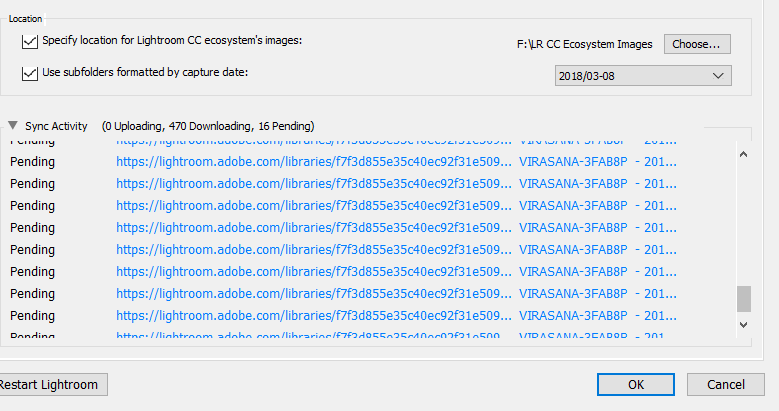
Did you change anything in that screen shot above? Like the folder LR is supposed to use for Downloaded LR Mobile images and or the Date Format?
What it looks like you are using Windows as an OS, is that correct?
In Windows I don't thing you can use the foreword slash ( / ) in a Folder name and the Backslash is for separating folders from subfolders and or File names. DriveLetter:\FolderName\SubfolderName\File Name.
You have it set to 2018/03-08 where it should be something like 2018-03-08 or 2018\03-08.
Copy link to clipboard
Copied
I didn't type that, it's a choice in the drop down. I changed it to a different one that has no punctuation 20180308.
So now, if I go into the folder and watch it, files are flashing like they are loading into the file but then disappearing. hmmmm.....
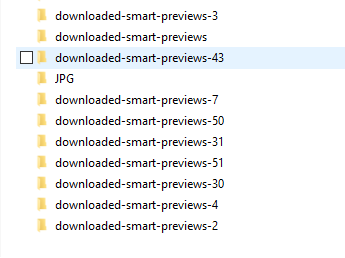
Also, all the folders here in this sync file are empty. Is that they way they should be?
I so appreciate your efforts to help me!
Copy link to clipboard
Copied
Thank you cmgap & @JustShootMe for trying to work this out with me. I decided to just delete all synced data and start fresh. So far so good.
Thank you again!
-Denise
Copy link to clipboard
Copied
Let us know how things turn out. Be sure to restart not only Lr... reboot your computer too.
Copy link to clipboard
Copied

Copy link to clipboard
Copied
After deleting photos, new ones would show up pending and no help from Adobe, (they are terrible!!!) I tried this and it worked! Thanks!

Copy link to clipboard
Copied
I'm trying to fix this too. My LR has been stuck on "Syncing 2 photos" for months. I've gone to Preferences/Lightroom Sync and then with the Option key press Rebuild Sync Data. That clears everything but leaves sync turned off. As soon as I turn it back on, it works down to 2 photos again. Then I saw this and tried looking at it again. If I turn off syncing in LR from all my sync'd collections, the folders disappear from my lightroom.adobe.com page but under All Photos, it still say 1845. So turning off sync inside of Lightroom doesn't delete the photos from lightroom.adobe.com?
And then on lightroom.adobe.com under Dashboard, I see 1762 photos 83 videos 0 albums. In LR, under Catalog/All Synced Photos I see 1764 and hence the 2 photo difference. I suppose I'll have to walk through them all and figure out which 2 it is having the issue with.
But what happens if I delete all the photos on lightroom.adobe.com by going to the All Photos view, selecting all the photos and clicking Delete? Does that delete back in LR? I want to get back to a clean start here.
Copy link to clipboard
Copied
But what happens if I delete all the photos on lightroom.adobe.com by going to the All Photos view, selecting all the photos and clicking Delete? Does that delete back in LR? I want to get back to a clean start here.
To answer your question specifically about what happens if you delete from the browser - try deleting one and confirm it's still in your catalog and then remove the rest. That's the best way to assure yourself of what is happening.
If you are syncing your images from a collection in Classic, they are smart previews and will not be deleted from your catalog via the browser. They will either be synced and displayed in the browser or not synced and only available in your desktop version.

Copy link to clipboard
Copied
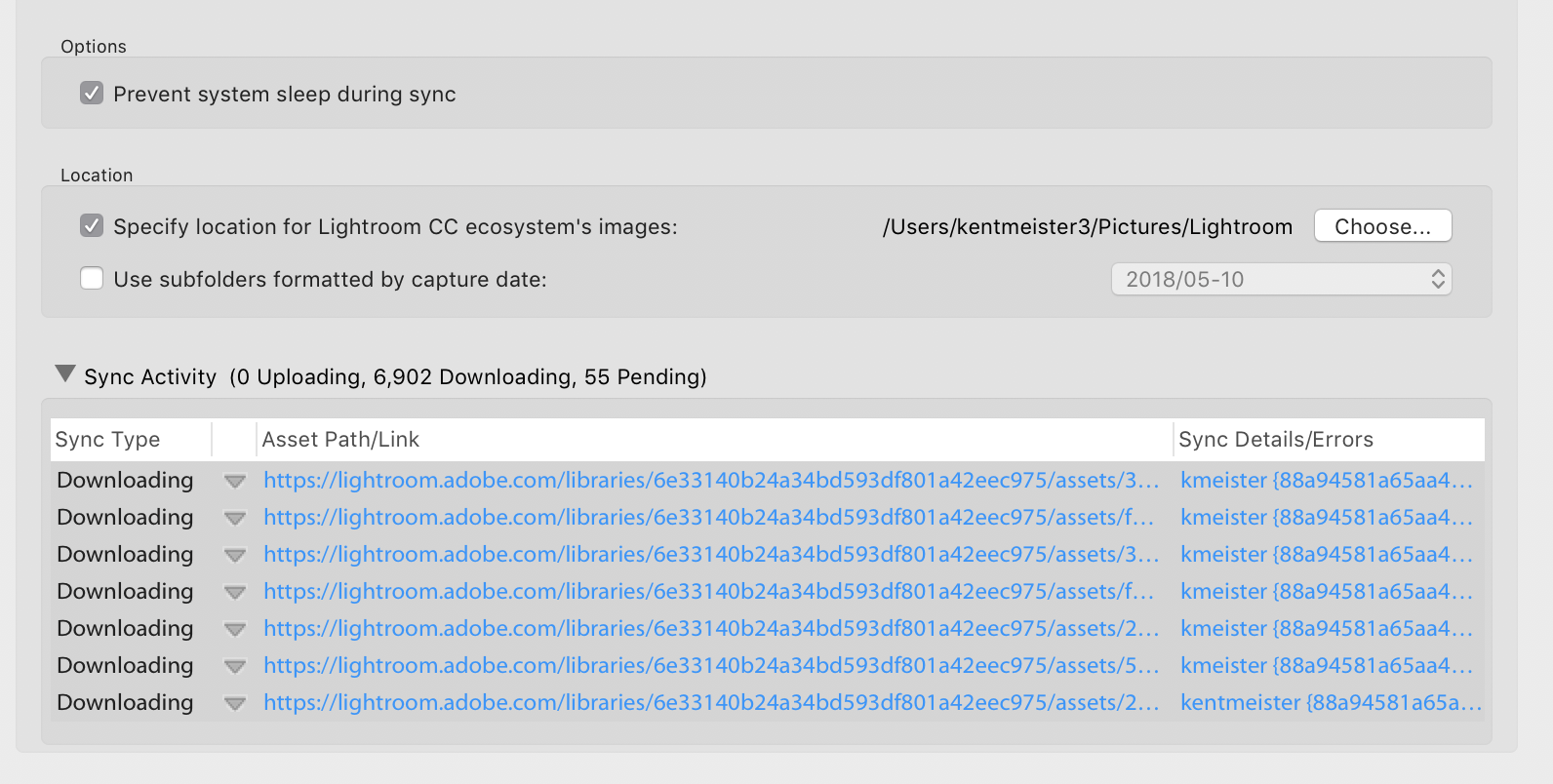
I'm having this exact problem and nothing seems to help. I started a new catalog at the beginning of the year and carried my synced images over. For months I've been at 57 Pending on the sync with over 6k images downloading. The develop module has been almost unusable while that's all going on. I've never been able to find a clear answer at why this is happening or what to do to fix it. I really don't want to straight delete all of my synced data, especially while in the middle of a job. Any other ideas here?
Copy link to clipboard
Copied
I feel your pain!  I got too frustrated with the Develop module being so burdened so I ultimately went into preferences and the Sync tab and deleted all synced data. I spent a few hours on the phone with Adobe support before taking this route, but they were unable to provide another solution. I had to resend URL's to people I had shared collections with.
Sorry, not the answer you were looking for, just a little support for your frustration.

-
- 1
- 2

Get ready! An upgraded Adobe Community experience is coming in January.
Learn more
 AdChoices