Exit
  • Global community
    • Language:
      • Deutsch
      • English
      • Español
      • Français
      • Português
  • 日本語コミュニティ
  • 한국 커뮤니티
0

LRC Warning Message

Community Beginner ,
Oct 28, 2021 Oct 28, 2021

Whenever I start LR Classic (currently V11 but same behavior with V10), I get the following warning (see attached screenshot). I click OK and everything seems to work.


Any idea why this occurs and can I get rid of it?

Screen Shot 2021-10-28 at 11.26.00.png

TOPICS
macOS
949
Translate
Report
Community guidelines
Be kind and respectful, give credit to the original source of content, and search for duplicates before posting. Learn more
community guidelines

correct answers 1 Correct answer

Community Expert , Oct 28, 2021 Oct 28, 2021

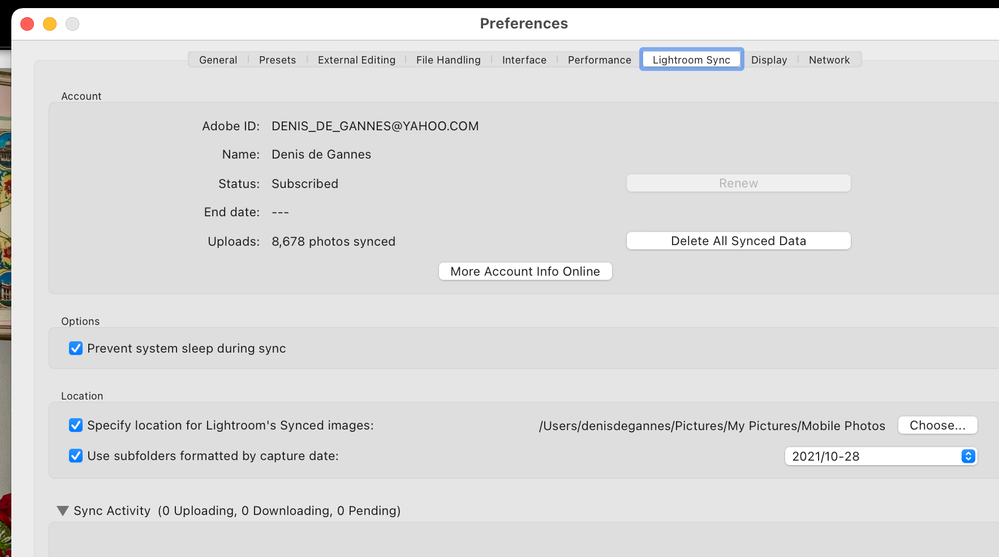
The suggestions are wrong. This is a different problem. What happened is that the destination folder of images synced down from the cloud was reset to your root user folder. Lightroom does not, and should not, have permissions to write to this folder. Go to Preferences - Lightroom Sync and choose another destination folder location.


Translate
LEGEND ,
Oct 28, 2021 Oct 28, 2021

Click Show in Finder, look at the access rights.


Translate
Report
Community guidelines
Be kind and respectful, give credit to the original source of content, and search for duplicates before posting. Learn more
community guidelines
Community Beginner ,
Oct 28, 2021 Oct 28, 2021

Thanks...I've done that - have read & write privileges, and I'm an administrator on this machine.

Translate
Report
Community guidelines
Be kind and respectful, give credit to the original source of content, and search for duplicates before posting. Learn more
community guidelines
LEGEND ,
Oct 28, 2021 Oct 28, 2021

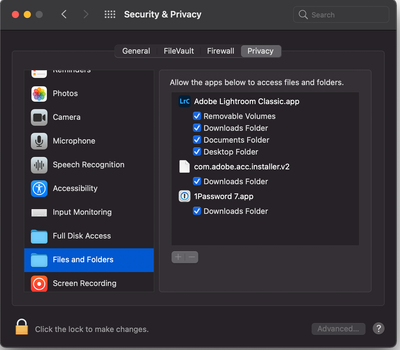
And, assuming Catalina or beyond, Security & Privacy, Privacy, Files and Folders, LrC needs rights to various volumes 
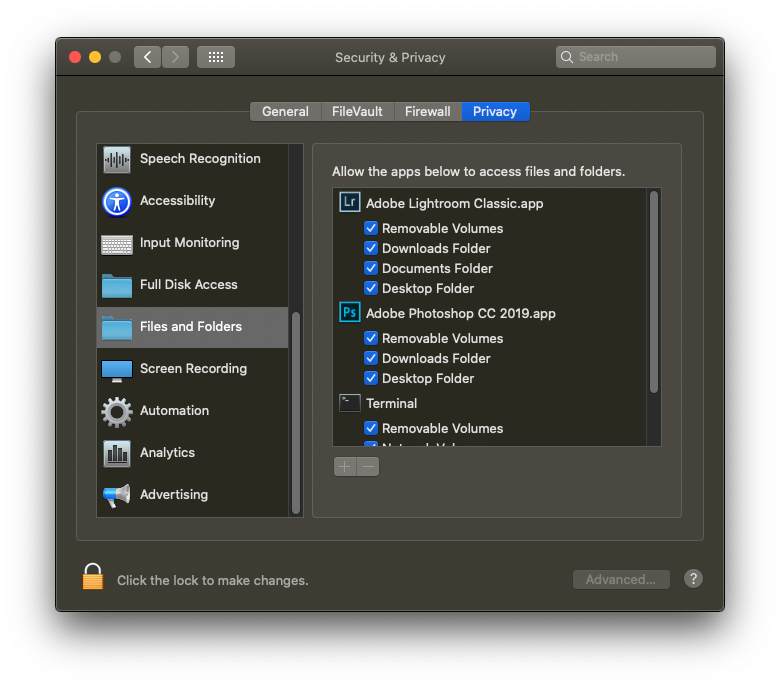
CatalinaFilesandFolders.PNG

Translate
Report
Community guidelines
Be kind and respectful, give credit to the original source of content, and search for duplicates before posting. Learn more
community guidelines
Community Beginner ,
Oct 28, 2021 Oct 28, 2021

Yep - that too. It is strange since once I click 'OK' everything seems to work.
 

Screen Shot 2021-10-28 at 13.20.09.png

Translate
Report
Community guidelines
Be kind and respectful, give credit to the original source of content, and search for duplicates before posting. Learn more
community guidelines
Community Expert ,
Oct 28, 2021 Oct 28, 2021

Removed, info supplied by GoldingD.

Regards, Denis: iMac 27” mid-2015, macOS 11.7.10 Big Sur; 2TB SSD, 24 GB Ram, GPU 2 GB; LrC 12.5,; Lr 6.5, PS 24.7,; ACR 15.5,; (also Laptop Win 11, ver 24H2, LrC 15.1, PS 27.1; ) Camera Oly OM-D E-M1.
Translate
Report
Community guidelines
Be kind and respectful, give credit to the original source of content, and search for duplicates before posting. Learn more
community guidelines
Community Beginner ,
Oct 28, 2021 Oct 28, 2021

Thanks...giving LRC Full Disk Access did not help, either.

Translate
Report
Community guidelines
Be kind and respectful, give credit to the original source of content, and search for duplicates before posting. Learn more
community guidelines
Community Expert ,
Oct 28, 2021 Oct 28, 2021

The suggestions are wrong. This is a different problem. What happened is that the destination folder of images synced down from the cloud was reset to your root user folder. Lightroom does not, and should not, have permissions to write to this folder. Go to Preferences - Lightroom Sync and choose another destination folder location.


-- Johan W. Elzenga
Translate
Report
Community guidelines
Be kind and respectful, give credit to the original source of content, and search for duplicates before posting. Learn more
community guidelines
LEGEND ,
Oct 28, 2021 Oct 28, 2021

ahh

/users


Translate
Report
Community guidelines
Be kind and respectful, give credit to the original source of content, and search for duplicates before posting. Learn more
community guidelines
Community Expert ,
Oct 28, 2021 Oct 28, 2021

Ok, eagle eyes!


Regards, Denis: iMac 27” mid-2015, macOS 11.7.10 Big Sur; 2TB SSD, 24 GB Ram, GPU 2 GB; LrC 12.5,; Lr 6.5, PS 24.7,; ACR 15.5,; (also Laptop Win 11, ver 24H2, LrC 15.1, PS 27.1; ) Camera Oly OM-D E-M1.
Translate
Report
Community guidelines
Be kind and respectful, give credit to the original source of content, and search for duplicates before posting. Learn more
community guidelines
Community Expert ,
Oct 28, 2021 Oct 28, 2021

Johan, just for my info, how did you deduce that? Images synced down from the cloud?


Regards, Denis: iMac 27” mid-2015, macOS 11.7.10 Big Sur; 2TB SSD, 24 GB Ram, GPU 2 GB; LrC 12.5,; Lr 6.5, PS 24.7,; ACR 15.5,; (also Laptop Win 11, ver 24H2, LrC 15.1, PS 27.1; ) Camera Oly OM-D E-M1.
Translate
Report
Community guidelines
Be kind and respectful, give credit to the original source of content, and search for duplicates before posting. Learn more
community guidelines
Community Beginner ,
Oct 28, 2021 Oct 28, 2021

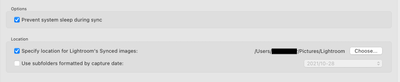
This is sounding a little more plausible. My catalog, helper files and photos were moved to a clean external hard drive from a Time Machine backup (had the same issue when accessing everything on the Time Machine backup). The chosen sync destination and the associated permission is below. What alternative destination would make sense? 

Thanks in advance,

Andy
Screen Shot 2021-10-28 at 16.15.05.png

Screen Shot 2021-10-28 at 16.21.08.png


Translate
Report
Community guidelines
Be kind and respectful, give credit to the original source of content, and search for duplicates before posting. Learn more
community guidelines
Community Expert ,
Oct 28, 2021 Oct 28, 2021

The screen capture shows the default folder that your Catalog file would be stored with ancilary data and in my opinion not a good choice.

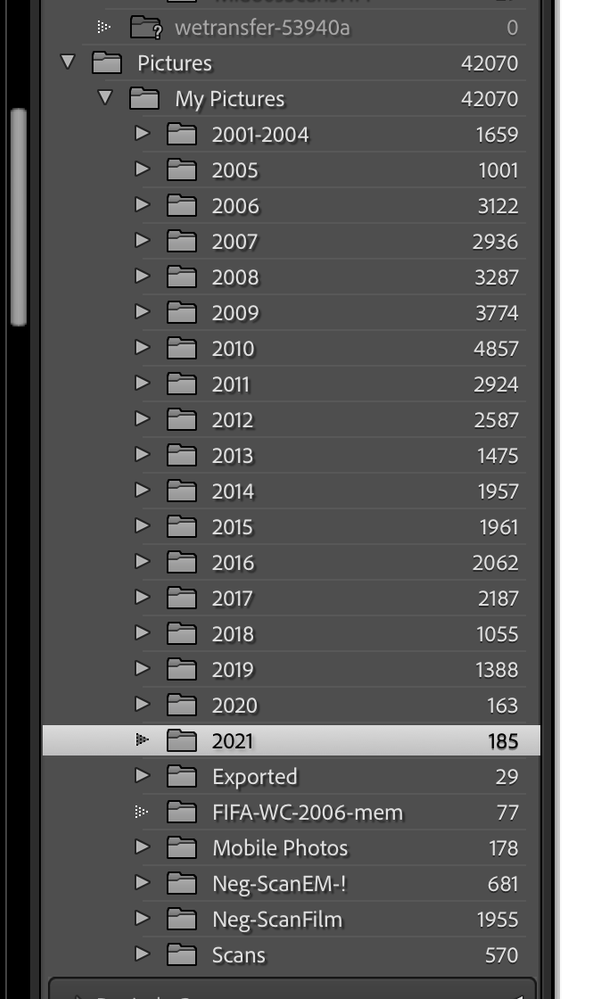
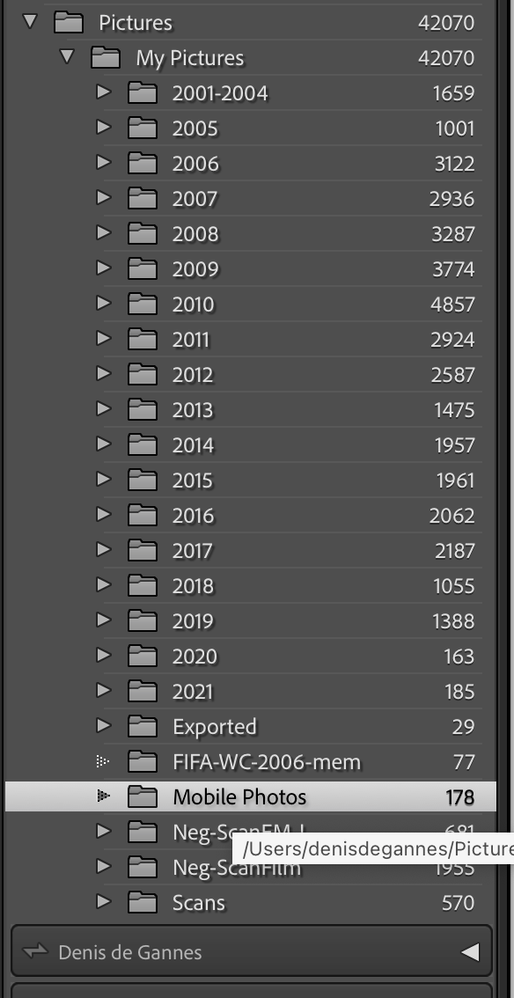
Better to be a specific folder that only contai8ns the actual synced files. I have mine in a specified folder within the folder structure of the image files that is displayed in my Library module. See the screen captures.Screenshot 2021-10-28 at 8.49.59 PM.pngScreenshot 2021-10-28 at 8.51.03 PM.png


Regards, Denis: iMac 27” mid-2015, macOS 11.7.10 Big Sur; 2TB SSD, 24 GB Ram, GPU 2 GB; LrC 12.5,; Lr 6.5, PS 24.7,; ACR 15.5,; (also Laptop Win 11, ver 24H2, LrC 15.1, PS 27.1; ) Camera Oly OM-D E-M1.
Translate
Report
Community guidelines
Be kind and respectful, give credit to the original source of content, and search for duplicates before posting. Learn more
community guidelines
Community Expert ,
Oct 28, 2021 Oct 28, 2021

Screenshot 2021-10-28 at 8.54.18 PM.png


Regards, Denis: iMac 27” mid-2015, macOS 11.7.10 Big Sur; 2TB SSD, 24 GB Ram, GPU 2 GB; LrC 12.5,; Lr 6.5, PS 24.7,; ACR 15.5,; (also Laptop Win 11, ver 24H2, LrC 15.1, PS 27.1; ) Camera Oly OM-D E-M1.
Translate
Report
Community guidelines
Be kind and respectful, give credit to the original source of content, and search for duplicates before posting. Learn more
community guidelines
Community Beginner ,
Oct 28, 2021 Oct 28, 2021

Actually, unticking the box 'Specify location for Lightroom's synced images' seems to do the trick.

Translate
Report
Community guidelines
Be kind and respectful, give credit to the original source of content, and search for duplicates before posting. Learn more
community guidelines
Community Expert ,
Oct 29, 2021 Oct 29, 2021

So did it revert to the default location? Your synced images from Lightroom mobile apps have to go to a specific folder which should display there. If nothing is selected sync will not function properly.


Regards, Denis: iMac 27” mid-2015, macOS 11.7.10 Big Sur; 2TB SSD, 24 GB Ram, GPU 2 GB; LrC 12.5,; Lr 6.5, PS 24.7,; ACR 15.5,; (also Laptop Win 11, ver 24H2, LrC 15.1, PS 27.1; ) Camera Oly OM-D E-M1.
Translate
Report
Community guidelines
Be kind and respectful, give credit to the original source of content, and search for duplicates before posting. Learn more
community guidelines
Community Expert ,
Oct 29, 2021 Oct 29, 2021

@nogfietsen wrote:

Actually, unticking the box 'Specify location for Lightroom's synced images' seems to do the trick.


Yes, that will also do the trick, but you may not like the way it does that. What happens in that case is that Lightroom will once again use the inflexible 'Mobile Downloads.lrdata' package to store the images, located inside your catalog folder. Most people prefer not to use that, but use their own normal folder hierarchy.


-- Johan W. Elzenga
Translate
Report
Community guidelines
Be kind and respectful, give credit to the original source of content, and search for duplicates before posting. Learn more
community guidelines
Community Beginner ,
Oct 29, 2021 Oct 29, 2021

Should this folder ideally be created on an external or local drive, or does it matter? I don't have a tremendous amount of local storage space.

Right now it seems to be working fine and I often subscribe to the 'if it ain't broken don't fix it' philosophy.

Translate
Report
Community guidelines
Be kind and respectful, give credit to the original source of content, and search for duplicates before posting. Learn more
community guidelines
Community Expert ,
Oct 29, 2021 Oct 29, 2021

Ideally you select a top folder in your normal folder hierarchy, so there is no difference between images you added to Lightroom from a camera and images that were added to Lightroom from the cloud because they were shot with the camera app in Lightroom Mobile on your mobile phone.


-- Johan W. Elzenga
Translate
Report
Community guidelines
Be kind and respectful, give credit to the original source of content, and search for duplicates before posting. Learn more
community guidelines
Community Beginner ,
Oct 29, 2021 Oct 29, 2021
LATEST

Done - thanks.

Translate
Report
Community guidelines
Be kind and respectful, give credit to the original source of content, and search for duplicates before posting. Learn more
community guidelines