



snsok
Known Participant
October 8, 2023
해결됨

Many of my images have a second copy only labeled "copy 1" and I can't delete them

  • October 8, 2023
  • 2 답변들
  • 920 조회

(This may be the result of an unintended sync.)


In grid view, I am seeing many images apparently duplicated. See screenshot. For each pair, one is correctly labeled. The other just is named "Copy 1", unlike a virtual copy that retains the original file name.  I would like to eliminate this second instance or view or whatever it is.


When I right-click the "copy 1" and "show in Finder",  Finder highlights the file with the full name.  There is not actual "copy 1."


Hovering over the images,  "Copy 1" pops up "1 of2" and the actual image pops up "2 of 2." I couldn't capture that in the screenshot.


I don't want these apparent copies cluttering up Grid View in LR but if I delete a "copy 1", that delete the actual "real" file.


What should I do?
이 주제는 답변이 닫혔습니다.
최고의 답변: richardplondon

Deleting a virtual copy gives you no Delete from Disk option (only, Remove from Catalog).


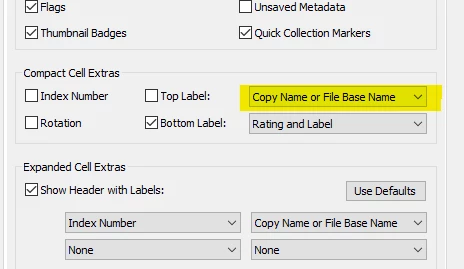
I think the default setting for Library view is as the dialog screenshot below - so ir is normal that the filename would not show for an image version that is a virtual copy, under this 'either / or' setting. In other contexts, for example in Develop above the filmstrip, both names will show up when it's a virtual copy.


You will never see any virtual copies in Finder, that is also completely normal. These entities really do have no existence at all outside of the Catalog (although of course, once you export or print from these, the results are just as real!) 

2 답변

GoldingD
Legend
October 8, 2023

So, you have at least one virtual copy. That little pulled back corner, bottom left indicates that. You would have told a LrC to create the virtual copy, LrC would have not created a virtual copy on it's own. And the name provided is consistant with a virtual copy in LrC.


Also, the images are stacked, but currently the stack is expanded. That is why the 2 is shown.


You will not find that image actually on a hard drive, Right clicking on it, then selecting to show it in finder will show you the original,  not the virtual. Remember, it does not actually exist.


Now, you technically cannot delete it, as it does not truly exist as a file, you can remove it, as in remove it from catalog, as it exists as a record in the database.


https://mastering-lightroom.com/virtual-copies-lightroom-classic/


Have you tried within LrC to remove it?


One additional observation, upper right of the thumbnail, lightening symbol, looks like you synced the virtual copy to the cloud. That might be doing I do not know what? If you try to remove the virtual copy from LrC, then the cloud might want to prevent that (not a cloudy, so no first hand experiance with that).


snsok
snsok작성자
Known Participant
October 8, 2023

Better screen shot attached.

Community Expert
October 8, 2023

I think you have some 'stacking' in place, which from your description and screenshot should fully explain what you are seeing. Stacking can operate within the Catalog's view of a given folder, and also within the Catalog's view of a given Collection. It can work on standard images and also on virtual copies, interchangeably. A number in top left of the thumbnail indicates it belongs to a currently collapsed stack which holds one or more other images too, currently hidden out of view. Clicking the number expands the stack so that you see all these images, each one stating its position within the stack. In the expanded state clicking on "1 of x" (the lead image, in other words) will collapse the stack  again so that you only see that. Clicking on for example "2 of x" will make that the lead image and move this to the start of the stack. Now when collapsed, this other image will be the only one seen. This can all be done in Grid view or else in the Filmstrip, assuming the Filmstrip is showing these numbers. In Grid view stacking is also indicated by vertical bars on the slide surround next to the image, and when that stack's expanded, by a darker tone slide surround on the temporarily revealed additional images. 


https://helpx.adobe.com/lightroom-classic/help/grouping-photos-stacks.html 


Community Expert
October 8, 2023

Deleting a virtual copy gives you no Delete from Disk option (only, Remove from Catalog).


I think the default setting for Library view is as the dialog screenshot below - so ir is normal that the filename would not show for an image version that is a virtual copy, under this 'either / or' setting. In other contexts, for example in Develop above the filmstrip, both names will show up when it's a virtual copy.


You will never see any virtual copies in Finder, that is also completely normal. These entities really do have no existence at all outside of the Catalog (although of course, once you export or print from these, the results are just as real!)