davidh45184075
Participant
November 4, 2023
解決済み

Problem moving folders and images within LR folders from Mac to external drive

  • November 4, 2023
  • 返信数 1.
  • 665 ビュー

Hi - just come across an issue and would love to sort this! Sorry it's so complicated to explain, but it's doing my head in ....


I was moving folders within Lightroom from Mac to external drive as I regularly do.  Initially, drag and drop was not working within the 'Folders' space.  Not sure what cased that issue, but I thought I would try and use 'Update Folder Location' to achieve the same result. Big mistake. In doing so, I have transfered all the images from a dated subfolder into a parent folder called '2023' without the subolder . LR tells me the files are saved in '2023' on the external drive, and I can happily edit these images as normal in LR, so I know these images are definitely inside my catalogue.  But, when I create a new named subfolder in that 2023 external drive folder, and try to move the images into that new subfolder, I get a message saying:

All the files you selected are missing. No files can be moved.

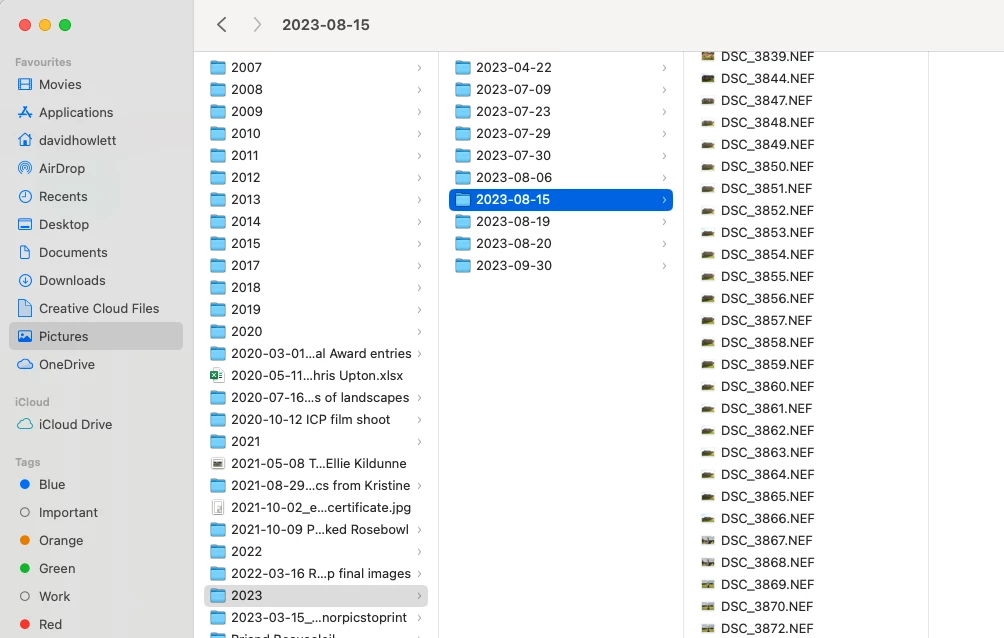
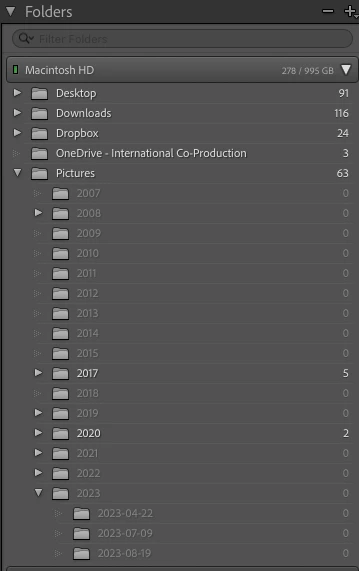
Even more puzzling - when I examine Mac Finder, I see all the 'missing' images still on my Mac inside Pictures/2023, where they previously resided safely in their original subolders. But when I look inside LR, they are not visible in the Pictures/2023 folder, nor are the subfolders.

So - where are my images, and how can I put them into my archive in a subfolder inside parent folder 2023?

Thanks so much for any help.

See screenshots:


このトピックへの返信は締め切られました。
解決に役立った回答 JohanElzenga

You can only use smart previews if they are assigned to files. These files should still show in Lightroom, even if they are missing. The problem I see in your screenshot is that (as far as the screenshot tells me) there are only 278 images in Lightroom, located on your internal hard disk. The screenshot shows zero images in most year folders. That is why I asked if Lightroom shows you more images on another disk.


返信数 1

JohanElzenga
Community Expert
Community Expert
November 4, 2023

'Update folder location' is not at all the same as moving folders! It is a way to tell Lightroom that it should start to use a different existing folder. You can undo this mistake by doing it again. Use 'Update folder location' once again, and this time select the original folder. That shoud rectify the situation.


-- Johan W. Elzenga
davidh45184075
Participant
November 5, 2023

Actually, Johan, I now realise something else.  I have been creating Smart Previews for all files.  So the reason I see the files and can edit in LR is because they have Smart Previws, and in fact the original files are not now properly visible in my LR catalogue directly. But there is no 'Missing image' message, nor are they in the Missing Photographs folder.  This is feeling like a Catch 22 situation ... I can see the files in my Mac Finder.

JohanElzenga
Community Expert
Community Expert
November 6, 2023

Hello again @JohanElzenga 

I'd like to thank you for ehlping me solve this.  I now understand what happened and I have learnt a lot.  I was able to locate the images and then move them to the correct location.  IN future I will be taking a lot of care over this process, but I definitely understand it better now!


Good to hear you got it resolved!


-- Johan W. Elzenga