Sameer K
Community Manager
Community Manager
January 10, 2022
Answered

🔎 Quick Tips: How to give Full Disk Access to Lightroom Classic on macOS

  • January 10, 2022
  • 74 replies
  • 280480 views


How to provide Full Disk Access on macOS


Since macOS 10.14 (Mojave), Apple introduced a new privacy structure to help ensure that all applications obtain user consent before accessing documents, downloads, desktop, iCloud Drive, and network volumes. This has been reinforced in newer versions of macOS. This change prevents unauthorized access to user files and folders.


When Full Disk access & Accessibility permissions are needed, users may be asked to or be required to change the setting in System Preferences > Security & Privacy > Privacy for Lightroom Classic manually.   

While for the File & Folders access, the user is prompted to allow or deny when needed. 


Why provide full disk access to Lightroom Classic?

Insufficient or broken permissions may restrict Lightroom Classic from functioning correctly and break your workflows. All tasks that require access to the computer's storage importing/exporting images, cross-app workflows, reading/writing metadata,  and more, behave unexpectedly. It may also lead to missing images, performance issues, unexpected sync issues, and random app crash on launch or while working on a file. 


Watch this video for the steps:
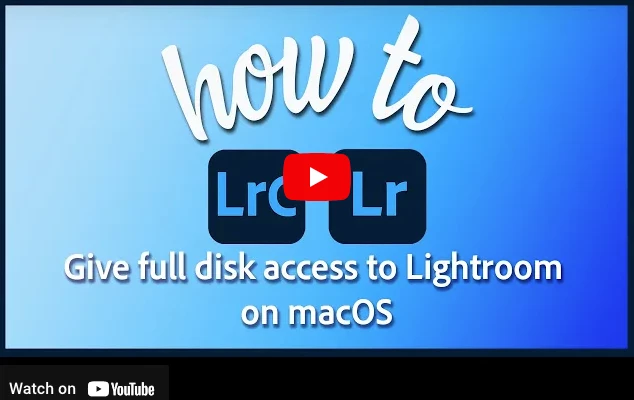


Quick steps to enable full disk access and grant permissions to Lightroom Classic

 Follow these steps to prevent the permissions issues from occurring: 


❶  Go to System Preferences > Security & Privacy > Privacy > Click the Lock icon > Authorize via password > Unlock the lock to allow changes to system settings. 


  Add Lightroom Classic by clicking on the (+) button & navigate to the Applications folder on macOS.


  Go to Full Disk Access and add Lightroom Classic by clicking on the (+) button & navigate to the Applications folder on macOS.
Note: Adding Lightroom Classic under Full Disk Access overrides Files and Folders settings. 
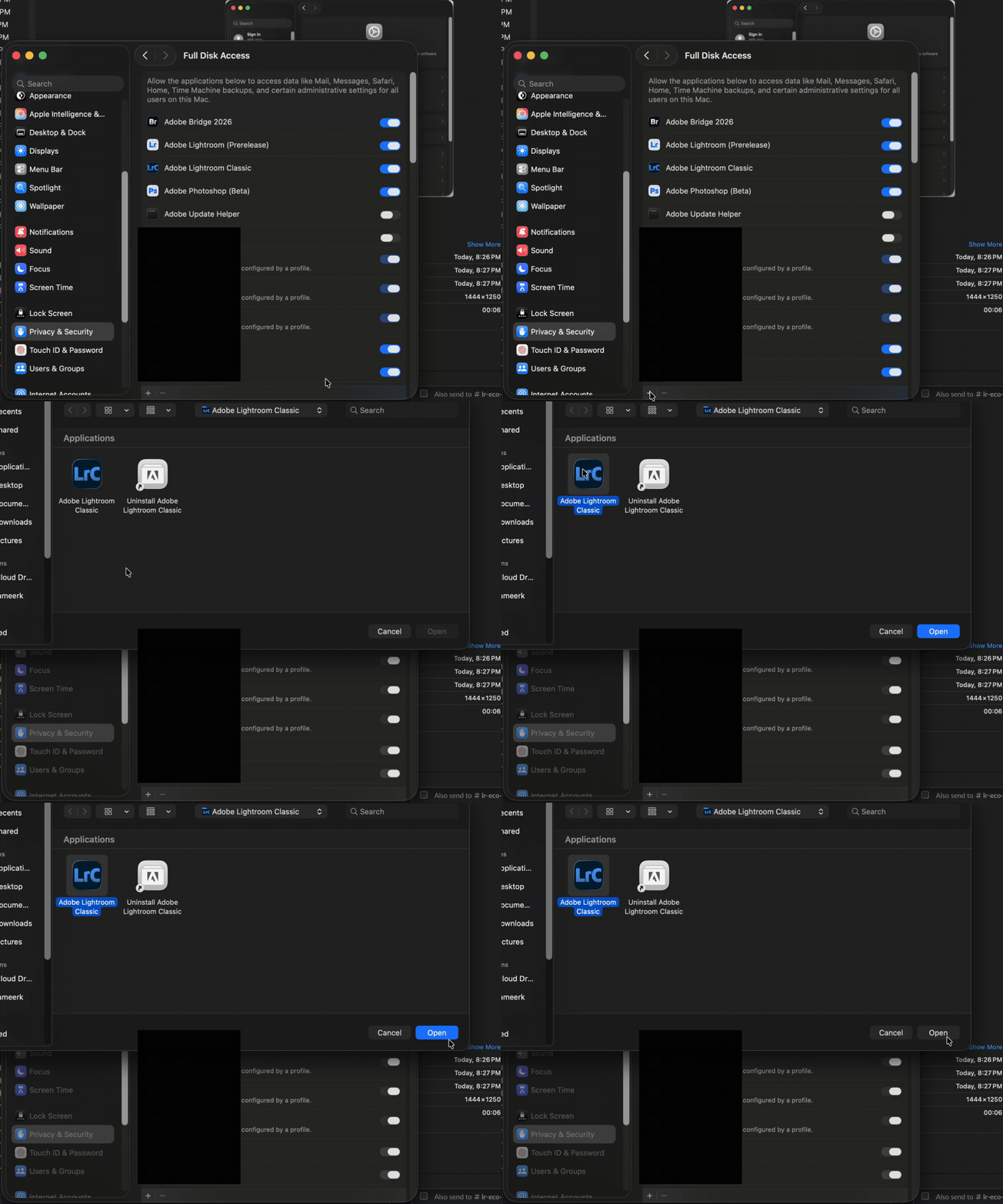


  Click the Lock icon to save the changes. Restart your computer to see the applied changes. 


Stay tuned for more tips to come.


Related links:

Lightroom Classic system requirements 

Quick Tips: Optimize LrC preferences for better performance 

Basic troubleshooting steps to fix issues in Lightroom Classic 



74 replies

photocase356
Participant
November 12, 2025

Tried it. Still not working. I can see the files on my camera, but when I connect the camera to my Macboook and try to import into LRC the image thumbnails do not show and nothing will download.

Participant
July 31, 2023

Thank you.  This article solved my problem! I appreciate it!

Participant
July 27, 2025

I had this error after restoring a Lightroom catalogue from a Time Machine backup to a new laptop.


None of the solutions posted here worked for me but I fixed it by copying the catalogue from the Time Machine backup drive to another external drive (formatted to exFAT) and then from here to my laptop.  I suspect this worked as exFAT is a much simpler file system which does not support file permissions.

Participant
March 23, 2023

I tried the suggestions as outlined, and gave LRC full disc access (Apple 24 inch). It didn't work, so I also gave PS full disc access and hey presto problem solved. Can now edit in PS again via LRC as with previous Mac 21.5.


Hope this helps others!

Raghnall Glasgow. 

gillesm3963098
Participant
February 16, 2023

Hello

I tried to give all access (full disk access & accessibility + restart) with macOS Montery 12.6.3 that does not work, I come back at the LR Classic version 12.1 to see again my photos

I can got to Os Ventura with my Mac Pro late 2023

Gilles

Participant
January 13, 2023

Somewhat different issue with a somewhat different solution. This thread lead me to the solution. 


TLDR: also grant access to "removeable volumes" 


Situation: LR Classic. Macbook. Importing from external SD or XQD cards to internal SSD. Previews worked great with files from my Nikon D600 BUT got the "preview unavailable" issue for *all* files from my new-to-me D850. They'd import fine. I could copy to SSD and them import or sync and previews were visible. Only issue was with import of D850 files that were also on removeable media. 


Adding permission "secruity & privacy" > "files and folders" > "Adobe Lightroom Classic " > "removeable volumes" solved the issue. 


Don't ask me why the D600 files workd and the D850 would not. IDK. 


Earth Oliver
Legend
November 7, 2022

Yesterday, i helped a friend install CC and the Adobe apps on a new M1 machine and there's still ZERO INDICATION that full access needs to be set in the prefs. Why are other apps able to at least inform the user of this setting, but not Adobe apps?

Participant
November 7, 2022

After months of fustration on my part the joy I feel in symply being able to open and start straight away is imense, thank you for the advice.

yours sincearly 

Keith

hansa1976
Inspiring
October 18, 2022

I´ve just applied the latest updates from Creative Cloud app where I sa Camera raw and other (can´t remember if Lightroom was being updated as well).

Now, it seems I only see old files and folders, so I went over here to look for a solution. I´ve now given it all access and did a couple of restarts, but whenever I open Lightroom, it shows only the old files from 2020 and I can´t even see my newer 2022 files from the Smugmug plugin. So it seems a preferences files has been modified or deleted, or whatnot? I don´t get it. I want it all back the way it showed just a few days ago.

What must I do to get it back to how it was? Is there an old preferences file somewhere that I can open with and get things back on track?

hansa1976
Inspiring
November 2, 2022

Please, anyone! Is there a place to find my old unaltered preference file?

I need my Lightroom library back to it´s old state with all files showing again. Just re-importing won´t show all my edits, right?

hansa1976
Inspiring
November 2, 2022

Why shouldn´t there be a backup of this important preference file in the Creative Cloud?

James261772764r0m
Known Participant
September 18, 2022

So with granting Lightroom Classic full disc access on my MacBook Pro M1 Max with Monterey. Will I also need to do the same with Photoshop?

TheDigitalDog
Inspiring
September 19, 2022
quote

So with granting Lightroom Classic full disc access on my MacBook Pro M1 Max with Monterey. Will I also need to do the same with Photoshop


By @James261772764r0

Yes. Photoshop and most other applications.

Author “Color Management for Photographers" & "Photoshop CC Color Management/pluralsight"
Participating Frequently
September 9, 2022

LrC (11.5)  on macOS Monterey is not open : READING PREFERENCES ... 


DONE SO FAR: 

PREFERENCES:

--> Macintosh HD / Users / [your username] / Library / Application Support / Adobe / Lightroom / Preferences / Lightroom Classic CC 7 Startup Preferences.agprefs was deleted

--> Macintosh HD / Users / [your username] / Library / Preferences/com.adobe.LightroomClassicCC7.plist was deleted

—> Restart Mac

—> Open LrC

—> LrC Reading preferences


MONTEREY SECURITY & PRIVACITY

—> MacOS 'System Settings - Security & Privacy' was added Lightroom Classic and Photoshop to "Full Disk Access"

—> Added also on Accessibility


SHOULD I MIGRATE BACK TO AN OLDER OS VERSION?
SHOULD I INSTALL LrC OLDER VERSION ?
ADOBE HOT LINE?
I do not know what to do. I cannot keep working without LrC!

Do you know an Adobe Support?