


Inspiring
October 17, 2016
Open for Voting

P: Option to stop syncing photos in a Collection when that Collection is stopped from syncing

  • October 17, 2016
  • 68 replies
  • 2767 views

Bring back the possibility to stop a Collection from being synced AND stop photos in that Collection from being synced as well, in one-step.

Since LR CC 2015.7 this happens when you stop syncing a Collection (clicking the little sync icon or deselecting Sync with Lightroom Mobile via mouse contextual menu):
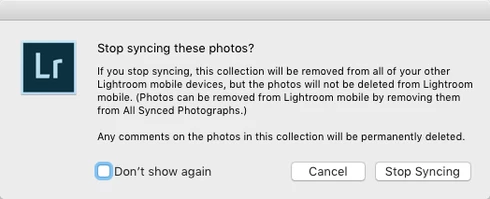


(Now you have to go and find those photos in that Collection from All Synced Photographs and remove them from there. Too many steps, too cumbersome and too easy to make a user error.)

There still is the requested option to remove photos at the same time when you delete a Synced Collection instead of just stopping it from syncing:
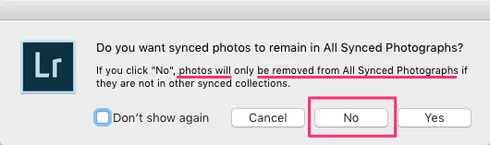


That same option should appear for just stopping the Collection being synced as well.

The first dialog for stopping a Collection from being synced is messy altogether as it asks if the user wants to "Stop syncing these photos?" but the button for doesn't actually stop syncing the photos and instead keeps those photos synced to LR Mobile and Web and just stops syncing the Collection name.

So at least more correct title could be "Stop syncing this Collection?" and that's not enough as there needs to be a way to stop syncing a Collection AND stop syncing photos in that Collection, in one step (unless they are part of another Synced Collection).

68 replies

Participating Frequently
May 25, 2024

This "workflow" is simply baffling. I sync collections with my iPad. I edit them. I unsync them. But my iPad is filling up its storage from my synced collections. But if i clear all synced photos it ruins any currently synced collections!! Why would I want to remove photos from other collections!? Why won't the photos just stop syncing when I hit stop sync!? what the heck is going on and how to I unsync photos?

Jim Wilde
Community Expert
Community Expert
March 11, 2020
This is the current warning that Lightroom Classic issues when attempting to remove a photo from All Synced Photographs:


Seems clear enough to me, though of course it's probably safer to leave the "Don't show again" option unchecked!
Inspiring
March 11, 2020
Be very careful with this. If you do this and you still have sync’ed collections, it will remove those photos from the sync’ed collections. It has been awhile since I have tried it, but at one point it did this without really warning you it was going to do so.
JohanElzenga
Community Expert
Community Expert
March 11, 2020
You don't have to remove them individually. Select the collection, use Ctrl-A or Cmd-A to select all the photos in that selection, go to 'All Synced Photographs' (not 'All Photographs'!!!!!!) and hit the Delete key or use the menu to remove them.
-- Johan W. Elzenga
Participant
March 11, 2020
Ok this is screwed up. the sync workflow is so flawed. Ive just filled my 20gb of storage.. so i selected some collections from syncing. But it doesn’t free up soace unless i remove the files individually from the all photos folder..

This is stupid.
Inspiring
October 12, 2019
After reading for about half an hour on various sites, I still have no idea how to unsync a collection. This is ridiculous. And seems to have been going on for 3 years. I give up. I think my solution is to remove all photos from "all synced photos" then re sync the ones I actually want.
Victoria Bampton LR Queen
Community Expert
Community Expert
May 9, 2019
The reality is they ARE mixed up, because Classic is syncing with a separate CC cloud environment. Even if the collection originated in Classic, the user may have added originals to it. 

There could be an argument for Lightroom Classic checking whether the cloud has any originals in that specific collection before deciding how to handle it, but that's a whole nother level of complexity. 
Victoria - The Lightroom Queen
F. McLion
Community Expert
Community Expert
May 9, 2019
I'm not with you, Victoria.
This explicitly talks about a collection from Classic, which always are SmartPreviews and never originals in the cloud.
We shouldn't mix things up here.
--- Got your issue resolved? Please label the response as 'Correct Answer' to help your fellow community members find a solution to similar problems. ---
Victoria Bampton LR Queen
Community Expert
Community Expert
May 9, 2019
I can't speak for Adobe, but there's a lot of different workflows to take into account.

If you were to delete a collection, would you be happy if the contained photos were deleted from your hard drive? No, you'd still expect them to be in All Photographs, because you hadn't deleted them, you'd just removed a grouping.

The same principle applies. Imagine someone's uploaded their originals to the cloud, perhaps as a cloud backup. Do you think that user would be happy to find that his originals had been deleted from the cloud, just because he'd decided to remove a collection from sync?

Those are the kind of issues that have to be taken into consideration. 
Victoria - The Lightroom Queen
Inspiring
May 9, 2019
Excatly. Makes no sense. So why is it designed that way, Adobe?