



Answered
Contextual Task Bars Now in Photoshop (Beta)
We’re excited to announce that new contextual task bars are now available in Photoshop Public Beta. We know that finding the right tool, at the right time, can sometimes slow down a great workflow. Our new contextually aware task bars aim to help by providing common tools, actions and next steps right on the canvas where you’re working. We are currently launching five bars for importing new documents, making selections and using the Type Tool. Learn more below:
Open Image or File
- This bar will appear when you open an image or file in Photoshop (i.e. not a new, empty document)

New Document Workflow
- This bar will appear if you open a new, blank document from the Photoshop home screen

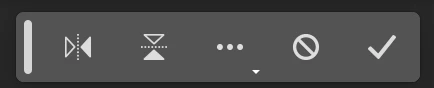
- If you choose to select “import image”, your image will be placed in the document as a Smart Object and the Free Transform bar will appear to help finalize placement
Type Tool Workflow
- This bar will appear when you select the Type tool from the tool bar and draw a text box on the canvas

Selections Workflow
- Once a selection is made, a selection edit bar will appear with options to refine the selection or create a mask

Tips and Other Menu Functionality
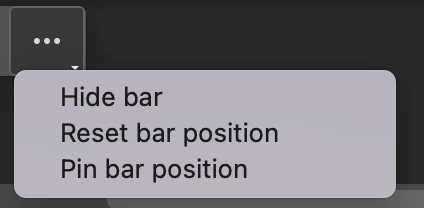
- Pin bar position
- You can pin and un-pin any bar from the “more menu”. Pinning will hold your bar (and all subsequent bars) where it was placed on the canvas until un-pinned from the “more menu” performed
- Reset bar position
- The context bar moves with you as you work on the canvas, keeping relevant tools at your finger tips. If you would like to reset the position, you can do so from the “more menu”
- Hide bar
- You can always hide the bar if you’d like to remove it completely, or temporarily, from the canvas. If you’d like to re-open the bar at any point, go to Window > Contextual Task Bar
We need your feedback!
Please let us know what you think and how we could improve the new Contextual Task Bar.
 AdChoices