



Adobe Employee
March 17, 2023
Answered

Contextual Task Bars Now in Photoshop (Beta)

  • March 17, 2023
  • 70 replies
  • 102008 views

We’re excited to announce that new contextual task bars are now available in Photoshop Public Beta. We know that finding the right tool, at the right time, can sometimes slow down a great workflow. Our new contextually aware task bars aim to help by providing common tools, actions and next steps right on the canvas where you’re working. We are currently launching five bars for importing new documents, making selections and using the Type Tool. Learn more below: 


Open Image or File

  • This bar will appear when you open an image or file in Photoshop (i.e. not a new, empty document)

 

New Document Workflow

  • This bar will appear if you open a new, blank document from the Photoshop home screen

  • If you choose to select “import image”, your image will be placed in the document as a Smart Object and the Free Transform bar will appear to help finalize placement
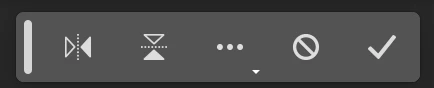
 

Type Tool Workflow

  • This bar will appear when you select the Type tool from the tool bar and draw a text box on the canvas

 

Selections Workflow

  • Once a selection is made, a selection edit bar will appear with options to refine the selection or create a mask

 

Tips and Other Menu Functionality
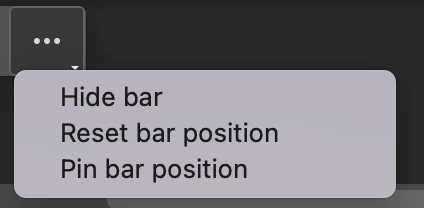
 

  • Pin bar position
    • You can pin and un-pin any bar from the “more menu”. Pinning will hold your bar (and all subsequent bars) where it was placed on the canvas until un-pinned from the “more menu” performed
  • Reset bar position
    • The context bar moves with you as you work on the canvas, keeping relevant tools at your finger tips. If you would like to reset the position, you can do so from the “more menu”
  • Hide bar
    • You can always hide the bar if you’d like to remove it completely, or temporarily, from the canvas. If you’d like to re-open the bar at any point, go to Window > Contextual Task Bar


We need your feedback!

Please let us know what you think and how we could improve the new Contextual Task Bar.

Correct answer danielm77292327

OMG just fixed it!! 


  • You can always hide the bar if you’d like to remove it completely, or temporarily, from the canvas. If you’d like to re-open the bar at any point, go to Window > Contextual Task Bar


And this is the link to where I found how to fix that:


https://community.adobe.com/t5/photoshop-beta-discussions/contextual-task-bars-now-in-photoshop-beta/td-p/13658736

70 replies

Maxwelp3
Participating Frequently
July 22, 2023

I know everybody is complaining that they cannot pin the bar in place and have it there on their next session BUT that is the idea of the CTB, to have it appear where you are working.

Very annoying when it is in the way.

The best thing to do is to UNTICK the Contextual Task Bar item in the View Menu. Tick it again when you want it to appear.

BETTER still - assign a keystroke to TICK/UNTICK the CTB and you can get it back when you want it but tuck it away when you don't.

Personally I hate the damn thing but some people seem to like it but want it pinned in one place which would defeat the purpose.


Participant
July 24, 2023

It doesn't defeat the purpose. It could be there with the option bar and it could apply to whatever you are currently working on.

How do you assign a keystroke for it in Photoshop?

Trevor.Dennis
Community Expert
Community Expert
July 25, 2023
quote

How do you assign a keystroke for it in Photoshop?


By @hotpepper2005


That's a good idea Ms Pepper.  Open Edit > Keyboard shortcuts.  Select Menus and scroll across to Window and then all the way down to Contextual Task Bar.  I have used F2 as I have never in my life used it for Cut.


Remember we can save custom shortcuts in Custom workspaces along with Custom toolbar.  This lets us reuse shortcuts acording to what we are doing.  I also use Function keys to trigger actions that select and reset my different workspaces.  Once you have the ability to tidy a workspace,, that has its panels all over your screen, with a single key press, you'll never want to go back.


I like to remind folk that the Function key defaults are mostly wasted.  If you never use any or all of these shortcuts, then they are a solid gold resource you are missing out on.

Participant
July 18, 2023

can allow user to place the position of  floating bar?

it's distrubing when using Photoshop.

Participant
May 27, 2023

this small selection bar is very often in the way of what i try to do, it's a great idea but i wish it stayed where i put it! next time i use the marquee or any selection tool it reappears in its original location, which is in the middle of my selection area! if part of the desired selection area overlaps with the toolbar, the selection tool gets blocked and i have to stop and move the toolbar before i can continue.

love the new beta version!! generative fill will definitely be a game changer!!!

Participant
May 27, 2023

same issue with any tool, brushes etc. not just selection

Participant
July 4, 2023

I wish it could be at the top of the screen with the other options. This window that is appearing all over my images is driving me nuts.

Participant
June 29, 2023

The task bar moving all over the place is not ideal for my workflow. It is a hindrance every time I'm not typing. If it could be docked to the side that would be very helpful (not sure if this is possible right now). Thanks!

Jeff Arola
Community Expert
Community Expert
June 29, 2023

About the best you can do for now is move the Contextual Task Bar to where you want it, then click on the 3 liitle dots and Pin bar position.

This only lasts until you restart Photoshop.


Participant
June 22, 2023

I absolutely HATE this . I was googeling to find out how to fix it. It appears over the image and is so distarcting. I cannot stand it.

 "Contextual Task Bar" and cannot stop it from happening. Pshop v24.5


Maxwelp3
Participating Frequently
June 23, 2023

I have only just got around to trying my workaround.

My first problem was that I could not make an action to Hide/Unhide the bar.

BUT

If you go to Keyboard Shortcuts under the Edit menu then you can assign a Keystroke Combination to Hide/Unhide the bar.

I decided that as I often use the Alt+Ctrl+Shift combination for my keystokes I assigned Alt+Ctrl+Shift+Q to Quickly Hide/Unhide the bar. It works well and once you get used to the finger combination it is very easy to do.

That is Opt+Cmd+Shift+Q on a Mac I think.

Give it a whirl and you can see if you like the rest of the features.

Maxwelp3
Participating Frequently
June 23, 2023

I must say tthat this bar always hovers where I next want to work, even when editing photos. I agree with the Graphics people on this one.

But assigning a keystroke combo helps to keep working and try it out.

To assign a Keystroke Combination -

Go to Edit menu and down to Keyboard Shortcuts which will open a dialogue box for Keyboard Shortcuts and Menus.

In the Keyboard Shortcuts tab make sure you are on Application Menus from the Shortcuts For: dropdown menu.

Now go to the bottom of the list of Menu Items and reveal the items in the Window section by clicking on the > beside it.

Right at the bottom of this list of items is Contextual Task Bar with a blank box for the Shortcut. You can choose your own Shortcut and Photoshop will warn you if it is already used.

I put in Alt+Ctrl+Shift+Q which I find easy to remember to Q for Quickly Hide/Unhide the Contextual Task Bar. (I think that will be Opt+Cmd+Shift+Q on the Mac.

Then you can click OK for that to take effect.

Easy, Peesy, Lemon Squeezy. Go for it.


Inspiring
June 22, 2023

Nope. Sorry, not for me. Just getting in the way. It's a mess of icons and most of them are there just to allow you to hide, reset or pin the bar. Thank goodness I can hide it. Look at the state of this screengrab - how many options?

Legend
June 22, 2023

OK, have given this a good go but it's constantly in the way - how do you design when a pop-up covers the very thing you're designing?


Yes, I know PS is for photos but many modern deliverables require PSDs so about 40% of my day is spent designing in Photoshop.


If I could dock it into the bottom of the window (and keep it docked into the window for new docs from that point on) then I'd use it. But unless that changes, it's perminantly off sorry.

Glaive1976
Participating Frequently
June 21, 2023

How do we permanently turn it off?

artbygermaine
Known Participant
June 21, 2023

I like the tool so far but what I keep reaching for is the alignment tools. I've been trying to customize the taskbar but I guess it's not possible yet. It would be great if it can be added beside the "Flip" buttons. Thank you for your great work! 

Participant
June 19, 2023

Hi


My Contextual Task Bar i had it and lost it I did something now its completely gone. It is not under window its just not there at all what can i do to fix this how is it just completely gone? All updates have been done too