



MeredithStotzner
Community Manager
Community Manager
May 23, 2023
Answered

Generative Fill in Photoshop Beta

  • May 23, 2023
  • 106 replies
  • 143974 views

Dream Bigger with Generative Fill - now in the Photoshop (beta) app 
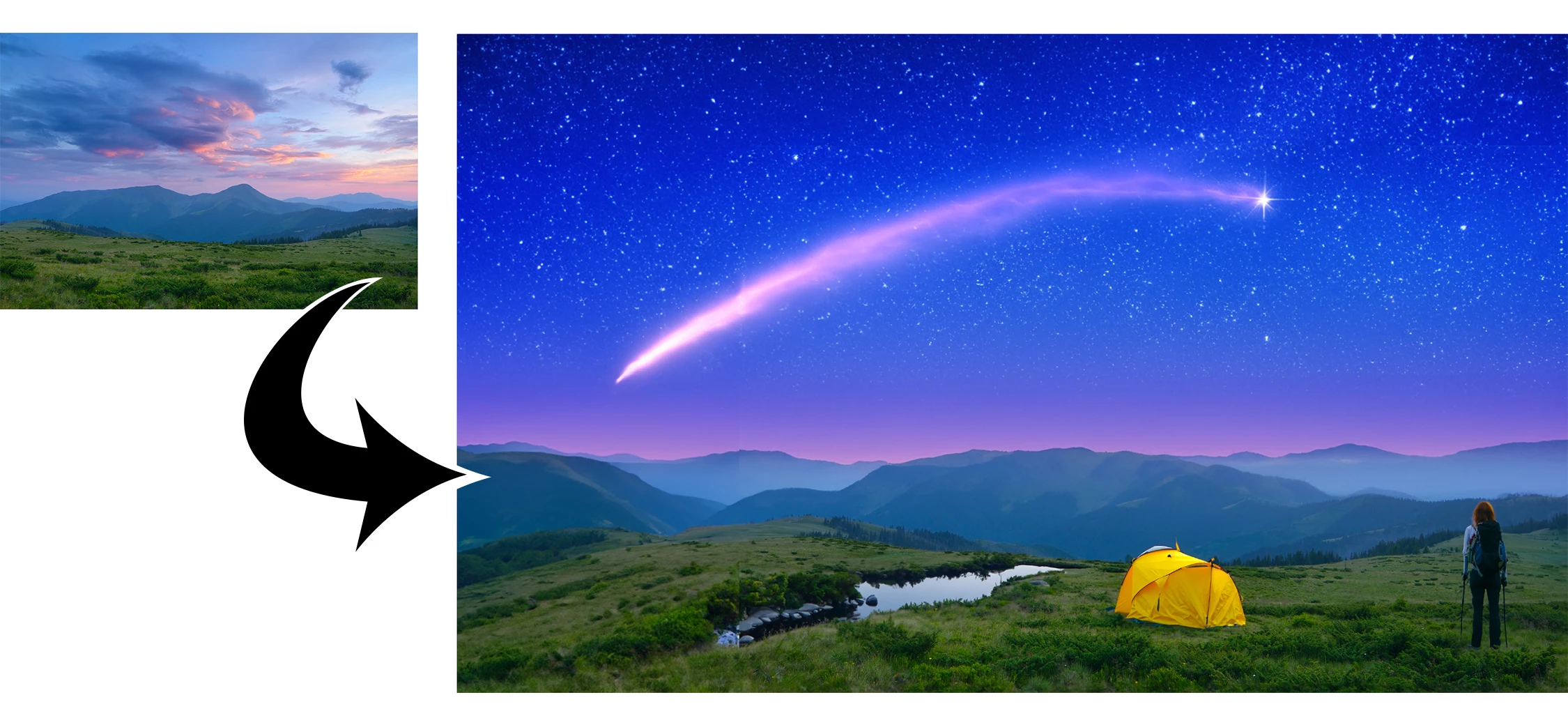
 

This under-construction, revolutionary new AI-powered Generative Fill allows you to create/generate new content in your image or remove objects like never before!

The process is simple: make a selection – any selection, then tell Photoshop exactly what you want placed there. The GenAI models will return an object or scene you described. You can:
 

Generate objects: Select an area in your image, then describe what you’d like to add.

 

Generate backgrounds: Select the background behind your subject, then generate a new scene from a text prompt.

 

Extend images: Expand the canvas of your image, then make a selection of the empty region. Generating without a prompt will create a seamless extension of your scene.

 

Remove: Select the area you want to remove, then let the GenAI technology make it disappear.
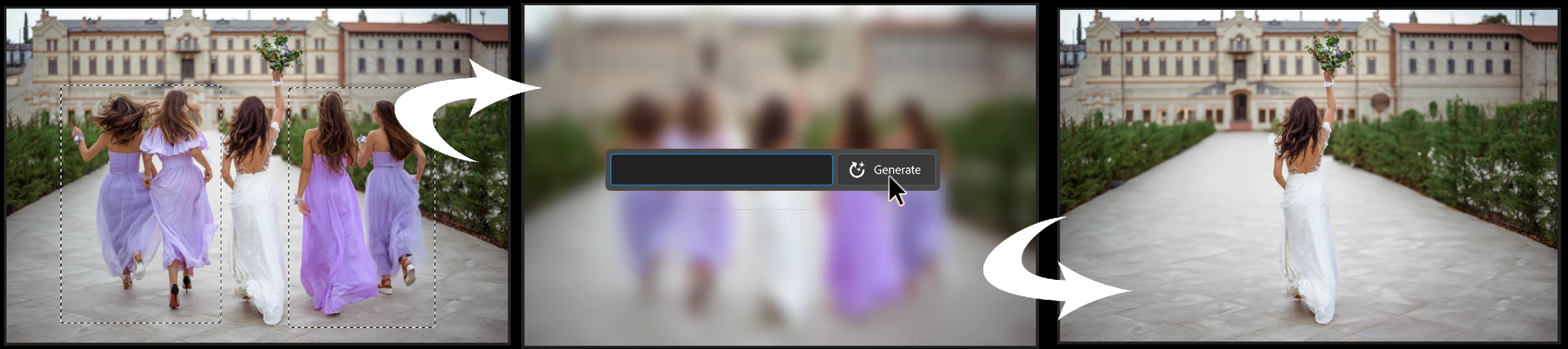
 

And more… Generative fill is incredibly versatile. Discover new ways to use this powerful feature.


How to use Generative Fill

Full instructions and helpful links are here:   https://helpx.adobe.com/photoshop/using/generative-fill.html


Rate the results!
Releasing this amazing new technology as a public beta allows Adobe to hear from you!

Let us know if the Generative Fill feature is meeting your expectations!
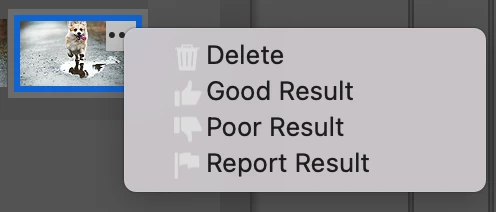
As you use Generative Fill, please rate each variation image.

Simply hover over the [•••] on the thumbnail and give it a thumbs up, or thumbs down, then follow the link to tell us more.


Report Result option
Prompts may also unintentionally generate problematic or offensive images; in such cases you can use the Report Result option to let us know.


Provide Feedback and help shape Generative Fill

If you would like to provide feedback on the overall experience, report any bugs, or suggest new features please let us know in this thread! If you prefer Discord, you can find us there too!


Helpful Tips

  • Use simple language
    Leave out commands like “add” or “remove” - Example: asking to "remove the red boat" will generate more red boats.
    Try using 3-8 words to describe what you want to see.
    Include a subject with descriptive language.. Example: A red barn in a field of flowers.
  • Select part of the original image when extending 
    Make sure you select part of the image along with the empty part of the canvas. This will give a better result that will blend in with the rest of your image.
  • Get inspired and inspire others
    Share what you create with the beta community!
    Check out the 
    Adobe Firefly Gallery to see what others have created with Adobe Firefly and Generative Fill. Click on an image to see the prompt that was used.


Related Links:

          Learn about and install Photoshop (beta) app

          Experience the future of Photoshop with Generative Fill

          Firefly FAQ

          Stock and Firefly FAQ

          Make selections in your composites

          Retouch and repair images


Correct answer Kevin Stohlmeyer

Try entering a basic prompt. We are seeing a high volume of failures for GF without prompts.

106 replies

Participating Frequently
May 23, 2023

I cannot for the life of me find the 24.6 update no matter how many times I refresh for updates. still 24.5. Please help

Pete.Green
Community Manager
Community Manager
May 23, 2023

@braydonrussell , Make sure you're looking in the Beta Apps section of Creative Cloud desktop. It sounds like you're looking at the non-beta version of Photoshop

Participating Frequently
May 23, 2023

im 100% checked for updates and 100% in the beta area, any other tips?

egstl
Participant
May 23, 2023

Even after updating my Beta version, the Generative Fill prompt doesn't show. I uninstalled the software and reinstalled, and still nothing. Any ideas on how to fix that?

Pete.Green
Community Manager
Community Manager
May 23, 2023

@egstl  Make sure to "Check for Updates" in the Updates tab of CC Desktop. You'll want version m.2181 in Ps beta's Help > System Info.

egstl
Participant
May 24, 2023

That fixed it for me, Pete....thank you very much!

Participant
May 23, 2023

I'm not sure if this is really a bug, but it's an issue so I'm sending feedback. I generated a picture of Labrador Reteriver puppies twice using the Generate Fill. The first time one puppy had 3 tongues. The 2nd time one puppy had 2 tails! I'm using Photoshop Beta 24.6.0 on Mac OS Ventura 13.3.1. Sending a screenshot of the puppy with 2 tails.

Participating Frequently
May 23, 2023

Mine isn't showing up at all and I'm connected to the internet....what am I doing wrong? See attached. 


Participant
May 23, 2023

same here. it is very confusing

Szalam
Community Expert
Community Expert
May 23, 2023

When using the new Generative Fill option in Photoshop Beta, it would be very handy if the layer name of the newly generated layer would be the text prompt (if a prompt is used). It can stay, "Generative Layer x" if there's no prompt associated with it.

If the concern is that the layer name might be too long, perhaps just use the main noun? For example, I just generated "a wrought iron birdbath" - having the layer name be "Birdbath" would be wonderful!

CShubert
Community Manager
Community Manager
May 23, 2023

Hi @Szalam great idea.  Currently your prompts are stored with each image thumbnail in your properties pannel for reference.


Happy to pass on your idea to the team for consideration.


Yukie Takahashi
Adobe Employee
Adobe Employee
May 23, 2023

@Szalam Thanks for your feedback. We received multiple requests on layer naming from the prompt text. The team is investigating.

Participating Frequently
May 23, 2023

Soooo.... are all of these Ai Generative images going to be from Royalty Free sources?!
This may open/close a can of worms for our legal department!

Pete.Green
Community Manager
Community Manager
May 23, 2023

Hi @paultech, more info how the Firefly models were generated can be found in the FAQ

Participating Frequently
May 24, 2023

Thank you for your assistance, Pete. Also, I have received unsatisfactory results in the form of crude and cartoonish images that bear little resemblance to the high-quality photos depicted in Adobe's demonstrations. Is there an setting that is lacking, or is it simply a result of this being a beta version?

MeredithStotzner
Community Manager
Community Manager
May 23, 2023

Not seeing Generative Fill?
1. Both the previous and the most-recent version of the Photoshop Beta are 24.6.
Please check your Help > System Info and verify that on the first line you see: 24.6.0 20230520.m.2181
Ensure you are on the latest by refreshing the updater, please.


2. To use the feature, you must first have an active selection. 
 Make selections in your composites


@pacific.studios
Participant
May 23, 2023

Thank you @MeredithStotzner for posting this. As its not clear that just downloading Photoshop (Beta) is not enough. One has to "update" it immediately as well 😛 to be able to access Generative Fill 🙂