



Generative Fill in Photoshop Beta
Dream Bigger with Generative Fill - now in the Photoshop (beta) app
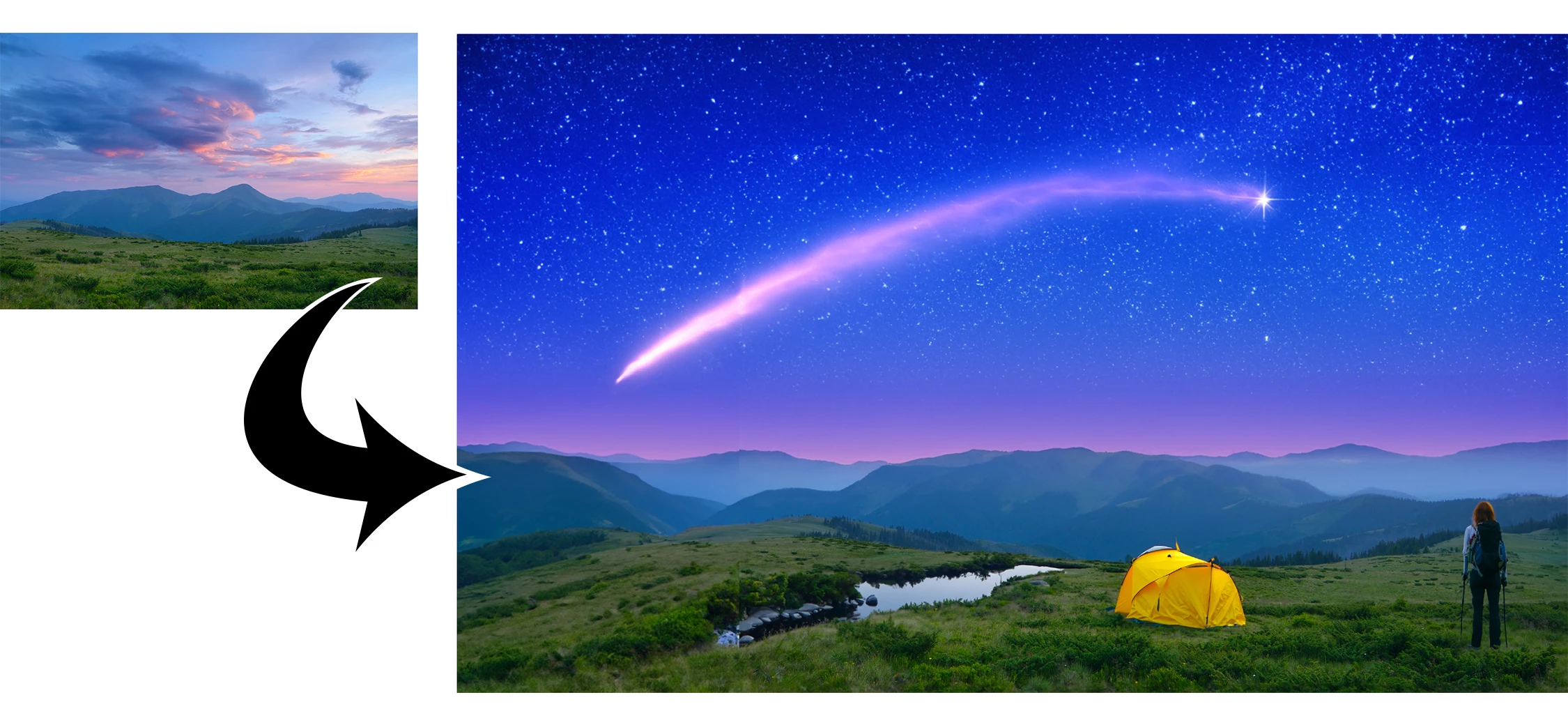
This under-construction, revolutionary new AI-powered Generative Fill allows you to create/generate new content in your image or remove objects like never before!
The process is simple: make a selection – any selection, then tell Photoshop exactly what you want placed there. The GenAI models will return an object or scene you described. You can:
Generate objects: Select an area in your image, then describe what you’d like to add.

Generate backgrounds: Select the background behind your subject, then generate a new scene from a text prompt.

Extend images: Expand the canvas of your image, then make a selection of the empty region. Generating without a prompt will create a seamless extension of your scene.

Remove: Select the area you want to remove, then let the GenAI technology make it disappear.
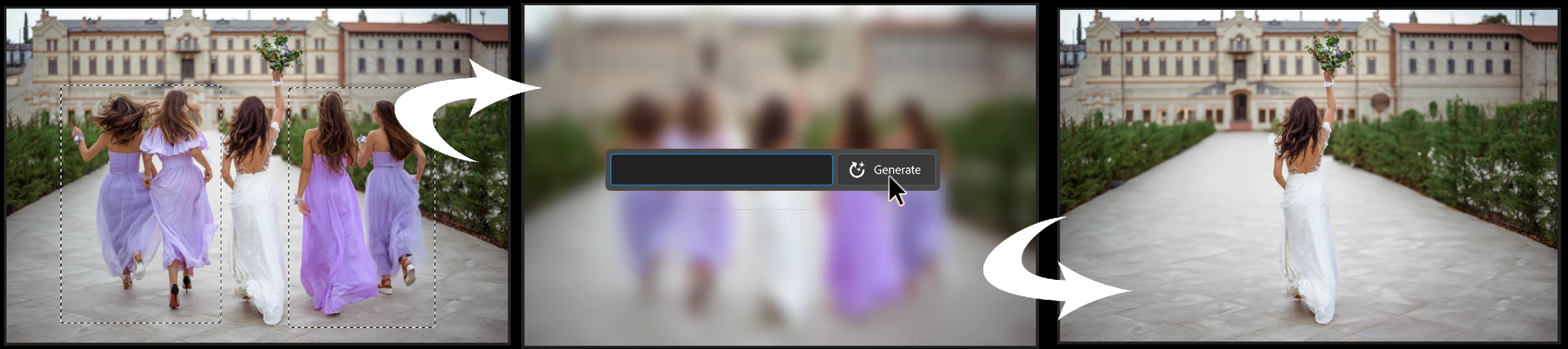
And more… Generative fill is incredibly versatile. Discover new ways to use this powerful feature.
How to use Generative Fill
Full instructions and helpful links are here: https://helpx.adobe.com/photoshop/using/generative-fill.html
Rate the results!
Releasing this amazing new technology as a public beta allows Adobe to hear from you!
Let us know if the Generative Fill feature is meeting your expectations!
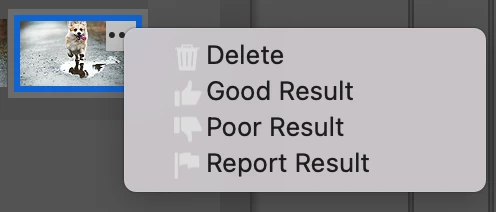
As you use Generative Fill, please rate each variation image.
Simply hover over the [•••] on the thumbnail and give it a thumbs up, or thumbs down, then follow the link to tell us more.
Report Result option
Prompts may also unintentionally generate problematic or offensive images; in such cases you can use the Report Result option to let us know.
Provide Feedback and help shape Generative Fill
If you would like to provide feedback on the overall experience, report any bugs, or suggest new features please let us know in this thread! If you prefer Discord, you can find us there too!
Helpful Tips
- Use simple language
Leave out commands like “add” or “remove” - Example: asking to "remove the red boat" will generate more red boats.
Try using 3-8 words to describe what you want to see.
Include a subject with descriptive language.. Example: A red barn in a field of flowers. - Select part of the original image when extending
Make sure you select part of the image along with the empty part of the canvas. This will give a better result that will blend in with the rest of your image. - Get inspired and inspire others
Share what you create with the beta community!
Check out the Adobe Firefly Gallery to see what others have created with Adobe Firefly and Generative Fill. Click on an image to see the prompt that was used.
Related Links:
Learn about and install Photoshop (beta) app
Experience the future of Photoshop with Generative Fill
Make selections in your composites
 AdChoices