

New Participant
June 19, 2023
Question

Removing object with generative ai

  • June 19, 2023
  • 3 replies
  • 1685 views

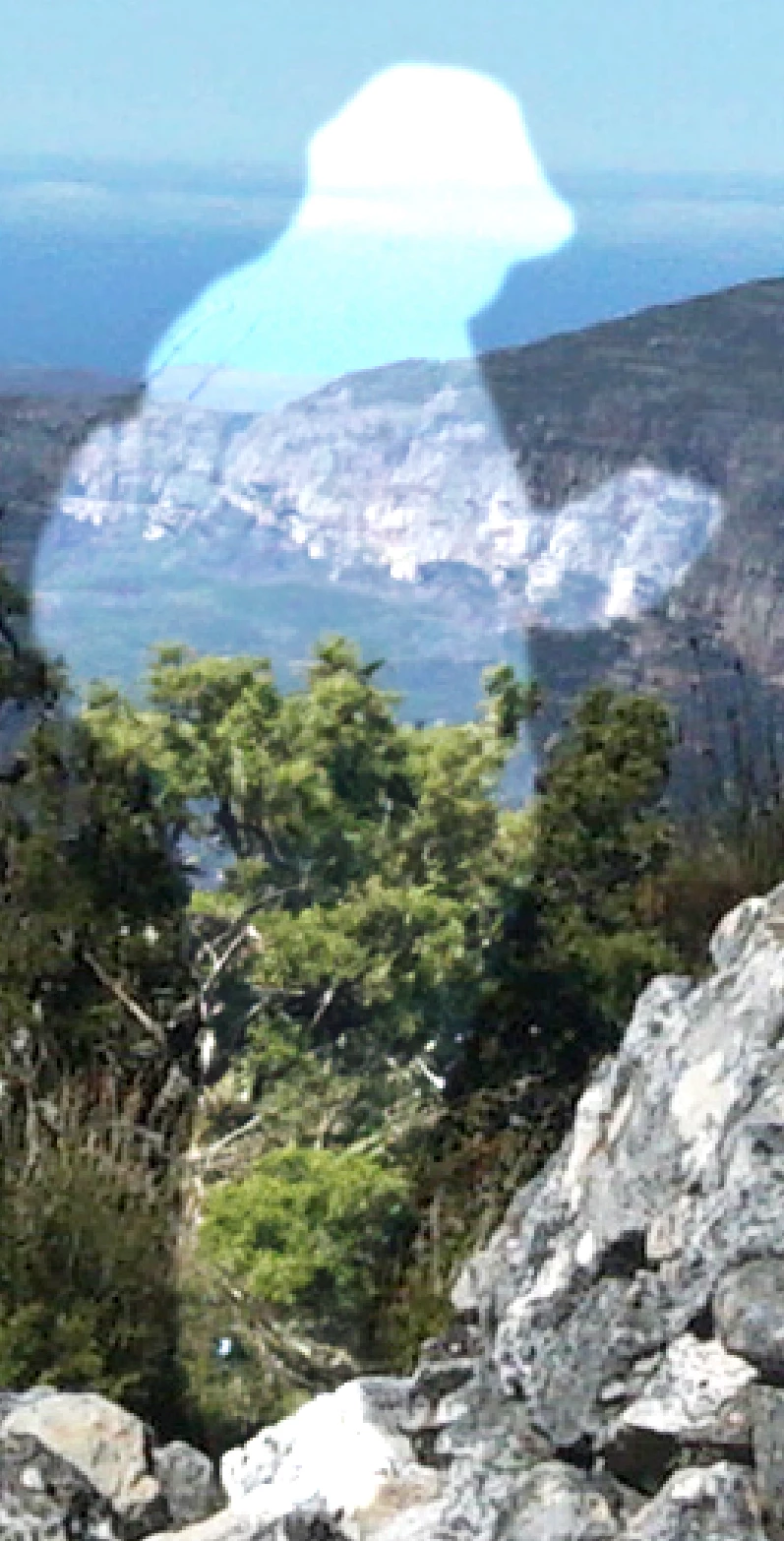
When trying to use generative AI to remove a person, the fill is significantly lighter than the base image. Attached a screen grab of the result.

This topic has been closed for replies.

3 replies

Trevor.Dennis
Braniac
June 20, 2023

Can you show us the original image?

Without seeing what you started with, I am going to guess that your selection was too tight.  If you use one of the Ai tools, like Object Select and Select Subject, you then need to expand that selection by a good arm's thickness to give Gen Fill enough background to work on.

New Participant
June 20, 2023

Looks like the generated layer was placed underneath some other adjustments. After reordering the layer it came out as expected. My hope would be the layer would be placed at the top as there is not much guidance.

CShubert
Community Manager
Community Manager
June 19, 2023

Hi @tobsenmilch that is odd.  Have you restarted Ps beta and does this happen again? Do you see this with all images you try this on or only this file?


Try resetting Prefs for the Beta:

/Users/yourname/Library/Preferences/ Photoshop Beta Settings (Mac Ventura)

/Users/yourname/Library/Preferences/Adobe\ Photoshop\ \(Beta\)\ Settings (Mac)
C:\Users\user name\AppData\Roaming\Adobe\Adobe Photoshop (Beta)\Adobe Photoshop (Beta) Settings )Win)

Launch BETA Photoshop While Pressing The Keyboard Shortcut

With Photoshop closed, press and hold Shift+Ctrl+Alt (Win) / Shift+Command+Option (Mac) on your keyboard and then Launch Photoshop the way you normally would.

https://helpx.adobe.com/photoshop/using/preferences.html#Manually