


Participating Frequently
March 18, 2020

P: Export As image quality significantly lower than old Save for Web

  • March 18, 2020
  • 15 replies
  • 6155 views

Downscaling an image using Export As produces blurry and stepped images. Save for Web produces clean and smooth images. This is using the latest version 21.1.1 on Windows. This image was 4500x3000, I've downscaled it to 1500x1000 in both Export As and Save for Web.

Just look at the attached images and see how the word "Cover" looks so much worse in Export As when compared to Save for Web.
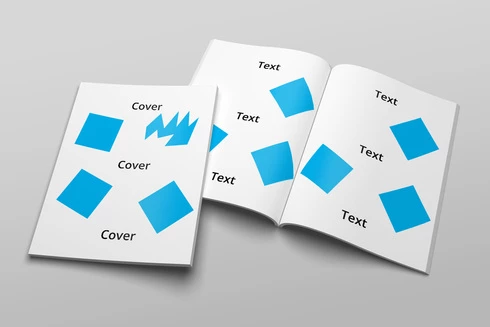
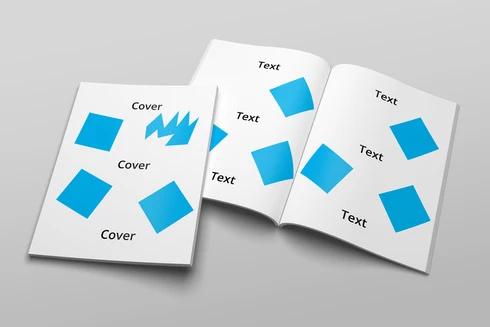
This topic has been closed for replies.

15 replies

clevermill.com
Inspiring
June 26, 2022

See my screen recording here.

I've had this issue for a long time.  Wasn't sure what was happening, but I identified it today.


Using Photoshop 23.3.2

MacOS Monterey

  Model Name: MacBook Pro

  Model Identifier: MacBookPro18,2

  Chip: Apple M1 Max

  Total Number of Cores: 10 (8 performance and 2 efficiency)

  Memory: 64 GB

  System Firmware Version: 7459.121.3

  OS Loader Version: 7459.121.3

  Hardware UUID: 51D52D99-FEBC-552F-BBCE-E543F1CE31E4

  Provisioning UDID: 00006001-001C41C02E02801E


lambiloon
Community Expert
Community Expert
June 26, 2022

Hi for smart objects when you place or drag the logo in real size then convert it to a smart object and resize it, and the next thing is it will show according to given size and look normal at its 100% view...regards

Ali Sajjad / Graphic Design Trainer / Freelancer / Adobe Certified Professional
Todd Shaner
Legend
August 16, 2021

Thanks Brett, good to hear your are working on it.

Brett N
Adobe Employee
Adobe Employee
August 16, 2021

Unfortunately, the display profile issue is another thing we are working on. The good news is that the exported file will be correctly color managed. 

Todd Shaner
Legend
August 13, 2021

@brett_n

I can confirm checking 'Enable Optimized Export As' in the Technology Preview Preferences fixes the 1000x1502 rounding error, which now correctly exports as 1000 x 1500. Thanks for fixing this issue! 

I noticed the Export As module's preview is not using the display profile. I'm using a wide gamut monitor and consequently the image appears over saturated. Not sure if that was the case previously. Just an FYI.

Brett N
Adobe Employee
Adobe Employee
August 12, 2021

I know this post is a bit old, but I've been going though our backlog and have some information on this issue.

There are some issues with Smart Objects in Export As currently. One, the rendering of them creates wavy lines on the edges of objects. This is most noticeable on text and vector objects. Two, smart objects with a Warp Transform applied will seem to disappear. What is actually happening is that the embedded object gets transformed multiple times but the bounding box remains the same. The object moves outside of the box and is essentially masked out. You can work around these issue by not using smart objects for export (rasterize these layers or flatten the image). We are currently working on a solution. 

Last, Todd's ratio changes: There is a limit of 2 decimal places in the math. For your example, 5616 / 1500 = 3.744. This gets rounded to 3.74. 5616 / 3.74 = ~1501.6, rounded up to 1502. We've updated Export As and it now handles the math better, you'll get the correct 1500. Just make sure you are using the newer version of Export As. Check your Preferences, either Technology Preview or Export. You should see the option to use "Enable Optimized Export As" in the former or "Use Legacy Export As" in later (not both) depending on the version of Photoshop. Turn the first one on or make sure the second one is off. When you run this upgraded version of Export As, you will see a version number near the Export/Cancel buttons. 

Legend
March 30, 2020
Thank you for the sample. I've asked engineering to talk a look.
Todd Shaner
Legend
March 30, 2020
Thank you Luis. I can confirm what you are seeing with posted file Test File.psd. This should help Adobe Engineering fix these issues with the Export As function. The disappearance of that top layer is a real mystery.
Participating Frequently
March 30, 2020
Fair enough. I've managed to replicate this issue, and then some, with a file of my own. Since we can't attached PSD files here (we can't attached PSD files on a Photoshop feedback site?) here's a WeTransfer link: https://we.tl/t-UB4dm0sCtC

The first thing you might notice after opening the file and comparing with the images I've attached below is that it appears I've deleted one of the text blocks. There's a large bold text block in the middle that's not seen in my screenshots. Here's the best part, I haven't deleted anything!

The bold text block is visible if you try to Export As with 100% scale, but if you go down the scale the block disappears... I guess I've stumbled by mistake on a larger issue. Nice to know.

Now, onto the issue of this thread. You can see the settings below:


Here's a 300% zoom detail of the text. The stepping is pretty obvious:


The Save for Web settings, same 300% zoom for clarity, no stepping and we can actually see all text elements:


In case you think it's just a visual artefact, exporting the file with Export As really does not show the bolded text at the middle, and the stepping really is there.


Between missing elements, stepped images, and random image crops if the image contains a transparent background (this has been reported on other threads, and it's been a problem for years), I really fail to see why should we use this function. It's broken in multiple ways.
Todd Shaner
Legend
March 29, 2020
I'm seeing the opposite of what you're seeing  and can't duplicate the issue (see below post). Without an original file that exhibits the issue there's no way Adobe Engineering or anyone else can determine what's wrong and help you.

Can you duplicate the issue with one of your own files that you can provide? It would also help to provide screenshots showing the 'Export As' and 'Save for Web' settings you are using.  Like I said I'm seeing the opposite of what you're seeing, "the Export As JPEG file appears slightly sharper than the Save for Web JPEG using the same settings."
Participating Frequently
March 29, 2020
No, because it's not "mine", it's a mockup I've licensed for my use, but you can find it here: https://elements.envato.com/us-letter-magazine-mockup-VN7KUN
I ran into the same issue today with this one too: https://elements.envato.com/supplement-bottle-mock-up-SEPK75
Thanks!