


Known Participant
September 1, 2025

P: Photoshop 26.10 Unable to change the input value of anchor points in curves using Arrow keys

  • September 1, 2025
  • 7 replies
  • 479 views

Photoshop 2025 26.10 (and 26.11)

macOS Sequoia 15.6.1


Steps to reproduce:

1. Open any image

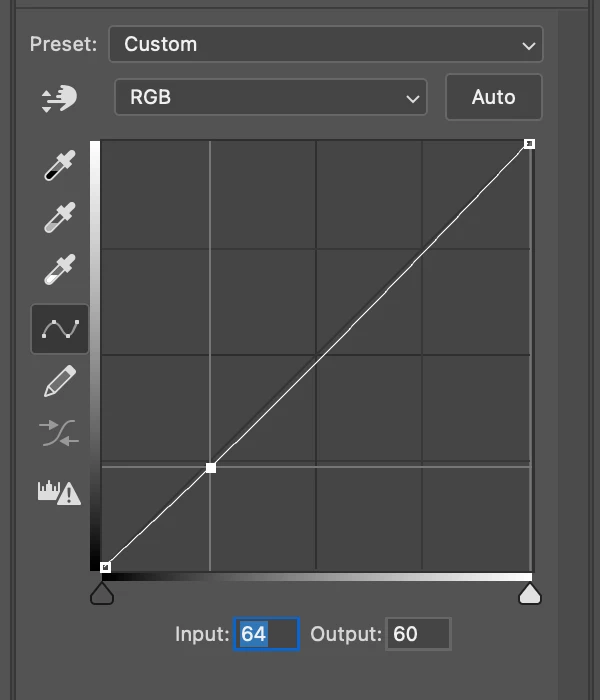
2. Create a Curves adjustment layer (or open the Curves dialog box via ⌘+M)

3. Tap anywhere to add an anchor point

4. Click the input value

5. Use the up / down keys on the keyboard to change the input value

6. No response


- You can still use the left / right keys to navigate through digits

- 'Output' is unaffected


7 replies

Participant
October 25, 2025

I am a professional photographer who adjusts many photos a day in Photoshop CC.  I am a Creative Cloud subscriber and have the latest version (26.11) installed.  An important part of my workflow involves the Curves adjustment panel.  I open the panel and click on the little white triangle on the bottom right of the curve display to adjust the highlights in the photo.  Clicking that little white triangle makes it so I can adjust the position of that slider, the "Input" value which starts at 255, incrementally by using the up-down arrows on the keyboard.  While adjusting this slider incrementally with the arrow keys, I then click "Show Clipping".  I then bring up the highlights in tiny increments my tapping the down arrow key until the highlights have barely clipped.  Then I do the same for the blacks.

In the most recent update of Photoshop, when I follow this process, and I click the little white triangle, I am able to adjust the input value of the highlights incrementally with the left-right arrow keys, but once I activate "Show Clipping", I cannot adjust the curves slider with arrow keys, only by clicking and dragging the slider.  So I am having to view the clipping, the uncheck "Show Clipping", make a tiny adjustment, the re-check "Show Clipping", then uncheck, then re-check, then un-check, then re-check, and so on until I get it where I want it.  This is massively slowing down my workflow, and I am wondering if this change was intentional, if there is a reason for it, and if there is anything I can do to change it back to the way it was.


I am working on a 2019 MacBook Pro running macOS Sequoia 15.4.1.

LEMONardoAuthor
Known Participant
October 29, 2025

This is a known bug.


https://community.adobe.com/t5/photoshop-ecosystem-bugs/p-photoshop-26-10-unable-to-change-the-input-value-of-anchor-points-in-curves-using-arrow-keys/idi-p/15485165


The latest 2026 27.0 still hasn't fixed this issue. But I believe it will be addressed soon.

Andrew Sender
Community Manager
Community Manager
September 8, 2025

Thank you @LEMONardo  and @Semaphoric ,

I can see the regression happened between Ps v26.9 and v26.10.  That is really useful to share with the developers to quickly identify the root issue.

Participating Frequently
September 6, 2025

Is it worth trying?

LEMONardoAuthor
Known Participant
September 6, 2025

@Andrew Sender It worked in the previous versions prior to 26.10. 

I use actions of course, but I also manually create multple curves in my daily workflow. And I am used to place anchor points precisely at say 64, 128, 192. So I know.

Semaphoric
Community Expert
Community Expert
September 5, 2025

Things work as expected in Photoshop 2024.

Andrew Sender
Community Manager
Community Manager
September 5, 2025

Hi @LEMONardo and @Semaphoric , thank you for reporting this.  I will ask my team to look into this.  By any chance, do you know if this was working in a previous version of Photoshop?  If so, which version?  That will greatly help my team narrow down and identify the issue.  Thanks!


Andrew

Semaphoric
Community Expert
Community Expert
September 1, 2025

Same thing under Windows.

Sameer K
Community Manager
Community Manager
September 5, 2025

Thanks for raising this, @11010397 and @Semaphoric, and for validating it on Windows. I see this as well. I've shared it with the team for review.


Thanks!

Sameer K
(Type '@' and type my name to mention me when you reply)