
Inspiring
October 21, 2020

P: Selection marquee off by 1px

  • October 21, 2020
  • 37 replies
  • 2494 views

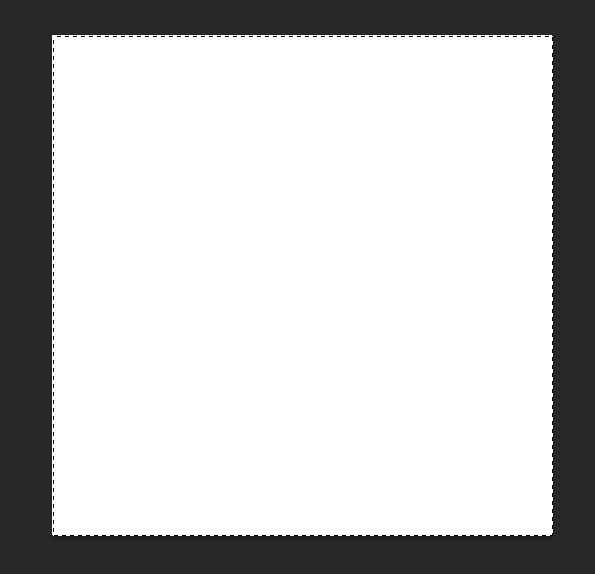
A quite annoying "feature" in the new Photoshop is the inaccurate selection marquee. It's off by 1 px to left and to bottom.

To reproduce:

1. Create an 500x500 px image

2. Hit Ctrl+A

Result: while the whole image is selected, the marquee is inside the image on the top and left.
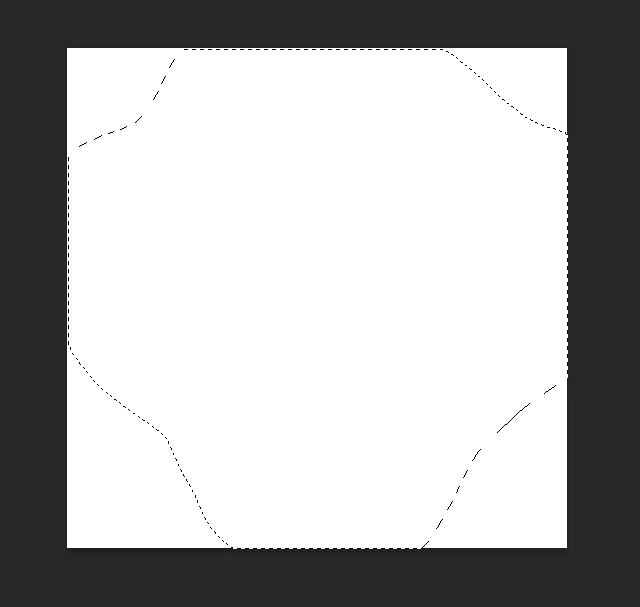
Another selection touching the sides of the image:
Edit:
Tested on 2 computers, the same behavior.
1. i7 7700K, 16 Gb RAM, NVIDIA GTX 1060
2. Laptop Lenovo Legion 5, i7 10750H, 16 Gb RAM, NVIDIA GTX 1650
This topic has been closed for replies.

37 replies

ET_phone_home
Inspiring
July 13, 2022

Found this thread when having a similar problem of selections drawn with the marquee snapping to 1px off a guide.

I seem to have solved the issue by editing preferences.

(Using Photoshop v on a Macbook Pro running MacOS Big Sur v11.6.7 with an AMD Radeon Pro 5300M GPU)


From the top menu, hit Photoshop -> Preferences -> Performance, and tap the [Advanced Settings...] button in the top-right quadrant labeled "Graphics Processor Settings."

Un-tick the second box labeled, "Anti-alias Guides and Paths"

Seems like it's a bug within that aliasing function that snaps selections off by 1 (aliased) pixel.

You will still have to re-draw your guide(s) and do a new selection after you un-tick the box, but shouldn't have to restart or anhything.

Hope this helps someone!


Participant
April 8, 2022

I just ran into this problem after upgrading to Photoshop 2021. I found the solution for me. The default feather value for the marquee was .4 pixels. I changed it to zero and all is well.

ErinKReynolds
Adobe Employee
Adobe Employee
July 26, 2021

Thank you for the clarification. I have reported the issue to the team.

Participating Frequently
July 24, 2021

That's an artifact of the issue.  Look at the "Photoshop Zoom" video I just made from it, which has the relevant portion blown up 500%.  (I apologize for the blurriness, my video editor doesn't support other scaling modes.)  Pay attention to the center pixel of the cursor.  I took care to line it up exactly to the upper left and lower right corners of the box.  The black part of the horizontal and vertical lines also line up.

ErinKReynolds
Adobe Employee
Adobe Employee
July 22, 2021

@GregV , thank you for taking the time to create this video.  It looks like the first square created (the red one) is 106px x 106px, while the second square is 107px by 107px. I suspect the difference shape size is causing the behavior you are seeing.

Participating Frequently
July 21, 2021

Still present in 22.4.3.  This video still applies.

As mentioned earlier, everything behaves when you create a new image and it's small enough that it defaults to the 100% zoom level.  If it's big enough that it defaults to 66% and then you zoom to 100% to work, it will have these off-by-one errors.

MyWebMaestro
Known Participant
June 11, 2021

@JeffreyTranberry I don't have an app to do a video capture but will look at setting on up so I can record it the next time I'm seeing the issue crop up. 

Participating Frequently
June 11, 2021

@JeffreyTranberry Here you go.  As I mentioned in one of my earlier posts, the fact that I create an image with a size that causes it to default to 66.7% zoom makes the difference.  If I choose dimensions small enough that it fits on the screen and Photoshop defaults to 100% zoom it behaves better.

Video capture

You may want to get the full resolution video by downloading the file instead of playing it through Google Drive.

I'm guessing some sort of screen-to-image translation gets generated when a file opens and if it doesn't round evenly to pixels you'll have off-by-one artifacts, even if you zoom to 100% before working.

Participating Frequently
June 11, 2021

Currently, what I could notice is that one thing that seems to affect the marquee offset is where on the screen the marquee is being displayed.

The easiest way to reproduce is:

- set photoshop to fullscreen

- open a small image that fits well in the screen

- select all

- move around the image window in the work area (space bar + left click + movement)

- notice each edge of the marquee will move 1 pixel up or down or left or right, depending on which edge. it seems to depend on some kind of "quadrant" of the screen.

Legend
June 11, 2021

@nathanlyle Would it be possible to get a screen recording/demo of what you're seeing? Might help our QE/Eng reproduce/understand what's going on.