


- Home
- Photoshop ecosystem
- Discussions
- Re: 100% zoom is too small on screen
- Re: 100% zoom is too small on screen

Copy link to clipboard
Copied
Hello, I'm using photoshop CC on amacbook pro retina. I mainly use photoshop for web design and when I open a document that is 300x200 px, the 100% view is too small on screen. Any ideas, It was this way on PS cs6 also before I upgraded. I just tried to delete the prefs file and restarted PS and it did not change. I have also tried to change my screen resolution to "best for retina" and it is still the same.
Steve


 1 Correct answer


...and just for kicks, I started to read from the beginning of this endless thread. It turns out that the whole "problem" was fully explained inside 20 posts or so. The rest of the thread, 360 or so posts by now, is just repetition, over and over and over again.
This one, post #20, from Noel Carboni, gave me an acute sense of déjà vu...
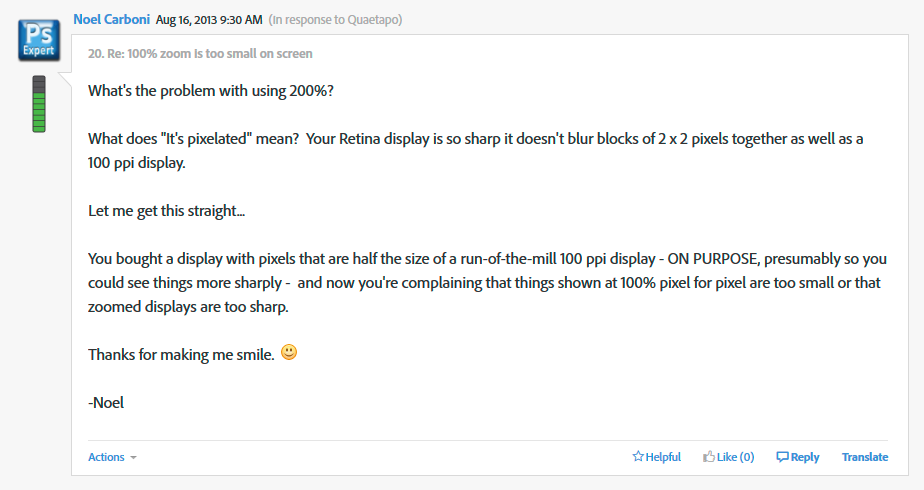
And two posts later, he went all in with a detailed and comprehensive rundown on every aspect of high resolution displays. Read it, everyone, please. And when you
...

Explore related tutorials & articles
 395
Replies
395
395
Replies
395


Copy link to clipboard
Copied
It's unlikely your actual, physical monitor resolution is 72 ppi.
Courtesy of the late John Slate:
John Slate - 3:08pm Jul 15, 05 PST (#7 of 10)
If you want to get exact about displaying print size:
Open a new 500 pixel x 500 pixel file in Photoshop, and set it to 100% (view actual pixels) if it does not come up that way.
Get out a ruler and measure the image on screen in inches.
Divide 500 by the measurement.
This is the resolution of your screen, write it down somewhere. Call it your actual monitor resolution factor.
That is the figure you need to input in the "Screen Resolution" field in that Preferences dialog box.

Copy link to clipboard
Copied
am also having same issue.

Copy link to clipboard
Copied
to answer the original question, this is what you need to do so preview artwork at 100% within photoshop.


Copy link to clipboard
Copied
Hi there, this issue was also making me crazy until I called my smart brother. All you need to do is go to Image > Image Size and change your resolution to 300 pixels per inch instead of 72 when you're in design mode. This will allow you to view your image / canvas at 100%. Then when you save your file, you can save it at 72 pixels per inch. I recently switched from Windows to a Macbook Pro with Retina and this issue was making me crazy for weeks!

Copy link to clipboard
Copied
This was the best solution for me , it really works ! Thanks  !!!!!
!!!!!
.png)
Copy link to clipboard
Copied
Would also suggest checking out this discussion on the official Photoshop Feedback site:

Copy link to clipboard
Copied
I can't believe the length of discussion going on...
Photoshop isn't broken but it's now missing a vital feature 'PIXEL DENSITY' (but perhaps called display configuration) this very much is needed.
100% zoom should show one square pixel on the image to one square pixel on screen, but this is very near-sighted with Retina and now Toshiba's PurePixel displays, Images are no-longer locked to a square box. Instead the display's pixel density splits image pixels across multiple screen pixels - however it see's fit.
Since the launch of te Retina display, 1 screen pixel now has a size in microns, Toshiba may treat it slightly different, in future screen pixels may be hexagons or octagons... therefore square pixels need a scale and should be displayed according to the screens pixel density. No user input required, but choice is always good... for those dealing with hugh images it might be nice seeing more in the screen.
This needs ADDING - but 'fixing' is a more common term.

Copy link to clipboard
Copied
What you've written, Astley Marketing, implies a lack of understanding, which does nothing to shorten the thread.
Firstly, the configuration setting I believe you're expecting already exists and can be found here:
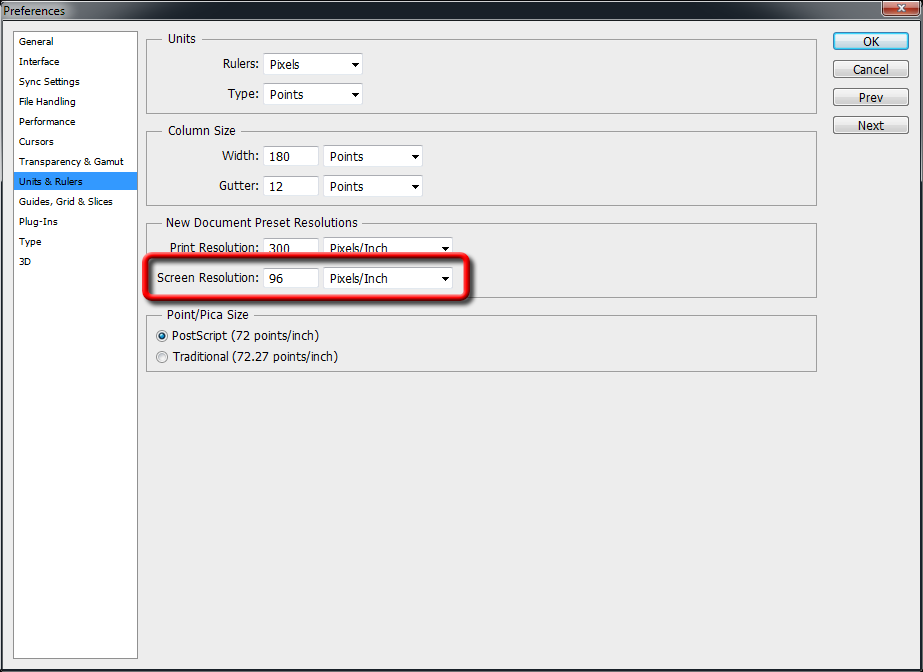
Secondly, regardless of settings, 100% zoom DOES show one pixel per display site (pixel) on the screen. How could anything different be useful? 100% of what?
Note that Photoshop also has a 200% zoom button / menu choice conveniently located so you can easily double the size of the zoom to compensate for very high screen pixel densities. Beyond that, it makes every rational number available as a zoom level (e.g., 164.2%) so you can get things just the right size to work on them.
Photoshop also offers a Print Size zoom choice that will, with appropriate setting of the value shown in the dialog above, give you an dimensionally accurate zoom.
Now, please tell us what you feel is missing?
Rather than complaining, people need to unlearn bad habits (like expecting "100%" to mean a particular physical size), then learn how things really work, and to use the tools provided to get the job done.
-Noel
Copy link to clipboard
Copied
This isn't a bad habit, I don't think you understand the problem here.
When designing a website I want to work at the scale that the end user will see, not half size (or near to).
When I capture an entire screen view and paste it into a blank new PSD (at the screen size) I want 100% to fill the entire screen, not show 2 inches of space either side. Are you saying that when the resolution of screens are 1000 PPI we are supposed to work on A4 files that are 1 inch across and be happy 
I need photoshop to let go of the pixels and show me 72 image pixels per 1 inch on screen @ 100% view. I don't have a lack of understanding, I have a serious problem designing websites at half size!
Print Size isn't a solution, and setting the document pixels to that of the Retina display isn't either - If I share a file with a non-retina user they see it twice the size.
A setting for display pixel density would allow me to design, share, and know exactly what each display is doing. To re-itterate, whilst I'm new to the Retina display I think 15 years of designing using Photoshop stands me in good stead to understand that there is a problem.
100% needs to be multiplied by an application level setting, or based on a hardware setting.
Copy link to clipboard
Copied
Astley Marketing wrote:
I need photoshop to let go of the pixels and show me 72 image pixels per 1 inch on screen @ 100% view.
No you don't. You need to learn how to use the tools you have properly. You claim 15 years of Photoshop use, but I sense you don't yet have an understanding of the concept of pixels or of image resolution and how that affects web display of images. Apparently you've been using it exactly one way, and you're so inured in your misinterpretation of terminology that you're unable to adapt to new technology.
You seem to be wanting to redefine the meaning of ''100%'' instead of realizing you can do exactly what you want with [Print Size] view if you set things up properly.
Maybe in another web-design specific product ''100%'' could mean what you'd like it to mean (though you're finding it impossible to answer ''100% of what?'').
At the core of Photoshop's design is that ''100% zoom'' means ''a 100% parity between pixels in the document and pixels on the screen''. That's really not going to change, especially in light of the fact that there are other zoom features that will get you want you want.
A photographer using Photoshop would disagree that ''100%'' needs to be redefined to some arbitrary thing for you. Please don't forget that Photoshop is not ''Astley's personal web design tool''. There are those of us who need 100% to mean what it means now, and we buy displays with particular PPI values to accomplish specific goals.
Beyond it being silly to demand that Photoshop change its design to suit your misinterpretation of the term 100%, that your favorite browser doubles the pixels of most images to compensate for high ppi displays doesn't mean you don't have to think about the pixels that go into the images you make for the web. The world is not as simple as you'd like it to be.
Astley Marketing wrote:
If I share a file with a non-retina user they see it twice the size.
That made me laugh. I guess they don't know how to use the zoom button either.
For what it's worth, I've put in a feature request just for that user: Right next to the 100% and 200% zoom menu items I've requested a 50% zoom setting.
It appears you'd like to have some kind of web design tool that you can manipulate to create websites without pixels being involved at all. Not that such tools don't exist, but conceptually that's about as far from Photoshop, specifically, as you can get. You really do need to get your head around how pixels fit into the web design world, because ultimately what you design is rendered in pixels.
-Noel
Copy link to clipboard
Copied
I don't want to get into a pointless rate, far to busy! I fully understand Photoshop and I'm not getting into a pissing contest about that.
My original post states:
No user input required, but choice is always good... for those dealing with hugh images it might be nice seeing more in the screen.
This was for the benefit of those who want 1 digital pixel to 1 screen pixel - such as photographers.
It appears you'd like to have some kind of web design tool that you can manipulate to create websites without pixels being involved at all.
Yeah. Of sorts. Pixels are pixels but how wide in microns is a pixel (72 per inch in old school)? Apple have dictated that they can cram 220 in one inch, re-interpreting the image to suit this density, and Adobe are rightly-so treating it as 1-to-1.
Either you haven't got a Retina display, don't work on website, you still aren't understanding the problem - or a combination of all of these. Find someone with a Retina display, copy an image from Google and paste it onto a new canvas. adamleewermuthmavs back on page one is showing the issue.
Retina is new (ish) and PurePixel is newer, they redefine the use of a pixel and Adobe are behind.
Stop ranting on about Print View - Perhaps advocate Web View instead.
Copy link to clipboard
Copied
I'm starting to sense that maybe it would be helpful if Photoshop would provide a zoom button / menu item that's customizable, so that it can be the one button people can press to get them to the zoom they're used to.
-Noel
Copy link to clipboard
Copied
I'm starting to sense that maybe it would be helpful if Photoshop would provide a zoom button / menu item that's customizable, so that it can be the one button people can press to get them to the zoom they're used to.
Has the penny finally dropped??
Copy link to clipboard
Copied
I have no problem with the product providing you new features that would be helpful, and I suppose we're converging somewhat, but you're not going to get the product improvements you crave by requesting the redefinition of core terms.
When I need something to be a certain size on the screen so that I may work on it - be it a screen grab or a photo - I simply zoom it to the percentage I need. There are a lot of ways to do that besides hitting the [100%] button. The problem is no more complicated than this: Set a working pixel density and use the appropriate zoom to see how it will look. Finding easy ways to get to that zoom level, i.e., to settle into a meaningful and productive workflow, is your challenge.
Astley Marketing wrote:
Either you haven't got a Retina display, don't work on website, you still aren't understanding the problem - or a combination of all of these.
As a software engineer for 37 years, Photoshop expert since it first came out (okay, maybe I wasn't an expert until 1993), designer of a number of web sites, and current designer of graphics software, I do fully understand the problems. Given all that experience I can tell that part of the issue here lies with your want to embrace the concept that in Photoshop the pixel is king.
A pixel doesn't have a size, per se. It has an conceptual meaning only - picture element - and it can be applied to displays and printers and billboards on the sides of blimps by choosing a proper scaling operation. That's called ''zoom'' with a display.
That you want a pixel to have a physical size implies that you want to use the features already well-integrated into the product for interpolating or extrapolating the pixels in the document to show them at a particular working size that's good for you. There's nothing wrong with that.
I am unable to spend more time on this to develop actions/scripts for you, but if I were you I'd seek information / instruction on setting up one or more function keys up to call up specific zoom percentage values that you will find useful, given your particular work. You'll have to get out of the habit of pressing the [100%] button.
-Noel
Copy link to clipboard
Copied
Speechless...
I'm glad that you could let go of the 'I know best' mentality to a small degree and conceed as far as converging!!! Thanks!! But please don't skip past the point. You'll eat your words WHEN this feature is added. I'd like it sooner rather than later and I will be in touch with Apple to put pressure on Adobe from their end. I'm sure that they will be able to get this through faster than tralling through your needless resume to get to the clear and simple solution.
Image pixels are separate from display pixels on a Retina display, the MAC display engine splits image pixels over multiple display pixels. I need photoshop to function the same.
I don't want a zoom macro shortcut thingy that zooms to 136.5% which will blur the pixels... if that was a fix then I would type it in the zoom box and be happy. I'd like a setting in Photoshop that lets me provide a screen pixel density that alters the pixel grid size and disconnects each image pixel from the pixel of the display - as per Apples display engine.
Please can someone else who is a web designer with a Retina machine, second the fact that it is unworkable using photoshop so that it gets built into future updates by marking this post as helpful!
Copy link to clipboard
Copied
Astley Marketing wrote:
the MAC display engine splits image pixels over multiple display pixels. I need photoshop to function the same.
LOL, you're a riot.
It's too bad Photoshop doesn't have something like a zoom to 200% capability that doubles pixels. Oh, wait...

-Noel
Copy link to clipboard
Copied
Yep, a right little bundle of joy that a fantastic new Macbook Pro coupled with the latest version of the worlds number one image editing software can't deal with increased pixel density in a fashion that suits everyones needs. And the best place to highlight the problem has certfied 'experts' that can't accept that there is a problem. Nearly £4k well invested!
Fortunately Apple have escallated the issue, and I'm told, will get Iin touch with Adobe about how to use the Retina display, they have a team for that apparently.
Please accept that you may know all the buttons, shortcuts and functions of the program but you aren't seeing the problem as it doesn't acfect you. If a setting isn't added to sort this then either Retina or Photshop has to go, neither of which needs to be the case. For now, the advice is Don't get a Retina Mac if you want to use Photoshop for web design, everything else the combination is fantastic.
P.s. I really have tried to explain the full problem and 200% isn't the correct percentage, even if it were it wouldn't be a solution. You just don't understand please let others contribute constructively.
Copy link to clipboard
Copied
Just re-read the thread and I'm glad it's not just me getting attitude off Noel, I can see how he has made it to 22181 posts!
Thank you adamleewermuthmavs, your compatibility view has really helped, lets hope that Adobe load this sort of setting into the new file options, so that the program can run in normal mode and files can be treated as they will appear on screen.
I hate working at a different resolution to the end result, I like sharp edges where possible.

Copy link to clipboard
Copied
Whew.. this was a fun read! Well, I just skimmed most of them. My gripe isn't even about the sizing.. I need to take accurate measurements of the elements on the page. I take screenshots of entire web pages so I can determine how many pixels things need to change.. either sizes of graphics, or positioning of css elements etc... the retina display screenshots distort the original sizes so now I can't take measurements. Oy.

Copy link to clipboard
Copied
Man, every time I check this thread. I find myself shaking my head in disbelief.
Copy link to clipboard
Copied
Somehow I'm reminded of this...
-Noel

Copy link to clipboard
Copied
There is a lot of cockiness to this thread.
To the original poster of the thread, I get what he means. My company upgraded my Macbook Pro, and I anticipated the issue with the varying sizes between applications due to the double of pixels. I initially requested that my new machine not have Retina, but that is all Apple now offers in terms of their Macbook Pro line.
It's a nightmare to UX and general workflow when switching between applications because you are getting different optical results.
To Noel, since you're using a Dell, perhaps it would be best for you not to participate in this thread, since you aren't providing any value, and the experience the members here are trying to relate is somewhat difficult to explain unless one experiences it first hand.
Copy link to clipboard
Copied
Astley, ignore Noel.

Copy link to clipboard
Copied
Astley, ignore Noel.
wrote the person who had previously noted that
There is a lot of cockiness to this thread.
Copy link to clipboard
Copied
c.pfaffenbichler, that's more of a reassurance to Astley and others who came here seeking questions, and was met with belittlement.
For those that would like the best solution (that at least works for me), go to Apple > System Preferences > Displays

By default, "Best for display" is selected. Instead, choose "Scaled" and select "More Space". Basically, it will give you a 1920x1200 display.
What is driving everyone's headache in this is how Retina Displays work. As much as some want to argue the definition of a pixel, it "is" used as a unit of measurement when dealing with resolution (whether one likes it or not). Its definition is contextual to how it is being applied, so yes, Noel, you're correct in your assesment of how it applies to your work.
So here is how it goes down. Apple, for the purpose of mapping elements to a screen, still adheres to a 1:1 principal. So while a Retina iPad is 2048x1536 (doubled 1024x768), you'll still place elements on the screen as if the canvas was 1024x768. You will also treat the element you are positioning as if it was non-Retina, however, the element you are using has double the pixel density.
So, I have a 1024x768 canvas, I have an image that needs to appear to have a dimension of 300x300 on the screen. I want the image to be 20 pixels from the left, and 20 pixels from the top. The only difference is that I made the image 600x600, but I tell the app to size it to 300x300.
Then to add another layer to the complexity, if I lay in text on the app, I still set the font-size to 12px (and not 24px).
This is why you can't do a screenshot, paste it into Photoshop, and expect a 1:1 ratio. The Retina Display still adheres to non-Retina dimensions and font sizes, but the raster elements have double the pixel density, so this is why when you paste it in, it looks "tiny". Enlarging it to 200% might make the images then appear to be the correct size, but now your text is fuzzy (and who wants to look at that while working).
It's annoying, I agree, but it's an easy solution to change the Display preferences.
As content creators, Retina doesn't really help us out much, of course, with the changes to Apple's product line, their cash cow is in consumer hardware now and not serving the creative professionals like they once did.


Get ready! An upgraded Adobe Community experience is coming in January.
Learn more
 AdChoices