


Known Participant
June 30, 2013
Answered

100% zoom is too small on screen (designers don't get high resolution displays)

  • June 30, 2013
  • 62 replies
  • 294460 views

Hello, I'm using photoshop CC on amacbook pro retina. I mainly use photoshop for web design and when I open a document that is 300x200 px, the 100% view is too small on screen. Any ideas, It was this way on PS cs6 also before I upgraded. I just tried to delete the prefs file and restarted PS and it did not change. I have also tried to change my screen resolution to "best for retina" and it is still the same.

Steve
This topic has been closed for replies.
Correct answer D Fosse

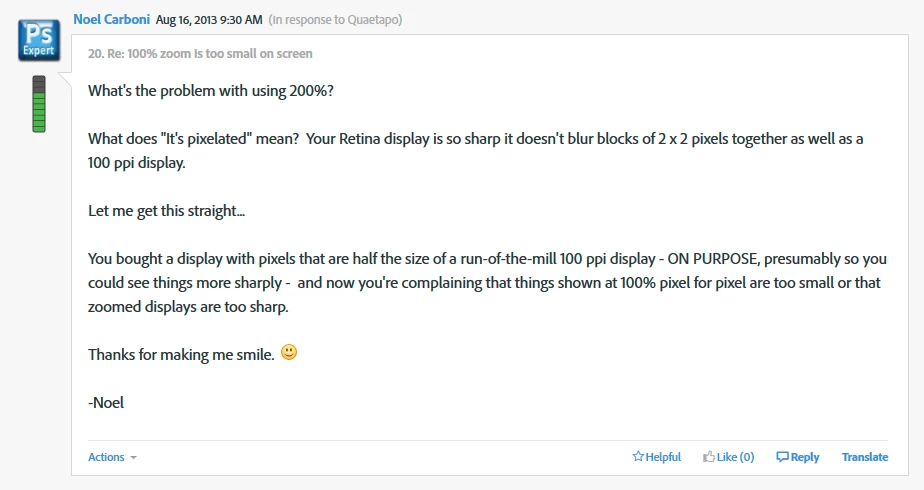
...and just for kicks, I started to read from the beginning of this endless thread. It turns out that the whole "problem" was fully explained inside 20 posts or so. The rest of the thread, 360 or so posts by now, is just repetition, over and over and over again.

This one, post #20, from Noel Carboni, gave me an acute sense of déjà vu...

And two posts later, he went all in with a detailed and comprehensive rundown on every aspect of high resolution displays. Read it, everyone, please. And when you've read it, read it again, and again, until it's understood:

https://forums.adobe.com/message/5601271#5601271

Case closed, you might think...

62 replies

Participant
May 25, 2015

Sorry to say this but the solution is Sketch. I exactly understand your problem which actually is no problem

Participant
June 2, 2015

This is exactly what I was thinking as I read through all of these posts. Sketch, though low in features, is fantastic for UI and Mobile design.

What I learned from this post:

1. Noel is a condescending jerk and clearly not a professional web designer.

2. I should go back to using sketch while I wait for Photoshop to smooth out this UX problem.

Participant
April 16, 2015

I agree with everyone saying the "Open PS in Low Resolution" solution is awful. All that happens for me is *everything* looks bad – toolbars, palettes, icons – instead of just the work file.

The workaround I have found is to save all my web files at 144ppi (double the usual 72ppi), then view at 50% when I want to see how they will look on a typical monitor. This is in line with where web development (or at least app development) is going anyway; for instance, if you're developing for iOS devices, you must save all image files at two resolutions anyway, one for retina displays and one for "regular" displays, so you'll be working with an oversize file to achieve that goal. This method keeps everything crisp at all levels of zoom you'd need to use, so no more pixelated mess!

When it's time to export the images, you don't even need to resize or shrink them if you choose File > Save for Web. They'll automatically be sampled back down to 72ppi.

There are a few cons, relating to assets and workflow. For instance, if you're not using vector paths for shapes already, you might want to start, since all rasterized stuff will look pixelated if you just size everything up. So you'll have to start working with this 144ppi mentality in mind, which may be untenable for things like stock images that cost money based on their resolution. And you'll be generating bigger files, which is unfortunate given the size of typical Photoshop files is already pretty big.

Anyway, this solution might not work for everyone, but I hope it offers a different perspective, and maybe helps somebody out!

Participant
April 17, 2015

THIS: "But Photoshop reduces it to half the size, but still displays it as 100%. When you zoom in to 200% it becomes pixelated, despite Retina. This makes accurate editing impossible."

Opening Photoshop at low resolution still results in awful pixelation. Viewing at 200% results in pixelation. As a UX designer, this is frustrating.

M Prewitt at IIW
Known Participant
December 29, 2014

Well, it's an old discussion, but since it's still going on, I'll add my 2¢. I have a Retina display, and it took me all of a few seconds to realize that I needed to zoom to 200% to get the expected size, because I happened to know what a Retina display is. Still, it is super annoying to ALWAYS zoom everything to 200% to get the same size of image (relative to the physical size of the display), since Photoshop opens to 100% by default, except for very large images. So whereas before I could just open and get to work, now it is open and then zoom: 200%. Every. Single. Rotten. Time. (Moreover, I then need to pull out all the window edges, or drag a corner, because I've disabled the otherwise annoying "Zoom resizes window" option in Photoshop.)

Since various participants in the discussion seem unable to understand why anyone would want to blow up an image and not enjoy it at its native Retina resolution, let me explain. At the 100% size, everything is 1/4 the size (half in each dimension) as on a typical non-Retina display. Even though there are technically just as many pixels involved, each pixel is 1/4 the size of a non-Retina pixel, and that makes web-resolution text and other details too small to be seen without zooming — at least for folks like me; it makes my eyes water when trying. I was simply hoping that somewhere in the Photoshop preferences would be an option to either set the default zoom to 200%, or somehow tell Photoshop to now treat 2 screen pixels in each dimension as one data pixel (maybe a "View > View at legacy pixel size" menu option in a future edition of Photoshop) when doing non-2x web-related work. But alas, neither option exists.

Herbert2001
Inspiring
December 29, 2014

This discussion has proved one thing: some people prefer a default zoom of 200% on retina screens, others a default zoom of 100%.

The simple solution would be to add a preference setting that allows the user to set an arbitrary default zoom setting.

Done, everyone happy.

Participant
October 31, 2014

I just upgraded to an iMac 5K retina display, and I have to say I'm with Noel on this one. Retina is the future, of course the image at 100% is going to look smaller, if retina is the new standard then 100% should mean 100%. Working at 200% is fine for me. 

penfox
Participant
September 25, 2014

Hi, I was looking for an answer as well and can't really get a satisfactory one from this stream. One option that I am using for web work is to double your canvas size and work on that and then bring it back to the original size when you've finished the design. Not ideal but I don't like working at 200% - it's not sharp enough.

Participant
September 25, 2014

Using a large second monitor that is not retina has solved the display problem for me…

Participant
September 18, 2014

There seems to be a lot of back and forth around "how pixels work" in this thread and a larger desire to showoff technical prowess than solve the problem. How about we not discuss this in pixels? The problem in my mind is simple...

If I select image dimensions of 7" x 5", the image on screen at 200%, 100% or opened in low res or print size does not measure out on screen at 7" x 5".

How do I fix this?

gener7
Community Expert
Community Expert
September 18, 2014

Re: How to display a page at 100% size?

Look for the Photoshop Print Size PDF attachment Old Bob included.

Participant
August 15, 2014

Yes it's quite a change in viewing, I agree. I don't much like it either. It's too small, esp. after having used a "normal" viewing mode for so long. So I zoom to 200%. It causes some jaggies, but I'll try to get used to it. Retina display is a paradoxical one, in that it seems to have simultaneously advanced and ruined display screen fidelity.

DRPCREATIVE
Participant
July 31, 2014

Hi guys, one method I use is to double the resolution of the photoshop file and have the 'resample' box checked.

If your working at 72 pixels per inch, make it 144 pixels per inch. Once your done, just convert it back to 72 pixels per inch.

Hope someone finds that useful.

Regards.

Participating Frequently
July 23, 2014

My friends found the real solotion to fix this problem.

Here the easy steps:

1) Close Photoshop.

2) In the finder open the Application folder.

3) Open the Adobe Photoshop CC 2014.

4) Select the file "Adobe Photoshop CC 2014" then push Apple+I (information). A small info window will be open.

5) Check the firt checkbox "Open in low solution".

6) Open Photoshop and enjoy.

I attach a printscreen, is in italian but you can understand the position of the checkbox.

Enjoy and thanks to Luca e Niccolò to have found the solution

Noel Carboni
Legend
July 23, 2014
Kaius, setting the application to open at low resolution throws away your ability to use the full resolution of your wonderful Retina display.
To each his/her own, I guess.

-Noel

Participating Frequently
July 23, 2014

Yes but it fix the problem mentioned.

Without this metod is very uncomfortable working with 200% of zoom for a web project.

It's the best solution in my opinion.

Participating Frequently
June 22, 2014

Read it and... realise that you are getting stuck in your ways Mr Know-it-all...

Photoshop 2014 now has “experimental features,” including touch and high-dpi support for Windows

With this release of Photoshop CC, Adobe is also providing an experimental features capability. Users will be able to selectively activate features that otherwise would not have made it into the product. The most exciting of these for Windows users are support for high-dpi displays and for touch gestures. The high-dpi support scales user interface elements by 200%, which will make Photoshop a lot less painful to use on high-resolution laptops and tablets. Touch gesture support includes standard Windows 8 gestures like pinch to zoom, and the new version offers improved stylus support.

I am hopeful that us MAC users are getting this feature as well but this is spot on.... Installing now, praying that us MAC folk aren't forgotten about

I'm tuning out now to ignore the inevitable drivel but I'll report as-to whether the MBPR gets this feature shortly.