


Known Participant
June 30, 2013
Answered

100% zoom is too small on screen (designers don't get high resolution displays)

  • June 30, 2013
  • 62 replies
  • 294460 views

Hello, I'm using photoshop CC on amacbook pro retina. I mainly use photoshop for web design and when I open a document that is 300x200 px, the 100% view is too small on screen. Any ideas, It was this way on PS cs6 also before I upgraded. I just tried to delete the prefs file and restarted PS and it did not change. I have also tried to change my screen resolution to "best for retina" and it is still the same.

Steve
This topic has been closed for replies.
Correct answer D Fosse

...and just for kicks, I started to read from the beginning of this endless thread. It turns out that the whole "problem" was fully explained inside 20 posts or so. The rest of the thread, 360 or so posts by now, is just repetition, over and over and over again.

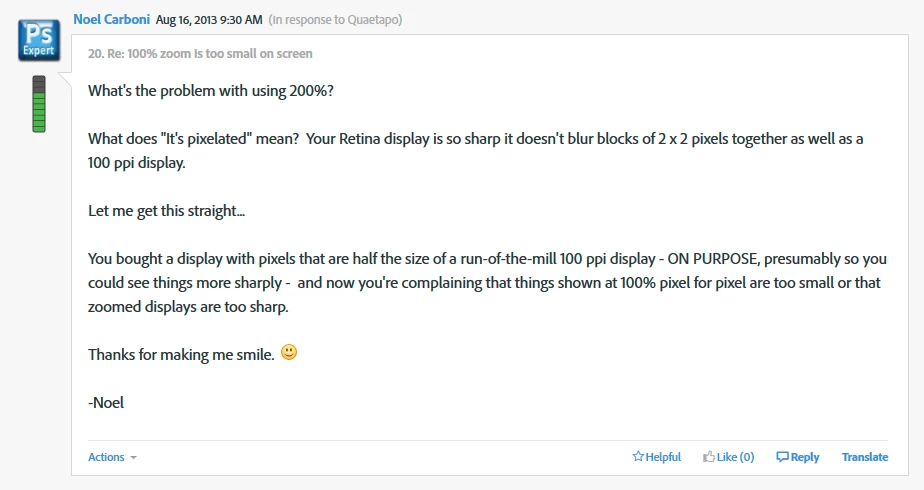
This one, post #20, from Noel Carboni, gave me an acute sense of déjà vu...

And two posts later, he went all in with a detailed and comprehensive rundown on every aspect of high resolution displays. Read it, everyone, please. And when you've read it, read it again, and again, until it's understood:

https://forums.adobe.com/message/5601271#5601271

Case closed, you might think...

62 replies

Participant
March 21, 2017

I was having the same issue and couldn't find anything working from this thread till now but found something really helpful and got it solved quickly. So simple and clear:

here you go and explained everything in detail by Dan Antonielli:

Adobe App Scaling on High DPI Displays (FIX) | Dan Antonielli

Another guy posted a video tutorial to resolve the issue:

How To Make Adobe Software Display Larger On High Resolution Monitors - YouTube

hope it will help everyone.

Thanks,

Inspiring
March 22, 2017

ijazr51683862  skrev

I was having the same issue …

I'm happy for you, ijazr51683862.

However, this was not the same problem as the one I've been trying to discuss (with little success). I'm not sure I have the energy to take another shot at this, but maybe I should make one last effort, just to clarify that the links you presented are not related to the problem I, and some others, have experienced.

My situation has been that the entire Photoshop GUI has scaled correctly to my chosen resolution (from the 5k graphics card down to my selected 2560x1440) – with the exception of my open documents inside Photoshop; these are presented in my graphic card's native 5k resolution, bypassing the scaling that I've ordered in my monitor preferences, resulting in images exactly half the size of what I would expect when viewing 1:1. If the entire GUI would have been scaled this way (like in your case), it would at least have been logical. But for me, only the docs differ.

This is apparently perfectly correct to many users (and Adobe employees/developers), but to me it's annoying and puts obstacles in my workflow. However, I can live with it; it's far better than activating Photoshop's low-resolution mode – which corrects the display size of open files but also results in a badly downsampled GUI (however of the exact same size):

HR panel

LR panel

I don't expect anyone to solve – or even acknowledge – my problem; this last post of mine is entirely for the sake of supporting anyone who's stumbled onto this thread and can't find the answers to his/her actual problem, getting the impression that he or she has gotten everything wrong and really shouldn't be using Photoshop at all. You're not alone.

D Fosse
Community Expert
D FosseCommunity ExpertCorrect answer
Community Expert
January 13, 2017

...and just for kicks, I started to read from the beginning of this endless thread. It turns out that the whole "problem" was fully explained inside 20 posts or so. The rest of the thread, 360 or so posts by now, is just repetition, over and over and over again.

This one, post #20, from Noel Carboni, gave me an acute sense of déjà vu...

And two posts later, he went all in with a detailed and comprehensive rundown on every aspect of high resolution displays. Read it, everyone, please. And when you've read it, read it again, and again, until it's understood:

https://forums.adobe.com/message/5601271#5601271

Case closed, you might think...

Trevor.Dennis
Community Expert
Community Expert
January 13, 2017

D Fosse wrote:

Case closed, you might think...

I bet we have all been to work meetings that went round and round in circles getting nowhere.  Dag's post #384 is now marked as correct, so fingers crossed, this thread might fade away.   I won't hold my breath, and frustrating as many of the comments have been, the thread has also had a few moments of smile inducing light relief, so not a total waste of time.  

Nancy OShea
Community Expert
Community Expert
January 13, 2017

Maybe someone should lock it.  It's 4 years old and not really going anywhere new.  Just the same old stuff

Nancy O'Shea— Product User & Community Expert
Participant
January 13, 2017

Hi guys,

I'm having the same "problem".

I opened photoshop, indesign and illustrator and compared the windows at 100% in each one (200x200px).

That's what I got.

D Fosse
Community Expert
Community Expert
January 13, 2017

majermatheus, this is fully explained in post #364, a little further up on the page.

Quote:

"...It's not that Illustrator "gets it right" and Photoshop doesn't.

It's because Illustrator is vector-based, and always displays according to physical print dimensions. It doesn't care about resolution; just size. Photoshop is the opposite. It's pixel-based, and print size is irrelevant to the application.

Note that 100% means different things in the two applications! In Illustrator it means "actual print size". In Photoshop it means one image pixel per one screen pixel, regardless of size"

Eternal Warrior
Inspiring
January 13, 2017

If you actually look at what makes a retina image retina you would know that they will look totally different on the web compared to photoshop.

Apple DOES upscale images *SORT OF* Read below to understand:

Try reading various articles like this one to understand.

https://www.mightybytes.com/blog/make-retina-images-website/

Essentially this is the big confusion > people think that a retina ready image is 300 PPI....BUT THAT's a lie!!!

A Retina ready image is atleast 2x or even 3x as many PPI that is then scaled down by code so that it crams loads more pixels into every inch.

In fact if you want a Retina ready Image you would be better at looking at your image resolution in pixels per CM and making that at least 300 PPCM

Eternal Warrior
Inspiring
January 13, 2017

ERGO look at your image at 200% if on a Retina display or 100% on a normal display and they should look the same.

Inspiring
January 13, 2017

Eternal Warrior skrev:

ERGO look at your image at 200% if on a Retina display or 100% on a normal display and they should look the same.

Provided that you've chosen a GUI magnification level that is exactly half of what your graphics card delivers, yes. Other levels require other percentages.

Participant
January 12, 2017

I think I found a fix on a different thread. It was probably also mentioned somewhere in this thread, but I don't have time to read pages and pages of ....Anyway, this worked for me. Hope it works for those of you who are having the same issues. Most of all, I hope this thread is marked fixed sometime soon.

Inspiring
January 12, 2017

makemyday6789 skrev:

I think I found a fix on a different thread. It was probably also mentioned somewhere in this thread, but I don't have time to read pages and pages of ....Anyway, this worked for me. Hope it works for those of you who are having the same issues. Most of all, I hope this thread is marked fixed sometime soon.

Great, exactly what I wished for. Will try it first thing tomorrow. Apparently someone at Adobe has gone beyond his/her authorities and implemented a solution for us non-professionals (by D Fosse's definition above). I'm thankful, but at the same time a bit sorry about being classified as someone who's not really worthy of using the Ultimately Fantastic Piece Of Software, despite having used it professionally – and having managed to make my clients happy – for twenty years. Well well.

Inspiring
January 12, 2017

This is a fairly long thread, so I haven't really read it all. But I have the same problem and it's annoying (although it can be neutralised by viewing an image at 200% or whatever).

To me the underlying mechanism seems simple (but of course I might be wrong, I often am). This is what I observe:

My 5k graphics card produces an image 5120 pixels wide. If I connect a 5k monitor, I can have my GUI presented at a 1:1 ratio. But then everything gets extremely tiny. So I choose to see a downsampled image, in my case 2560x1440 pixels. (This is the beauty of multi-k screens: this downsampling does not mean any visual quality downgrade compared to 1:1. In my case I use exactly half the length scale, but odd scales work well too, as you know.)

Every GUI object follows this downsampling. Except for images in Photoshop. The difference between 1:1 representation and my downsampled resolution is the difference you see between an image in Photoshop and the same difference in a web browser. (Hence the 200% viewing trick.)

It seems to me like someone at Adobe has forgotten to take the selected GUI downsampling into account when programming the image rendering.

What I would like to see is a Photoshop preference option saying "Follow GUI scale" or something like that. Then I could have my images show the same size in Photoshop as in browsers and similar.

Funny: on my computer, Illustrator manages to show things the "right" size (following my GUI settings). Why can't Photoshop?

Sorry if this has already been covered. As I mentioned, I haven't read the whole lengthy thread.

davescm
Community Expert
Community Expert
January 12, 2017

gunnarlinn wrote:

It seems to me like someone at Adobe has forgotten to take the selected GUI downsampling into account when programming the image rendering.

No mistake or forgetfulness - Photoshop correctly uses 1 image pixel to 1 screen pixel at 100% zoom. If you need it different - change the zoom %

Dave

Inspiring
January 12, 2017

No mistake or forgetfulness - Photoshop correctly uses 1 image pixel to 1 screen pixel at 100% zoom. If you need it different - change the zoom %

Dave

Oh yes, that's a known issue and it's the fundamental problem at hand. All other apps use the scaling selected in the computer's monitor settings.

Compare to a music studio. If I have all instruments/channels set to a level that compensates for, say, my loudspeakers' characteristics, and one instrument/channel not doing so, am I helped by the fact that this last channel is "correct"?

I still want the preference option to have my image follow the GUI scaling.

km19286875
Participant
December 5, 2016

I'm experiencing this problem as well, and I think I see the issue.

I'm a web guy, and I've been using Photoshop for graphics since the 1990s. Some time around the 2010s, when super high definition displays started coming on the scene, the web standards people realized they could no longer use the physical screen pixel as a unit of measurement. Pixels were so densely packed together on these newer screens, so any fonts, images, or other elements sized in pixels would be unusable. So they came up with the reference pixel, which is a physical length derived from the angle between a hypothetical screen with a pixel density of 96ppi, and the expected viewing distance from the user's eye.

You can read it in the spec for CSS here:

CSS Values and Units Module Level 3

The 'pixel' name of the unit was kept to maintain compatibility with older designs, which has caused some confusion when it comes to screen pixels vs reference pixels, such as we have here.

Also, the ratio of reference pixels to screen pixels on most devices around 2, but not always. So working at 200% zoom will give you a rough estimate of your image, but not an exact measurement.

You can see some of the reference-to-screen pixels in this table:

Viewport Device-Widths for Mobile Devices

All Adobe Photoshop needs to resolve this issue is reference pixel units, just like there are points, inches, centimeters, regular pixels, etc.

TLDR; For high density displays, reference pixels are physical units of length, not directly related to screen pixels. Photoshop needs reference pixel units.

D.A.R
Legend
October 5, 2016

Change Photoshop to Open in Low Resolution

In the Applications folder find the application and File > Get Info...

Check the box next to Open in Low Resolution.

Then the results will be size identical between browser and photoshop

Let us know if this helps or answers your question

Fordrich
Participating Frequently
October 5, 2016

thanks D.A.R. but I don't have the open in low resolution option... is there another option or place that I can find it?

Fordrich
Participating Frequently
October 5, 2016

You need to click on the actual application file. not the folder before requesting the info pane.

Application Folder vs Application


Great, thanks D.A.R.

That does resolve the 100% issue but it does make the rest of Photoshop look blurry... but I guess that is the nature of opening it in low res mode... I will only need to open it in low res mode when I am working on web work that needs 100% to be more accurate.

Thanks again.

Fordrich
Participating Frequently
October 4, 2016

I am amazed that this has been going on for years and it is still not resolved... I have just upgraded to CC and I am still in my 14 day period where I can cancel with no obligation.

I have just called Adobe and they have confirmed that this is STILL an issue and that I can register my feedback in their feedback section... with over 117,000 people commenting on the same issue I doubt my feedback will help.

How do people cope with this on a daily basis? do you all just work to 200% in photoshop? or is there something more sophisticated?

Should I just canx my subscription to CC? and go back to my older version of CS?

Thanks in advance...

Participant
October 4, 2016

Have been working on adobe XD for my web layouts in a high resolution display.

I’m using adobe photoshop CC for my web design in a 2011 iMac and it works great, but when I jump to my high resolution monitor I find the same problem that U and many thousands fellow designers are finding. So, it is not the (software) Adobe CC, its the monitor that you are using.

Bummer, I hate this too!

Fordrich
Participating Frequently
October 4, 2016

The issues was first raised over 2 years ago... the issues only affects Photoshop... Photoshop is the ONLY choice for image manipulation for professionals... the MacBook pro is also the ONLY choice for professionals on the move...

The monthly Fee for CC is supposed to KEEP ALL PRODUCTS UP TO DATE... this issue is a known issue and has been an issue for over 2 years...

Adobe state on their website "Get new features and updates as part of your membership as soon as they're released. You decide when to install them."

Maybe I just stop my subscription before the 14 days are up and I just go back to my older version?

Adobe, should be able to resolve this issue... retina screens are here and should be supported.

peace out

louisan8195441
Participant
September 14, 2016

The issue is that Adobe created a tool to create images and inside of the tool we are unable to see how all viewers of the content might see the end result. This is a problem especially when working inside of 2x display as you cannot see mistakes that someone at 1x might see you made. We should be able to work in and preview easier in all ratios. This isn't a Mac issue, it is an Adobe issue and one that has been neglected and causes problems.

Thank you to all who are posting solutions to the problem.