


Participant
December 24, 2019
Answered

Adding multiple gradients to a layer [2019] [Locked]

  • December 24, 2019
  • 6 replies
  • 46611 views


Note from moderator:

Things have changed since 2019 when this thread was started and it is now locked. If you have a questions about the new gradient tool, please start a new thread where we will be happy to help you! The information about the Multiply blending mode has not changed and is still valid.


I'm currently running PS 2020 on Windows 10. In the past, I could use the gradient tool to add multiple gradients to a layer. Now every time I use the tool more than once on the same layer, it erases the previous gradient and leaves only the most recent one. Is there any way I can correct this? Or do I have to add a new layer for every individual gradient I apply? 
Correct answer davescm

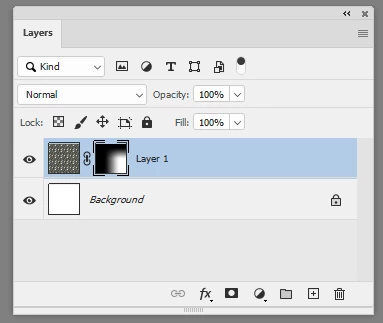
Gradient tool blend modes can still be used on masks as well as on normal layers.

In the attached example I first use a gradient left to right then set the tool to "Multiply" and used it top to bottom


Dave

6 replies

Participant
April 26, 2025

None of these answers worked for me--- setting the blend mode to multiply is not at all what you want. And "multiple" isn't an option. I agree-- Photoshop should not change defaults and then act like they didn't. We need to know how to use this [cursing removed]. ANSWER: when you select the gradient, there is a box in the upper left of the control panel along the top that just says "gradient." Select it-- then scroll to "classic gradiant" -- POOF.


Why can't folks just say that? Why not add it to the little video tutorial that pops up? [abuse removed]

Participant
May 9, 2025

Wait come back! HELP! You get it, I'm trying to fix the same issue but I dont see it or dont understand howw. So you click the gradient tool (left sidebar), then there's a box in the top bar that says gradient? Or is it in the gradient editor? (I dont see it in either place) .

I see a house (home button), then a "Tool Preset Picker", then the gradient bar which when you click on it opens the gradient editor, then the different gradient styles (linear, radial etc etc). Is this where I'm supposed to see this "gradient dropdown"? 

P.S I'm using an older version of PS which supposedly, and very ironically, IS the classic version that the new versions are referring to (v. 21.2.9), but according to ChatGPT doesnt have the classic way of using the gradient tool. However I'm sure it must be hidden in there somewhere. 

Any advice?


P.P.S please no-one tell me to create multiple layers for each gradient, and please also dont tell me to change the blending mode. That's not it.

Zesty_wanderlust15A7
Known Participant
August 6, 2022

Side note...
I was gonna advise to use Darken instead of Multiply, as you often just want to keep the darkest value, not block everything up. If your gradient is lighter than a value already on the mask, you often don't want it to darken the mask even further.

I thought that setting the Gradient Tool to Darken (despite its name) would respect the darker tones already there, yet if I add the same gradient again at the exact same spot, values are building as if I'm using Multply...? I would expect it to do nothing, as my gradient is not darker than the gradient I just layed down. Is that correct behavior...?

davescm
Community Expert
Community Expert
August 7, 2022

'if I add the same gradient again at the exact same spot, values are building as if I'm using Multply...?'


Is your gradient solid to solid?  I don't seem to be able to replicate that with a solid gradient (i.e. any color to any color). Darken works as expected for such gradients and the second identical gradient causes no change. With a gradient to transparency I do see a difference but it is not a change in the color value but the transparency is building (in this case reducing) with each stroke. It works the same way with layer blend modes involving transparency.


Dave


Zesty_wanderlust15A7
Known Participant
August 7, 2022

"Is your gradient solid to solid?"

No, black to transparent, applied with an action to the exact same spot.

I  guess I didn't realize that where the gradient is not 100% black, it has transparency, and the next application of the same gradient can theoretically darken it (and does so).  Yet, in my mind, I'm laying down the exact same pixels and am feeling it shouldn't darken in Darken mode.
If my first gradient is 100%...75%...50%...25%...0%, and I follow that up with exactly the same, none of my consecutive gradient values are darker than what I applied the first time, and the darker result tends to catch me out... I always "understood" Darken should keep the darkest part only.
Thanks for the reply!

mattl63375823
Known Participant
October 12, 2020

What I'd like to do is file a class action lawsuit on Adobe for forcing us into program changes that take hours of our time to re-learn how to do simple things. It's absurd how complex they made making a simple gradient.

davescm
Community Expert
Community Expert
October 13, 2020

What changes? Making a gradient is as simple as it always was.

Dave

mattl63375823
Known Participant
October 15, 2020

When I try to do a gradient to transparent, I suddenly can't do multiple gradients on the same image b/c every time I try, the second one cancels the first one. In other words, if I do a gradient to transparent on the left side of an image and then do a second one on the right side, the left side gradient is reset to the way it orginally was and only the right side gradient appears.

Anagha Manjunath
Participant
August 11, 2020

hey, set the mode of gradient TO MULTIPLE. I faced the same issue on PS2020 and it worked! It will allow you to apply many gradients  without creating new layers and blending them later.

davescm
Community Expert
Community Expert
August 11, 2020

That's what the first reply , given back in 2019, says "....set a blend mode for the gradient tool..."  🙂

Dave

arnabj51272311
Participant
August 14, 2020

Can you help me with this problem ? I am facing the same issue.

josephlavine
Community Expert
Community Expert
December 24, 2019

The gradients need to go from the hue/color to transparent and not color to color. For example, use Black to Transparent and not Black to White

carltf
Participant
April 20, 2021

This is the answer. Thank you. 


davescm
Community Expert
Community Expert
December 24, 2019

Hi

Either, set a blend mode for the gradient tool or apply each gradient to a new layer and blend/mask the layers. I would always go for the latter (separate layers) as it is easy to make alterations later.


Dave

Participating Frequently
March 7, 2024

It would be helpful if you actually wrote HOW to do that. I've been a PS user for 20 years, and the gradient tool was more intuitive before this changed. It's quite silly that the second time you try to apply a gradient it nulls the first one. That makes litterally no sense.

davescm
Community Expert
Community Expert
March 7, 2024

The blend mode for a gradient has always existed in the options bar, both in the old version and the new. The behaviour of overwriting a gradient when in normal blend mode has also not changed.


Dave