
Yustas240
Inspiring
December 28, 2017

P: Photoshop 23.3 opens images with everything in white color.

  • December 28, 2017
  • 150 replies
  • 77262 views

Hey!

Just updated my Photoshop to 23.3 version. And when I'm trying to open any RGB file - it opens with all layers colored in white color. Seems like RGB is not active at all.

IF I transfer it into CMYK - all good.


Windows 10 Home.

Below is the print screen of RGB file turned into CMYK. Cuz I was unable even to make a printscreen in RGB.
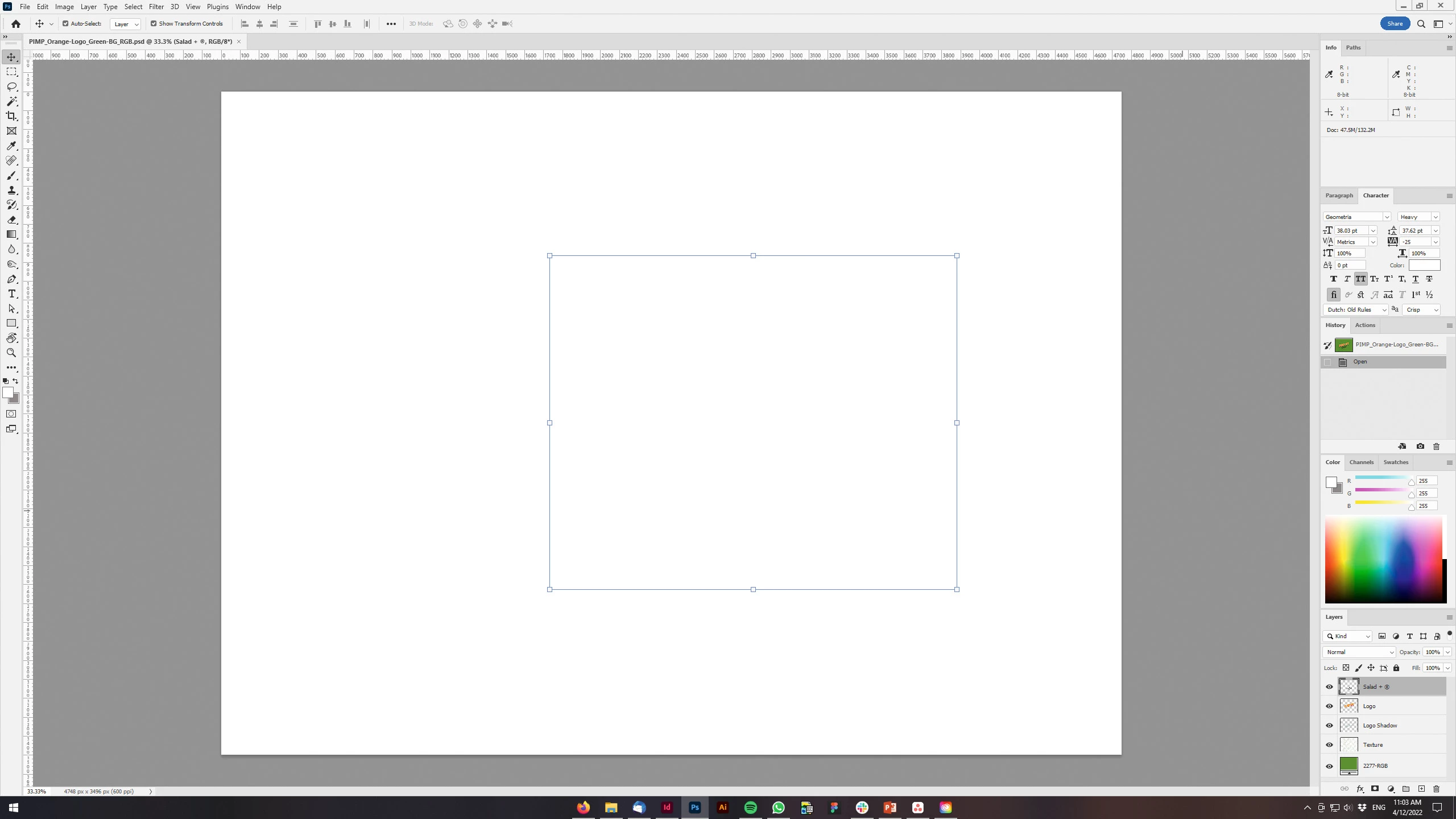
 

150 replies

Vincent60
Participant
April 12, 2022

Hi,

with the new update (23.3) creating a new layer with CTRL + J the program shows a new white layer instead of the copy of the background. Any suggestion?

Thanks in advance.

Vin

Ged_Traynor
Community Expert
Community Expert
April 12, 2022

Hi

Ctrl + J is working fine for me on Windows 10 with Photoshop version 23.3, try enabling this option in preferences and restarting Photoshop to see if it helps

Yustas240
Yustas240Author
Inspiring
April 12, 2022

Stephen... maybe.

I've found that might help and it works at least for now - roll back to the previous version 23.2.2

All fine now.

Stephen Marsh
Community Expert
Community Expert
April 12, 2022

Not in my experience, perhaps YMMV.


Check graphics drivers and GPU settings etc.

Yustas240
Yustas240Author
Inspiring
April 12, 2022

Thanks, helped a bit, files are opening, BUT it kills all the quality of the image.

Its NOT the solution.


Stephen Marsh
Community Expert
Community Expert
April 12, 2022

Preferences > Technology Preview > Deactivate native canvas

Participant
April 12, 2022

Hello,
I have just updated to the latest version of Photoshop (Version 23.3.0 from version 23.2.2) and now have an issue viewing my files. This is what the PSD file looks like in version 23.3.0


and what it should look like in version 23.2.2. Is anyone else having similar issues?

My operating system is Windows 10 64-bit.

Ged_Traynor
Community Expert
Community Expert
April 12, 2022

Hi

Try enabling this option in preferences and restarting Photoshop to see if it helps

Participant
April 12, 2022

I'm experiencing the same issue and the solution does not appear to still be valid in latest photoshop CS 2022 .  copy paste was working normally then suddenly it only pastes a white shape the size of the selection, it is no longer actually copying the object. help

Participating Frequently
April 12, 2022

You may be a much more advanced user than I was/am, and this advice might be ridiculously over-simple and miss the mark. But almost every struggle I've had in Photoshop could have been avoided if only someone had told me  "Make sure you're on the backgrpund layer." If you are accidentally on an adjustment layer when you hit copy, then what you paste will be a white canvas instead of an image. I may be way off base but I'm just telling you what I wish someone had told me.   

Participant
January 7, 2020

I just Updated my 2016 photoshop to 2020 and whenever I open any of my old photoshop files all of the levels and layers are there but nothing appears on the screen is just a white screen. How do i get my files to work again?

nikunj.m
Community Manager
Community Manager
January 7, 2020

Hi there,


We are sorry about the experience with Photoshop 2020.


Would you mind sharing the version of the operating system you are working with? You can try going to the Preferences of Photoshop, then Performance and uncheck the option to Use Graphics Processor? Once done, quit and relaunch Photoshop to check if that helps with the preview of the document.


Regards,

Nikunj

chadh37296825
Participant
January 23, 2020

That worked for me. I had exactly the same problem.

Participant
November 7, 2019

Hello. I just updated Photoshop 2020 and every time I open a file is all white. I can see my layers on the layers tab but can't display my layers on the workspace.

Has anyone encountered this problem?

Participant
November 12, 2019

I'm having the same issue. Fingers crossed this can be fixed asap.

Participant
December 28, 2017

Hi everyone. Strange issue here that I've never seen or heard of before. Windows 10, updated version of Photoshop CC 2018. Tried installing CC 2017 and 2015.5 and the same issue happened. When I open any image file (PNG, etc) it loads the file but nothing appears. I can see the layer in the layers panel, so it seems like it loaded, but nothing shows on the workspace screen. Imagine if you had moved the canvas off-screen - it's like that, except "fit on screen" and zooming in or out doesnt help. The same issue happens when I create a new project file. I see the artboard or layers panel, but nothing visually appears. I tried running the Creative Cloud cleaner tool, reinstalling, deleting preferences, everything. Disable GPU is hidden (Greyed out). Any ideas? Thanks!

LENOVO 20H50045US

S/N PF0ZWVE9

Intel(R) Core(TM) i5-7200U CPU @ 2.50GHz 2.70GHz, 512KB Level 2 cache

Intel(R) HD Graphics 620

R0DET86W (1.86 ) LENOVO - 860

8,192 MB RAM

SAMSUNG MZVLW256HEHP-000L7 238.47GB SCSI

December 28, 2017

Not sure if this will help but try disabling what's in red and put a check mark in Use Legacy "New Document" Interface

Restart PS

Participant
December 28, 2017

Thanks for the response! So, I actually had just tried that before you suggested it and it didn't work, but I did fix the issue! I had to go into advanced settings, change drawing mode from "advanced" to "basic", clicked ok and then unchecked "use graphics processor" — this fixed the issue. Any idea why that would have fixed it? The other issue I have is, the same thing is happening in Illustrator. Opened files and new documents are blank (no workspace). The preferences are obviously different, so I'm now trying to resolve that. Thanks again!